
1. Ro-ràdh
Welcome to your Philips Hue Secure Starter Kit. This kit provides an integrated smart lighting and home security solution, allowing you to monitor your home, receive alerts, and control your lighting from anywhere. This manual will guide you through the setup, operation, and maintenance of your Philips Hue Bridge, Wired Security Camera, Secure Contact Sensors, and A19 White & Color Ambiance Bulbs.
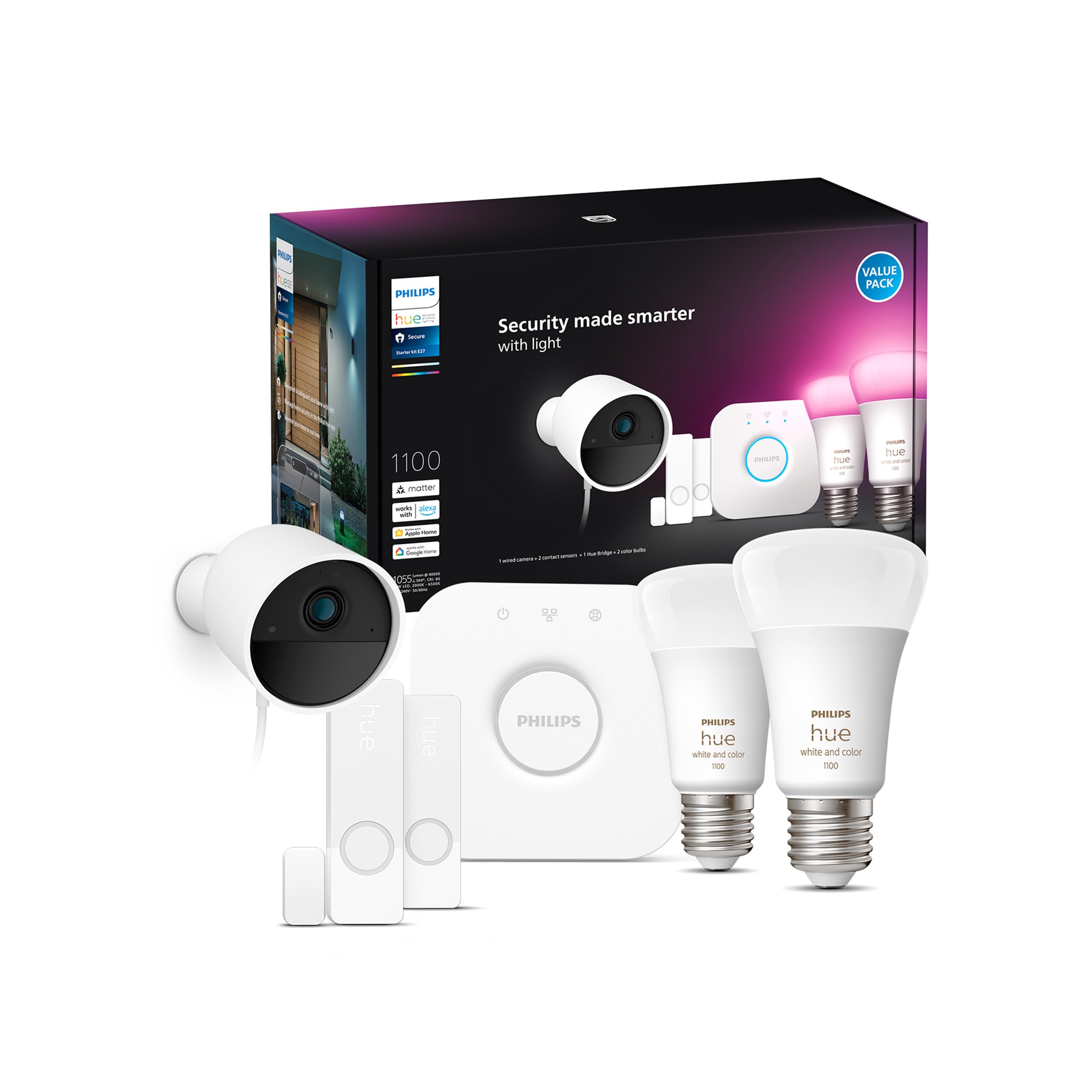
Figure 1: Philips Hue Secure Starter Kit components.
2. Suidhich
Follow these steps to set up your Philips Hue Secure Starter Kit.
2.1. Connect the Philips Hue Bridge
- Connect the Philips Hue Bridge to your Wi-Fi router using the provided Ethernet cable.
- Plug the power adapter into the Bridge and an electrical outlet.
- Wait for all three indicator lights on the Bridge to turn solid blue, indicating it's ready.
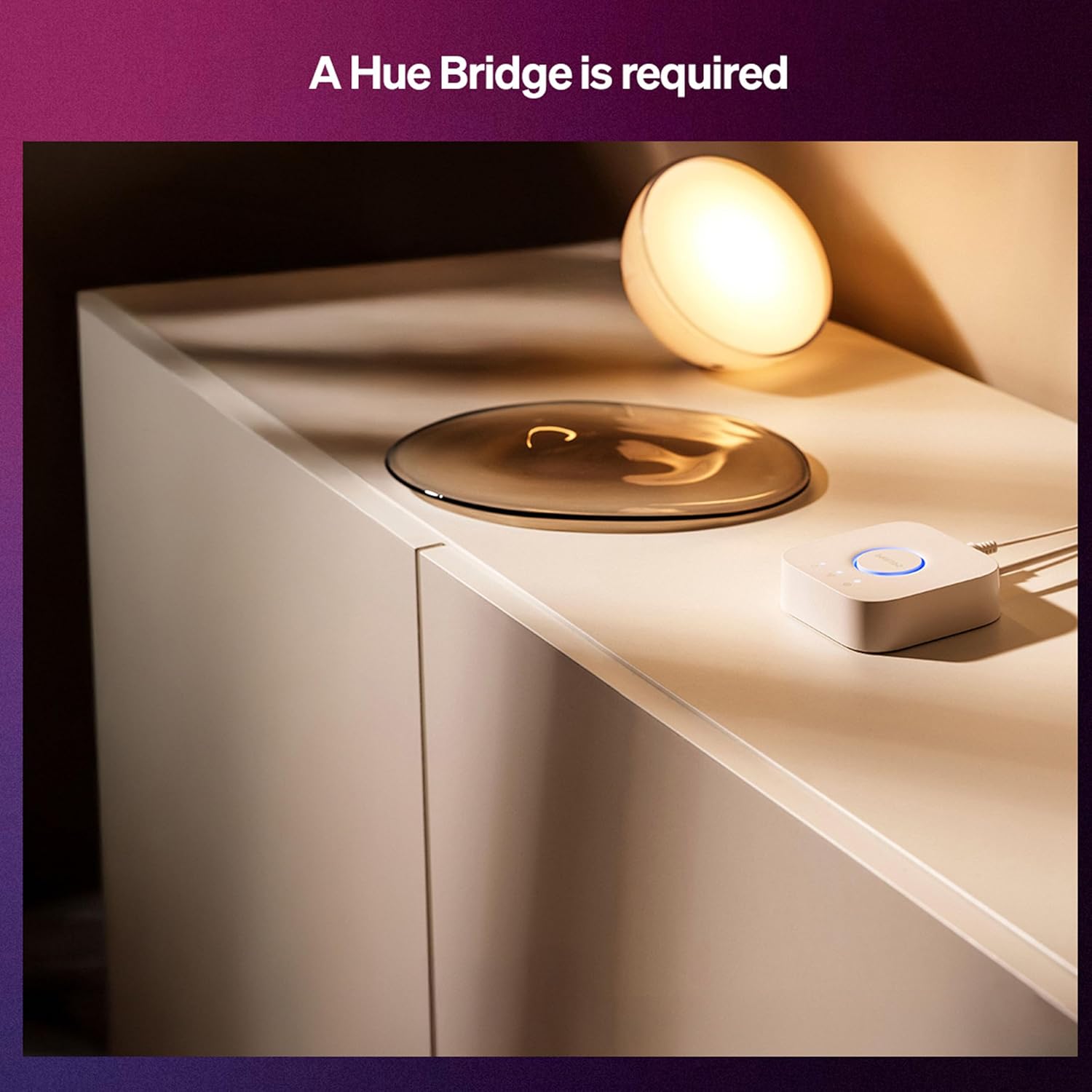
Figure 2: The Philips Hue Bridge, a central component for your smart home system.
2.2. Download the Philips Hue App
- Download the Philips Hue app from your smartphone's app store (iOS or Android).
- Open the app and follow the on-screen instructions to connect to your Hue Bridge.
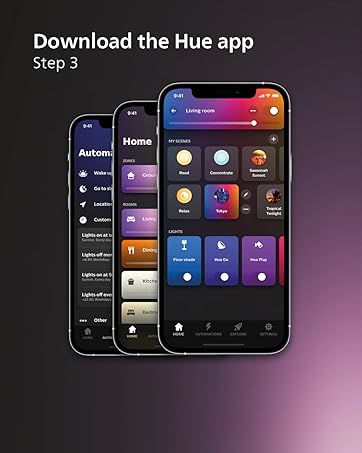
Figure 3: Download the Philips Hue app to control your devices.
2.3. Install A19 Bulbs
- Screw the A19 White & Color Ambiance Bulbs into standard E26 light sockets.
- Turn on the light switch. The bulbs should light up.
- In the Hue app, search for new lights to add them to your system.
2.4. Install Wired Security Camera
- Choose a suitable indoor or outdoor location for your camera. Ensure it has a clear view agus ruigsinneachd gu ionad cumhachd.
- Stàlaich an camara gu tèarainte a’ cleachdadh a’ bhathar-cruaidh a chaidh a sholarachadh.
- Ceangail an camara gu cumhachd.
- In the Hue app, add the camera and follow the pairing instructions.

Figure 4: Installation of the Philips Hue Secure Wired Camera.
2.5. Install Secure Contact Sensors
- Attach the main sensor unit to the door or window frame and the smaller magnet unit to the door or window itself. Ensure they are aligned and within the specified distance for detection.
- In the Hue app, add the contact sensors and follow the pairing instructions.

Figure 5: Proper placement of a Secure Contact Sensor on a door.
3. Operating Your Philips Hue Secure System
Your Philips Hue Secure system offers comprehensive control over your lighting and security features through the Hue app.
3.1. App Control and Monitoring
- Live Video Monitoring: Access real-time video feeds from your Wired Security Camera directly through the Hue app.
- Motion Notifications: Receive instant alerts on your phone when motion is detected by your camera or contact sensors.
- Còmhradh Dà-shligheach: Use the camera's speaker and microphone to communicate with visitors or deter intruders.
- Light and Sound Alarms: Trigger alarms directly from the app, activating flashing lights and loud sounds to deter unwanted guests.
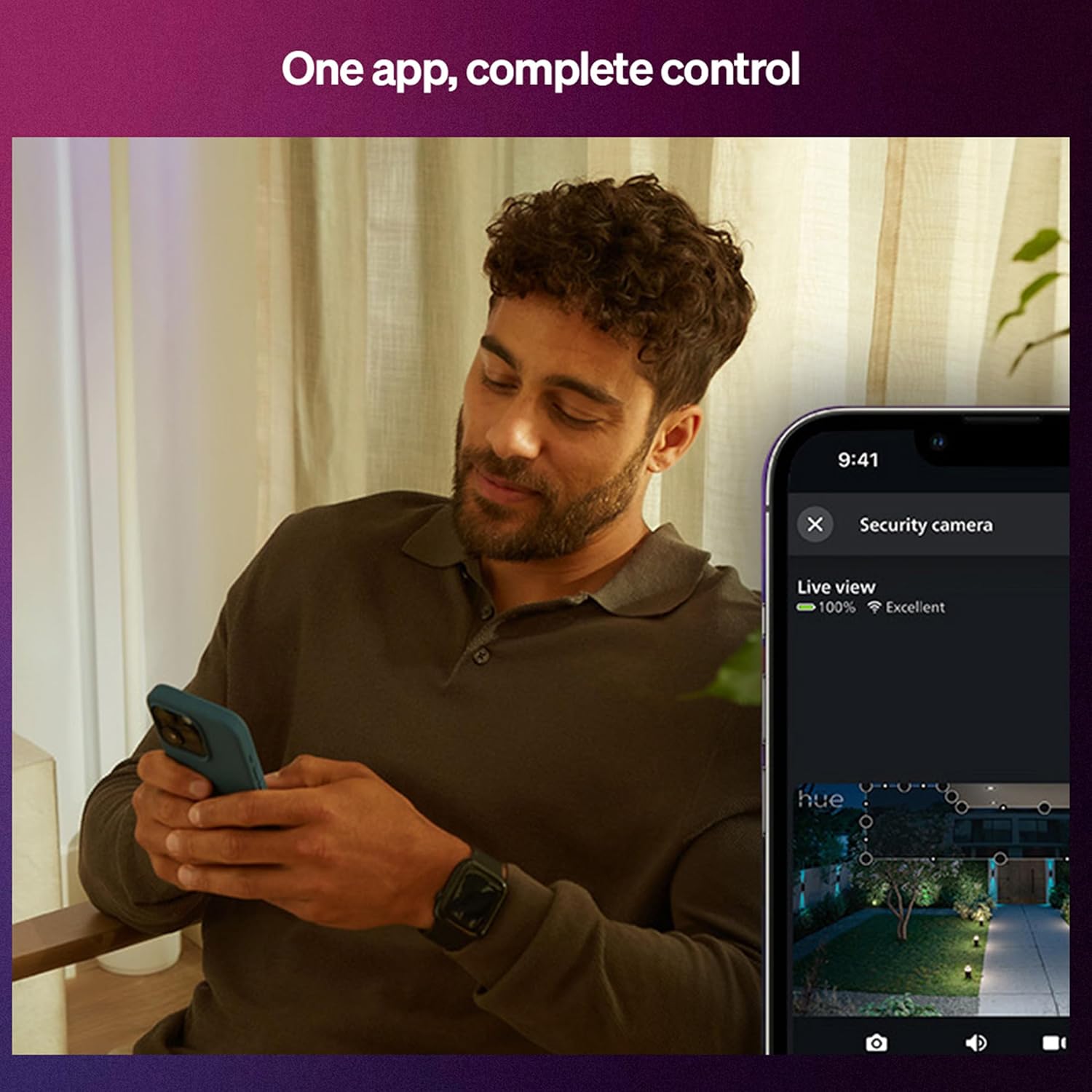
Figure 6: Monitoring live video and controlling your system via the Hue app.
3.2. Feartan tèarainteachd
- Sealladh na h-oidhche: The Wired Security Camera provides clear 1080p HD footage even in low-light conditions using infrared night vision.
- Solais Gnìomhaichte le Gluasad: Configure your Hue lights to turn on automatically when motion is detected by the camera or sensors.
- Mimic Presence: Schedule your lights to turn on and off randomly to create the illusion that someone is home, even when you're away.
- Siostam Armachd/Dì-armachd: Easily arm your security system when you leave and disarm it upon your return using the Hue app.
- 24-Hour Video History: Access the past 24 hours of video recordings from your Hue Secure cameras at no additional cost.

Figure 7: Night vision capabilities of the Philips Hue Secure Camera.

Figure 8: Mimic presence automation to deter intruders.
3.3. Optional Secure Plans
For enhanced features such as Activity Zones, AI-powered person/vehicle/package detection, and extended video history, consider subscribing to a Philips Hue Secure Plan. Details are available within the Hue app.

Figear 9: Os a chionnview of Philips Hue Secure Plans and their features.
3.4. Bhideothan Bathar Oifigeil
Philips Hue Secure Overview
Bhidio 1: Tha am bhidio seo a’ toirt seachad sealladh coitcheannview of the Philips Hue Secure system, highlighting its integration with lighting and security features.
Philips Hue Secure Wired Camera Features
Video 2: Learn more about the features and capabilities of the Philips Hue Secure Wired Camera, including motion detection and alerts.
4. Cumail suas
Proper maintenance ensures the longevity and optimal performance of your Philips Hue Secure system.
- Glanadh: Gently wipe the camera, sensors, and Bridge with a soft, dry cloth. Avoid using harsh chemicals or abrasive materials.
- Ùrachaidhean bathar-bog: Regularly check the Philips Hue app for firmware updates for your devices and the Bridge. Updates often include performance improvements and security enhancements.
- Sgrùdadh Ceangail: Periodically verify that your Hue Bridge is securely connected to your router and that all devices are online within the app.
5. A ’dèanamh trioblaid
If you encounter issues with your Philips Hue Secure Starter Kit, try the following solutions:
- Inneal nach eil a’ freagairt:
- Check power connections for the device and the Hue Bridge.
- Ensure the device is within range of the Hue Bridge.
- Restart the device by unplugging it for 10 seconds and plugging it back in.
- Gun cheangal eadar-lìn:
- Verify your router is working and has an active internet connection.
- Check the Ethernet cable connection between the Bridge and your router.
- Restart your router and the Hue Bridge.
- Cùisean Ceangail App:
- Ensure your smartphone is connected to the same Wi-Fi network as the Hue Bridge.
- Update the Philips Hue app to the latest version.
- Ath-stàlaich an aplacaid ma tha duilgheadasan ann fhathast.
- Rabhadh gluasad meallta:
- Adjust the camera's motion sensitivity settings in the Hue app.
- Define activity zones to ignore areas with frequent, non-threatening movement.
For further assistance, refer to the help section within the Philips Hue app or visit the official Philips Hue support weblàrach.
6. Sònrachaidhean
| Feart | Mion-fhiosrachadh |
|---|---|
| Brand | Philips Hue |
| Ainm Modail | 583815 |
| ASIN | B0CLBDYVXW |
| GTIN (UPC) | 046677583811 |
| Co-phàirtean air an toirt a-steach | 2x WCA 75W bulb, 1x bridge, 2x contact sensor white, 1x wired camera white |
| Seòrsa Solais | LED |
| Meud cumadh bulb | A19 |
| Bunait nam bulbaichean | E26 |
| Dètage (Bulb) | 8 watts (75 Watts equivalent) |
| Dath aotrom | White, Color |
| Feartan sònraichte | Weather Proof (camera), Motion Sensor, Brightness Control, Night Vision, Portable |
| Modh stàlaidh | Screw In (bulbs), Wall Mount (camera) |
| Meudan toraidh | 5.1 x 6.93 x 3 òirleach |
| Cuideam nì | 5.4 unnsa |
| Dèanadair | Comharraich Corporra Ameireagaidh a Tuath |
7. Barantas agus Taic
For warranty information, please refer to the documentation included with your product packaging or visit the official Philips Hue website. For technical support, FAQs, and additional resources, please visit the Philips Hue support page or contact customer service through the Hue app.