
1. Ro-ràdh
The BINIZE Android 13 CarPlay AI Box is an advanced multimedia video box designed to enhance your in-car entertainment and connectivity. It seamlessly converts your vehicle's OEM wired CarPlay or Android Auto system into a full-fledged Android 13 operating system, offering wireless CarPlay, wireless Android Auto, and access to a wide range of streaming applications.
Equipped with an 8-core processor, 8GB RAM, and 128GB ROM, this device ensures a fast, stable, and smooth user experience. It supports various control methods, including Siri voice control, steering wheel controls, and touch screen input, integrating perfectly with your vehicle's existing interface.
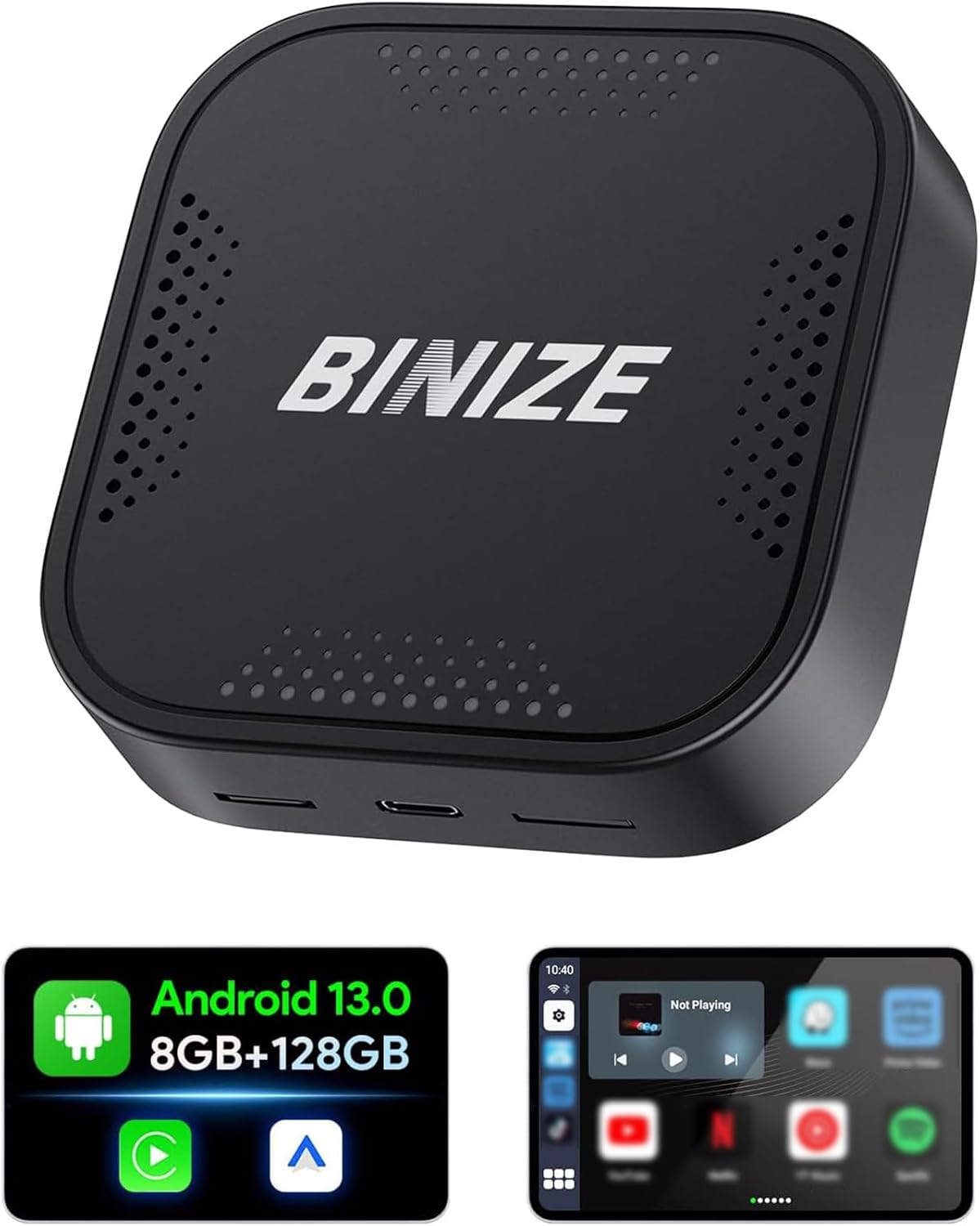
Figure 1.1: The BINIZE Android 13 CarPlay AI Box, a compact device designed to upgrade your car's infotainment system.
2. Prìomh fheartan
- Siostam-obrachaidh Android 13: Experience faster speeds and broad app compatibility with the latest Android 13 OS.
- CarPlay gun uèir & Android Auto: Convert your wired connection to wireless, reducing cable clutter and enhancing convenience.
- Coileanadh Àrd: Powered by a Qualcomm 8-core chip with 8GB RAM and 128GB ROM, ensuring responsive and continuous operation.
- Comasan ioma-mheadhain: Pre-installed streaming apps like Netflix and YouTube for entertainment on the go. Supports various audio and video formats.
- Plug & Play: Quick installation within 10 seconds, with automatic connection after initial setup.
- Bluetooth dùbailte: Connect Bluetooth accessories such as mice, remotes, OBD devices, and keyboards.
- Amalachadh Smachd Càr Tùsail: Maintain control via Siri voice commands, steering wheel buttons, knob controls, and the original touch screen.
- Stòradh a ghabhas leudachadh: SD card slot supports expansion up to 128GB (TF Card not included).
Figure 2.1: Visual representation of the Android 13 operating system with 8GB RAM and 128GB internal storage, highlighting its core specifications.

Figure 2.2: An in-car display demonstrating the seamless integration of Wireless CarPlay and Wireless Android Auto interfaces provided by the AI Box.
3. Stiùirich rèiteachaidh
- Co-fhreagarrachd carbaid: Ensure your vehicle has OEM wired CarPlay or Android Auto functionality. The BINIZE AI Box is compatible with approximately 99% of models that support these wired connections.
- Connect the AI Box: Plug the BINIZE AI Box into your car's USB port that supports wired CarPlay/Android Auto. The package includes two USB cables (USB-A to USB-C and USB-C to USB-C) to accommodate various vehicle ports.
- Power Supply (Toyota Series Note): For Toyota series vehicles, an additional split power supply line may be necessary. This is due to the less powerful USB ports in some Toyota models, requiring additional power and data from the cigarette lighter. Ensure adequate power supply for optimal performance.
- Paidhing tòiseachaidh: Once connected, the AI Box will automatically boot up. Follow the on-screen prompts on your car's display to pair your smartphone wirelessly via Bluetooth and Wi-Fi for Wireless CarPlay or Android Auto.
- Ceangal fèin-ghluasadach: After the first successful pairing, the AI Box will automatically connect to your phone when you start your vehicle.

Figure 3.1: Illustration of the simple Plug & Play setup, showing the AI Box connected to a car's USB port.
4. Stiùireadh Obrachaidh
4.1 CarPlay gun uèir / Android Auto
- Once connected, your car's display will show the Wireless CarPlay or Android Auto interface.
- Navigate using your car's original controls: touch screen, rotary knob, or steering wheel buttons.
- Activate voice commands using Siri (for CarPlay) or Google Assistant (for Android Auto) for hands-free operation.
4.2 Aplacaidean Sruthadh
- Connect the AI Box to a Wi-Fi network or your mobile hotspot to access pre-installed streaming apps like Netflix, YouTube, and more.
- Log in to your accounts within the apps to access your content.
- The device supports split-screen functionality, allowing you to run two applications simultaneously (e.g., navigation and video).

Figure 4.1: An in-car display showcasing the variety of built-in video applications available for entertainment during your journey.
4.3 Ceangal Bluetooth Dùbailte
- The dual Bluetooth feature allows connection to multiple Bluetooth devices simultaneously.
- Pair Bluetooth mice, remote controls, OBD devices, or keyboards for enhanced interaction with the Android system.
5. Cumail suas
To ensure the longevity and optimal performance of your BINIZE Android 13 CarPlay AI Box, follow these general maintenance guidelines:
- Cùm glan: Sguab an inneal gu cunbhalach le clò bog, tioram gus duslach agus lorgan-meòir a thoirt air falbh. Seachain ceimigean cruaidh no stuthan sgrìobach a chleachdadh.
- Smachd teòthachd: Do not expose the device to extreme temperatures (hot or cold) or direct sunlight for prolonged periods, as this can affect internal components.
- Stòradh ceart: When not in use for extended periods, store the device in a cool, dry place away from moisture.
- Cùram càball: Handle USB cables carefully. Avoid bending or crimping them excessively, which can damage the internal wires.
- Ùrachaidhean bathar-bog: Thoir sùil air an neach-dèanamh website or contact support for any available software updates to ensure the device runs with the latest features and bug fixes.
6. A ’dèanamh trioblaid
If you encounter issues with your BINIZE Android 13 CarPlay AI Box, refer to the following common troubleshooting steps:
- Gun chumhachd/Inneal gun tòiseachadh:
- Ensure the USB cable is securely connected to both the AI Box and the car's USB port.
- Verify that your car's USB port is active and providing power.
- For Toyota series vehicles, confirm that the additional split power supply line (if required) is correctly installed and providing sufficient power from the cigarette lighter.
- Gun cheangal gun uèir CarPlay/Android Auto:
- Dèan cinnteach gu bheil Bluetooth agus Wi-Fi an fhòn agad air an comasachadh.
- Delete previous pairings on both your phone and the AI Box, then attempt to re-pair.
- Confirm your car's OEM system supports wired CarPlay/Android Auto.
- Lag or Slow Performance:
- Close unnecessary background applications on the AI Box.
- Ensure a stable Wi-Fi connection if streaming content.
- Consider clearing the cache of frequently used apps.
- Cùisean Stàlaidh Aplacaidean:
- Ensure the AI Box is connected to the internet.
- Thoir sùil air an àite stòraidh a tha ri fhaighinn.
- If downloading from unofficial sources, ensure the APK file is compatible and not corrupted. Contact BINIZE support for installation files ma tha feum air.
- Gun toradh claisneachd:
- Check the volume levels on both the AI Box and your car's audio system.
- Ensure the correct audio source is selected on your car's head unit.
Mura rèitich na ceumannan seo an duilgheadas, thoir sùil air an earrann Taic airson tuilleadh cuideachaidh.
7. Sònrachaidhean
| Feart | Tuairisgeul |
|---|---|
| Modail Àireamh | BINIZE_AVR8G128 |
| Siostam-obrachaidh | Android 13 |
| Pròiseasar | Qualcomm 8-core chip |
| RAM | 8 GB |
| Stòradh a-staigh (ROM) | 128 GB |
| Stòradh a ghabhas leudachadh | SD card slot (up to 128GB, TF Card not included) |
| Teicneòlas ceangail | Wi-Fi (2.4G & 5G Signal Transmission), Bluetooth (Dual Bluetooth) |
| Innealan co-fhreagarrach | Cars with OEM Wired CarPlay/Android Auto |
| Seòrsa ceangail | USB (USB-A to USB-C & USB-C to USB-C cables included) |
| Modh Toraidh Fuaim | Stereo |
| Rèiteachadh Sianal Fuaim timcheall | 4.0 |
| Dath | Dubh |
| Meud pacaid | 10 x 4 x 4 òirleach |
| Cuideam nì | 4 unnsa |
| Ceann-latha Ri fhaighinn an-toiseach | 8 an Dàmhair, 2023 |
8. Barantas agus Taic
BINIZE is committed to providing excellent customer service and professional technical support for its products. While specific warranty details are not provided in this manual, it is recommended to:
- Check Manufacturer's Weblàrach: Visit the official BINIZE website or the product page on the retailer's site for the most up-to-date warranty information and terms and conditions.
- Neach-taice Fios: For technical assistance, troubleshooting beyond this manual, or warranty claims, please reach out to BINIZE customer support. Contact information can typically be found on the product packaging or the official BINIZE weblàrach.
- Goireasan air-loidhne: Additional resources, including FAQs and software updates, may be available on the BINIZE brand store: BINIZE Store on Amazon.