
Tera 8100Pro
Tera 8100Pro Wireless 2D QR Barcode Scanner User Manual
Model: 8100Pro | Brand: Tera
Ro-ràdh
The Tera 8100Pro Wireless 2D QR Barcode Scanner is a versatile and robust device designed for efficient barcode scanning in various environments. Featuring advanced connectivity options and a durable build, it provides reliable performance for businesses and individuals alike. This manual provides comprehensive instructions for setup, operation, maintenance, and troubleshooting.
Susbaint pacaid
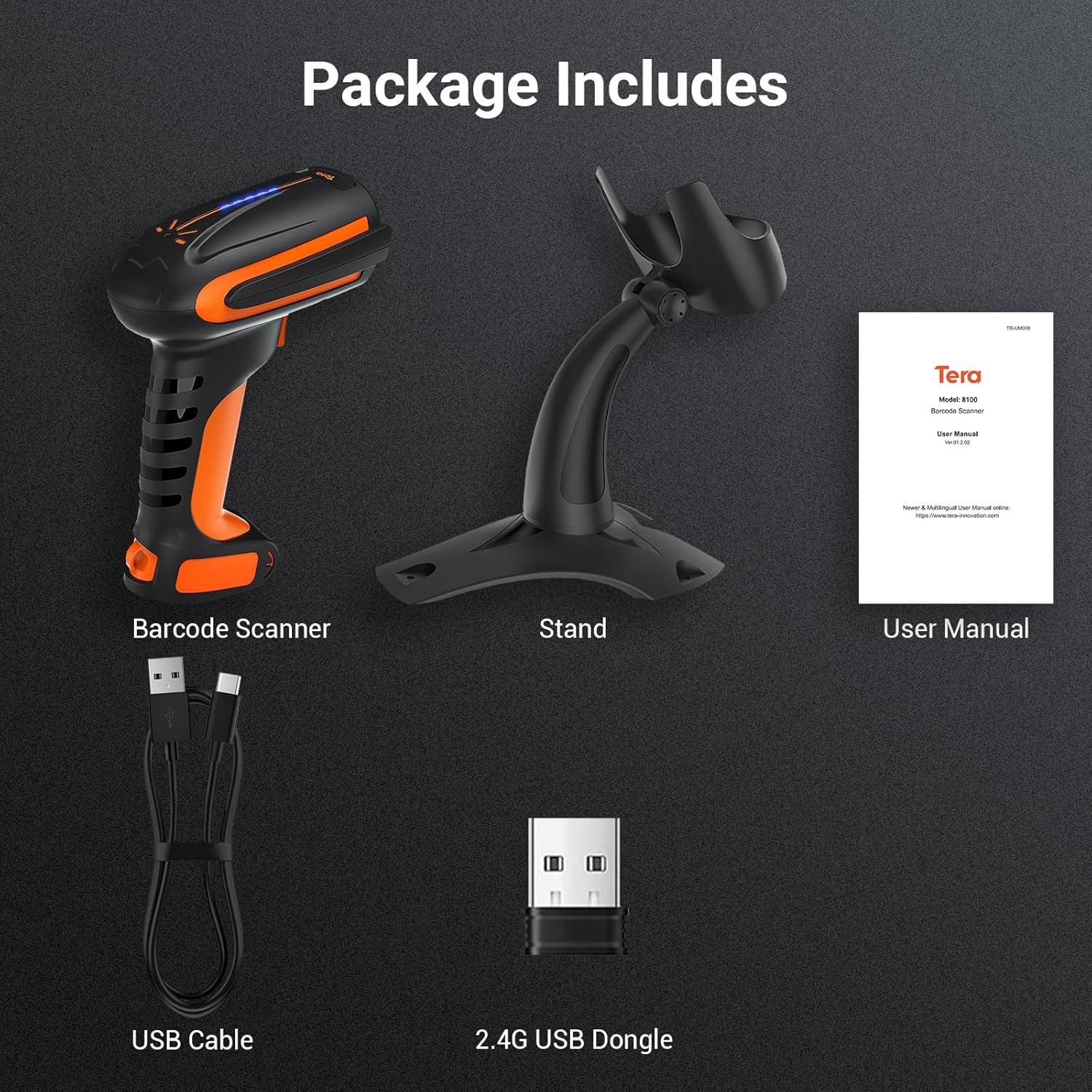
Nuair a dh’fhosglas tu am pasgan, dèan cinnteach gu bheil na nithean a leanas uile ann:
- Luchdaich a-nuas barcode scanner x1
- Barcode Scanner Stand x1
- Càball USB x1
- 2.4G USB Dongle x1
- Leabhar-làimhe cleachdaiche x1
Feartan
The Tera 8100Pro scanner is equipped with several advanced features to enhance user experience and operational efficiency:
- Comharra Ìre Bataraidh: The scanner features a new battery indicator light system. Each of the four indicator lights represents 25% of the 2500mAh battery capacity, allowing for easy monitoring and planning of usage.
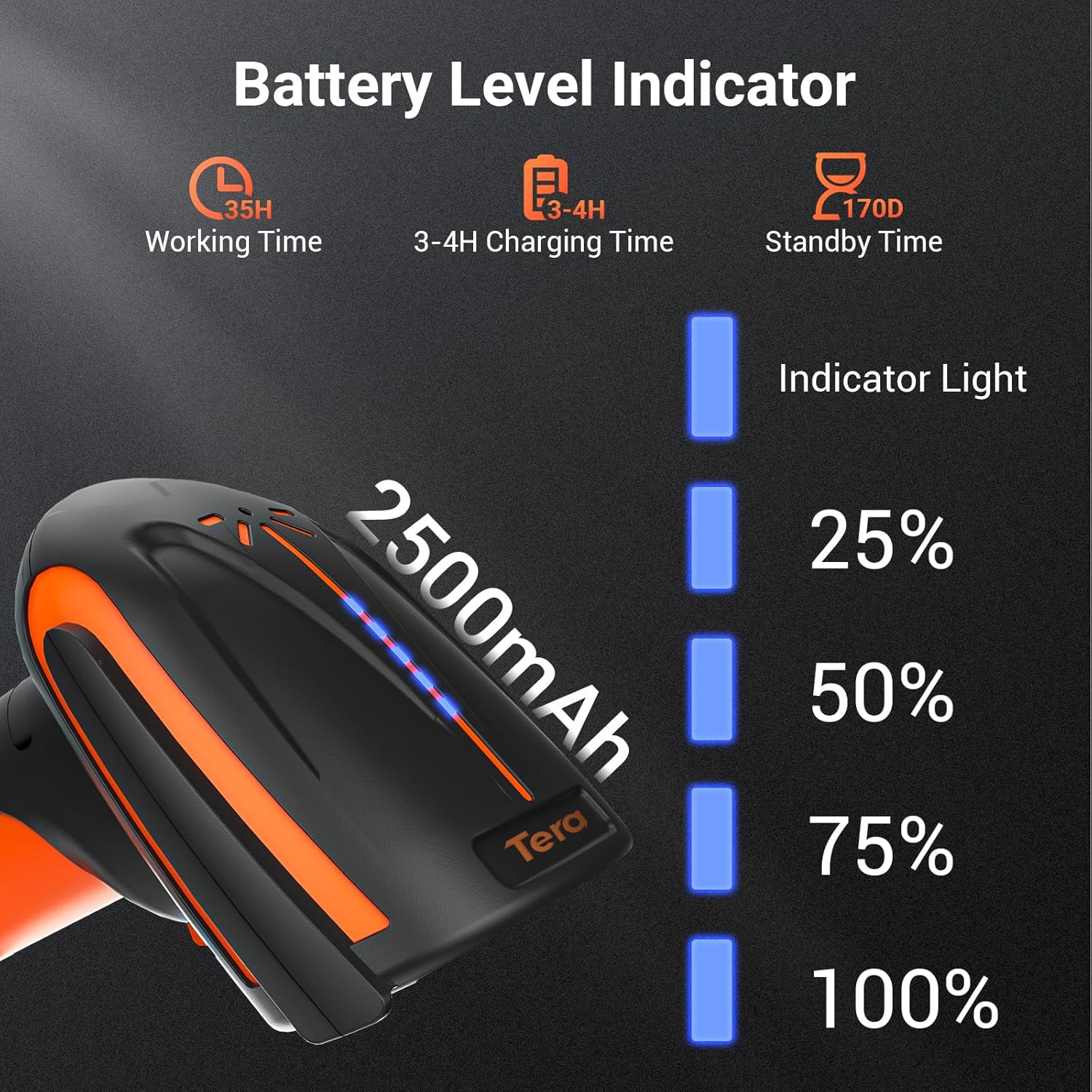
Figure 2: Battery Level Indicator on the Tera 8100Pro. - Seasmhachd Ìre Gnìomhachais: Designed for heavy-duty use, the 8100Pro is highly resistant to drops (up to 9.84ft), dust, and water, ensuring reliability in demanding environments.

Figure 3: Durability features of the Tera 8100Pro. - Superior Scanning Capabilities: This scanner can read various barcode types, including 1D, 2D, and QR codes, even if they are smudged, damaged, fuzzy, or reflective. It also excels at scanning barcodes directly from screens.

Figure 4: The Tera 8100Pro's advanced image scanning technology allows it to read barcodes from various surfaces and conditions, including damaged or reflective ones, unlike traditional laser scanners. - Ceangal 3-ann-1: Offers flexible connection options including Bluetooth, 2.4G wireless via USB dongle, and direct USB wired connection. The 2.4G wireless mode provides a transmission distance of up to 328 feet in open environments.

Figure 5: 3-in-1 Connectivity Options. - Co-fhreagarrachd farsaing: Compatible with a broad range of operating systems including Windows 11/10/8/7/XP, Mac OS, iOS, Android, and Linux.
- Vibration/Sound Alert: Users can switch between vibration and sound alerts for successful scans, providing flexibility for different working environments.
- Specific Symbology Setup: Allows for advanced customization, such as editing data (e.g., deleting characters or adding tabs) for specific barcode types like Code 39, while leaving others unedited.
- Obrachadh gun làmhan: Includes a stable, adjustable stand for hands-free scanning, improving efficiency in high-volume scanning tasks.

Figure 6: Hands-Free Scanning with the Adjustable Stand.
Suidhich
1. A’ cur cosgais air an sganair
Before first use, fully charge the scanner. Connect the provided USB cable to the scanner's charging port and the other end to a USB power adapter (not included) or a computer's USB port. The battery indicator lights will show charging progress.
2. A’ ceangal an sganair
The Tera 8100Pro offers three connection methods:
Ceangal USB Wired:
- Ceangail an càball USB gu dìreach bhon sganair gu port USB a’ choimpiutair agad.
- The scanner will be recognized as a HID keyboard device. No driver installation is typically required.
Ceangal gun uèir 2.4G:
- Insert the 2.4G USB dongle into an available USB port on your computer.
- Turn on the scanner. It should automatically pair with the dongle. If not, refer to the user manual for pairing instructions (usually involves scanning a specific pairing barcode).
Ceangal Bluetooth:
- Ensure your device (smartphone, tablet, computer) has Bluetooth enabled.
- Put the scanner into Bluetooth pairing mode (refer to the included user manual for the specific barcode to scan for Bluetooth pairing).
- On your device, search for Bluetooth devices and select "Tera 8100Pro" (or similar name) to connect.
Ag obrachadh an sganair
Modhan sganaidh:
The Tera 8100Pro supports two primary scanning modes:
- Modh prìomh adhbharachaidh: Press the trigger button to activate the scan beam and read a barcode. Release the button to stop scanning.
- Modh scan leantainneach: The scanner continuously emits a scan beam, automatically reading any barcode placed in its path. This mode is ideal for hands-free operation with the stand.

Basic Scanning Procedure:
- Stiùirich uinneag an sganair ris a’ chòd-barra a tha thu airson a sganadh.
- Ensure the scan beam covers the entire barcode.
- Press the trigger (or place the barcode in the beam for continuous mode).
- A successful scan will be indicated by a beep or vibration (depending on your settings) and the data will be transmitted to your connected device.
Roghainnean adhartach:
The scanner can be configured by scanning specific setup barcodes found in the full user manual (PDF). These settings include:
- Adjusting sound volume or switching to vibration mode.
- Adding prefixes or suffixes to scanned data.
- Enabling or disabling specific symbologies.
- Switching between Storage Mode (data stored internally, then uploaded) and Instant Upload Mode (data transmitted immediately).
Cumail suas
Proper maintenance ensures the longevity and optimal performance of your Tera 8100Pro barcode scanner:
- Glanadh: Use a soft, dry, lint-free cloth to clean the scanner's exterior. For the scanning window, use a lens cleaning cloth and a mild, non-abrasive cleaner if necessary. Avoid harsh chemicals or abrasive materials.
- Stòradh: Nuair nach eilear ga chleachdadh, stòraich an sganair ann an àite fionnar, tioram air falbh bho sholas dìreach na grèine agus teòthachd anabarrach.
- Cùram Bataraidh: Gus beatha a’ bhataraidh a leudachadh, seachain a bhith a’ dì-luchdachadh a’ bhataraidh gu tric. Ma bhios tu ga stòradh airson ùine mhòr, cuir cosgais air a’ bhataraidh gu timcheall air 50% agus ath-luchdaich e a h-uile beagan mhìosan.
- Seachain Drops: While the scanner is drop-proof, repeated severe impacts can still cause damage. Handle with care.
Fuasgladh thrioblaidean
If you encounter issues with your Tera 8100Pro barcode scanner, refer to the following common problems and solutions:
| Trioblaid | Adhbhar a dh’fhaodadh a bhith ann | Fuasgladh |
|---|---|---|
| Scanner not turning on. | Bataraidh ìosal no às aonais bataraidh. | Charge the scanner for at least 3-4 hours. |
| Scanner not connecting to device. | Incorrect connection mode, out of range, or pairing issue. | Ensure correct mode (USB, 2.4G, Bluetooth) is selected. Move closer to the receiver/device. Re-pair the scanner following the manual's instructions. |
| Chan eil an sganair a’ leughadh chòdan-barra. | Barcode damaged, poor lighting, incorrect symbology enabled, or dirty scanning window. | Try scanning a different, clear barcode. Ensure adequate lighting. Check symbology settings in the full user manual. Clean the scanning window. |
| Tha an dàta a chaidh a sganadh ceàrr no neo-choileanta. | Prefix/suffix settings enabled, or data editing rules applied. | Refer to the full user manual to disable or adjust prefix/suffix settings and data editing rules. |
Sònrachaidhean
| Feart | Mion-fhiosrachadh |
|---|---|
| Meudan toraidh | 9 x 5.3 x 3.7 òirleach |
| Cuideam nì | 1.52 not |
| Bataraidh | 1 bataraidh lithium polymer (2500mAh) |
| Teicneòlas ceangail | Bluetooth, gun uèir 2.4G, càball USB |
| Innealan co-fhreagarrach | Laptop, Desktop, Tablet, Smartphone |
| Siostaman-obrachaidh | Windows 11/10/8/7/XP, Mac OS, iOS, Android, Linux |
| Dèanadair | Tera |
| Dùthaich Tùs | Sìona |
Bhidio Oifigeil Bathar
Tha am bhidio seo a’ toirt sealladh farsaingview of the Tera 8100Pro Barcode Scanner, demonstrating its features and functionality.
Barantas agus Taic
For detailed warranty information and technical support, please refer to the official Tera website or the full User Manual PDF provided with your product. You can also find the digital version of the user manual at: Tera 8100Pro User Manual (PDF).
For further assistance, please contact Tera customer support through their official channels.