
1. Toradh thallview
Thank you for choosing the PDP AIRLITE GLOW Wired Headset. This headset is designed to provide an immersive audio experience and clear communication for gaming on Xbox Series X|S, Xbox One, and Windows 10/11 PC. Its lightweight design and comfortable earcups ensure extended use without discomfort.
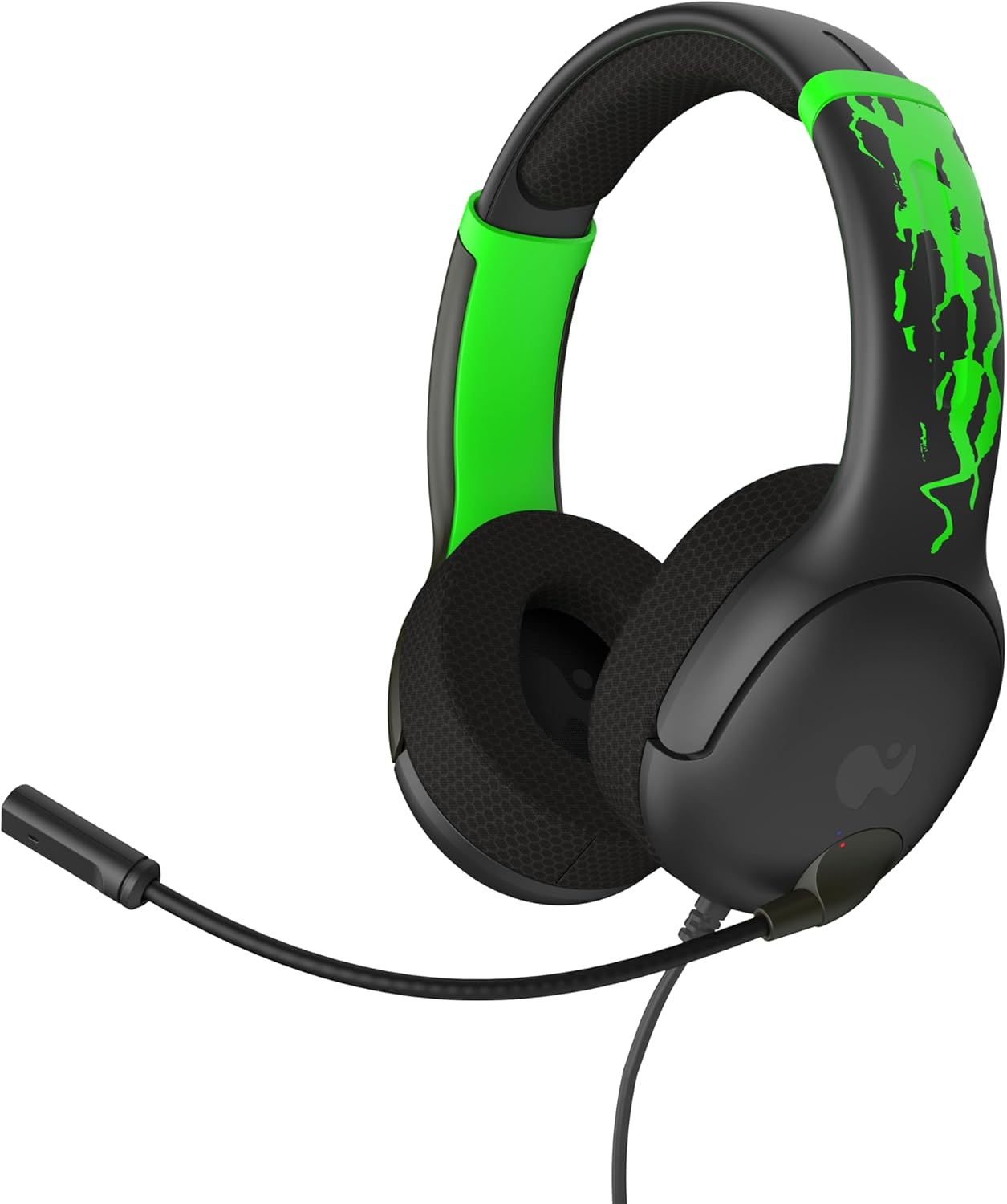
Figear 1: Aghaidh view of the PDP AIRLITE GLOW Wired Headset.
Prìomh fheartan:
- Unique design glows in the dark after exposure to light (for best results use UV light).
- Lightweight construction (7 oz) and soft padded earcups for all-day comfort.
- 40mm drivers with fine-tuned audio for immersive gameplay.
- Sleek, noise-canceling mic with flip-to-mute feature.
- Officially licensed by Xbox.
2. Stiùireadh Stèidheachaidh
The PDP AIRLITE GLOW Wired Headset connects directly to your gaming controller or compatible device via a 3.5mm audio jack.
Connecting to an Xbox Controller:
- Ensure your Xbox console and controller are powered on.
- Locate the 3.5mm audio jack port on the bottom of your Xbox controller.
- Insert the 3.5mm audio plug from the headset firmly into the controller's audio jack.
- The headset should now be connected and ready for use. You may need to adjust audio settings on your Xbox console or controller for optimal sound and microphone levels.
Connecting to PC (Windows 10/11):
- Locate the 3.5mm audio jack on your PC. If your PC has separate ports for microphone and headphones, you may need a 3.5mm splitter (not included).
- Insert the 3.5mm audio plug from the headset into the combined audio jack or the appropriate headphone/microphone jacks.
- Access your PC's sound settings to ensure the headset is selected as the default input and output device. Adjust volume and microphone levels as needed.
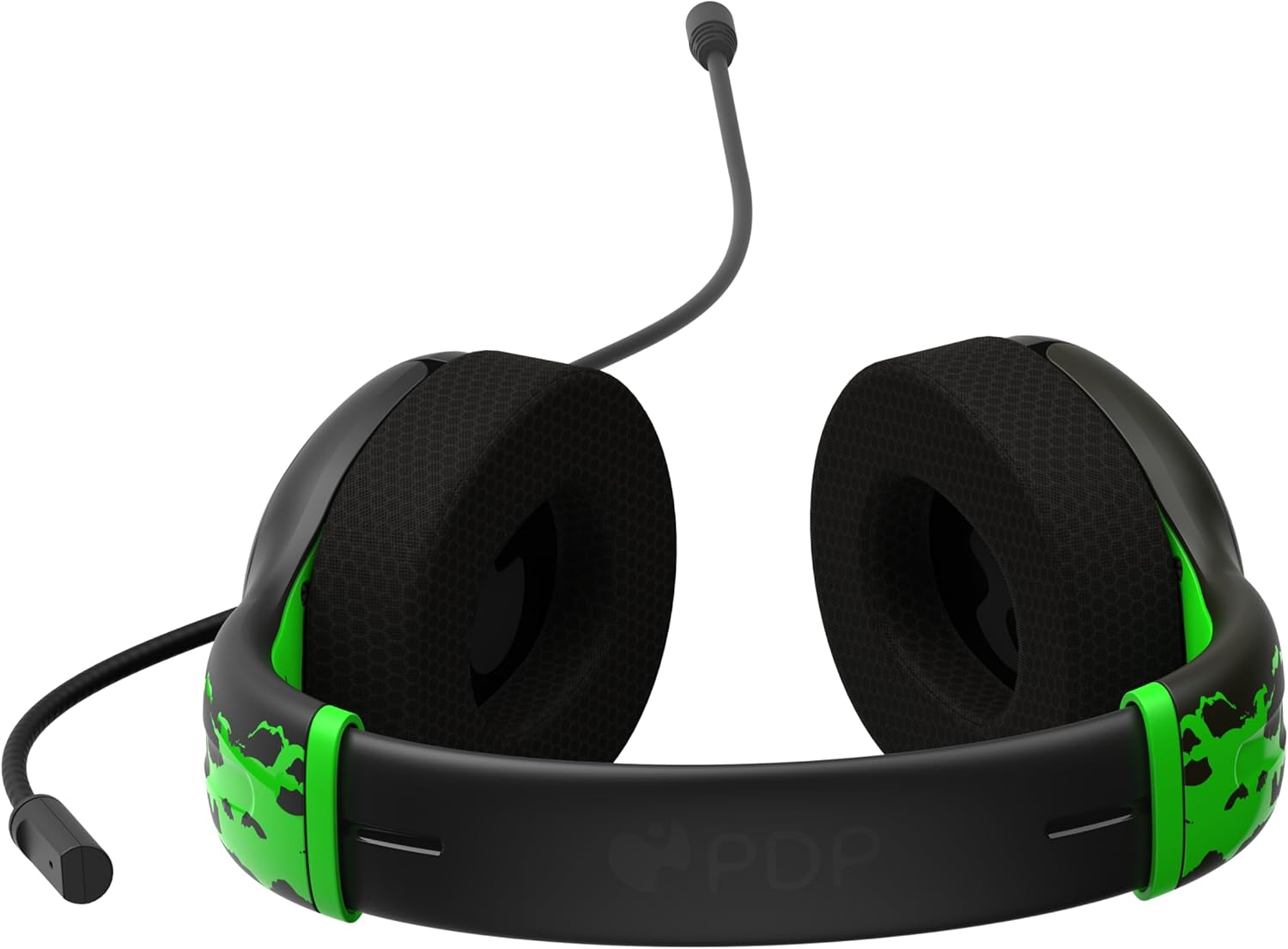
Figure 2: The 3.5mm audio jack for connecting the headset.
3. Stiùireadh Obrachaidh
Gnìomhachd microfòn:
- Flip-gu-Mut: The headset features a convenient flip-to-mute microphone. To mute your microphone, simply flip the microphone boom arm upwards until it clicks into the vertical position. To unmute, flip the microphone boom arm back down to the speaking position.
- Micreofon atharrachail: The microphone arm is flexible and can be adjusted to your preferred speaking distance for optimal voice clarity.
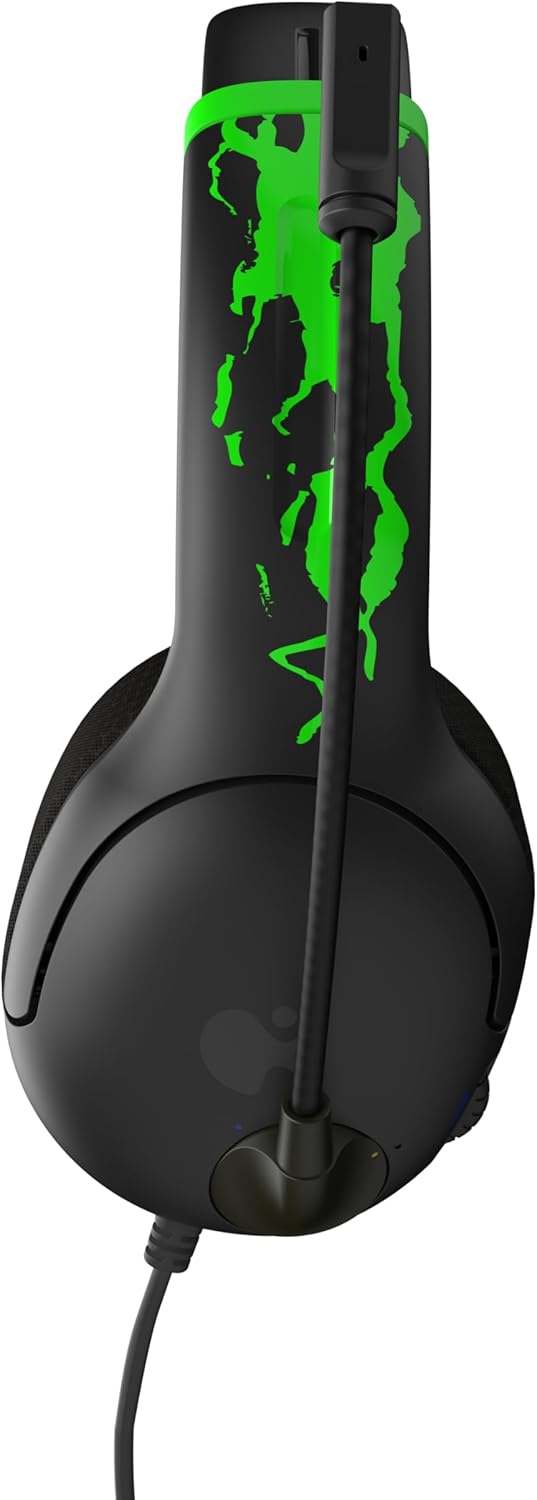
Figure 3: Microphone in the muted (upright) position.
Smachd tomhas-lìonaidh:
- The headset includes an on-ear volume control dial. Rotate the dial to increase or decrease the audio volume to your desired level.

Figure 4: Volume control dial located on the earcup.
Adjusting Headset Fit:
- The headband is adjustable. Gently slide the earcups up or down to find a comfortable and secure fit on your head.

Figure 5: Adjustable headband for a personalized fit.
4. Cùram agus Cumail suas
- Glanadh: Cleachd clò bog, tioram airson na headset a ghlanadh. Seachain ceimigean cruaidh no stuthan sgrìobach a chleachdadh.
- Stòradh: Stòraich na headset ann an àite fionnar, tioram air falbh bho sholas dìreach na grèine agus teòthachd anabarrach.
- Cùram càball: Seachain lùbadh no tionndadh geur a’ chàball gus casg a chuir air milleadh a-staigh.
- Feart Glòir: For optimal glow effect, expose the headset's glow-in-the-dark elements to a light source (preferably UV light) before use in dark environments.
5. A ’dèanamh trioblaid
| Trioblaid | Fuasgladh |
|---|---|
| Chan eil fuaim bho headset. |
|
| Microphone nach eil ag obair. |
|
| Headset feels uncomfortable. |
|
6. Sònrachaidhean Bathar
| Feart | Mion-fhiosrachadh |
|---|---|
| Ainm Modail | AIRLITE GLOW |
| Modail Àireamh | 049-015-JGR |
| Brand | PDP |
| Teicneòlas ceangail | Uèirleichte (Seacaid 3.5 mm) |
| Innealan co-fhreagarrach | Xbox Series X|S, Xbox One, Windows 10/11 PC, Gaming Consoles, Desktops, Laptops |
| Seòrsa fuaim driver | Draibhear Fiùghantach (40mm) |
| Micreofon | Noise-canceling, Flip-to-mute |
| Seòrsa smachd | Volume Control (on-ear dial) |
| Cuideam nì | 0.018 ounces (approximately 7 oz as per feature bullet) |
| Stuth | Plastaig |
| Feart sònraichte | Lightweight, Glow-in-the-dark design |
7. Barantas agus Taic
Airson fiosrachadh barantais agus taic luchd-cleachdaidh, thoir sùil air an PDP oifigeil weblàrach-lìn no cuir fios chun t-seirbheis teachdaiche aca gu dìreach. Cùm dearbhadh do cheannach airson tagraidhean barantais sam bith.
Taic air-loidhne: Tadhail air an Bùth PDP air Amazon airson tuilleadh fiosrachaidh mu thoraidhean agus goireasan taic.
8. Bhideothan Bathar
AIRLITE GLOW Wired Headset for Xbox: Jolt Green 3D Video
This video provides a 3D view of the PDP AIRLITE GLOW Wired Headset in Jolt Green, showcasing its design and features. Note: This is a short preview bhidio.
PDP Licensed Gaming Accessories Xbox Nintendo Playstation
An còrrview taisbeanadh bhidioasing various PDP licensed gaming accessories for Xbox, Nintendo, and PlayStation, including the AIRLITE GLOW headset.