
1. Ro-ràdh
The AUSDOM Airkey84 is a compact 75% mechanical keyboard designed for versatility and comfort. It features an 84-key layout, retaining essential arrow and function keys while saving desktop space. This keyboard offers triple connectivity modes: USB-C wired, Bluetooth 3.0/5.0, and 2.4GHz wireless, allowing connection to up to four devices. Equipped with low-profile brown switches, it provides a tactile typing experience suitable for both office work and gaming. The keyboard also includes 14 white LED backlight modes and is compatible with both Mac OS and Windows operating systems.
2. Dè tha sa bhogsa
- 1 x Ìosal-profile Meur-chlàr meacanaigeach
- 1 x càball USB
- 1 x Glacadair USB
- 1 x Leabhar-làimhe Cleachdaiche
- 3 x Extra Keycaps for Windows
3. Suidhich
3.1 Modhan Ceangail
The AUSDOM Airkey84 supports three connection methods: Bluetooth, 2.4GHz wireless, and USB-C wired. It can connect to up to four devices simultaneously and switch between them.

Image: The keyboard supports 2.4G, Bluetooth, and Wired connections, enabling multi-device pairing.
3.1.1 Bluetooth Connection Mode
- Turn the power button on the keyboard to ON.
- Brùth agus cùm an Fn + BT1 keycaps for 3-5 seconds. The keyboard will enter pairing mode, and the keys' backlight indicator will flash rapidly.
- On your device (e.g., computer, tablet, smartphone), turn on its Bluetooth function. Lorg airson and select "AUSDOM Airkey84" to pair.
- Repeat steps 2 and 3 for BT2 and BT3 to connect up to three Bluetooth devices.
3.1.2 2.4GHz USB Connection Mode
- Turn the power button on the keyboard to ON.
- Brùth an Fn+4 key once to switch to 2.4GHz USB connection mode.
- Plug the USB receiver into your device's USB port. The keyboard should connect automatically.
3.1.3 Modh Uèirle USB-C
- Turn the power button on the keyboard to AIRSON.
- Connect the keyboard to your device using the provided USB-C cable. The keyboard will automatically switch to wired mode.

Image: The keyboard connected via USB-C cable, also showing its rechargeable capability.
3.2 Co-fhreagarrachd
The keyboard is compatible with both Mac OS and Windows operating systems. Three extra keycaps are provided for Windows users to customize their layout.
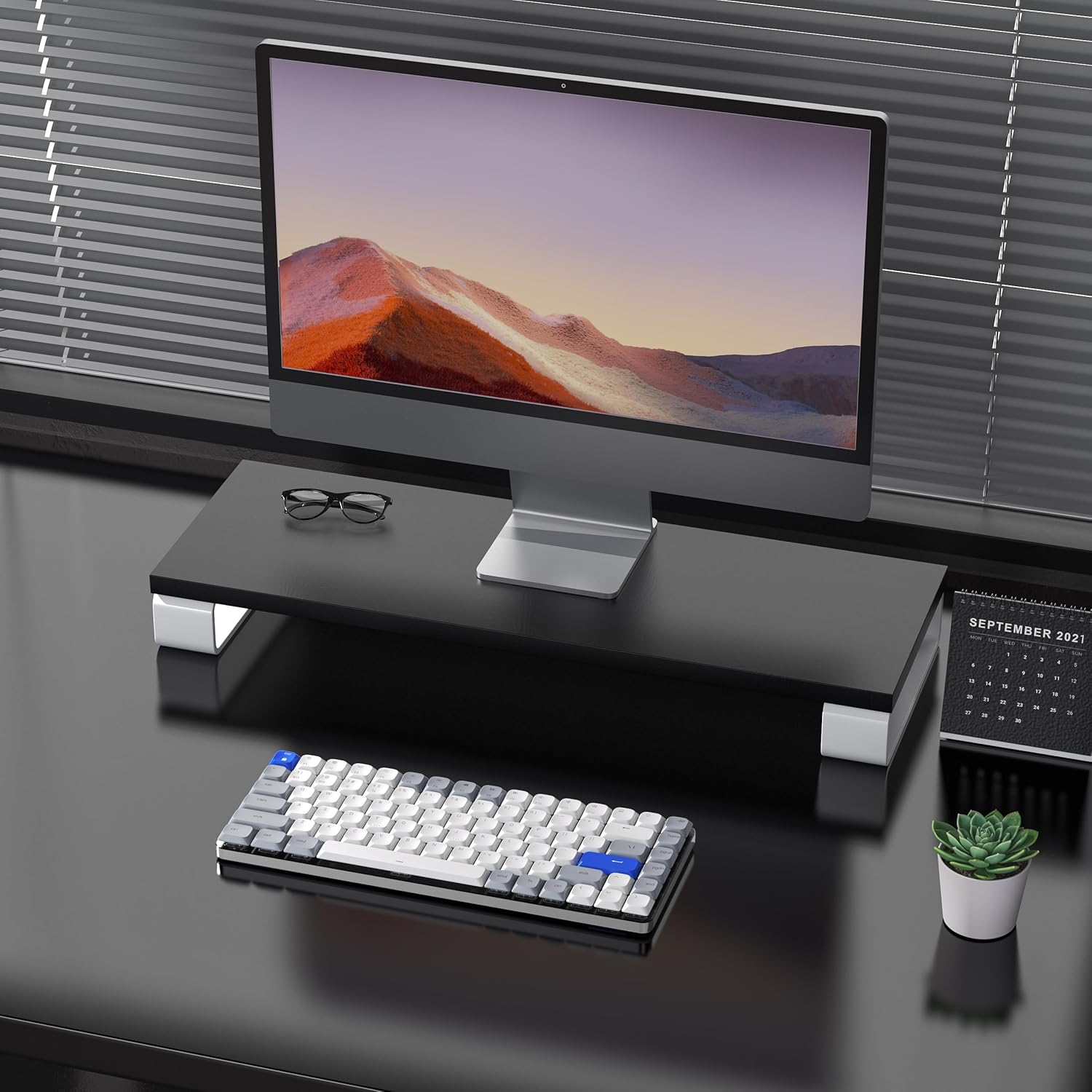
Image: The keyboard is compatible with both Mac and Windows systems, and includes extra keycaps for Windows users.
4. Stiùireadh Obrachaidh
4.1 smachd backlight
The keyboard features 14 different white LED backlight modes. To cycle through these modes, press the dedicated lightbulb button located in the top right corner of the keyboard. The keycaps are laser-engraved to ensure clear visibility of characters with the backlight on.

Image: The keyboard displaying its white backlight with 14 different lighting options.
4.2 Seas a ghabhas atharrachadh
The keyboard is equipped with two adjustable stands on the back. These stands allow you to set the keyboard at a comfortable typing angle (e.g., 3 or 6 degrees) to reduce wrist strain during extended use.

Image: The keyboard's ultra-slim aluminum frame and ergonomic design with adjustable feet.
4.3 Ìosal-Profile Brown Switches
The keyboard utilizes low-profile brown switches, which offer a tactile bump without a loud click. This design provides a comfortable and responsive typing experience, ideal for both fast typing and gaming.

Image: A close-up of the low-profile brown switches, highlighting their design for comfortable and effortless typing.
5. Cumail suas
5.1 Glanadh
- To clean the keyboard, power it off and disconnect any cables.
- Cleachd clò bog, gun lint beagan dampnigh le uisge no le fuasgladh glanaidh tlàth gus na ceapan-iuchrach agus an uachdar a sguabadh às.
- Airson duslach is sprùilleach eadar iuchraichean, cleachd èadhar teannaichte.
- Avoid using harsh chemicals or abrasive materials, as these can damage the keyboard's finish or keycap legends.
5.2 Cùram Bataraidh
- The keyboard has a built-in 2000 mAh rechargeable battery.
- Charge the keyboard using the provided USB-C cable.
- Gus beatha bataraidh a leudachadh, seachain a bhith ga leigeil ma sgaoil gu tur gu tric.
- Ma tha thu a’ stòradh a’ mheur-chlàir airson ùine mhòr, cuir cosgais air gu timcheall air 50% mus tèid a stòradh.
6. A ’dèanamh trioblaid
6.1 Duilgheadasan Ceangail
- Chan eil am meur-chlàr a’ ceangal tro Bluetooth: Ensure the keyboard is in Bluetooth pairing mode (flashing backlight). Check your device's Bluetooth settings and ensure it's discoverable. Try forgetting the device and re-pairing.
- 2.4GHz wireless not working: Ensure the USB receiver is securely plugged into a working USB port. Confirm the keyboard is switched to 2.4GHz mode (Fn + 4). Try a different USB port.
- Wired connection issues: Ensure the USB-C cable is fully inserted into both the keyboard and the device. Try a different USB-C cable or port. Ensure the keyboard's power switch is in the OFF position for wired mode.
6.2 Solas-cùil gun a bhith ag obair
- Dèan cinnteach gu bheil bataraidh a’ mheur-chlàir làn-chumhachd.
- Press the backlight control button (lightbulb icon) to cycle through modes or turn the backlight on/off.
6.3 Iuchraichean gun fhreagairt
- Check the connection mode and ensure it's properly established.
- Ath-lìon am meur-chlàr ma tha am bataraidh ìosal.
- Try connecting the keyboard via USB-C wired mode to rule out wireless interference or battery issues.
- If specific keys are not responding, gently remove the keycap and check for any obstructions or debris around the switch.
7. Sònrachaidhean
| Feart | Mion-fhiosrachadh |
|---|---|
| Modail Àireamh | Airkey84 |
| Meudan toraidh | 12.13 x 183070.97 x 0.94 òirleach |
| Cuideam nì | 1.03 not |
| Dèanadair | AUSDOM |
| Bataraidhean | 1 bataraidh lithium polymer a dhìth (air a ghabhail a-steach) |
| Innealan co-fhreagarrach | Laptop, PC, Fòn-làimhe, Clàr |
| Teicneòlas ceangail | Bluetooth, gun uèir 2.4GHz, uèirleasach USB-C |
| Tuairisgeul meur-chlàr | Meacanaigeach, Ìosal Profile, 75% Layout |
| Feart sònraichte | Backlit, Low-Profile Iuchair, Ath-luchdaichte |
| Backlighting meur-chlàr | White LED, Single Color, 14 Modes |
| Stuth | Acrylonitrile Butadiene Styrene, Aluminum, Silicone |
8. Barantas agus Taic
For warranty information, technical support, or any product-related inquiries, please contact AUSDOM customer service through the official AUSDOM store or the platform where the product was purchased. Please refer to your purchase documentation for specific warranty terms and conditions.
You can visit the official AUSDOM store for more information: AUSDOM Store


