
TESLA 65E635SUS
Tesla 65-inch 4K UHD Smart TV User Manual
Model: 65E635SUS
Ro-ràdh
This manual provides essential instructions for setting up, operating, maintaining, and troubleshooting your new Tesla 65-inch 4K UHD Smart TV (Model 65E635SUS). Please read this manual thoroughly before using the television to ensure proper operation and to maximize your viewann an eòlas. Cùm an leabhran seo airson iomradh san àm ri teachd.
Fiosrachadh Sàbhailteachd Cudromach: Always follow basic safety precautions when using this product to reduce the risk of fire, electric shock, and injury. Do not attempt to service this product yourself. Refer all servicing to qualified service personnel.
1. Suidhich
1.1 Unpacking and Contents Check
Thoir an telebhisean a-mach às a phacaid gu faiceallach. Dèan cinnteach gu bheil a h-uile pàirt ann:
- Tesla 65-inch 4K UHD Smart TV
- Smachd Iomallach
- Bataraidhean AAA airson smachd iomallach
- Seasamh Tbh (2 phìos)
- Sgriothan airson Seasamh Tbh
- Corda cumhachd
- Leabhar-làimhe cleachdaiche (an sgrìobhainn seo)

Dealbh 1.1: Aghaidh view of the Tesla 65-inch Smart TV with its stand.
1.2 A’ ceangal an t-seasamh Tbh
- Cuir an telebhisean aghaidh sìos air uachdar bog, còmhnard gus casg a chur air milleadh air an sgrion.
- Cuir gach pìos seasamh ris na sliotan co-fhreagarrach aig bonn an Tbh.
- Daingnich gach pìos seasamh leis na sgriothan a tha air an toirt seachad. Dèan cinnteach gu bheil iad air an teannachadh gu daingeann.

Dealbh 1.2: Cùl view of the TV, illustrating the stand attachment points.
Thoir an aire: If you plan to wall-mount the TV, refer to the wall-mount kit instructions (sold separately) and skip this step. Ensure proper ventilation when wall-mounting.
1.3 Cumhachd ceangail
Ceangail an càball cumhachd ri cuir a-steach cumhachd an Tbh agus an uair sin ri socaid balla. Thèid an Tbh a-steach do mhodh feitheimh.
1.4 Suidheachadh tùsail
Nuair a thèid a chur air an telebhisean an toiseach, stiùiridh e thu tron phròiseas rèiteachaidh tùsail:
- Taghadh Cànain: Tagh an cànan as fheàrr leat.
- Ceangal lìonra: Ceangail ris an lìonra Wi-Fi agad no cleachd càball Ethernet airson ceangal uèirleas.
- Logadh a-steach Cunntas Google: Sign in with your Google account to access Google Play Store, Google Assistant, and other Android TV features.
- Sgan Sianal: Sgan airson seanalan Tbh a tha rim faighinn ma tha thu a’ cleachdadh ceangal antenna no càball.
- Roghainnean prìobhaideachd: Review agus atharraich roghainnean prìobhaideachd mar a thogras tu.
2. Stiùireadh Obrachaidh
2.1 Smachd Iomallach thairisview
The provided remote control allows you to navigate the TV's features. Insert the AAA batteries into the remote control before use.

Image 2.1: Bluetooth remote control for the Tesla Smart TV.
- Putan Cumhachd: Cuiridh seo an telebhisean air no dheth (modh feitheimh).
- Pad Seòlaidh (Suas/Sìos/Clì/Deas/Ceart gu leòr): A’ seòladh clàran-bìdh agus a’ taghadh nithean.
- Putan air ais: Tilleadh chun sgrion roimhe.
- Putan Dachaigh: A’ faighinn cothrom air scrion dachaigh Android TV.
- Meud suas/sìos: Atharraich an ìre fuaim.
- Putan Mute: A’ cuir dheth no a’ cuir dheth am fuaim.
- Putan Neach-cuideachaidh Google: A’ cur smachd gutha an gnìomh.
- Putanan Ath-ghoirid an aplacaid: Direct access to popular streaming services (e.g., Netflix, YouTube).
2.2 Android TV 11 Interface Navigation
The Android TV 11 interface provides access to apps, settings, and content. Use the navigation pad on your remote to move through the home screen.
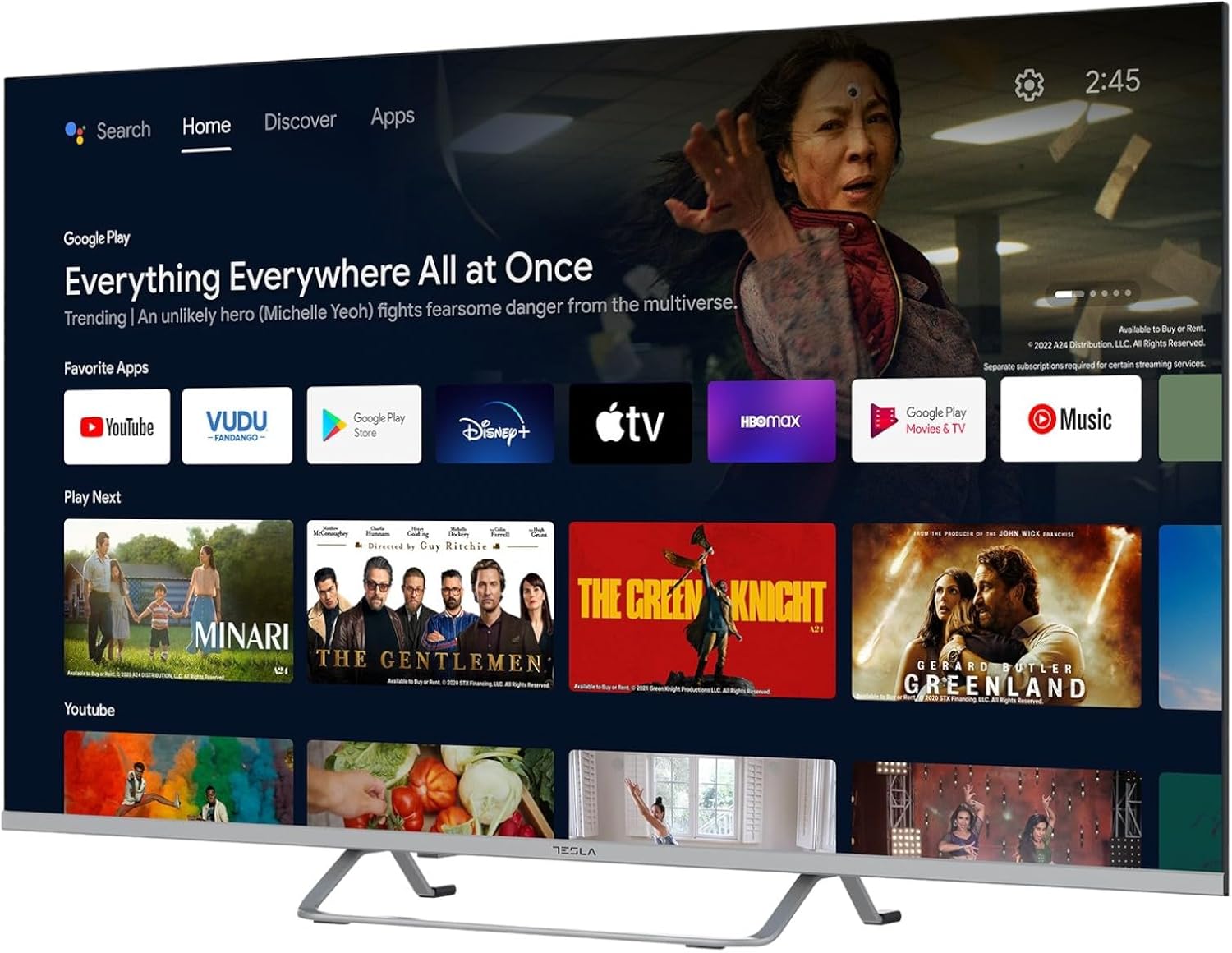
Image 2.2: The Android TV 11 home screen, displaying various applications and content suggestions.
- Sgrion Dachaigh: Displays recommended content, installed apps, and input sources.
- Apps Section: Faigh cothrom air na h-aplacaidean stàlaichte uile.
- Roghainnean: Configure TV settings, network, accounts, and device preferences.
2.3 A’ cleachdadh Neach-cuideachaidh Google
Press the Google Assistant button on your remote and speak into the microphone to control your TV, search for content, get information, and more.
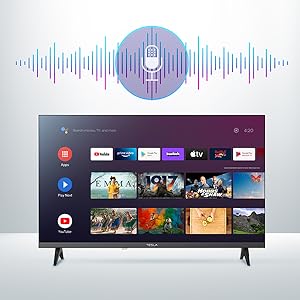
Image 2.3: Visual representation of Google Assistant activation on the TV screen.
Examples of commands:
- "Fosgail Netflix"
- "Lorg airson action movies"
- "Ciamar a tha an aimsir?"
- "Turn up the volume"
2.4 Chromecast air a thogail a-steach
Use Chromecast built-in to cast content from your compatible smartphone, tablet, or computer directly to your TV. Ensure your device is connected to the same Wi-Fi network as the TV.

Image 2.4: A smartphone casting content to the TV via Chromecast.
2.5 A’ ceangal innealan taobh a-muigh
Tha iomadh roghainn ceangail aig an telebhisean agad:
- Puirt HDMI (x4): Connect Blu-ray players, game consoles, set-top boxes, etc.
- Puirt USB (x2): Connect USB drives for media playback or external keyboards/mice.
- Ethernet (LAN): Airson ceangal eadar-lìn uèirleas.
- Wi-Fi: Airson ceangal eadar-lìn gun uèir.
- Bluetooth: Ceangail fònaichean-cluaise gun uèir, luchd-labhairt, no innealan Bluetooth eile.

Ìomhaigh 2.5: Taobh profile of the TV, highlighting accessible ports.
2.6 Roghainnean Dealbh is Fuaime
Access the TV's settings menu to customize picture and sound options.
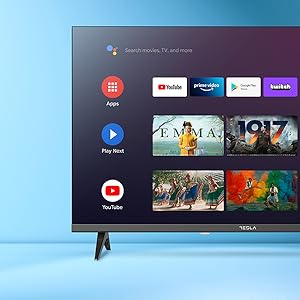
Ìomhaigh 2.6: Eisimpleirample of the TV's settings menu for customization.
- Modhan dealbh: Select from Standard, Vivid, Sport, Movie, Game, or User (custom) modes. Adjust brightness, contrast, color, and sharpness.
- HDR 10: The TV supports HDR10 for enhanced contrast and color with compatible content.
- Modhan fuaim: Choose from Standard, Music, Movie, Sport, or User (custom) modes. Use the equalizer to fine-tune audio frequencies.
- Luchd-labhairt: The TV features 2 x 12W speakers.
3. Cumail suas
3.1 Glanadh an telebhisean
- Sgrion: Sguab an sgrion gu socair le clò bog, gun lint. Airson comharran stòlda, suath gu socairampnigh an clò le uisge no le inneal-glanaidh sgrion sònraichte. Na spraeadh an inneal-glanaidh gu dìreach air an sgrion a-riamh.
- Corp: Wipe the TV body with a soft, dry cloth. Avoid using abrasive cleaners or solvents.
- Tarraing am pluga den telebhisean a-mach às a' chumhachd an-còmhnaidh mus glan thu e.
3.2 Ùrachaidhean bathar-bog
Your Tesla Smart TV may receive software updates to improve performance and add new features. Ensure your TV is connected to the internet to receive these updates automatically or check for them manually in the settings menu.
4. A ’dèanamh trioblaid
Mus cuir thu fios gu taic, feuch na fuasglaidhean a leanas airson cùisean cumanta:
| Trioblaid | Fuasgladh comasach |
|---|---|
| Gun chumhachd | Check if the power cord is securely connected to the TV and the wall outlet. Ensure the outlet is working. |
| Gun dealbh, ach tha fuaim ann | Dèan cinnteach gu bheil an stòr cuir-a-steach ceart air a thaghadh. Thoir sùil air ceanglaichean càball ri innealan taobh a-muigh. Feuch ri an telebhisean ath-thòiseachadh. |
| Gun fhuaim, ach tha dealbh ann | Thoir sùil air an ìre fuaime agus dèan cinnteach nach eil an telebhisean air a mhùchadh. Dearbhaich roghainnean claisneachd agus ceanglaichean luchd-labhairt taobh a-muigh ma tha sin iomchaidh. |
| Chan eil smachd iomallach ag obair | Cuir na bataraidhean nan àite. Dèan cinnteach nach eil bacadh sam bith eadar an smachd iomallach agus an telebhisean. Ath-phaidhir an smachd iomallach Bluetooth ma tha sin riatanach (faic roghainnean an telebhisean). |
| Duilgheadasan ceangail lìonra | Restart your router and modem. Check Wi-Fi password. Try a wired Ethernet connection if possible. |
| Tha aplacaidean slaodach no a’ tuiteam | Close unused apps. Clear app cache (Settings > Apps > [App Name] > Clear cache). Restart the TV. |
5. Sònrachaidhean
| Feart | Mion-fhiosrachadh |
|---|---|
| Brand | TESLA |
| Modail Àireamh | 65E635SUS |
| Meud sgrion | 65 òirleach (165 cm) |
| Teicneòlas taisbeanadh | LED |
| Fuasgladh | 4K (3840 x 2160) |
| Ìre Ath-nuadhachaidh | 60 Hz |
| Siostam-obrachaidh | Android TV 11 |
| Feartan sònraichte | High Dynamic Range (HDR10), Google Play, Chromecast Built-in, Google Assistant, Personalized Surround Sound |
| Ceangalachd | Wi-Fi, Bluetooth, Ethernet (LAN) |
| puirt HDMI | 4 |
| Puirt USB | 2 |
| Toradh Fuaim | 2 x 12W luchd-labhairt |
| Meudan an toraidh (leis an stand) | 25D x 25W x 144.5H cm (approximate) |
6. Barantas agus Taic
For warranty information, please refer to the warranty card included with your product or visit the official Tesla weblàrach. Cùm dearbhadh ceannach airson tagraidhean barantais.
For technical support or service inquiries, please contact Tesla customer service through their official channels. Contact details can typically be found on the manufacturer's weblàrach no ann am pasgan toraidh.