Homatics DONGLE G 4K HDMI Streaming Device
Leabhar-làimhe cleachdaiche
1. Ro-ràdh
The Homatics DONGLE G is a compact and powerful 4K HDMI streaming device designed to transform any compatible display into a smart Google TV experience. Running on Android Google TV 11, it provides access to a vast library of applications, movies, and shows. With integrated Wi-Fi, LAN connectivity, and a voice-enabled remote control, it offers a comprehensive and user-friendly entertainment solution.

Image: The Homatics DONGLE G streaming dongle and its accompanying voice remote control, shown alongside the product packaging.
2. Dè tha sa bhogsa
Dèan cinnteach gu bheil na pàirtean uile anns a’ phacaid:
- Homatics DONGLE G (Model 700D)
- Remote Control (Voice-enabled)
- Adapter cumhachd
- Càball cumhachd
- Leabhar-làimhe cleachdaiche (an sgrìobhainn seo)

Image: A visual representation of the Homatics DONGLE G package contents, including the dongle, remote, power adapter, power cable, and manual.
3. Toradh thallview
Familiarize yourself with the Homatics DONGLE G and its remote control:
3.1. Homatics DONGLE G Device
The dongle features an integrated HDMI connector for direct plug-in to your TV. It includes a USB-C port for power and potential expansion, and an RJ45 Ethernet port for wired network connectivity.
3.2. Voice Remote Control
The remote control allows for intuitive navigation and voice commands. Key buttons include Power, Home, Back, Volume Up/Down, Channel Up/Down, and dedicated buttons for popular streaming services like YouTube and Netflix. The central directional pad is used for menu navigation.

Ìomhaigh: Sealladh dlùth view of the Homatics DONGLE G, highlighting its HDMI connector, USB-C port, and RJ45 port, alongside the voice remote control.
4. Stiùirich rèiteachaidh
- Ceangail an Dongle: Plug the Homatics DONGLE G directly into an available HDMI port on your television or display.
- Ceangal cumhachd: Connect the provided power cable to the USB-C port on the dongle and then plug the power adapter into a wall outlet. The device will power on automatically.
- Tagh cuir a-steach HDMI: Using your TV's remote control, select the corresponding HDMI input source to which the Homatics DONGLE G is connected.
- Paidhir smachd iomallach: Follow the on-screen instructions to pair the Homatics remote control via Bluetooth. This typically involves holding down specific buttons on the remote until a pairing confirmation appears.
- Suidheachadh tùsail: Follow the on-screen prompts to complete the initial setup, which includes connecting to your Wi-Fi network (or using the LAN port), logging into your Google account, and installing essential apps.

Image: The Homatics DONGLE G connected to the HDMI port of a television, illustrating its compact form factor and ease of integration.
5. Stiùireadh Obrachaidh
5.1. Seòladh
Use the directional pad on the remote control to navigate through menus and select items on the Google TV interface. The 'OK' button in the center confirms selections. The 'Back' button returns to the previous screen, and the 'Home' button takes you to the main Google TV home screen.
5.2. Smachd Gutha (Neach-cuideachaidh Google)
Press the Google Assistant button on your remote (usually a microphone icon) and speak clearly into the remote to issue commands. You can search for content, open apps, control smart home devices, and get information.
5.3. App Installation and Management
Access the Google Play Store from the home screen to download and install a wide variety of streaming apps, games, and utilities. Apps can be managed (moved, uninstalled) from the 'Apps' section in the Google TV interface settings.

Image: The Homatics DONGLE G displaying the Google TV interface on a television screen, showcasing various streaming service icons and content recommendations.
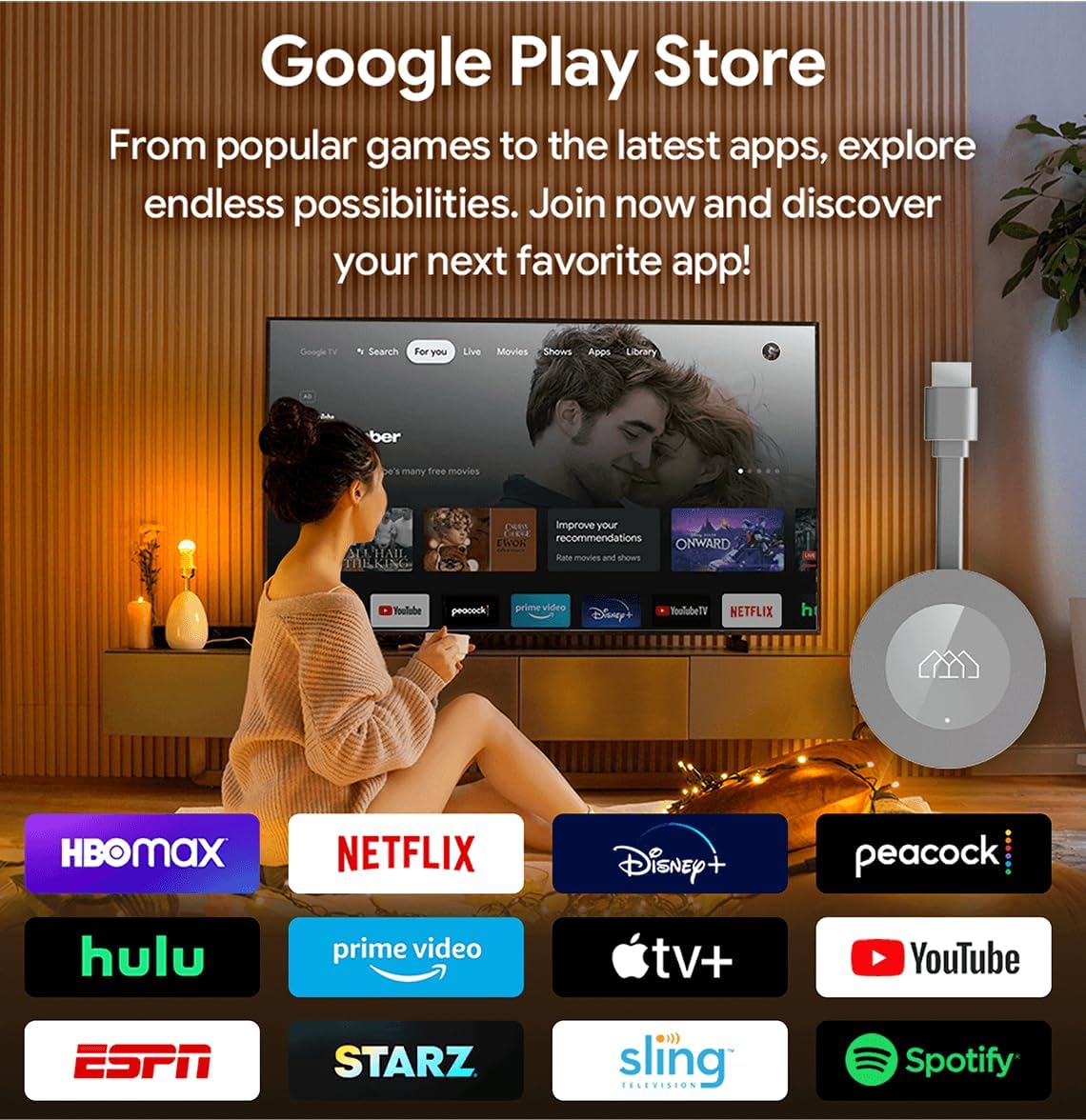
Image: The Google Play Store interface as seen on a television screen via the Homatics DONGLE G, illustrating the availability of numerous applications.
6. Ceangalachd
6.1. Ceangal Wi-Fi
The device supports Wi-Fi 5 (802.11 b/g/n/ac) for wireless internet access. During initial setup, you will be prompted to select your Wi-Fi network and enter the password. To change Wi-Fi settings later, navigate to Settings > Network & Internet.
6.2. LAN (Ethernet) Connection
For a more stable and potentially faster internet connection, connect an Ethernet cable from your router to the RJ45 port on the Homatics DONGLE G. The device will automatically detect and prioritize the wired connection.
6.3. Ceangalachd Bluetooth
The Homatics DONGLE G features Bluetooth 5.0, allowing you to connect compatible accessories such as headphones, gamepads, or external speakers. To pair a new Bluetooth device, go to Settings > Remotes & Accessories > Pair new device.
6.4. USB-C Expansion
The USB-C port on the dongle can be used for power and also supports connection of certain USB accessories via a compatible hub (not included). This allows for expanded storage (SSD), gamepads, or webcams for enhanced functionality.
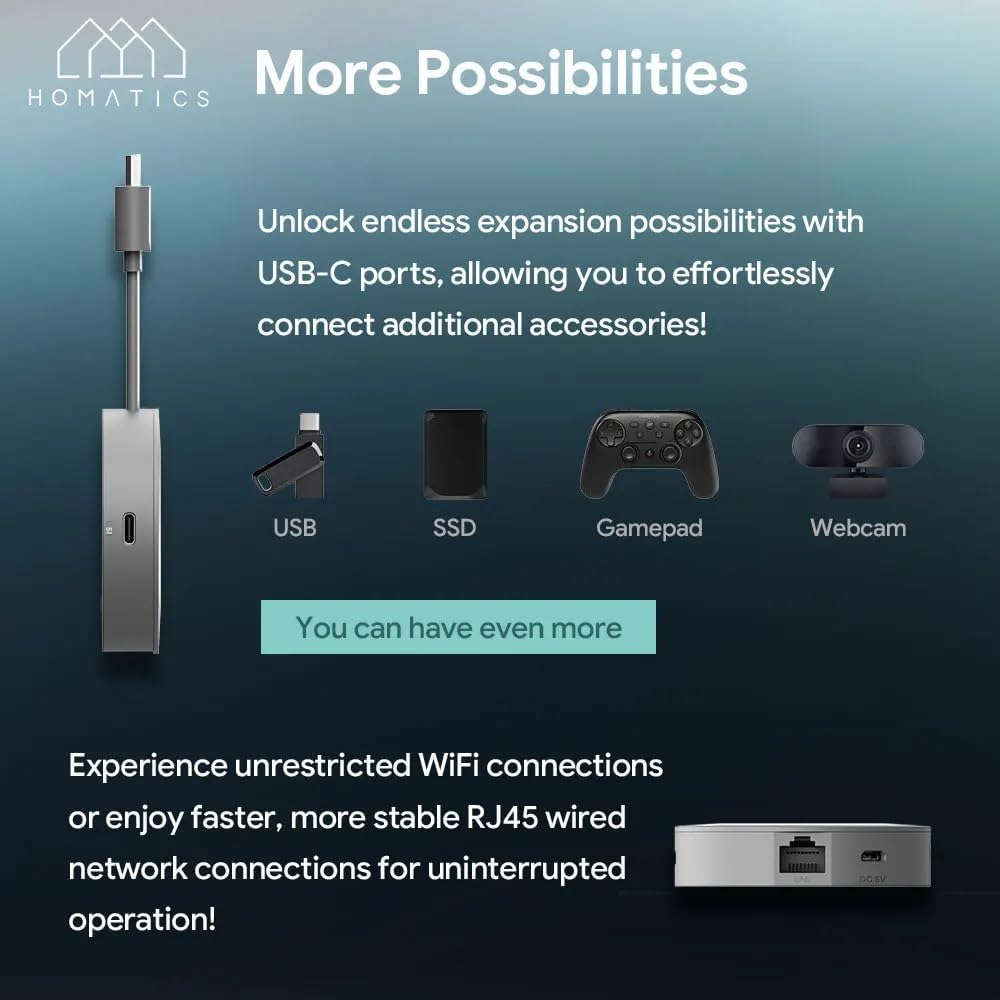
Image: The Homatics DONGLE G connected to a USB-C hub, illustrating the potential for connecting various accessories such as USB drives, SSDs, gamepads, and webcaman.
7. Cumail suas
- Glanadh: Use a soft, dry cloth to clean the device and remote. Do not use liquid cleaners or aerosols.
- Fionnarachadh: Ensure the device is placed in a well-ventilated area to prevent overheating. Do not cover the dongle.
- Ùrachaidhean bathar-bog: The device will periodically receive software updates. Ensure it is connected to the internet to receive these updates, which improve performance and add new features.
- Stòradh: Nuair nach eilear ga chleachdadh airson ùine mhòr, stòraich an inneal ann an àite fionnar, tioram.
8. A ’dèanamh trioblaid
| Trioblaid | Fuasgladh comasach |
|---|---|
| Gun chumhachd/Chan eil an inneal a’ tionndadh air | Ensure the power cable is securely connected to the dongle and the power adapter is plugged into a working electrical outlet. Try a different outlet. |
| Gun chomharra air an telebhisean | Verify the dongle is fully inserted into the HDMI port. Check that your TV is set to the correct HDMI input source. Try a different HDMI port. |
| Chan eil smachd iomallach a 'freagairt | Ensure the remote has fresh batteries. Re-pair the remote by following the on-screen instructions during initial setup or via Settings > Remotes & Accessories. |
| Chan urrainn dhuinn ceangal a dhèanamh ri Wi-Fi | Check your Wi-Fi password. Ensure your router is working correctly. Try restarting your router and the Homatics DONGLE G. Move the device closer to the router if possible. |
| Bidh an aplacaid a’ tuiteam no a’ reothadh | Try force-stopping the app (Settings > Apps > [App Name] > Force stop). Clear the app's cache (Settings > Apps > [App Name] > Clear cache). If the problem persists, uninstall and reinstall the app. |
9. Sònrachaidhean
Technical specifications for the Homatics DONGLE G:
| Feart | Mion-fhiosrachadh |
|---|---|
| Ainm Modail | DONGLE G |
| Siostam-obrachaidh | Android Google TV 11 |
| Fuasgladh | Suas gu 4K UHD |
| Pròiseasar | Quad Core Cortex-A35 (Amlogic S905Y4) |
| RAM | 2GB LPDDR4 |
| Stòradh Flash | Flash eMMC 8GB |
| Ceangalachd | Wi-Fi 5 (802.11 b/g/n/ac), Bluetooth 5.0, RJ45 (10/100M Ethernet) |
| Toradh bhidio | HDMI 2.1 |
| Taic Fuaim | Fuaim Dolby, Dolby Atmos |
| Feartan sònraichte | Chromecast built-in, Google Assistant |
| Cuir a-steach cumhachd | DC 5V (tro USB-C) |

Image: A visual summary of the Homatics DONGLE G's technical specifications, including processor, RAM, storage, connectivity, and audio support.

Image: Illustration highlighting the Homatics DONGLE G's support for Dolby Atmos and Dolby Audio technologies, enhancing the immersive sound experience.
10. Barantas agus Taic
For warranty information and technical support, please refer to the official Homatics weblàrach-lìn no cuir fios chun roinn seirbheis teachdaiche aca. Cùm do chuidhteas ceannach mar dhearbhadh ceannach airson tagraidhean barantais.

Image: The Homatics remote control, emphasizing its integration with Google Assistant for voice commands and Chromecast built-in for casting content.