
1. Ro-ràdh
Thank you for choosing the typecase Touch iPad Keyboard Case. This manual provides detailed instructions for setting up, operating, and maintaining your keyboard case to ensure optimal performance and longevity. Please read this manual thoroughly before use.
2. Co-fhreagarrachd
This keyboard case is designed for specific iPad models. Please verify your iPad model number to ensure compatibility.
- iPad 10th Generation (10.9-inch, 2022): Modailean A2696, A2757, A2777
- iPad A16 (11th Generation, 2025): Modailean A3354, A3355, A3356
To verify your iPad model:
- Dòigh 1: Check the back of your iPad for the model number (e.g., A2696).
- Dòigh 2: Go to iPad Settings > General > About > Model Number. Tap the model number to display the A-number.
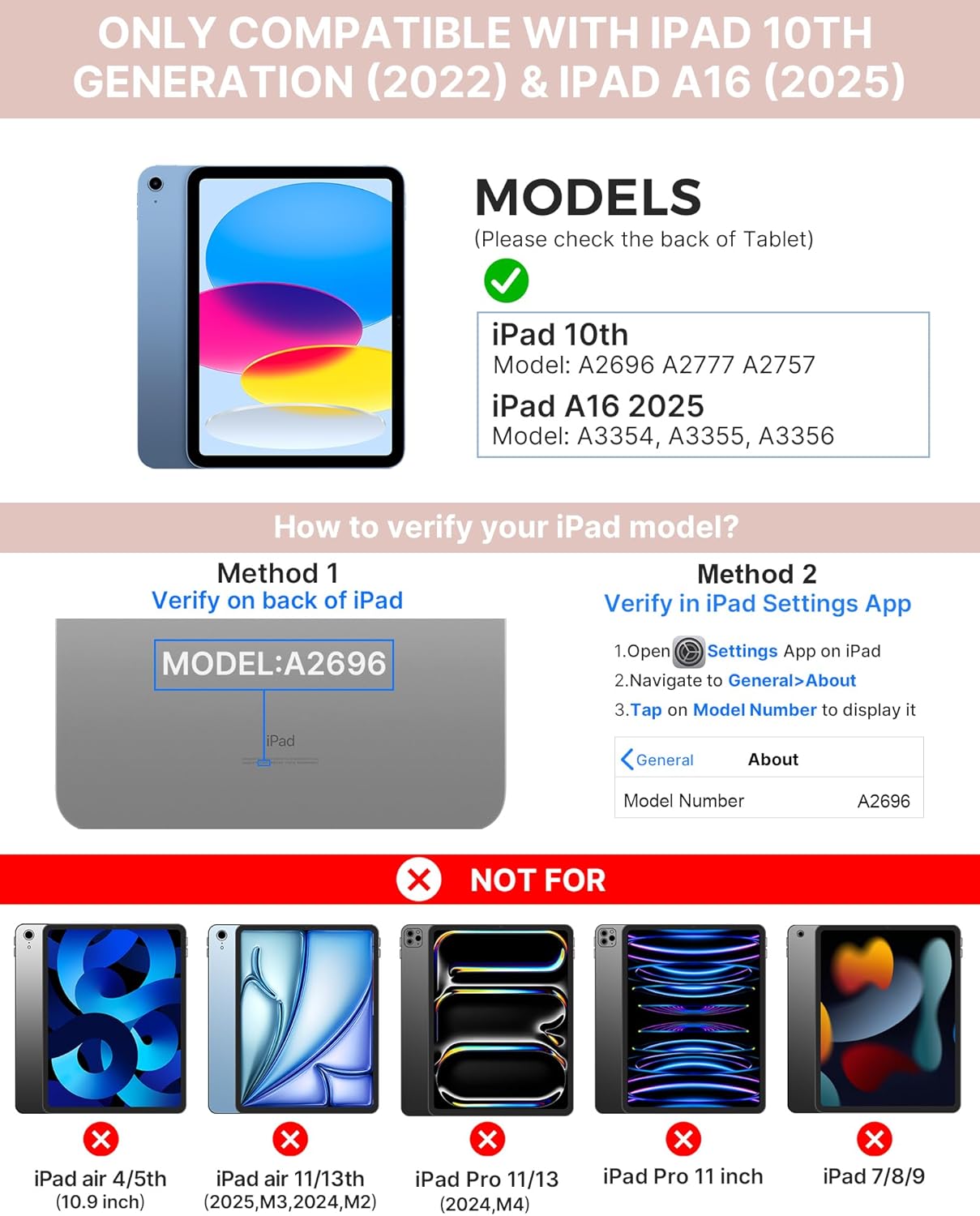
Image: Visual guide for identifying compatible iPad models and verifying the model number on the device or through settings.
3. Pasgan-susbaint
Tha am pasgan a’ toirt a-steach:
- 1 x typecase Touch iPad Keyboard Case
- 1 x Càball Cìsean USB-C
- 1 x Leabhar-làimhe Cleachdaiche
4. Stiùireadh Stèidheachaidh
4.1 A’ cur cosgais air a’ mheur-chlàr
Mus cleachd thu an toiseach e, cuir làn-chosgais air a’ mheur-chlàr. Ceangail an càball cosgais USB-C a tha air a thoirt seachad ri port cosgais a’ mheur-chlàir agus ri stòr cumhachd. Seallaidh an solas comharra cosgais inbhe a’ chosgais.
- Bi feitheamh: Suas ri 1 bliadhna
- Daytime use (2 hours/day with backlight off): Suas ri 3 mìosan
- Nighttime use (2 hours/day with backlight on): Suas gu 2 sheachdain

Image: Close-up of the keyboard's USB-C charging port and battery life specifications.
4.2 Pairing with iPad
- Dèan cinnteach gu bheil am meur-chlàr air a luchdadh.
- Turn on the keyboard by pressing the power button. The Bluetooth indicator light will flash.
- Air an iPad agad, rach gu Roghainnean> Bluetooth.
- Cuir Bluetooth air. Nì an iPad agad sgrùdadh airson innealan a tha rim faighinn.
- Select "typecase Keyboard" from the list of devices.
- Lean na stiùiridhean air an sgrion gus am pròiseas paidhreachaidh a chrìochnachadh. Bidh solas comharra Bluetooth air a’ mheur-chlàr a’ lasadh gu daingeann nuair a bhios am paidhreachadh soirbheachail.
5. Stiùireadh Obrachaidh
5.1 A’ stàladh an iPad agad
Gently insert your iPad into the case, ensuring all edges are securely seated. The case provides full protection for your device.
5.2 Gnìomhan meur-chlàr
The keyboard features a standard 78-key layout with a dedicated row of iPadOS shortcut keys for enhanced productivity.

Ìomhaigh: Os cionn view of the keyboard layout, highlighting the 78-key design and iPadOS shortcuts.
Iuchraichean backlit
The keyboard features 11-color RGB LED backlighting with adjustable brightness levels. This allows for comfortable typing in various lighting conditions.
- Brùth an iuchair bulb solais to cycle through backlight colors.
- Brùth Iuchair Fn + bulb solais gus soilleireachd backlight atharrachadh.
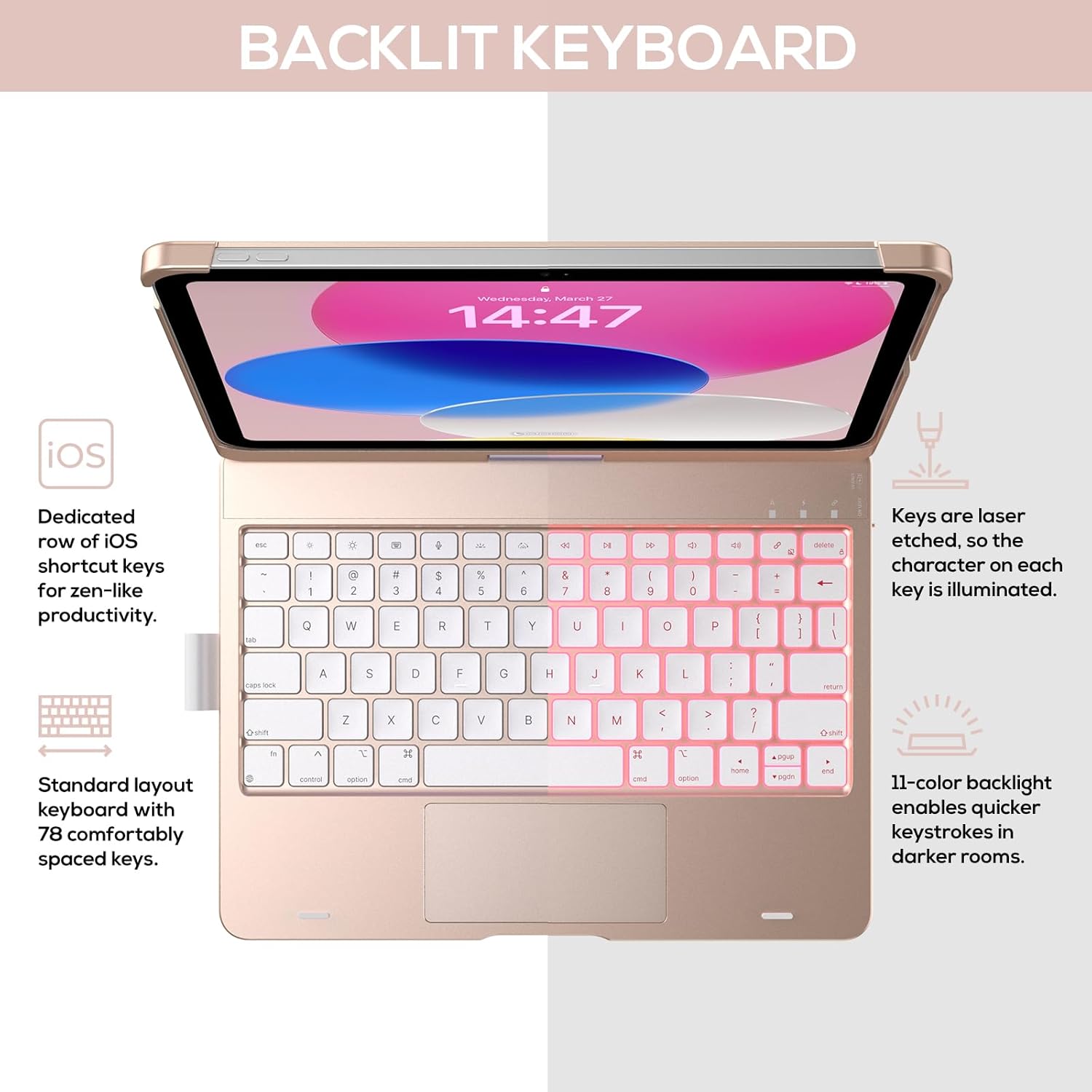
Image: The keyboard with illuminated keys, demonstrating the 11-color backlight and dedicated iOS shortcut keys.
5.3 Multi-Touch Trackpad
The integrated precision trackpad supports multi-gesture controls, enhancing productivity for tasks like document editing, web browsing, and presentation building.
- Tap aon-mheur: Briog/Tagh
- Scroll dà-mheur: Scrollaich suas/sìos no clì/deas
- Pinch airson gluasad: Gluais a-steach / a-mach
- Sguab suas le trì meòir: Fosgail an t-Sgudaladair Aplacaidean
- Three-finger swipe down: Till don Sgrion Dachaigh

Image: Diagram showing common multi-touch gestures for the trackpad, including managing files, web browsing, and app switching.
5.4 360° Rotatable Hinge and Use Modes
The patented 360° hinge allows for versatile use of your iPad in 7 unique modes, adapting to various tasks from typing to viewing.
- Modh Laptop: Traditional laptop setup for typing.
- Modh Seasamh: Ideal airson viewann an susbaint.
- Modh Teanta: Stable for touch interaction or presentations.
- Modh clàr: Fold the keyboard behind the iPad for tablet use. Keys are protected in this mode.
- Corner Mode: Angled for comfortable drawing or writing.
- Modh Co-roinn: Rotate the screen to share content with others.
- Protect Mode: Close the case to fully protect the iPad.
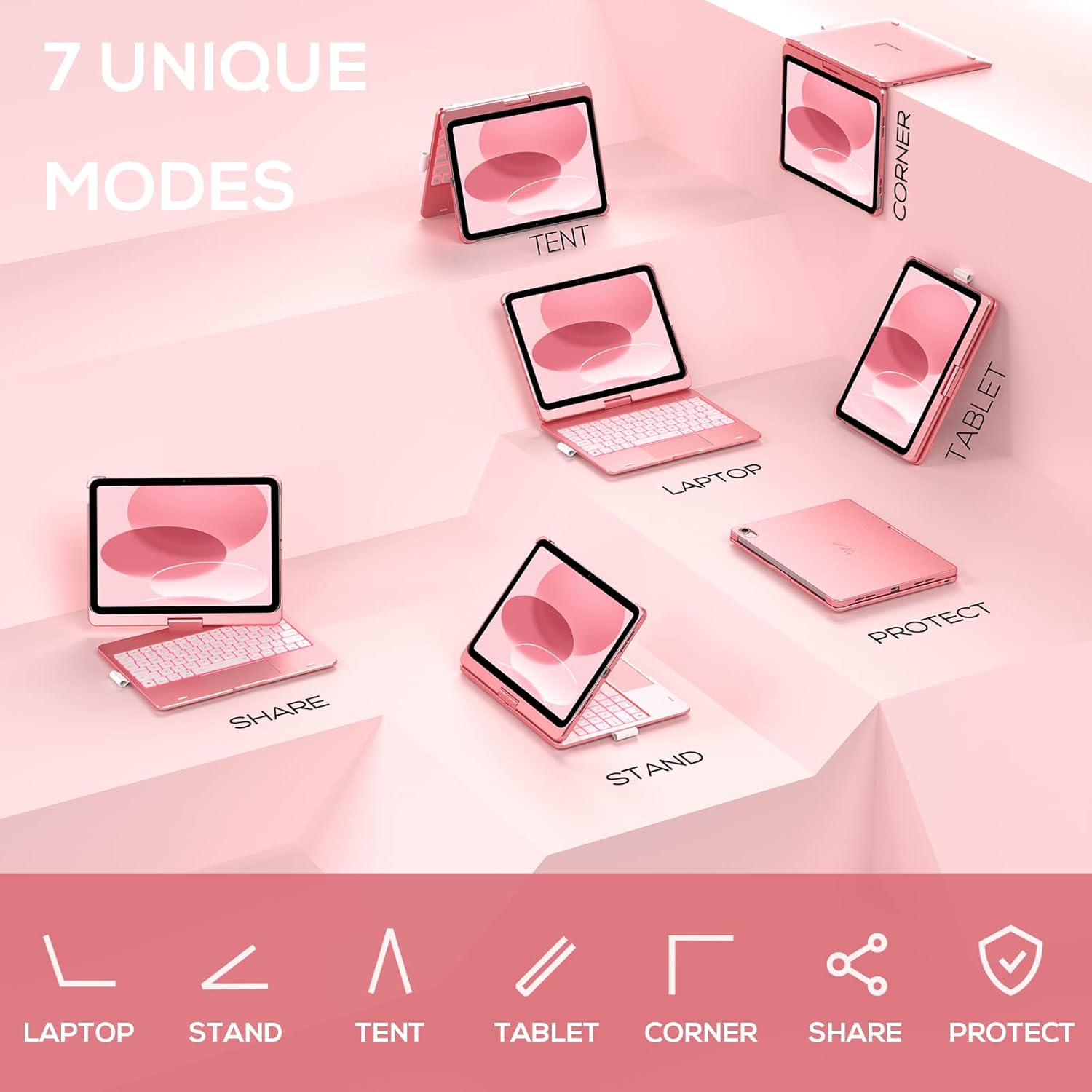
Image: A visual representation of the seven different configurations the keyboard case can be used in, including laptop, stand, and tablet modes.
5.5 Gnìomh Cadail/Dùisg Fèin-ghluasadach
The case features an auto sleep/wake function. Opening the case will wake your iPad, and closing it will put your iPad to sleep, helping to conserve battery life for both the iPad and the keyboard.

Image: A user's hand on the trackpad, illustrating the built-in trackpad and the auto sleep/wake feature that activates when the case is opened or closed.
5.6 Neach-gleidhidh Peansail Apple
An integrated holder is provided for your Apple Pencil, ensuring it is securely stored and easily accessible.
6. Cumail suas
6.1 Glanadh
Gus còmhdach a’ mheur-chlàir a ghlanadh, cleachd clò bog,amp cloth. Avoid using harsh chemicals or abrasive materials, as these may damage the surface. Ensure the charging port is dry before charging.
6.2 Stòradh
When not in use for extended periods, store the keyboard case in a cool, dry place. It is recommended to fully charge the keyboard before long-term storage to maintain battery health.
7. A ’dèanamh trioblaid
7.1 Meur-chlàr gun cheangal
- Dèan cinnteach gu bheil am meur-chlàr air agus air a luchdadh.
- Dèan cinnteach gu bheil Bluetooth air a chomasachadh air an iPad agad.
- Dìochuimhnich an inneal ann an roghainnean Bluetooth an iPad agad agus feuch ri ath-chàraideachadh.
- Ath-thòisich an dà chuid an iPad agad agus am meur-chlàr.
7.2 Iuchraichean gun fhreagairt
- Dèan cinnteach gu bheil am meur-chlàr ceangailte gu ceart tro Bluetooth.
- Thoir sùil air ìre bataraidh a’ mheur-chlàir.
- Glan sprùilleach sam bith bho timcheall air na h-iuchraichean.
7.3 Trackpad Gun Obrachadh
- Dèan cinnteach gu bheil am meur-chlàr ceangailte.
- Check iPad settings for trackpad functionality (Settings > General > Trackpad).
- Ath-thòisich am meur-chlàr agus an iPad.
7.4 Solas-cùil gun a bhith ag obair
- Dèan cinnteach gu bheil am meur-chlàr air a stiùireadh.
- Press the backlight control keys (light bulb key, Fn + light bulb key) to activate or adjust.
- Check battery level; low battery may disable backlighting.
8. Sònrachaidhean
| Modail Àireamh | KB201T-100 |
| Meudan toraidh | 11 x 8.6 x 1.5 òirleach (11"F x 8.6"L x 1.5"À) |
| Cuideam nì | 1.43 not |
| Teicneòlas ceangail | Bluetooth |
| Tuairisgeul meur-chlàr | Flexible, 78-key layout with iPadOS shortcuts |
| Feartan sònraichte | 360° Rotatable, 11-Color Backlit, Ergonomic, Lightweight, Multi-Touch Trackpad, Auto Sleep/Wake, Apple Pencil Holder |
| Backlighting meur-chlàr | RGB (11 dathan) |
| Seòrsa bataraidh | 1 bataraidh lithium polymer (air a ghabhail a-steach) |
9. Barantas agus Taic
typecase is committed to product quality and customer satisfaction. This product comes with the following support:
- Seirbheis Ath-àiteachaidh: Within 1 year of purchase.
- Poileasaidh Ath-dhìolaidh: Taobh a-staigh 30 latha bho cheannach.
For any issues or inquiries, please contact typecase customer support for quick feedback and assistance.

Image: Information on typecase's after-sales service, including replacement, refund, and customer support.