
Intel 21P02J00BA
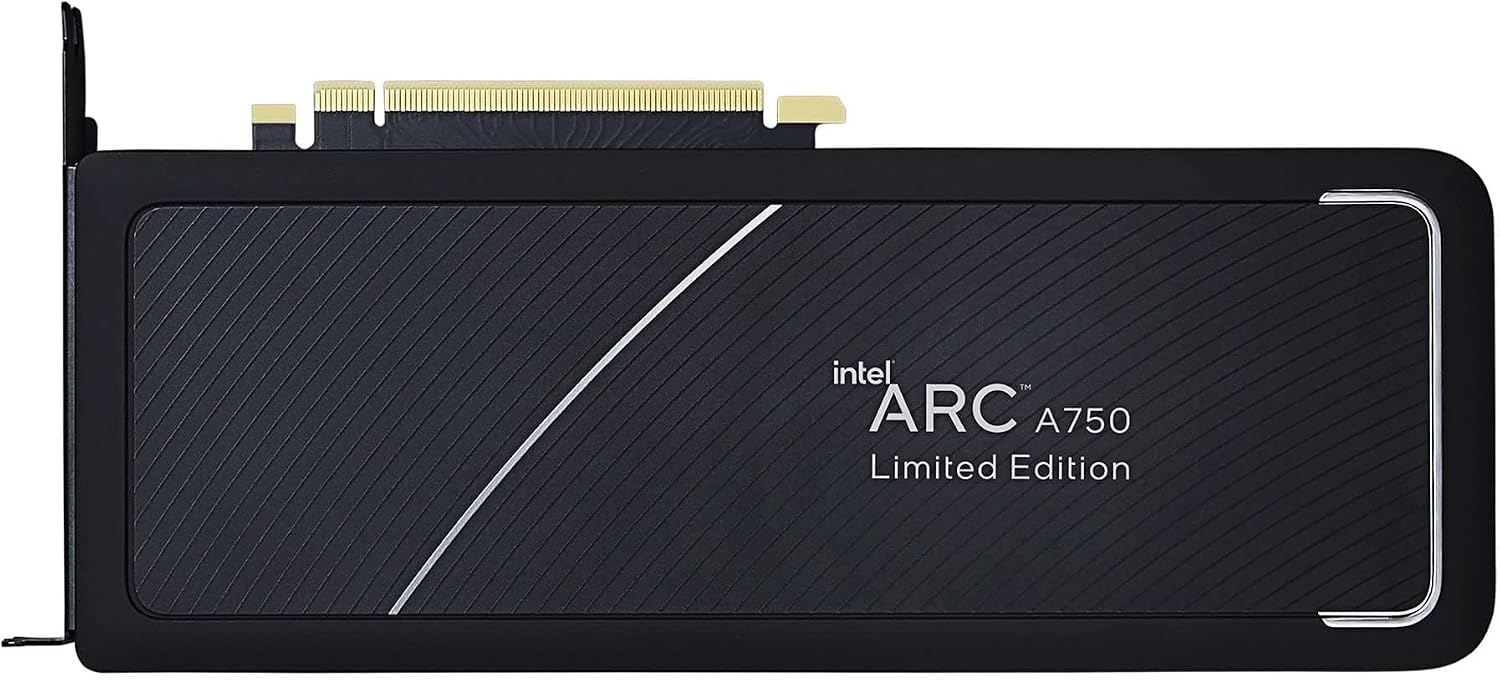
Intel Arc A750 Limited Edition Graphics Card User Manual
Model: 21P02J00BA
Ro-ràdh
This manual provides essential information for the installation, operation, maintenance, and troubleshooting of your Intel Arc A750 Limited Edition 8GB PCI Express 4.0 Graphics Card. Please read this manual thoroughly before using the product to ensure optimal performance and longevity.
Susbaint pacaid
Dearbhaich gu bheil a h-uile nì an làthair ann am pasgan an toraidh agad:
- Intel Arc A750 Limited Edition 8GB PCI Express 4.0 Graphics Card
- Sgrìobhainnean (an leabhar-làimhe cleachdaiche seo)

Riatanasan an t-siostaim
Before installation, ensure your system meets the following minimum requirements:
- PCI Express 4.0 Slot: A motherboard with an available PCI Express 4.0 x16 slot is required for optimal performance. While compatible with PCIe 3.0, performance may be reduced.
- Resizable BAR (ReBAR) Support: For best performance, your system's motherboard and CPU should support and have Resizable BAR enabled in the BIOS/UEFI.
- Aonad Solarachadh Cumhachd (PSU): A minimum 700W power supply is recommended, especially for 4K gaming or demanding workloads, to ensure stable operation.
- Siostam-obrachaidh: Windows 10 (64-bit) or Windows 11 (64-bit).
- Pròiseasar: Compatible Intel or AMD processor.
- Cuimhne (RAM): 8GB system memory or more.
Suidhich
1. Stàladh Corporra
- Ullaich an siostam agad: Cuir dheth a’ choimpiutair agad agus dì-phlugaich na càbaill uile. Fosgail cùis a’ choimpiutair agad.
- Lorg an t-sliotan PCIe: Identify an available PCI Express 4.0 x16 slot on your motherboard. Remove any expansion slot covers that block the slot.
- Stàlaich a’ chairt grafaigean: Carefully align the graphics card with the PCIe slot. Press down firmly and evenly until the card is securely seated in the slot and the retention clip engages.
- Sàbhail a’ chairt: Secure the graphics card to the computer case using the screws from the expansion slot covers.
- Ceangail Càbaill Cumhachd: Connect the necessary PCIe power cables from your power supply to the graphics card. The Intel Arc A750 typically requires one 8-pin and one 6-pin PCIe power connector. Ensure they are fully seated.
- Dùin a’ Chùis agus Ceangail na h-Uidheam-iomaill: Close your computer case, reconnect all cables (monitor, keyboard, mouse, power), and power on your system.

2. Stàladh dràibhear
After physical installation, you must install the latest graphics drivers for your Intel Arc A750 card. This is crucial for proper functionality and performance.
- Luchdaich sìos draibhearan: Tadhail air taic oifigeil Intel weblàrach (www.intel.com/support/arc) to download the latest drivers for your Intel Arc A750.
- Stàlaich draibhearan: Run the downloaded installer and follow the on-screen instructions. It is recommended to perform a clean installation if prompted.
- Ath-thòisich an siostam: Ath-thòisich do choimpiutair an dèidh dhut an draibhear a stàladh.
- Intel Arc Control Software: The driver package typically includes the Intel Arc Control software, which allows you to monitor performance, update drivers, and customize settings.
A’ obrachadh a’ chairt grafaigean
The Intel Arc A750 is designed to deliver strong performance for gaming and content creation. Key features include:
Intel Xe Super Sampling (XeSS)
XeSS is an AI-enhanced upscaling technology that leverages machine learning to deliver high-performance, high-fidelity gaming experiences. It reconstructs images with sub-pixel details, enabling higher frame rates while maintaining visual quality.
Real-time Ray Tracing Support
The Intel Arc A750 supports hardware-accelerated ray tracing, allowing for more realistic lighting, shadows, and reflections in supported games and applications. This technology enhances visual immersion by simulating the physical behavior of light.
Intel Arc Control Software
The Intel Arc Control software provides a centralized hub for managing your graphics card. Features include:
- Sgrùdadh Coileanaidh: View real-time statistics such as GPU utilization, temperature, and clock speeds.
- Ùraich na draibhearan: Easily check for and install the latest graphics drivers.
- Game Optimization: Optimize game settings for the best balance of performance and visual quality.
- Creator Features: Access tools for streaming and content creation, including virtual camera setup.
Cumail suas
Proper maintenance ensures the longevity and stable performance of your graphics card:
- Cùm driver ùrachaidhean: Regularly check for and install the latest graphics drivers from the Intel support website. Driver updates often include performance improvements, bug fixes, and compatibility enhancements.
- Toirt air falbh dust: Periodically clean dust from the graphics card fans and heatsink using compressed air. Ensure the system is powered off and unplugged before cleaning. Dust buildup can impede cooling and lead to overheating.
- Dèan cinnteach gu bheil sruth-adhair ceart: Make sure your computer case has adequate airflow to prevent heat buildup. Ensure no cables or other components are obstructing the graphics card's fans.
Fuasgladh thrioblaidean
This section addresses common issues you might encounter with your Intel Arc A750 graphics card.
| Trioblaid | Adhbhar / Fuasgladh a dh’fhaodadh a bhith ann |
|---|---|
| No display or black screen after installation. |
|
| Low frame rates or poor performance in games. |
|
| Screen flickering or intermittent black screens. |
|
| Fans are excessively loud or vibrating. |
|
Sònrachaidhean
| Feart | Mion-fhiosrachadh |
|---|---|
| Brand | Intel |
| Modail Àireamh | 21P02J00BA |
| Grafaigeachd coprocessor | Intel Arc A750 |
| Meud RAM Cairt Grafaigean | 8 GB |
| Luas gleoc GPU | 2050 MHz |
| Eadar-aghaidh toraidh bhidio | Port Taisbeanaidh |
| Cuideam nì | 2 not |
| Meudan toraidh (LxWxH) | 17.3 x 11.1 x 0.1 òirleach |
| Tionndadh PCI Express | 4.0 |
Barantas agus Taic
The Intel Arc A750 Limited Edition Graphics Card typically comes with a 1-year limited warranty. For detailed warranty information, technical support, or to register your product, please visit the official Intel support weblàrach:
You can also find frequently asked questions (FAQs) and community forums on the Intel support page, which can be valuable resources for troubleshooting and optimizing your experience.
Ask a question about this manual
Ask about setup, troubleshooting, compatibility, parts, safety, or missing instructions. Manuals+ will review the question and use this page’s manual context to help answer it.