
Ro-ràdh
This manual provides essential information for setting up, operating, maintaining, and troubleshooting your CUPEISI 7-inch Android 14 Tablet. Please read this guide thoroughly to ensure proper use and to maximize your tablet's performance and longevity.
Dè th' anns a' Bhocsa
Dearbhaich gu bheil a h-uile nì an làthair nuair a dh’fhosglas tu am bogsa:
- CUPEISI 7-inch Android 14 Tablet
- Càball Type-C
- Leabhar-làimhe cleachdaiche (an sgrìobhainn seo)
Bathar seachadview
The CUPEISI Q2S tablet features a 7-inch HD IPS display, powered by a 1.6GHz Quad-core processor and running Android 14. It includes 8GB RAM (4GB physical + 4GB virtual) and 32GB internal storage, expandable up to 1TB via microSD card. The tablet is equipped with dual cameras and supports Wi-Fi and Bluetooth connectivity.
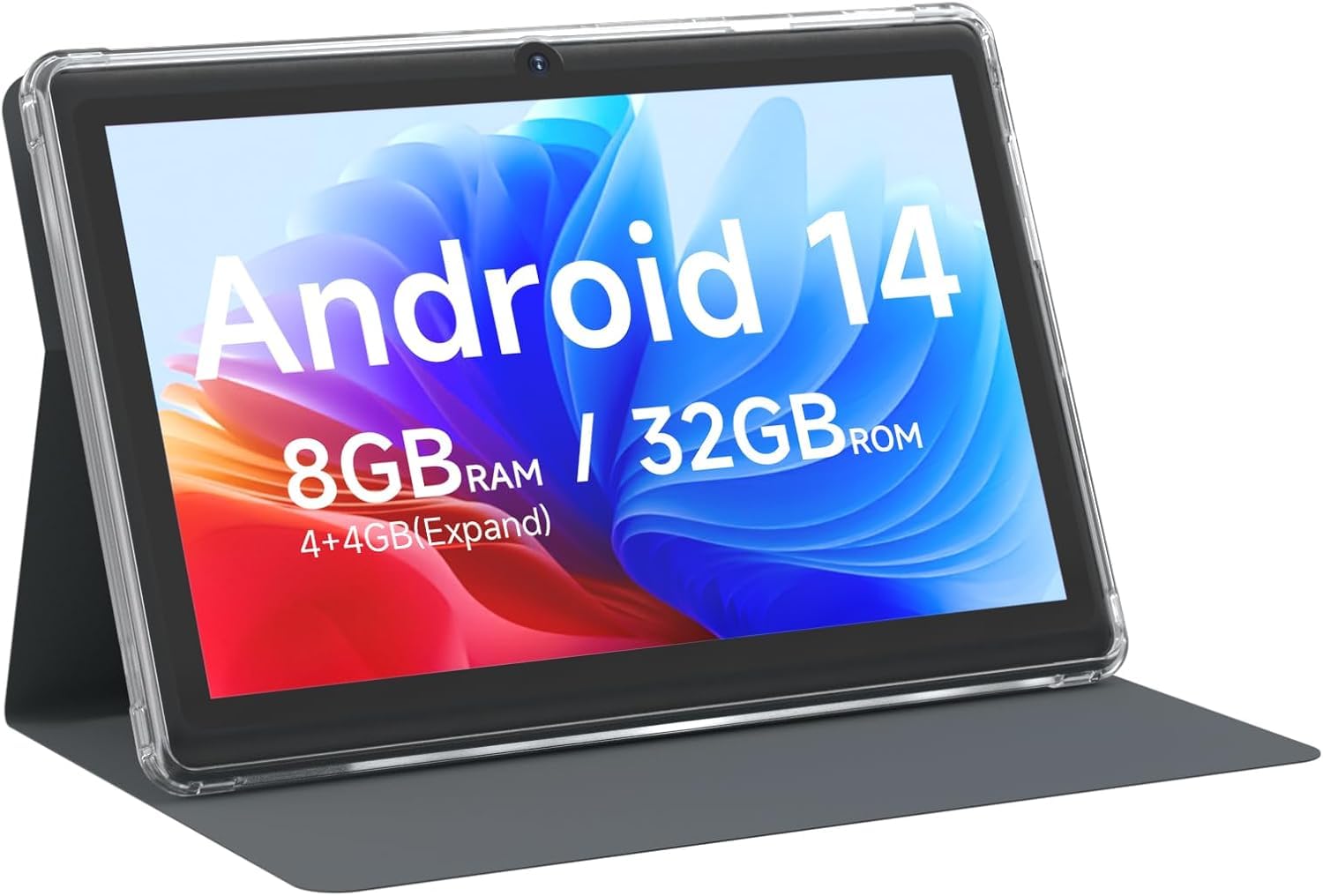
CUPEISI 7-inch Android 14 Tablet, front view.

Thairisview of CUPEISI 7-inch Android 14 Tablet features including OS, CPU, RAM, ROM, Screen, Camera, Battery, and WiFi.
Suidhich
1. A 'cur cosgais air an Tablet
Before first use, fully charge the tablet. Connect the provided Type-C cable to the tablet's charging port and the other end to a compatible USB power adapter (not included) or a computer's USB port. The battery indicator on the screen will show charging status.
2. Powering On agus Tòiseachadh Setup
- Brùth agus cum sìos am putan Cumhachd gus an soillsich an scrion.
- Lean na stiùiridhean air an sgrion gus do chànan, roinn, agus roghainnean tùsail eile a thaghadh.
3. A 'ceangal ri Wi-Fi
- Rach gu Suidhichidhean > Lìonra & eadar-lìon > Wi-Fi.
- Toglaich Wi-Fi On.
- Tagh an lìonra Wi-Fi a tha thu ag iarraidh bhon liosta.
- Cuir a-steach facal-faire an lìonraidh ma thèid iarraidh ort, agus an uairsin tap air Ceangail.
4. Suidheachadh Cunntas Google
A Google account is required to download apps from Google Play Store and access Google services. You can sign in with an existing account or create a new one during the initial setup or later via Suidhichidhean > Cunntasan.
A’ obrachadh an tablaid agad
1. Basic Navigation and Gestures
- Tap: Tagh nì no fosgail aplacaid.
- Swipe: Scrollaich tro scrionaichean no liostaichean.
- Pinch: Meudaich a-steach no a-mach air ìomhaighean agus web duilleagan.
- Clò Long: Faigh cothrom air clàir-taice co-theacsa no gluais ìomhaighean.
2. A’ riaghladh thagraidhean

Tablet screen showing various application icons, illustrating the 8GB RAM and 32GB ROM storage capacity.
- Stàlaich Apps: Open the Google Play Store app, search for your desired app, and tap Stàladh.
- Dì-stàlaich aplacaidean: Long-press an app icon on the home screen or app drawer, then drag it to the Dì-stàlaich roghainn, no rach gu Suidhichidhean > Apps > select the app > Dì-stàlaich.
3. Riaghladh Stòraidh
The tablet has 32GB of internal storage. You can expand this by inserting a microSD card (up to 1TB) into the designated slot. To manage storage, go to Suidhichidhean > Stòradh.
4. A 'cleachdadh a' chamara
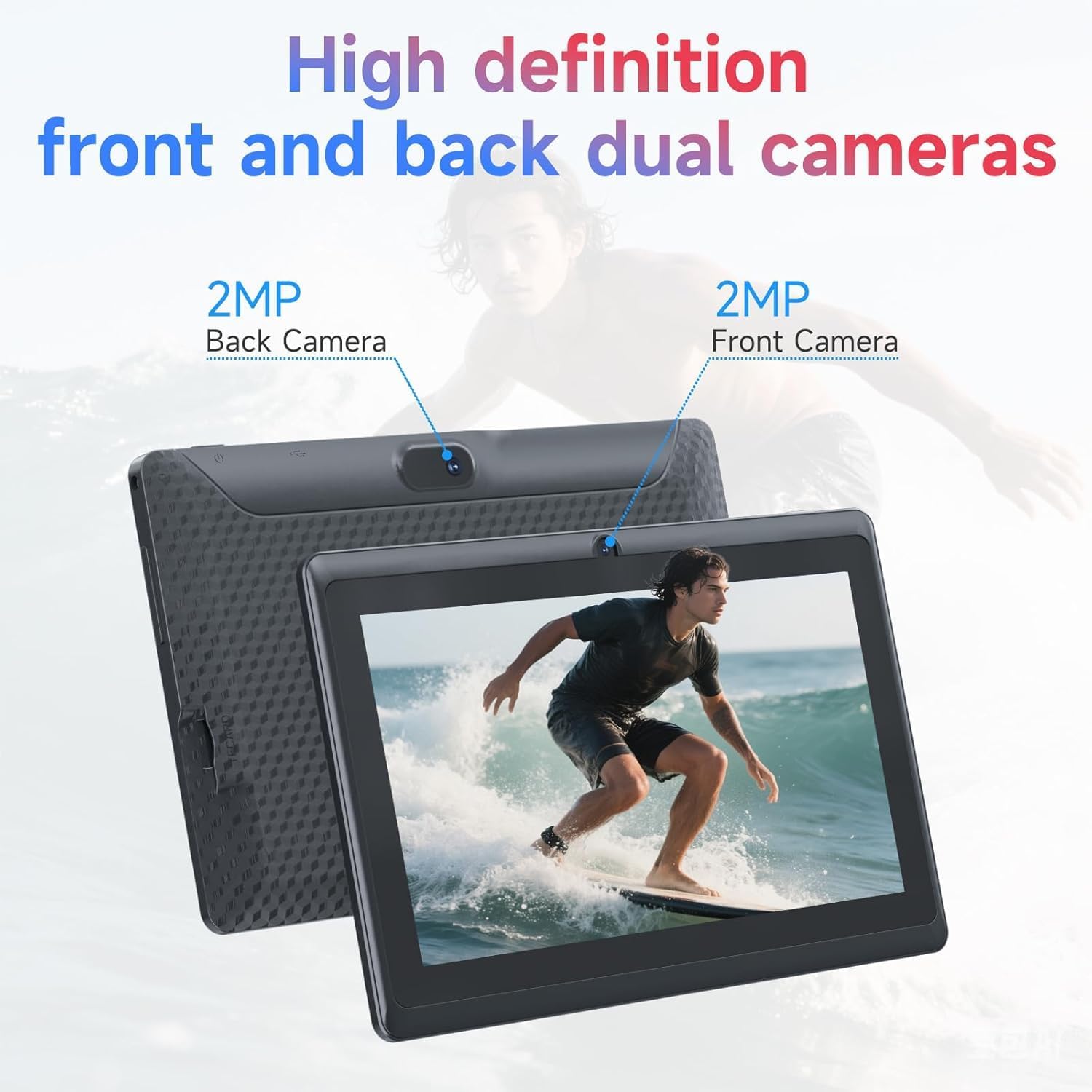
Illustration of the tablet's dual cameras, featuring a 5MP front camera and an 8MP rear camera.
The tablet features a 5MP front camera and an 8MP rear camera. Open the Camara app to take photos or record videos. Tap the camera icon to switch between front and rear cameras.
5. Connectivity (Bluetooth)
Gus innealan Bluetooth a cheangal:
- Rach gu Suidhichidhean > Innealan ceangailte > Bluetooth.
- Tog Bluetooth On.
- Tagh Paidhir inneal ùr agus tagh an inneal agad bhon liosta.
6. Modh Dìon Sùla

The 7-inch IPS HD screen of the tablet displaying a colorful image, highlighting its 1024x600 resolution.
The tablet's display is designed to reduce blue light emission for eye comfort. You can enable or adjust eye protection settings in Suidhichidhean > Taisbeanadh.

A user engaged in a video conference on the tablet, demonstrating its suitability for work and study.
Cumail suas
1. Glanadh agus Cùram
- Cleachd clò bog, gun lint gus an sgrion agus corp an tablaid a ghlanadh.
- Seachain a bhith a 'cleachdadh cheimigean cruaidh no stuthan sgrìobach.
- Keep the tablet away from extreme temperatures, direct sunlight, and moisture.

An image depicting the tablet's drop protection feature, showing it withstands impacts.
2. Ùrachaidhean bathar-bog
Thoir sùil gu cunbhalach airson ùrachaidhean bathar-bog agus stàlaich iad gus dèanamh cinnteach à coileanadh agus tèarainteachd aig an ìre as fheàrr. Rach gu Suidhichidhean > Siostam > Ùrachadh siostam.
3. Leasachadh Bataraidh
- To prolong battery life, reduce screen brightness, disable Wi-Fi/Bluetooth when not in use, and close background apps.
- Seachain a bhith a’ leigeil às a’ bhataraidh gu tur gu tric.
Fuasgladh thrioblaidean
| Cùis | Fuasgladh comasach |
|---|---|
| Chan eil an tablet a’ tionndadh air | Ensure the tablet is charged. Connect to a power source and wait a few minutes before attempting to power on again. |
| Duilgheadasan le ceangal Wi-Fi | Check if Wi-Fi is enabled in settings. Restart your router and the tablet. Ensure you have entered the correct password. |
| Coileanadh slaodach | Close unnecessary background applications. Clear cache from apps in Settings > Apps. Consider performing a factory reset if issues persist (back up data first). |
| Aplacaidean a’ tuiteam no a’ reothadh | Update the app to the latest version. Clear the app's cache and data in Settings > Apps. Reinstall the app. |
Sònrachaidhean
| Brand | CUPESI |
| Modail Àireamh | Q2S |
| Siostam-obrachaidh | Android 14 |
| Pròiseasar | 1.6 GHz Quad-core (ARM Cortex) |
| RAM | 8 GB (4GB fixed + 4GB virtual) |
| Stòradh a-staigh | 32 GB |
| Stòradh a ghabhas leudachadh | Suas ri 1 TB tro chairt microSD |
| Meud sgrion | 7 òirlich |
| Fuasgladh Taisbeanaidh | 1024 x 600 Pixels IPS HD |
| Camara aghaidh | 5 BP |
| Camara cùil | 8 BP |
| Comas Bataraidh | 3000 mAh |
| Beatha bataraidh cuibheasach | 6 Uairean |
| Ceangalachd | Wi-Fi (802.11g), Bluetooth |
| Eadar-aghaidh | USB Type-C |
| Meudan (L x L x Àirde) | 7.5" x 4.3" x 0.3" |
| Cuideam nì | 0.38 cileagram |
Fiosrachadh Barantais
The CUPEISI Q2S Tablet comes with a 1-year limited warranty from the date of purchase. This warranty covers manufacturing defects and workmanship under normal use. It does not cover damage caused by misuse, accidents, unauthorized modifications, or external factors. Please retain your proof of purchase for warranty claims.
Taic Luchd-cleachdaidh
For further assistance, technical support, or warranty inquiries, please refer to the contact information provided with your product packaging or visit the official CUPEISI website. When contacting support, please have your tablet model number (Q2S) and proof of purchase ready.