
1. Ro-ràdh
This manual provides essential information for the proper installation, operation, and maintenance of your SUNMI T2s Lite 15.6-inch Android Point of Sale (POS) system. Please read this manual thoroughly before using the device to ensure optimal performance and safety. Keep this manual for future reference.
2. Fiosrachadh Sàbhailteachd
- Na nochd an inneal gu fìor theodhachd, taiseachd no solas dìreach.
- Seachain a bhith a’ leigeil às no fo smachd an inneal gu buaidhean làidir.
- Use only the power adapter supplied with the device. Using an incorrect adapter may cause damage or fire.
- Na feuch ri an inneal a thoirt às a chèile no a chàradh thu fhèin. Cuir fios gu luchd-obrach seirbheis teisteanasach.
- Cùm an inneal air falbh bho uisge no lioftaichean eile.
- Dèan cinnteach gu bheil fionnarachadh ceart timcheall an inneil rè obrachadh.
3. Pasgan-susbaint
Dèan cinnteach gu bheil a h-uile nì anns a’ phacaid:
- SUNMI T2s Lite POS Terminal
- Adapter cumhachd
- Càball cumhachd
- Stiùireadh Tòiseachaidh Luath (mas e iomchaidh)
- Cairt Barantais (ma tha sin iomchaidh)
Ma tha nithean sam bith a dhìth no air am milleadh, cuir fios chun neach-reic agad sa bhad.
4. Toradh thallview
The SUNMI T2s Lite is an integrated Android-based POS system designed for retail environments. It features a 15.6-inch capacitive touchscreen display and various connectivity options.
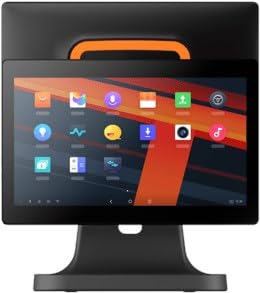
Figear 4.1: Aghaidh view of the SUNMI T2s Lite POS system. This image displays the main 15.6-inch touchscreen, which is the primary interface for operating the device. The design is compact and suitable for various retail settings.
4.1 Prìomh phàirtean
- Taisbeanadh suathaidh 15.6-òirleach: High-resolution (1920x1080) capacitive touch interface.
- Putan Cumhachd: Located typically on the side or rear for turning the device on/off.
- Puirt USB: For connecting peripherals such as barcode scanners, external printers, or cash drawers.
- Port Ethernet: Airson ceangal lìonra uèirleas.
- Cur a-steach cumhachd: Airson an adapter cumhachd a cheangal.
- Camara aghaidh: For specific applications requiring image capture.
5. Suidhich
5.1 Dì-phapadh agus suidheachadh
- Thoir an inneal agus na goireasan uile a-mach às a’ phacaid gu faiceallach.
- Place the POS terminal on a stable, flat surface in a well-ventilated area.
- Ensure there is sufficient space around the device for cable connections and heat dissipation.
5.2 Cumhachd ceangail
- Ceangail an càball cumhachd ris an inneal cumhachd.
- Plug the power adapter into the power input port on the back of the SUNMI T2s Lite.
- Cuir ceann eile a’ chàball cumhachd a-steach do socaid dealain le talamh.
5.3 Initial Boot and Network Connection
- Press and hold the power button until the screen lights up. The device will boot into the Android operating system.
- Lean na stiùiridhean air an sgrion airson an stèidheachaidh tòiseachaidh, a’ gabhail a-steach taghadh cànain agus crios-ama.
- Ceangal Wi-Fi: Rach gu Roghainnean > Lìonra is eadar-lìon > Wi-Fi, tagh an lìonra agad, agus cuir a-steach am facal-faire.
- Ceangal Ethernet: Connect an Ethernet cable from your router/switch to the Ethernet port on the device. The device should automatically connect to the wired network.
5.4 Ceangal iomaill
- Innealan USB: Plug USB peripherals (e.g., barcode scanner, external printer, cash drawer) into the available USB ports. The system will typically recognize them automatically.
- Innealan Bluetooth: Rach gu Roghainnean > Innealan ceangailte > Bluetooth, enable Bluetooth, and pair with your desired device.
6. Stiùireadh Obrachaidh
6.1 A’ cur cumhachd air/dheth
- Gus cumhachd a thoirt air: Brùth agus cum sìos am putan cumhachd gus am bi an scrion a ’lasadh suas.
- Gus cumhachd a thoirt dheth: Press and hold the power button until a power menu appears. Select "Power off" and confirm. Alternatively, a short press of the power button will put the device to sleep.
6.2 Touchscreen Usage
- Tap: To select an item or activate a button.
- Tap is Cùm: To open context menus or drag items.
- Swipe: To scroll through lists or navigate between screens.
- Pinch-gu-Zoom: Gus zoom a-steach no a-mach air ìomhaighean no web duilleagan.
6.3 Android OS Navigation
- Sgrion Dachaigh: The central hub for your applications and widgets.
- Drathair an aplacaid: Faigh cothrom air na h-aplacaidean stàlaichte uile.
- Pannal Fiosrachaidh: Swipe sìos bho mhullach na sgrìn gu view fiosan agus roghainnean luath.
- Roghainnean: Configure Wi-Fi, Bluetooth, display, sound, and other system options.
6.4 Basic POS Functions
The specific POS functions will depend on the software application installed on your device. Refer to the documentation provided with your POS software for detailed instructions. Generally, you will:
- Launch your POS application from the home screen or app drawer.
- Log a-steach leis na teisteasan cleachdaiche agad.
- Process transactions using the touchscreen and connected peripherals (e.g., scanning items, accepting payments).
- Print receipts if an external or integrated printer is configured.
7. Cumail suas
7.1 A ’glanadh an inneal
- Cuir dheth an cumhachd agus dì-phlugaich an inneal an-còmhnaidh mus glan thu e.
- Cleachd clò bog, gun lint beagan dampened with water or a mild, non-abrasive cleaner to wipe the screen and exterior surfaces.
- Na bi a’ frasadh lioftaichean gu dìreach air an inneal.
- Seachain a bhith a’ cleachdadh cheimigean cruaidh, fuasglaidhean, no stuthan sgrìobach.
7.2 Ùrachaidhean bathar-bog
Regularly check for and install system and application updates to ensure optimal performance, security, and access to new features. You can usually find system updates in Roghainnean > Siostam > Ùrachadh siostaim.
7.3 Stòradh
When not in use for extended periods, store the device in a cool, dry place, away from direct sunlight and extreme temperatures. If storing for a long time, ensure the battery is charged to about 50% to prolong its lifespan.
8. A ’dèanamh trioblaid
Tha an earrann seo a’ dèiligeadh ri cùisean cumanta a dh’ fhaodadh tu a thighinn tarsainn orra. Airson duilgheadasan nas iom-fhillte, cuir fios gu taic luchd-cleachdaidh.
- Cha tèid an inneal air:
- Dèan cinnteach gu bheil an inneal-atharrachaidh cumhachd ceangailte gu tèarainte ris an inneal agus ri socaid cumhachd ag obair.
- Dèan cinnteach gu bheil an t-ionad cumhachd obrachail.
- Try holding the power button for 10-15 seconds to force a restart.
- Touchscreen is unresponsive:
- Ath-thòisich an inneal.
- Ensure the screen is clean and free of debris or liquids.
- Duilgheadasan ceangail lìonra (Wi-Fi/Ethernet):
- Check if the Wi-Fi is enabled and you are connected to the correct network with the right password.
- For Ethernet, ensure the cable is properly connected and your router/switch is working.
- Ath-thòisich an router/modem agad.
- Peripherals (e.g., printer, scanner) not working:
- Dèan cinnteach gu bheil an inneal-iomaill ceangailte gu ceart ris a’ phort cheart.
- Check if the peripheral has its own power supply and is turned on.
- Verify that the necessary drivers or software for the peripheral are installed and configured within your POS application.
9. Sònrachaidhean
The following are key technical specifications for the SUNMI T2s Lite:
| Feart | Sònrachadh |
|---|---|
| Brand | SUNMI |
| Dèanadair | Sunmi |
| Fuasgladh Taisbeanaidh Dùthchasach | 1920x1080 piogsail |
| Teicneòlas ceangail | Bluetooth, Ethernet, USB, WLAN |
| Tuairisgeul a ’chamara | aghaidh |
| ASIN | B0B53FLFT8 |
10. Barantas agus Taic
The SUNMI T2s Lite POS system comes with a standard manufacturer's warranty. Please refer to the warranty card included in your package for specific terms and conditions, including warranty period and coverage details.
For technical support, service, or warranty claims, please contact your authorized SUNMI dealer or the customer support channel specified in your purchase documentation. Ensure you have your product model number (T2s Lite) and ASIN (B0B53FLFT8) ready when contacting support.