
1. Ro-ràdh
Thank you for choosing the AUN AKEY6S Native Full HD 1080p Projector. This manual provides essential information for setting up, operating, maintaining, and troubleshooting your projector. Please read this manual thoroughly before use to ensure optimal performance and longevity of your device.
The AUN AKEY6S projector features native 1920x1080p resolution with 4K support, 8000 lumens brightness, a 12000:1 contrast ratio, and runs on Android 9.0. It offers versatile connectivity options including WiFi (2.4G/5G) and Bluetooth 5.2, making it suitable for various home cinema and presentation needs.
2. Suidhich
2.1 Fo-phacadh agus Susbaint a’ Phacaid
Thoir a h-uile pàirt a-mach às a’ phacaid gu faiceallach. Dèan cinnteach gu bheil na nithean gu h-ìosal an làthair:
- 1x AUN AKEY6S Projector
- 1x Smachd Iomallach
- 1x Leabhar-làimhe Cleachdaiche (an sgrìobhainn seo)
- Solar cumhachd 1x
2.2 Suidheachadh a’ Phròiseictar
Position the projector on a stable, flat surface or mount it securely. Ensure there is adequate ventilation around the device. The optimal projection distance and screen size are as follows:
- Meud ro-mheasaidh: 50 gu 300 òirleach
- Astar ro-mheasaidh: Approximately 1.5 meters (50 inches) to 6.2 meters (300 inches)

Image: Illustration of the AUN AKEY6S projector demonstrating adjustable projection sizes from 50 to 300 inches based on distance from the screen.
2.3 Ceangal cumhachd
Connect the provided power supply cable to the projector's power input port and then plug it into a standard electrical outlet.
2.4 Cumhachd Tòiseachaidh Air adhart
Press the power button on the projector or the remote control to turn on the device. The projector will boot up and display the Android 9.0 interface.
2.5 Atharrachadh Fòcas agus Keystone
- Fòcas: Rotate the focus ring on the projector lens until the projected image is clear and sharp.
- Ceartachadh Keystone: The AKEY6S features an electronic keystone correction of ±40°. Access this setting through the projector's menu to adjust the image shape if it appears trapezoidal.
2.6 Roghainnean sreap
The projector supports multiple mounting configurations:
- Stàladh deasg: Cuir am proiseactair air uachdar còmhnard.
- Sliabh mullach: Secure the projector to the ceiling using a compatible projector mount (not included). Ensure the image orientation is adjusted in the projector settings if mounted upside down.

Image: Visual representation of various mounting options for the AUN AKEY6S projector, including ceiling and desktop placements.
3. Stiùireadh Obrachaidh
3.1 User Interface Navigation (Android 9.0)
Navigate the Android 9.0 interface using the remote control. Use the directional buttons to move between icons and options, and the OK button to select. The Back button returns to the previous screen, and the Home button returns to the main menu.
3.2 A’ ceangal innealan taobh a-muigh
The AKEY6S projector offers multiple ports for connecting various devices:

Ìomhaigh: Mion-fhiosrachadh view of the AUN AKEY6S projector's rear panel, highlighting all available input and output ports for connectivity.
- HDMI (HD-IN): Connect devices like laptops, gaming consoles (X-BOX, PS4), TV sticks, or set-top boxes using an HDMI cable. Select the corresponding HDMI input source from the projector's menu.
- USB (USB-IN): Insert USB flash drives to play media files (videos, photos, music) directly.
- AV (AV-IN): Connect older devices using an AV cable.
- SD Card (SD Card-IN): Insert an SD card to access media files.
- Fuaim a-mach 3.5mm: Ceangail luchd-labhairt no fònaichean-cluaise taobh a-muigh.
- RJ45 (LAN): For wired internet connection (Android version only).
- VGA (VGA-IN): Connect computers or laptops using a VGA cable.
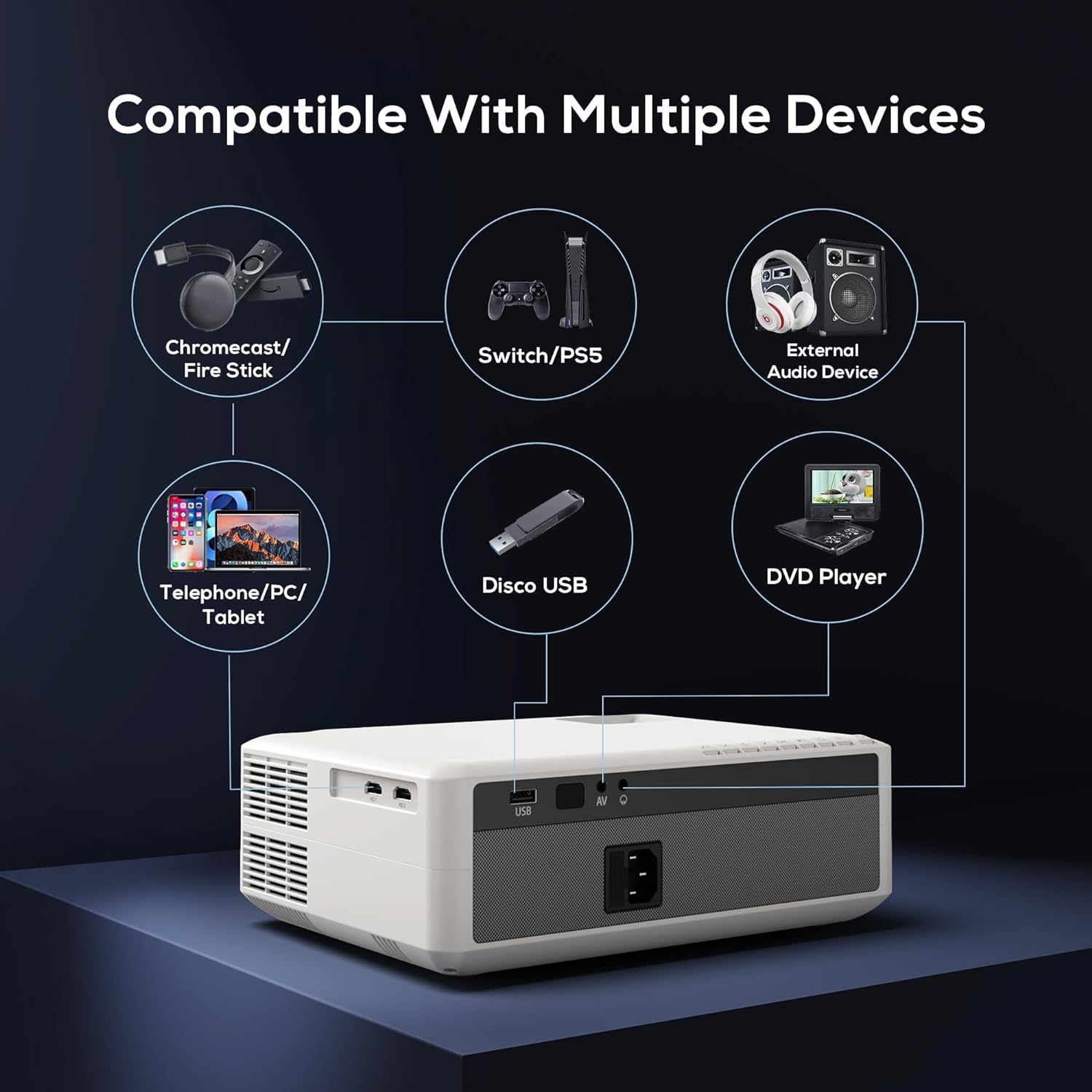
Image: Diagram illustrating the AUN AKEY6S projector's compatibility with a wide range of external devices such as streaming sticks, gaming consoles, audio systems, mobile devices, USB drives, and DVD players.
3.3 Ceangal gun Uèir (WiFi)
Gus ceangal ri lìonra uèirleas:
- Rach gu clàr-taice roghainnean a’ phròiseictar.
- Tagh Lìonra & eadar-lìon.
- Tionndaidh air Wi-Fi and select your desired 2.4G or 5G network from the list.
- Cuir a-steach am facal-faire ma thèid iarraidh ort agus ceangail.
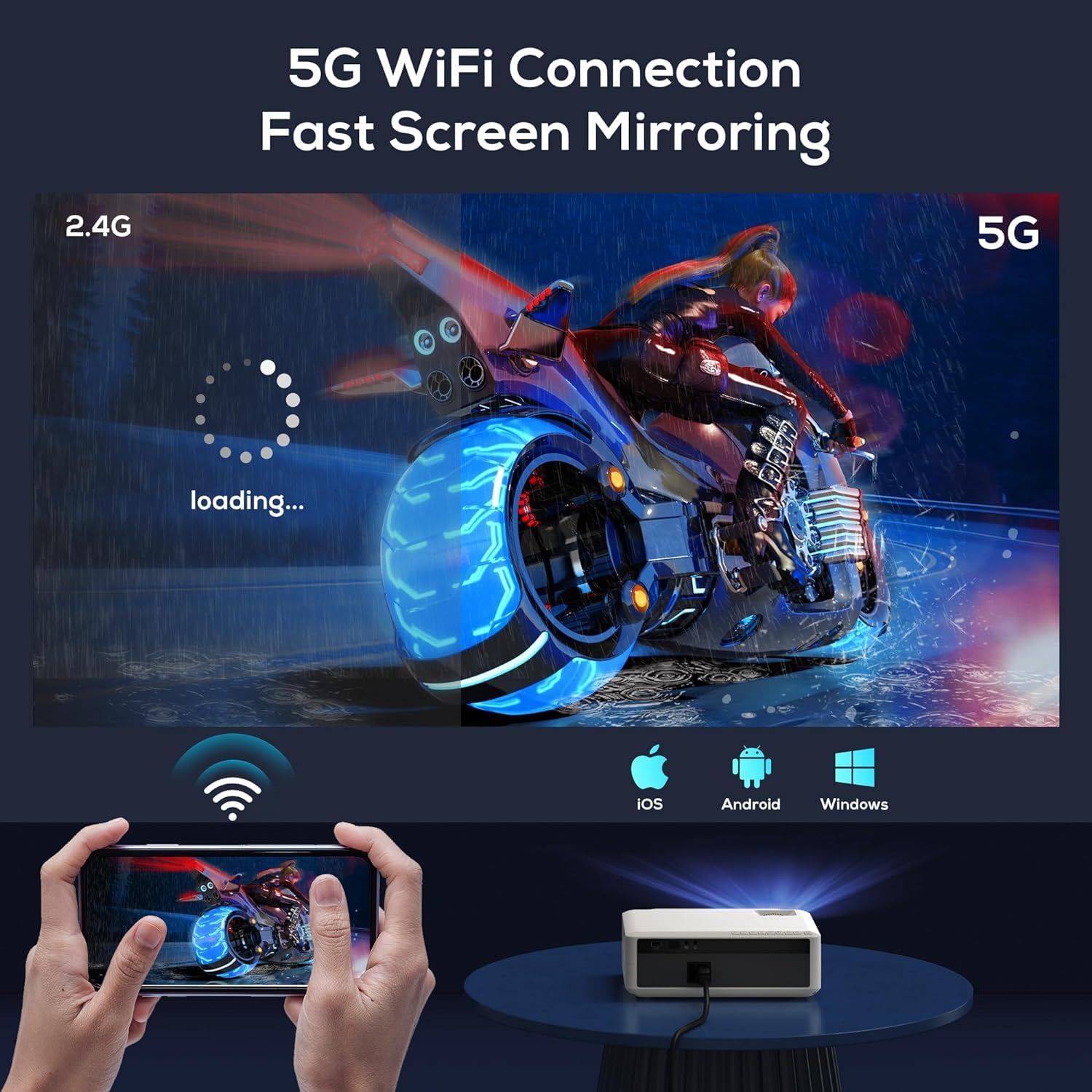
Image: The AUN AKEY6S projector displaying a loading screen, illustrating its 5G WiFi capability for fast screen mirroring from a mobile device.
3.4 Ceangal Fuaime Bluetooth
Pair Bluetooth speakers or headphones for enhanced audio:
- Rach gu clàr-taice roghainnean a’ phròiseictar.
- Tagh Innealan ceangailte or Bluetooth.
- Turn on Bluetooth and put your audio device into pairing mode.
- Tagh an inneal agad bhon liosta gus ceangal.
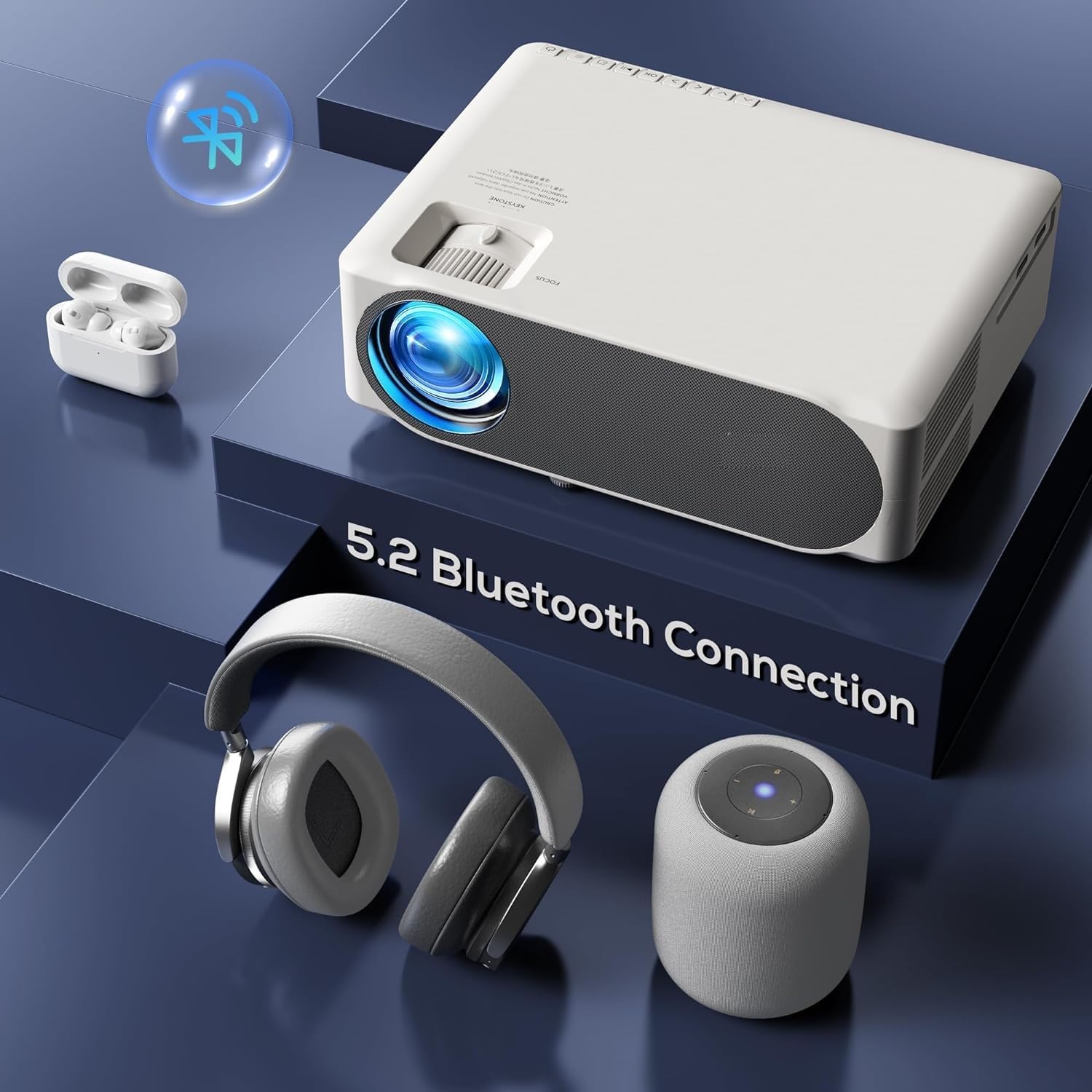
Image: The AUN AKEY6S projector shown with various Bluetooth audio devices, highlighting its Bluetooth 5.2 connectivity for wireless sound.
3.5 Sgàthan sgrion
The projector supports screen mirroring from iOS, Android, and Windows devices via WiFi. Refer to the specific screen mirroring application or setting on your device and follow the on-screen instructions to connect to the projector.
3.6 Riaghladh Iarrtasan
The AKEY6S comes with Android 9.0 and pre-installed applications. You can also install more apps:
- Aplacaidean ro-stàlaichte: YouTube, Netflix, Hotstar, Prime Video.
- A’ stàladh aplacaidean ùra:
- The projector supports Google Play Store and APK installation.
- To install Aptoide TV App Store: Open the browser, search for "Aptoide TV APK", download the APK, then open File Manager and install.
- Download other apps like Netflix, Hotstar, Prime Video from Aptoide TV App Store if not pre-installed or if updates are needed.
4. Cumail suas
4.1 Glanadh
- Lionsa: Cleachd clò bog, gun lint, a chaidh a dhealbhadh gu sònraichte airson lionsan optigeach. Na cleachd innealan-glanaidh sgrìobach no cus feachd.
- Corp a’ Phròiseictar: Wipe the exterior with a soft, dry cloth. For stubborn dirt, slightly dampen an t-aodach le uisge.
- Feansaichean: Regularly check and clean the ventilation openings to prevent dust buildup, which can affect cooling performance. Use a soft brush or compressed air.
4.2 Dìon an aghaidh Duslach
The AUN AKEY6S projector features an advanced dustproof design to minimize dust ingress and maintain image quality over time. Regular cleaning of external vents is still recommended.
4.3 Stòradh
When not in use for extended periods, store the projector in a cool, dry place, away from direct sunlight and extreme temperatures. Cover the lens with its cap to protect it from dust and scratches.
5. A ’dèanamh trioblaid
If you encounter issues with your AUN AKEY6S projector, refer to the following common problems and solutions:
5.1 Gun chumhachd
- Ensure the power cable is securely connected to both the projector and the power outlet.
- Dearbhaich gu bheil an socaid cumhachd ag obair le bhith a’ cur inneal eile a-steach.
- Check if the power indicator light on the projector is on.
5.2 No Image or Blurry Image
- Atharraich fàinne fòcais na lionsa gus am bi an ìomhaigh geur.
- Check the keystone correction settings if the image is trapezoidal.
- Ensure the input source is correctly selected (e.g., HDMI 1, USB).
- Verify that the connected source device (laptop, TV stick) is powered on and outputting a signal.
- Glan lionsa a’ phròiseictar ma tha e coltach gu bheil e salach.
5.3 Gun fhuaim
- Increase the volume on both the projector and the connected source device.
- Check if external speakers or headphones are properly connected or paired via Bluetooth.
- Ensure the audio output setting on the projector is correct.
- Verify that the source video/audio file is not muted or corrupted.
5.4 Smachd Iomallach Gun Fhreagairt
- Cuir na bataraidhean an àite an smachd iomallach.
- Dèan cinnteach nach eil bacadh sam bith eadar an smachd iomallach agus glacadair IR a’ phròiseictar.
- Stiùirich an smachd iomallach gu dìreach ri glacadair IR a’ phròiseictar.
5.5 WiFi or Bluetooth Connectivity Issues
- Ensure WiFi/Bluetooth is enabled in the projector's settings.
- Ath-thòisich am proiseactair agus an router/inneal Bluetooth agad.
- Check if the WiFi password is entered correctly.
- Move the projector closer to the WiFi router or Bluetooth device to improve signal strength.
5.6 App Installation Issues
For issues related to app installation, refer to the following:
- How to Install YouTube? The projector comes with a preinstalled YouTube App.
- How to install Aptoide TV App Store?
- Open the Browser.
- Type for Aptoide TV APK.
- Download the APK to the Projector.
- Fosgail an File Manager and Install the Aptoide TV App Store.
- How to download Netflix, Hotstar, Prime Video Apps?
- Projector comes with preinstalled Netflix, Hotstar, Prime Video Apps.
- Otherwise, download the apps from Aptoide TV App Store.
6. Sònrachaidhean
| Feart | Mion-fhiosrachadh |
|---|---|
| Brand | AUN |
| Modail | AIC6S |
| Fuasgladh Dùthchasach | 1920 x 1080p Full HD |
| Taic 4K | Tha |
| Gile | 8000 Lumen |
| Co-mheas coimeas | 12000:1 |
| Meud ro-mheasaidh | 50 - 300 òirleach |
| Co-mheas taobh | 16:9 |
| Lamp Beatha | 30,000 Uairean |
| Siostam-obrachaidh | Android 9.0 |
| Cuimhne (RAM/ROM) | 1GB RAM / 8GB ROM |
| CPU | 4-Cores ARM 64 |
| GPU | ARM A35 GPU |
| Wi-Fi | 2.4G / 5G |
| Bluetooth | Bluetooth 5.2 |
| Ceangalachd | 2x HDMI, AV, USB, SD Card, 3.5mm Audio Out, RJ45, VGA |
| Clach-chinn eileagtronaigeach | ±40° |
| Meudan toraidh | 30 x 25 x 8 cm |
| Cuideam nì | 2 kg |
| Dètage | 150 watt |
| Ìre Ath-nuadhachaidh | 60 Hz |
Thoir an aire: Dh’fhaodadh mion-chomharrachaidhean atharrachadh gun rabhadh ro-làimh airson leasachadh toraidh.
7. Barantas agus Taic
7.1 Barantas toraidh
The AUN AKEY6S Projector comes with a Barantas 1-bliadhna from the date of purchase. This warranty covers manufacturing defects and workmanship under normal use. Please retain your purchase receipt as proof of purchase.
7.2 Taic teachdaiche
For technical assistance, warranty claims, or any product-related inquiries, please contact Megaa Electronics, the authorized support provider:
- Post-d: taic@megaaelectronics.com or megaaelectronics@gmail.com
- WhatsApp: 8328671337
Please provide your product model (AKEY6S) and purchase details when contacting support to facilitate a quicker resolution.