
Nasuque B09XQL2NJY
Nasuque Bluetooth Keyboard User Manual
Model: B09XQL2NJY
Brand: Nasuque
Ro-ràdh
Thank you for choosing the Nasuque Bluetooth Keyboard. This wireless, rechargeable, and ultra-slim keyboard is designed for seamless compatibility with Mac OS and iOS devices, including MacBook Pro/Air, iMac, iPhone, and iPad Pro/Air/Mini. Featuring a full-size layout with a numeric keypad and a stable scissor mechanism beneath each key, it offers a comfortable and precise typing experience. Its multi-device capability allows you to connect and switch between up to three devices effortlessly.

Image: The Nasuque Bluetooth Keyboard in silver, showcasing an cruth slàn aige agus caol profile.
Susbaint pacaid
Dèan cinnteach gu bheil a h-uile nì an làthair sa phacaid agad:
- Nasuque Bluetooth Keyboard
- Càball cosgais USB
- Dust Cover (Silicone protector)
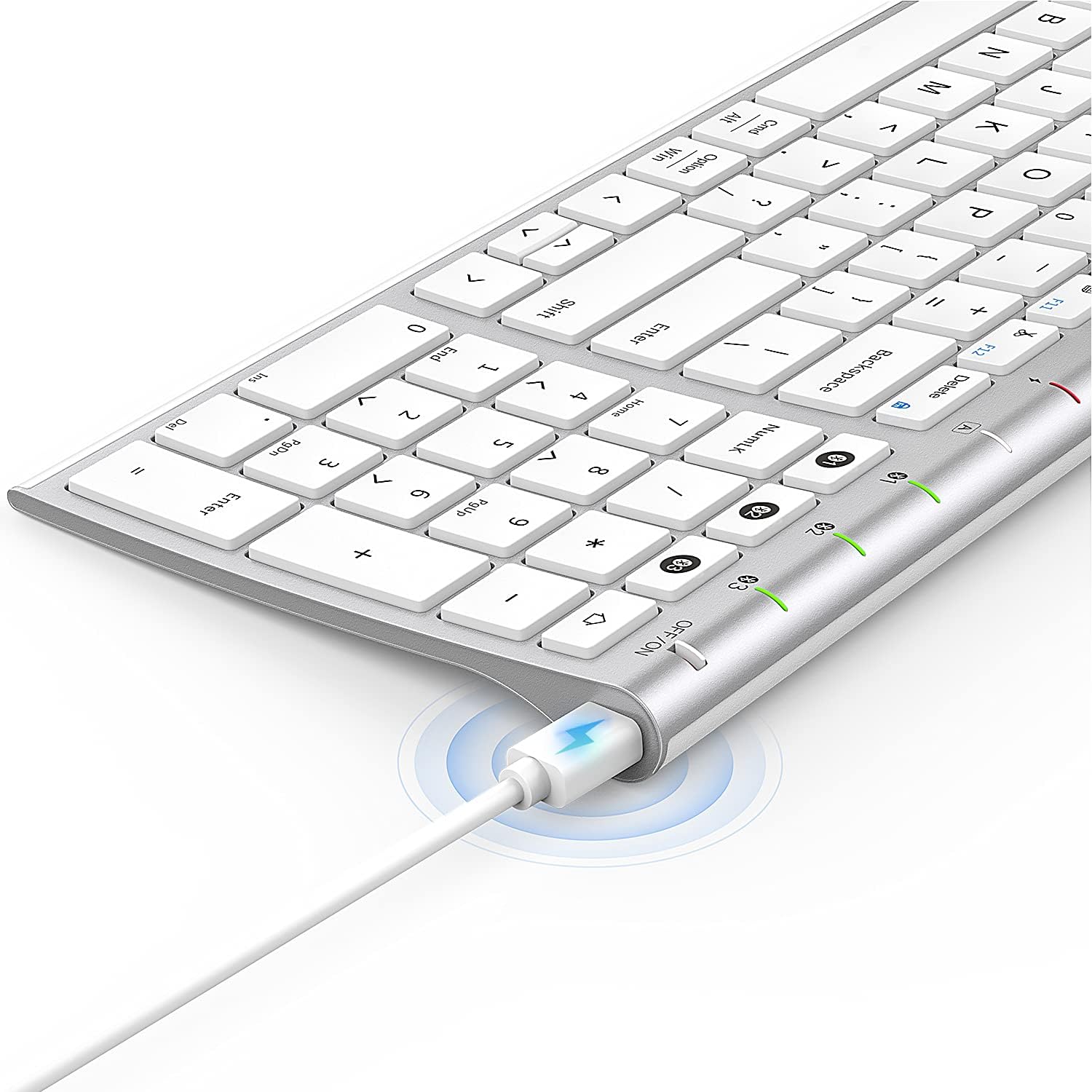
Image: The included USB charging cable, used to recharge the keyboard's built-in battery.
Setup & Pairing
Cumhachd air / dheth
Locate the ON/OFF switch on the top right side of the keyboard. Slide the switch to the "ON" position to power on the keyboard. Slide it to "OFF" when not in use to conserve battery.
A luchdachadh a-nuas a ' mheur-chlàir
The keyboard features a built-in rechargeable lithium battery. Connect the included USB charging cable to the charging port on the keyboard and the other end to a USB power source (e.g., computer USB port, USB wall adapter). The charging indicator light will illuminate during charging and turn off when fully charged.
Paidhreachadh Bluetooth ioma-inneal
This keyboard supports connection with up to three devices simultaneously. Follow these steps to pair your devices:
- Dèan cinnteach gu bheil am meur-chlàr air a stiùireadh.
- Brùth an Fn iuchair agus aon de na h-iuchraichean seanail Bluetooth (1, 2, or 3) simultaneously to select a channel. For first-time pairing, choose an unused channel.
- Brùth fada air an Fn iuchair agus iuchair seanail Bluetooth a chaidh a thaghadh (1, 2, or 3) for 3-5 seconds until the corresponding channel indicator light (01, 02, or 03) starts blinking rapidly. This indicates the keyboard is in pairing mode.
- On your device (MacBook, iMac, iPhone, iPad, etc.), go to Bluetooth settings and enable Bluetooth.
- Lorg airson available devices. The keyboard will appear as "Nasuque Keyboard" or similar. Select it to connect.
- Once connected, the indicator light will stop blinking and remain solid for a few seconds before turning off.
- Repeat these steps for up to two additional devices using the other Bluetooth channels.
To switch between paired devices, simply short press the Fn key and the corresponding Bluetooth channel key (1, 2, or 3).
Riatanasan an t-siostaim: Compatible with Mac OS X 10.12 or higher and Bluetooth 4.0 or higher.

Image: The keyboard's top right corner showing the three Bluetooth channel indicators (01, 02, 03) for multi-device pairing.

Image: An illustration demonstrating the keyboard's ability to easily switch between a laptop, tablet, and smartphone.
Video: A demonstration of the Nasuque Bluetooth Keyboard's multi-device connectivity and ease of use with various Apple devices.
Stiùireadh Obrachaidh
Iuchraichean gnìomh
The keyboard features a row of function keys (F1-F12) that perform various system functions when pressed in combination with the Fn key. These include media controls (play/pause, volume), brightness adjustment, and other shortcuts common to Mac OS.
Keypad àireamhach
The integrated numeric keypad provides convenient data entry for numbers and calculations. Ensure the Num Lock key is active if needed for specific applications.

Ìomhaigh: Sealladh dlùth view of the keyboard's compact full-size layout, highlighting the numeric keypad.
Eòlas clò-sgrìobhaidh
The keyboard utilizes a stable scissor mechanism beneath each key, providing a responsive and comfortable typing experience with a low profile.
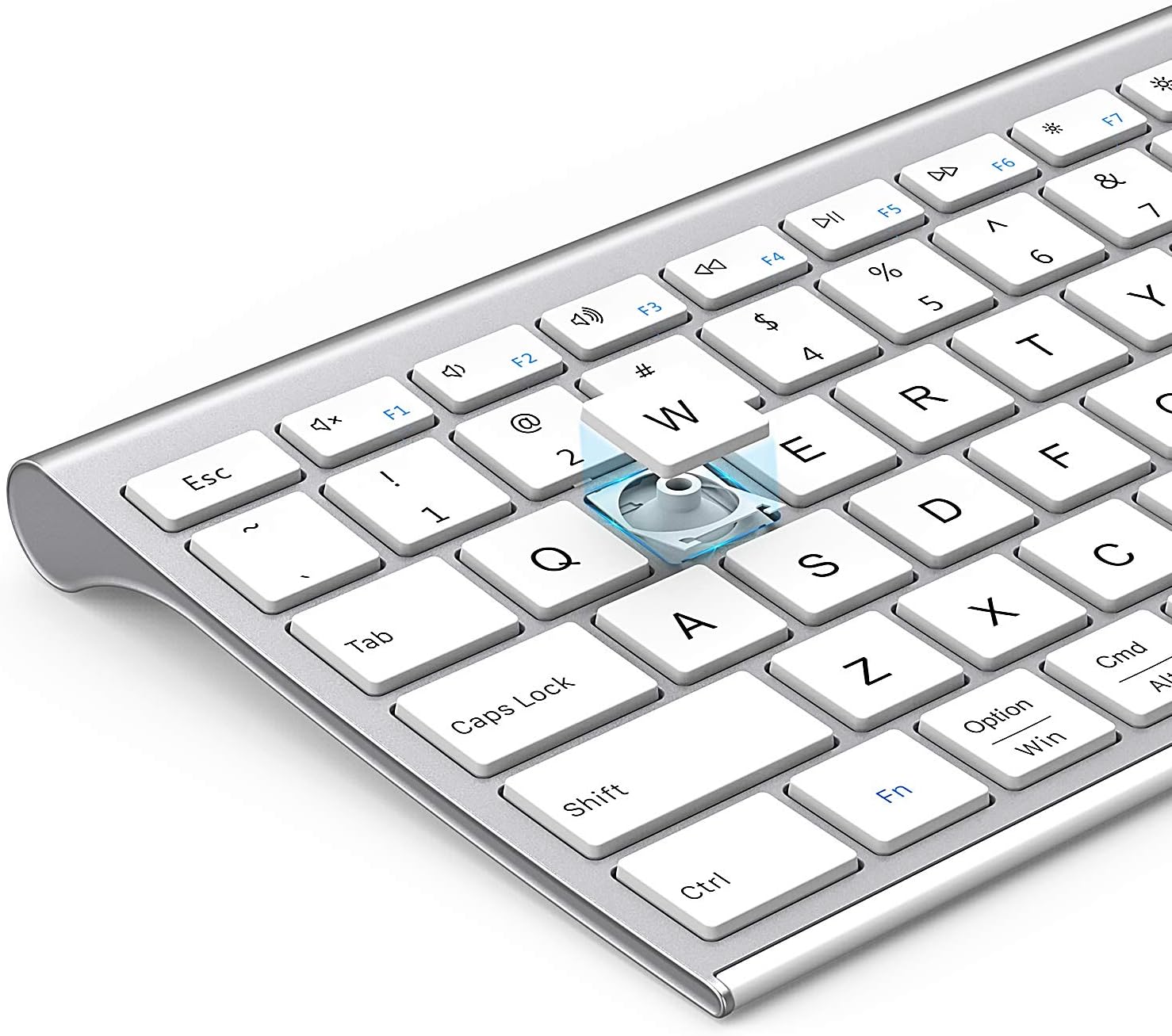
Ìomhaigh: Spreadhadh view of a keycap, illustrating the underlying scissor mechanism for stable and precise typing.
Cumail suas
Gus dèanamh cinnteach gum mair am meur-chlàr agad fad-beatha agus gum bi e ag obair gu h-iomchaidh, lean na stiùiridhean cumail suas seo:
- Glanadh: Cleachd clò bog, tioram, gun lint gus uachdar a’ mheur-chlàir a sguabadh. Airson salachar stòlda, beagan dampnigh an clò le uisge no le fuasgladh glanaidh tlàth. Seachain cus taiseachd.
- Còmhdach dust: Utilize the included silicone dust cover when the keyboard is not in use to protect it from dust, spills, and debris.
- Stòradh: Stòraich am meur-chlàr ann an àite fionnar, tioram air falbh bho sholas dìreach na grèine agus teòthachd anabarrach.
- Seachain Liquids: Do not expose the keyboard to liquids. In case of accidental spills, immediately power off the keyboard and allow it to dry completely before use.
Fuasgladh thrioblaidean
If you encounter issues with your Nasuque Bluetooth Keyboard, please refer to the following common solutions:
| Trioblaid | Adhbhar a dh’fhaodadh a bhith ann | Fuasgladh |
|---|---|---|
| Keyboard does not connect or is not detected. | Keyboard is off, low battery, not in pairing mode, or device Bluetooth is off. |
|
| Chan eil na h-iuchraichean a’ freagairt no tha iad a’ taipeadh gu ceàrr. | Low battery, connection interference, or software issue. |
|
| Difficulty switching between devices. | Incorrect key press or device not properly paired to selected channel. |
|
Sònrachaidhean
| Feart | Mion-fhiosrachadh |
|---|---|
| Modail | B09XQL2NJY |
| Ceangalachd | Bluetooth (Multi-device support for up to 3 devices) |
| Co-fhreagarrachd | Mac OS X 10.12 or higher, Bluetooth 4.0 or higher (MacBook Pro/Air, iMac, iPhone, iPad Pro/Air/Mini) |
| Meudan (L x W x H) | 14.41 x 4.92 x 0.64 òirleach |
| Cuideam | 1.12 not |
| Bataraidh | Bataraidh lithium ath-thagraidh |
| Astar Obrachaidh | Suas gu 8 meatairean (26 troighean) |
| Prìomh Mheacanaig | Siosar-suidse |

Image: Diagram illustrating the precise dimensions of the Nasuque Bluetooth Keyboard.
Barantas & Taic
For warranty information, technical support, or any inquiries regarding your Nasuque Bluetooth Keyboard, please contact the manufacturer directly through the retailer's platform or the contact information provided with your purchase. Please retain your proof of purchase for warranty claims.
Ask a question about this manual
Ask about setup, troubleshooting, compatibility, parts, safety, or missing instructions. Manuals+ will review the question and use this page’s manual context to help answer it.