
1. Ro-ràdh
The ACT AC7049 Dual Monitor Docking Station transforms your laptop into a complete workstation. This versatile 11-in-1 docking station allows you to connect up to two Full HD displays (max. 2048 x 1152 resolution) to your laptop via HDMI, using a single USB-C/A cable. It expands your laptop's connectivity with a Gigabit LAN port, microphone and headphone jacks, and six additional USB ports. Featuring DisplayLink® technology, it ensures advanced screen display on both MacOS and Windows computers.
2. Prìomh fheartan
- Taic monitor dùbailte: Connect up to two external displays with HDMI ports, supporting resolutions up to 2048x1152@60Hz.
- Co-fhreagarrachd Uile-choitcheann: Works with laptops featuring a USB-C or USB-A 3.2 Gen1 (USB 3.0) port, compatible with MacOS and Windows thanks to DisplayLink technology.
- Ceangal farsaing: Includes 2x HDMI, 1x Gigabit Ethernet, 3x USB-A 3.2 Gen 1 (one with fast charging), 4x USB-A 2.0, and 3.5mm audio jacks for microphone and headphones.
- Suidheachadh sùbailte: Designed for both vertical and horizontal placement to optimize desk space and port accessibility.
- Port Cìsean USB: Dedicated USB port for charging smartphones and tablets.
3. Pasgan-susbaint
Thoir sùil air a’ phacaid airson nan nithean a leanas:
- ACT AC7049 Docking Station
- USB-C/A 3.2 Gen1 Connection Cable (USB-A to USB-C)
- Adapter cumhachd
- Seas Ingearach
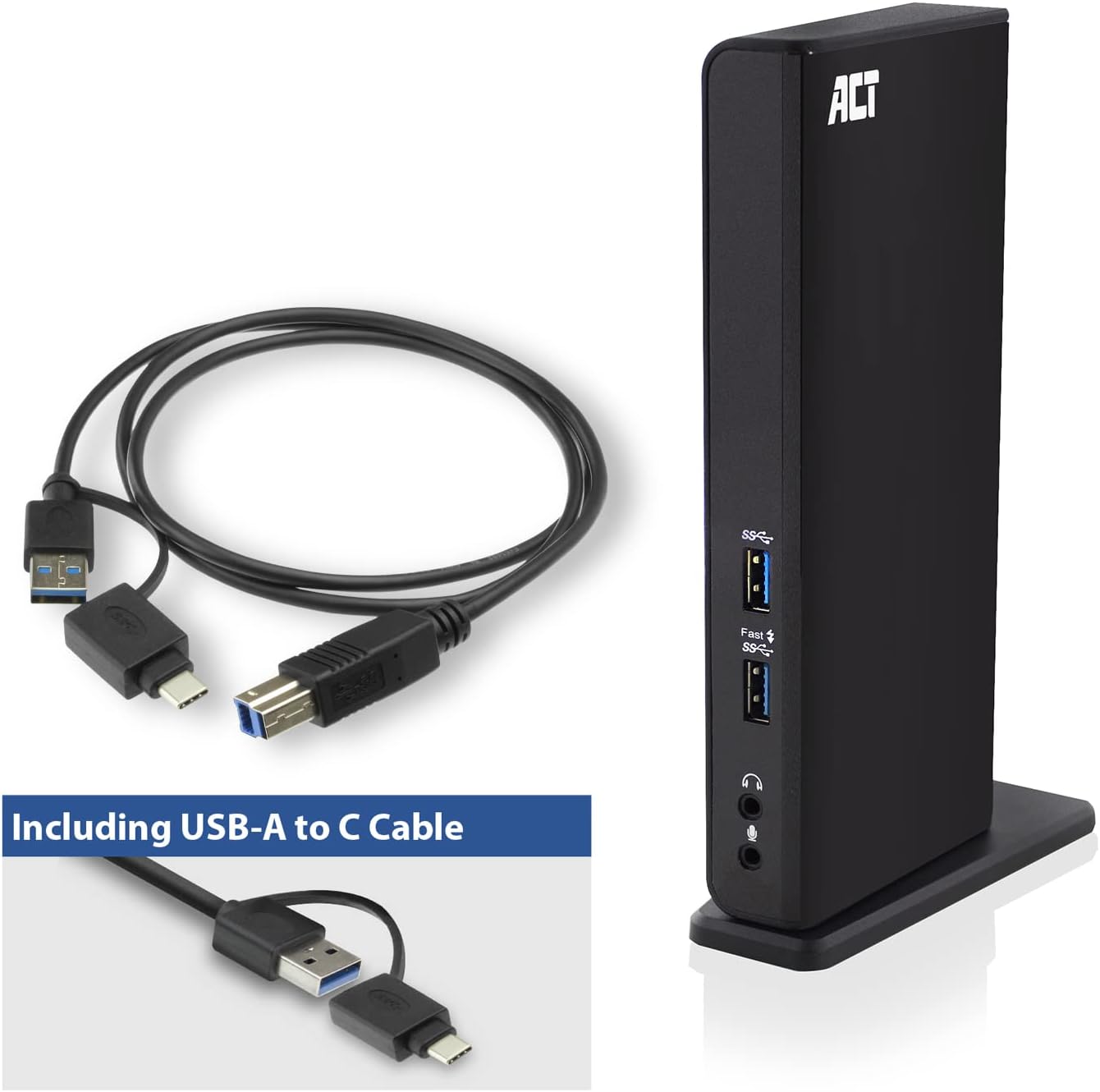
Image: The ACT AC7049 Docking Station shown with its included USB-A to USB-C connection cable and power adapter, highlighting the components provided in the package.
4. Stiùirich rèiteachaidh
4.1. A’ ceangal an inneal-atharrachaidh cumhachd
- Connect the power adapter to the DC 5V input port on the back of the AC7049 docking station.
- Plug the power adapter into a wall outlet. The docking station will power on.
4.2. A’ ceangal ris a’ choimpiutair-uchd agad
- Use the provided USB-C/A 3.2 Gen1 connection cable. Connect the USB-B end to the corresponding port on the docking station.
- Connect the other end (USB-A or USB-C, depending on your laptop's port) to an available USB 3.2 Gen1 (USB 3.0) or USB-C port on your laptop.
4.3. Driver Installation (DisplayLink)
The AC7049 utilizes DisplayLink technology for extended monitor functionality. Drivers are typically installed automatically on most operating systems. If not, please follow these steps:
- Tadhail air an DisplayLink oifigeil weblàrach (www.displaylink.com/downloads) to download the latest drivers for your operating system (Windows or MacOS).
- Install the downloaded driver package and follow the on-screen instructions.
- Ath-thòisich do choimpiutair ma thèid a bhrosnachadh.

Image: The official DisplayLink 'Plug and Display' logo, indicating the technology used for multi-monitor support.
5. Stiùireadh Obrachaidh
5.1. Connecting External Displays
- Connect your HDMI monitors to the two HDMI ports on the back of the docking station.
- Once connected, your operating system should detect the new displays. You can configure display settings (extend, mirror, primary display) through your computer's display settings.

Image: A visual representation of the docking station enabling both 'Mirror your content' and 'Extend your content' display modes across a laptop and two external monitors.
5.2. Connecting USB Peripherals
- Puirt USB aghaidh: Two USB-A 3.2 Gen1 ports (one with fast charging capability) are located on the front for easy access to frequently used devices like USB drives, smartphones, or tablets.
- Rear USB Ports: Four USB-A 2.0 ports are located on the back for connecting peripherals such as keyboards, mice, printers, or other less frequently connected devices.
5.3. Ceangal Lìonra
Connect an Ethernet cable from your router or network switch to the Gigabit Ethernet port on the docking station. Your laptop will automatically gain wired network access.
5.4. Ceanglaichean claisneachd
Connect your headphones and/or microphone to the dedicated 3.5mm audio jacks on the front of the docking station.

Image: An isometric diagram showcasing the comprehensive connectivity of the ACT AC7049, demonstrating how a laptop, two monitors, a keyboard, mouse, network cable, headphones, and a smartphone can all be connected simultaneously.
6. Roghainnean Suidheachaidh
The ACT AC7049 docking station offers flexible placement options to suit your workspace:
- Suidheachadh Ingearach: Use the included stand to position the docking station vertically. This saves desk space and provides easy access to all ports.
- Suidheachadh còmhnard: The docking station can also be placed horizontally if preferred.

Image: The ACT AC7049 Docking Station positioned vertically on its stand, highlighting its compact design and accessible ports.
7. Cumail suas
To ensure optimal performance and longevity of your ACT AC7049 Docking Station, follow these maintenance guidelines:
- Glanadh: Use a soft, dry cloth to clean the exterior of the docking station. Avoid using liquid cleaners or aerosols, as they may damage the device.
- Fionnarachadh: Dèan cinnteach gu bheil an stèisean docaidh air a chur ann an àite le deagh fhionnarachadh gus casg a chur air cus teasachadh. Na cuir bacadh air fosglaidhean fionnarachaidh sam bith.
- Stòradh: Nuair nach eilear ga chleachdadh airson ùine mhòr, stòraich an stèisean docaidh ann an àite fionnar, tioram air falbh bho sholas dìreach na grèine agus teòthachd anabarrach.
- Riaghladh càbaill: Cùm càbaill air an eagrachadh agus saor bho lùbadh no lùbadh ro mhòr gus casg a chur air milleadh air na càbaill agus na puirt.
8. A ’dèanamh trioblaid
If you encounter issues with your ACT AC7049 Docking Station, please refer to the following common troubleshooting steps:
- Gun toradh taisbeanaidh:
- Ensure the docking station is powered on and correctly connected to your laptop.
- Dearbhaich gu bheil na càbaill HDMI ceangailte gu tèarainte ris an stèisean docaidh agus ris na sgrùdairean.
- Check your laptop's display settings to ensure the external monitors are detected and configured correctly (e.g., extended or mirrored).
- Reinstall or update the DisplayLink drivers from www.displaylink.com/downloads.
- Feuch ri aon sgrìn a cheangal aig aon àm gus an duilgheadas a sgaradh bhon choimpiutair.
- Innealan USB nach eil ag obair:
- Dèan cinnteach gu bheil an stèisean docaidh ceangailte gu ceart ris an laptop agad agus gu bheil cumhachd aige.
- Feuch ri an inneal USB a cheangal gu dìreach ris an laptop agad gus dèanamh cinnteach gu bheil e ag obair.
- Connect the USB device to a different USB port on the docking station.
- Ath-thòisich an laptop agad.
- Gun cheangal lìonra:
- Verify the Ethernet cable is securely connected to both the docking station and your router/switch.
- Thoir sùil air roghainnean lìonra an laptop agad gus dèanamh cinnteach gu bheil an ceangal uèirleas air a chomasachadh.
- Dèan deuchainn air a’ chàball Ethernet le inneal eile mas urrainn dhut.
- Fuaim gun a bhith ag obair:
- Ensure headphones/microphone are fully plugged into the correct 3.5mm jacks.
- Check your laptop's sound settings to ensure the docking station's audio output/input is selected as the default device.
9. Sònrachaidhean
| Feart | Sònrachadh |
|---|---|
| Modail Àireamh | AC7049 |
| Brand | ACHD |
| Dath | Dubh |
| Teicneòlas ceangail | USB-A, USB-C |
| Toradh bhidio | 2 x HDMI (Max. 2048 x 1152 @ 60Hz) |
| Puirt USB | 3 x USB-A 3.2 Gen 1 (5Gbps, 1x Fast Charging), 4 x USB-A 2.0 (480Mbps) |
| Port lìonra | 1 x Gigabit Ethernet (RJ45) |
| Puirt claisneachd | 1 x 3.5mm Headphone Jack, 1 x 3.5mm Microphone Jack |
| Innealan co-fhreagarrach | Laptop, Computer (with USB 3.2 Gen1 / USB 3.0 or USB-C port) |
| Taic siostam-obrachaidh | Windows, MacOS (via DisplayLink) |
| Meudan (L x W x H) | 10.9 x 6 x 18.1 cm (timcheall air) |
| Cuideam nì | 317 gram |
10. Barantas agus Taic
ACT products are designed for reliability and adhere to international standards and EU legislation. The ACT AC7049 Docking Station comes with a manufacturer's warranty, typically ranging from 2 to 5 years. For specific warranty details and support, please refer to the official ACT weblàrach-lìn no cuir fios chun neach-reic agad.
For technical support or further inquiries, please visit the official ACT connectivity weblàrach: www.act-connectivity.com