
1. Ro-ràdh
This manual provides detailed instructions for the installation, setup, and operation of your OHMAX Smart Light Switch with Remote Control, Model SWS10-1. Please read this manual thoroughly before installation and use to ensure proper functionality and safety.

Image 1.1: OHMAX Smart Light Switch and Remote Control packaging. The image shows the product box containing the smart light switch and a separate wireless remote control.
2. Fiosrachadh Sàbhailteachd
- Sàbhailteachd dealain: Installation must be performed by a qualified electrician or a person with a thorough understanding of electrical wiring. Always turn off power at the circuit breaker before installation.
- Uèir neodrach a dhìth: This device requires a neutral wire for operation. If your electrical box does not have a neutral wire, consult a qualified electrician.
- Wi-Fi 2.4GHz a-mhàin: This device operates on a 2.4GHz Wi-Fi network. It is not compatible with 5GHz Wi-Fi networks.
- Pòla singilte a-mhàin: This switch is designed for single-pole applications only. It is not compatible with 3-way or multi-way switch configurations unless used with the included remote as a virtual 3-way.
- An luchdachadh as àirde: Do not exceed the maximum power rating of 1800W or current rating of 15A.
3. Pasgan-susbaint
The OHMAX Smart Light Switch kit includes:
- OHMAX Smart Light Switch (Model SWS10-1)
- SM04 RF Wireless Remote Control
- Neach-gleidhidh balla airson Iomallach
- Clàr-aghaidh
- Sgriothan
- Teip adhesive 3M
- Leabhar-làimhe cleachdaiche (an sgrìobhainn seo)
4. Setup agus Stàladh
4.1 Stàladh Dealain
- Cuir dheth cumhachd: Lorg am briseadair cuairteachaidh agad agus cuir dheth an cumhachd chun suidse solais a tha thu a’ cur na àite. Dèan cinnteach gu bheil an cumhachd dheth le bhith a’ cleachdadh inneal-tomhais.tage deuchainniche.
- Thoir air falbh an t-Seann Suidse: Thoir air falbh gu faiceallach am plàta balla a tha ann agus sgriub às an t-seann suidse bhon bhogsa dealain. Dì-cheangail na uèirichean.
- Comharraich uèirichean: Identify the following wires in your electrical box:
- Uèir neodrach: Often white and capped together. This is essential for the smart switch.
- Uèir loidhne: Often black, providing constant power. Use an electric pen to confirm it's live when power is on (before turning off for installation).
- Luchdaich uèir: Connects to the light fixture. May be red or black.
- Uèir talmhainn: Always green or bare copper.
- Ceangail Suidse Ùr: Connect the wires from your electrical box to the corresponding terminals on the OHMAX Smart Light Switch. Ensure connections are secure.
- Connect the Neutral wire to the 'Neutral' terminal.
- Connect the Line wire to the 'Line' terminal.
- Connect the Load wire to the 'Load' terminal.
- Connect the Ground wire to the 'Ground' terminal.
Note: If the switch does not function after installation, try reversing the Line and Load connections.
- Suidse-shuidheachaidh: Gently push the wired switch into the electrical box and secure it with screws. Attach the face plate.
- Thoir air ais cumhachd: Tionndaidh an cumhachd air ais aig an inneal brisidh cuairteachaidh.

Image 4.1: Step-by-step wiring diagram. This image illustrates how to replace an old switch, identify neutral, line, load, and ground wires, and connect them to the new smart switch.
4.2 Suidheachadh Aplacaid agus Ceangal Wi-Fi
The OHMAX Smart Light Switch uses the Smart Life app for smart control. Ensure your Wi-Fi network is 2.4GHz.
- Luchdaich sìos an aplacaid: Download the "Smart Life" app from the App Store (iOS) or Google Play Store (Android).
- Clàraich/Log a-steach: Fosgail an aplacaid agus clàraich cunntas ùr no log a-steach le fear a th’ ann mu thràth.
- Cuir inneal ris: Tap "Add Device" or the "+" icon in the app.
- Tagh an seòrsa inneal: Choose "Light Switch" or the appropriate category.
- Ceangail ri 2.4GHz Wi-Fi: Tagh an lìonra Wi-Fi 2.4GHz agad agus cuir a-steach am facal-faire.
- Ath-shuidheachadh an inneal: On the smart switch, press and hold the main switch button for approximately 5 seconds until the indicator light blinks rapidly. This puts the switch into pairing mode.
- Confirm Blinking: In the app, confirm that the indicator light on the switch is blinking rapidly.
- ceangail: The app will begin searching for and connecting to the device. Once connected, you can rename the switch.
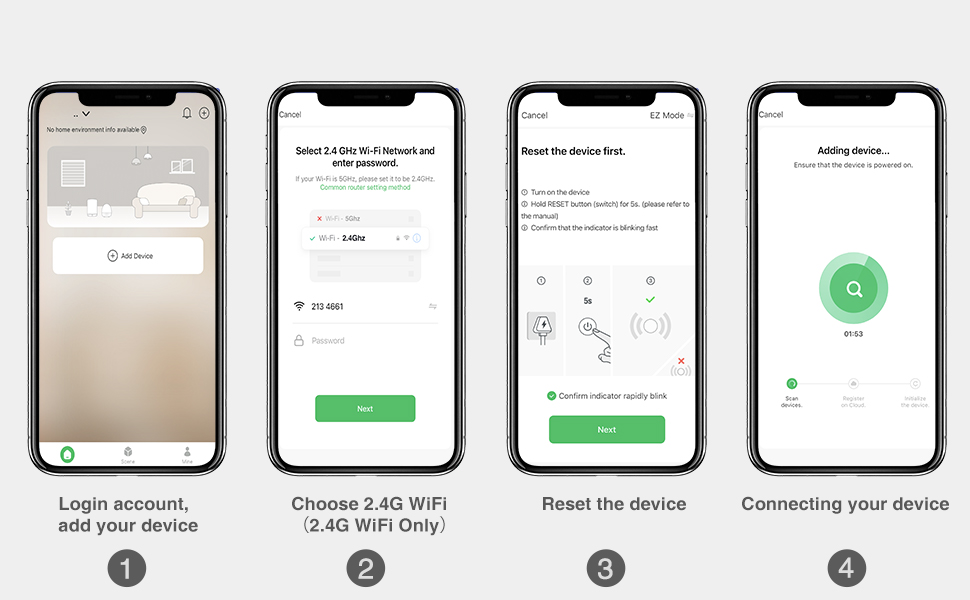
Image 4.2: Smart Life app setup steps. This image shows the four main steps: logging in and adding a device, selecting the 2.4G Wi-Fi network, resetting the device, and connecting the device.
4.3 Paidhir smachd aig astar
The included SM04 RF remote control needs to be paired with the smart light switch.
- Enter Pairing Mode on Switch: Quickly press the main smart switch button 3 times. The indicator light on the switch will flash green.
- Pair Iomallach: While the switch indicator is flashing, press the "ON" button on the wireless remote control.
- Dearbhadh: The remote will blink green, and the switch indicator light will slow down its flashing, indicating successful pairing.
Note: The remote control can be mounted to a wall using the provided wall holder, screws, or 3M adhesive tape. It uses a replaceable CR2032 coin cell battery.
5. Stiùireadh Obrachaidh
5.1 Multiple Control Methods
The OHMAX Smart Light Switch offers several ways to control your lights:
- Leabhar-làimhe AIR / OFF: Press the physical button on the smart light switch.
- Smachd iomallach gun uèir: Use the included SM04 RF remote control to turn lights ON or OFF from anywhere within range (up to 260ft).
- Smachd app: Use the Smart Life app on your smartphone to control lights remotely, set schedules, and manage settings.
- Smachd guth: Integrate with Amazon Alexa or Google Home for hands-free operation.

Image 5.1: Control Your Lights in Multiple Ways. This image visually demonstrates control via the remote, manual switch, voice commands through smart speakers, and the Smart Life mobile application.
5.2 Amalachadh Smachd Gutha
To enable voice control, link your Smart Life account to Amazon Alexa or Google Home through their respective apps.
- Airson Amazon Alexa:
- Fosgail an aplacaid Alexa.
- Go to "Skills & Games".
- Lorg airson "Smart Life" and enable the skill.
- Link your Smart Life account.
- Faigh a-mach innealan.
- Airson Dachaigh Ghoogle:
- Fosgail an aplacaid Google Home.
- Tap "Add" > "Set up device" > "Works with Google".
- Lorg airson "Smart Life" and link your account.
Once linked, you can use commands such as: "Alexa, turn on Kitchen Light" or "Hey Google, turn off Bedroom Light."

Image 5.2: Hands-free Voice Control. A person is shown interacting with a smart speaker to control lights, demonstrating the convenience of voice commands.
5.3 Gnìomhan Timer agus Clàr-ama
Utilize the Smart Life app to set up schedules and timers for automated lighting control.
- Uaireadair: Set a countdown timer for the light to turn ON or OFF after a specified duration.
- Clàr: Create daily or weekly schedules for lights to turn ON or OFF at specific times. This can simulate occupancy when you are away from home.

Image 5.3: Light Scheduling. This image illustrates the timer and scheduling capabilities, showing a countdown for turning off and a scheduled time for turning on.
6. Cumail suas
- Glanadh: To clean the switch and face plate, gently wipe with a soft, dry cloth. Do not use abrasive cleaners or solvents.
- Ath-shuidheachadh Bataraidh Iomallach: The wireless remote control is powered by a CR2032 coin cell battery. Replace the battery when the remote's indicator light no longer illuminates or its range decreases significantly.
- Ùrachaidhean firmware: Periodically check the Smart Life app for available firmware updates for your smart switch to ensure optimal performance and security.
7. A ’dèanamh trioblaid
7.1 Cùisean Coitcheann agus Fuasglaidhean
- Switch Not Turning On/Off Manually:
- Dèan cinnteach gu bheil an cumhachd air ais aig a’ bhriseadair cuairte.
- Verify all wires are securely connected.
- Check if the Line and Load wires are correctly identified and connected. If unsure, try reversing them.
- Smachd air astar nach eil ag obair:
- Ensure the remote is paired with the switch (refer to Section 4.3).
- Check the remote's battery (CR2032). Replace if necessary.
- Ensure the remote is within range of the smart switch.
- Unable to Connect to Wi-Fi / App Control Not Working:
- Confirm your Wi-Fi network is 2.4GHz. The switch is not compatible with 5GHz networks.
- Ensure your Wi-Fi signal is strong at the switch's location.
- Verify the Wi-Fi password entered in the Smart Life app is correct.
- Try resetting the smart switch to pairing mode (press and hold the main button for 5 seconds until it blinks rapidly) and attempt to connect again via the app.
- Ath-thòisich an router Wi-Fi agad.
- Smachd Gutha gun Fhreagairt:
- Ensure your Smart Life account is correctly linked to Alexa or Google Home (refer to Section 5.2).
- Check if the smart speaker is online and functioning correctly.
- Verify the device name in the Smart Life app matches the name you are using in voice commands.
8. Sònrachaidhean
| Modail Àireamh | SWS10-1 |
| Brand | OHMAXX |
| Meudan toraidh | 2.3 x 1.5 x 2.1 òirleach |
| Cuideam nì | 8.64 unnsa |
| Modh obrachaidh | AIR-OFF-ON |
| Rangachadh làithreach | 15 Amps |
| Vol Obrachaidhtage | 120 Volt |
| Seòrsa conaltraidh | Mar as trice fosgailte |
| Seòrsa ceangail | Dèan ceangal |
| Terminal | Sgriubha |
| Seòrsa cuairteachaidh | 1-shligheach (Pòla Singilte) |
| Stuth conaltraidh | Copar |
| Co-fhreagarrachd Wi-Fi | 2.4GHz a-mhàin |
| Cumhachd as motha | 1800W |
9. Barantas agus Taic
9.1 Fiosrachadh Barantais
OHMAX products typically come with a 12-month warranty from the date of purchase. Please refer to the product packaging or contact customer support for specific warranty terms and conditions.
9.2 Taic teachdaiche
If you encounter any difficulties during installation or operation, or have questions about your OHMAX Smart Light Switch, please do not hesitate to contact our customer support team. We are available to assist you.
For support, please refer to the contact information provided on the product packaging or the OHMAXX brand store on Amazon: OHMAXX Store