
Ro-ràdh
This manual provides detailed instructions for the installation, operation, and maintenance of your Everycom EC-901 80mm Thermal POS Receipt Printer. Please read this manual thoroughly before using the printer to ensure proper functionality and to prevent damage.
Fiosrachadh Sàbhailteachd
- Ensure the printer is connected to a power source with the correct voltage.
- Do not expose the printer to water or high humidity.
- Seachain a bhith a’ cur a’ chlò-bhualadair ann an solas dìreach na grèine no faisg air stòran teas.
- Use only specified thermal paper for optimal performance and to prevent damage to the print head.
- Do not attempt to disassemble or repair the printer yourself. Contact qualified service personnel.
Susbaint pacaid
Dèan cinnteach gu bheil a h-uile nì anns a’ phacaid:
- Everycom EC-901 Thermal POS Receipt Printer
- Roll paper × 1 Roll (for initial testing)
- CD-ROM (containing Drivers, Utility Software, Manuals)
- Leabhar-iùil pàipeir
- Paper Bearing
- Càball USB
- Càball Adaptor Cumhachd
Bathar seachadview
The Everycom EC-901 is a compact 80mm (3-inch) thermal POS receipt printer designed for efficient and reliable printing. It features a USB and LAN interface for versatile connectivity.

Figear 1: Aghaidh view of the Everycom EC-901 Thermal POS Receipt Printer.
Prìomh fheartan:
- Astar clò-bhualaidh luath: Up to 160mm per second for quick receipt output.
- Luchdadh Pàipear Furasta: Drop-in paper loading mechanism for quick and easy media changes.
- Dealbhadh Compact: Low space requirement with an integrated power supply.
- Variable Paper Width: Supports 80mm paper width.
- Ceangal: USB and LAN interface options.
- Fuasgladh Àrd: 203 x 203 DPI for clear print quality.
- Ìrean fuaim ìosal: Operates quietly, suitable for various work environments.

Figure 2: Top-open design for easy paper roll installation.
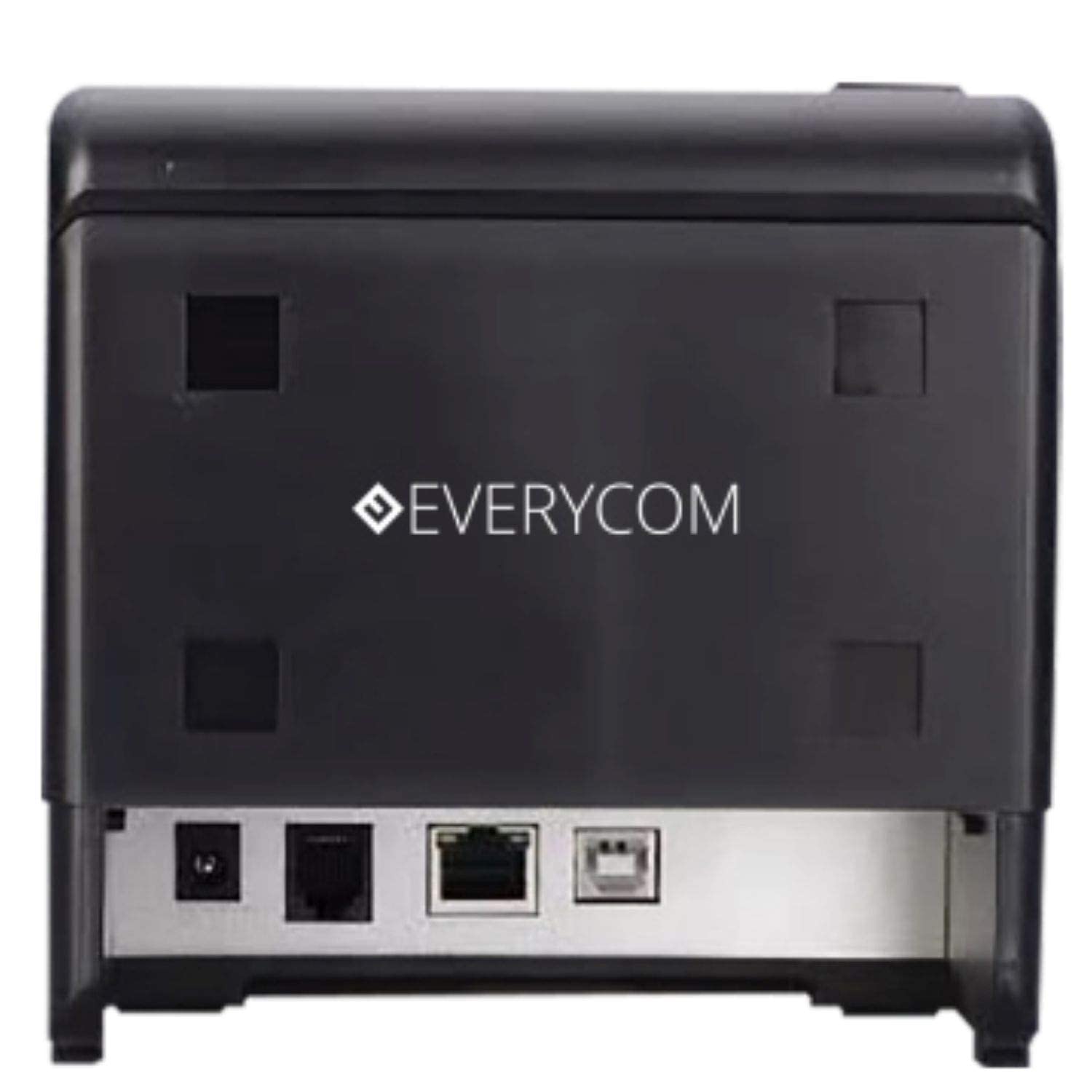
Figear 3: Cùl view showing USB and LAN connectivity ports.

Figure 4: The EC-901 printer is designed for low noise operation.

Figure 5: The EC-901 printer features an easy-to-use design for paper installation.
Suidhich
1. A’ ceangal a’ chlò-bhualadair
- Connect the power adapter cable to the printer's power port and then plug it into a suitable electrical outlet.
- For USB connection: Connect one end of the USB cable to the printer's USB port and the other end to your computer.
- For LAN connection: Connect an Ethernet cable to the printer's LAN port and the other end to your network router or switch.
- Turn on the printer using the power switch located on the front or side of the device.
2. A’ cur a-steach an rolla pàipeir
- Open the printer cover by pressing the release button or lifting the cover.
- Insert the thermal paper roll into the compartment with the paper feeding from the bottom and exiting towards the front.
- Tarraing beagan pàipeir a-mach seachad air an gearradair.
- Close the printer cover firmly until it clicks into place.
3. Stàladh dràibhear
Insert the provided CD-ROM into your computer's CD/DVD drive. Follow the on-screen instructions to install the printer drivers and utility software. Drivers are typically compatible with Windows operating systems, including Windows 10.
Stiùireadh Obrachaidh
Solais comharra:
- CUMHACHD: A’ comharrachadh gu bheil am clò-bhualadair air.
- MEARACHD: Lights up or flashes to indicate an error (e.g., print head overheating, cover open).
- PÀIPEAR: Indicates low paper or no paper.
Clò-bhualadh Bunasach:
Once the printer is connected and drivers are installed, you can print receipts from your POS software or any application that supports printing. Ensure the Everycom EC-901 is selected as the default printer or the desired printer in your application's print settings.
Cumail suas
A’ glanadh a’ chlò-bhualadair:
- Turn off the printer and disconnect the power cable before cleaning.
- Cleachd clò bog gun lint dampened with isopropyl alcohol to gently clean the thermal print head. Allow it to dry completely before use.
- Wipe the exterior of the printer with a soft, dry cloth. Do not use abrasive cleaners.
Pàipear a chur na àite:
When the PAPER indicator lights up or printing becomes faint, replace the paper roll following the steps outlined in the "Installing the Paper Roll" section.
Fuasgladh thrioblaidean
| Trioblaid | Adhbhar a dh’fhaodadh a bhith ann | Fuasgladh |
|---|---|---|
| Chan eil an clò-bhualadair a’ dol air. | Power cable disconnected or power outlet issue. | Check power cable connections. Ensure the power outlet is functional. |
| No printing or blank output. | No paper, paper loaded incorrectly, or print head issue. | Check paper roll and ensure it's loaded correctly. Clean the print head if necessary. Verify printer drivers are installed. |
| PAPER indicator is on. | Paper roll is empty or low. | Cuir an àite an rolla pàipeir. |
| ERROR indicator is on. | Printer cover open, print head overheating, or other internal error. | Ensure the printer cover is closed properly. Turn off the printer, wait a few minutes for it to cool down, then restart. If the issue persists, contact support. |
| Cha deach am clò-bhualadair aithneachadh leis a’ choimpiutair. | Driver not installed or USB/LAN cable issue. | Reinstall printer drivers. Check USB/LAN cable connections. Try a different port or cable. |
Sònrachaidhean
| Feart | Mion-fhiosrachadh |
|---|---|
| Ainm Modail | EC-901 |
| Teicneòlas clò-bhualaidh | Teirmeach |
| Meadhanan Clò-bhualaidh | Paper (plain thermal) |
| Meud as motha de na meadhanan | 3 òirleach (80mm) |
| Astar clò-bhualaidh as àirde | 160 mm / diog |
| Fuasgladh | 203 x 203 dPI |
| Teicneòlas ceangail | USB, LAN Interface |
| Toradh Clò-bhualadair | Monochrome |
| Siostam-obrachaidh | Windows 10 (agus co-chòrdail ri dreachan eile de Windows) |
| Meudan toraidh (LxWxH) | 19.8 x 14.8 x 14.8 cm |
| Cuideam nì | 1.8 kg |
| Feart sònraichte | Without Auto cutter |
Barantas agus Taic
For technical assistance, warranty claims, or any product-related inquiries, please contact Everycom customer support.
- Àireamh gun chìsean: 1800 121 4480
- Uairean obrach: Monday - Saturday, 10:00 AM - 6:30 PM (Except on Public Holidays)