
Ro-ràdh
The Intel NUC 10 Performance NUC10i3FNHN is a compact barebone system designed for versatility. It features a customizable board and chassis, allowing users to integrate their preferred memory, storage, and operating systems. This mini PC is suitable for a wide range of applications, including business, education, and DIY projects, offering a powerful computing solution in a small form factor.
Susbaint pacaid
Upon opening your Intel NUC 10 Performance kit, please verify that all components are present:
- Intel NUC 10 Performance kit - NUC10i3FNHN Barebone System
- Corda cumhachd na SA
Note: Memory, storage, and operating system are not included and must be purchased separately. Ensure the power cord provided is compatible with your region's electrical outlets.
Suidhich
Follow these steps to set up your Intel NUC system:
- Stàlaich Cuimhne (RAM):
Locate the DDR4 SDRAM compatible slots inside the NUC chassis. Carefully insert the memory modules into the slots until they click into place. Ensure proper alignment to prevent damage.
- Stàlaich stòradh:
The NUC supports various storage options, including M.2 SSDs and 2.5-inch SATA drives. Connect your chosen storage device to the appropriate Serial ATA/600 interface or M.2 slot. Secure the drive with the provided screws if necessary.
- Ceangail peripherals:
Connect your monitor to one of the available video output ports (e.g., HDMI, USB-C/Thunderbolt). Connect your keyboard, mouse, and other USB-compatible devices to the available USB ports. The NUC features 7 USB ports for extensive connectivity.
- Ceangal lìonra:
For wired network access, connect an Ethernet cable to the Gigabit Ethernet port. For wireless connectivity, ensure your NUC has a Wi-Fi module installed (if not integrated) and configure it after OS installation.
- Ceangal cumhachd:
Connect the provided US power cord to the NUC's power input and then to a wall outlet. Ensure the connection is secure.
- Tòiseachadh tùsail agus stàladh siostam-obrachaidh:
Press the power button to turn on the NUC. Follow the on-screen prompts to install your preferred operating system (e.g., Windows 10, Linux distribution). You may need to create a bootable USB drive with the OS installer.

Figear 1: Aghaidh view of the Intel NUC 10 Performance NUC10i3FNHN, showing the power button, USB ports, and SD card slot.
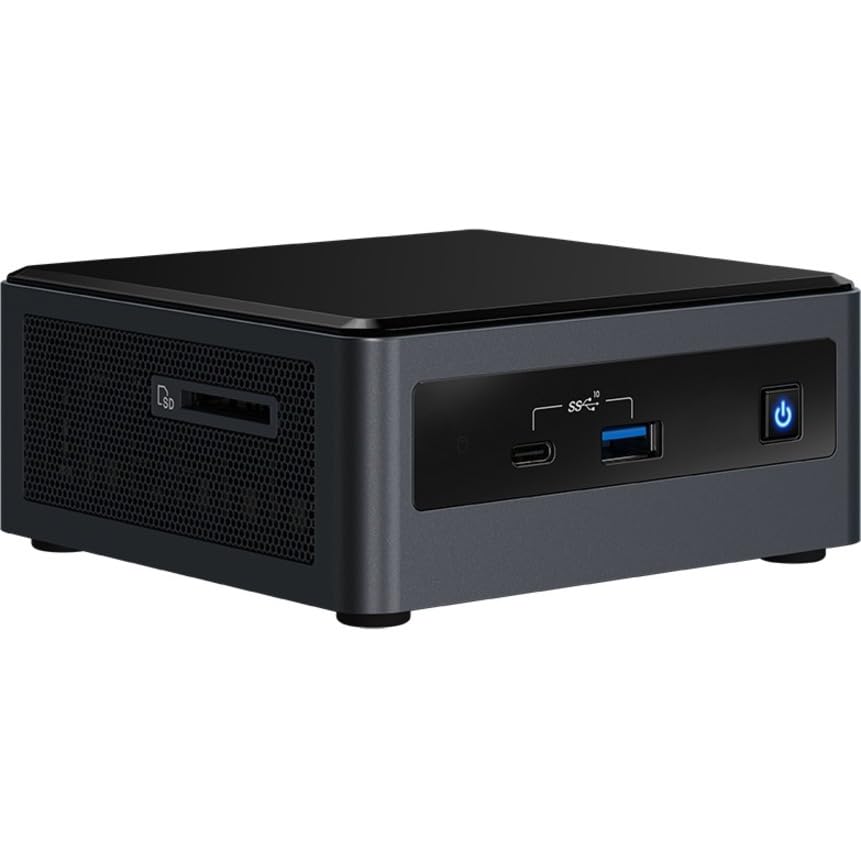
Figear 2: Taobh view of the Intel NUC 10 Performance NUC10i3FNHN, highlighting the ventilation and additional ports.
Stiùireadh Obrachaidh
Once your Intel NUC is set up and the operating system is installed, you can begin using it for various tasks.
- Cumhachd air / dheth: Press the power button located on the front panel to turn the system on or off. For a controlled shutdown, use the operating system's shutdown function.
- A 'ceangal innealan USB: Utilize the multiple USB ports (including USB 2.0 and USB 3.0/3.1) to connect external hard drives, flash drives, printers, and other peripherals.
- Network Usage: The Gigabit Ethernet port provides high-speed wired network connectivity, ideal for large file transfers and stable internet access. Wireless connectivity (if equipped) allows for flexible network access.
- Toradh taisbeanaidh: Connect to displays using the available HDMI or USB-C/Thunderbolt ports. The NUC supports high resolutions, including 3840x2160 and 4096x2304, for a clear visual experience.
- Fuaim: Connect speakers or headphones to the audio jack for sound output.
Cumail suas
Bidh cumail suas cunbhalach a’ cuideachadh le bhith a’ dèanamh cinnteach gum mair an Intel NUC agad fad-beatha agus gum bi e ag obair gu math.
- Toirt air falbh dust: Periodically clean the exterior of the NUC with a soft, dry cloth. Use compressed air to gently clear dust from ventilation grilles to maintain proper airflow and prevent overheating. Ensure the system is powered off before cleaning.
- Ùrachaidhean bathar-bog: Regularly update your operating system, drivers, and BIOS/firmware. Visit the Intel support website for the latest drivers specific to your NUC model.
- Riaghladh càbaill: Ensure all cables connected to the NUC are neatly organized and not obstructing ventilation.
- Suidheachaidhean Àrainneachdail: Operate the NUC in a well-ventilated area, away from direct sunlight, heat sources, and excessive moisture.
Fuasgladh thrioblaidean
Tha an earrann seo a’ toirt seachad fuasglaidhean air cùisean cumanta a dh’ fhaodadh tu a thighinn tarsainn orra.
- No Power/System Not Turning On:
Ensure the power cord is securely connected to both the NUC and a working electrical outlet. Verify that the power outlet is active. If you are using an international power adapter, ensure it is compatible with your region's voltage and plug type. Some users have reported receiving power cords incompatible with their region; a replacement may be necessary.
- Gun toradh taisbeanaidh:
Check that the monitor is powered on and the video cable (HDMI, USB-C) is securely connected to both the NUC and the monitor. Try a different video port or cable if available. Ensure the monitor input source is correctly selected.
- System Not Booting After RAM/Storage Installation:
Verify that the RAM modules and storage devices are correctly seated in their respective slots. Refer to the installation steps in the Setup section. Ensure the storage device contains a valid operating system.
- Coileanadh slaodach:
Ensure you have installed sufficient RAM (up to 64 GB DDR4) and a fast storage solution (e.g., NVMe SSD). Close unnecessary applications. Check for background processes consuming resources. Ensure drivers are up to date.
- Cùisean Ceangail Lìonra:
For wired connections, check the Ethernet cable and router/modem. For wireless, ensure the Wi-Fi module is enabled and drivers are installed. Verify network settings in your operating system.
Sònrachaidhean
Detailed technical specifications for the Intel NUC 10 Performance NUC10i3FNHN Barebone System:
| Feart | Mion-fhiosrachadh |
|---|---|
| Modail Àireamh | NUC10i3FNHN |
| Pròiseasar | Intel Core i3 10th Gen i3-10110U Dual-core (2 Core) |
| Luas Pròiseasar | 1.9 GHz |
| RAM (Max Supported) | 64 GB DDR4 SDRAM |
| Luas Cuimhne | 2666 MHz |
| Grafaigeachd coprocessor | Grafaigean Intel UHD (Amailte) |
| Fuasgladh sgrion as àirde | 4096x2304 |
| Eadar-aghaidh draibh cruaidh | Serial ATA/600, Solid State (M.2) |
| Puirt USB | 7 (including USB 2.0, USB 3.0/3.1, USB-C) |
| Lìonra | Gigabit Ethernet, Bluetooth (Wireless Type) |
| Siostam Obrachaidh (Co-chòrdail) | Windows 10 (Barebone system, OS not included) |
| Cuideam nì | 1.25 not |
| Meudan toraidh (LxWxH) | 6.1 x 5 x 4.8 òirleach |
| Dath | Dubh |
Barantas agus Taic
Airson fiosrachadh mionaideach mu bharantas agus taic theicnigeach, thoir sùil air làrach-lìn oifigeil Intel. weblàrach-lìn no cuir fios gu seirbheis luchd-cleachdaidh Intel. Cùm dearbhadh do cheannach airson tagraidhean barantais.
Goireasan air-loidhne:
Note: Warranty terms may vary by region and retailer. Always consult the official Intel warranty policy for the most accurate information.