
AOLION WGXB004005
AOLION Stereo Headset Adapter User Manual
Model: WGXB004005
Ro-ràdh
The AOLION Stereo Headset Adapter is designed to enhance your gaming experience on Xbox One controllers. This adapter allows you to connect most wired stereo gaming headsets with a 3.5mm audio jack (CTIA plug standard) directly to your Xbox controller, providing convenient control over game sound and voice chat.
Susbaint pacaid
- 1 × AOLION Stereo Headset Adapter
- 1 × User's Manual
Bathar seachadview
The adapter features intuitive controls for managing your audio experience during gameplay.

Figear 1: Aghaidh view of the headset adapter showing control buttons.
- Game Balance Button: Adjusts the balance towards game audio.
- Chat Balance Button: Adjusts the balance towards voice chat audio.
- Putan Mute Micreofon: Cuiridh seo am micreofon air/dheth.
- Putan gu h-àrd: Increases overall volume.
- Putan Volume Down: Decreases overall volume.
- Jack claisneachd 3.5mm: For connecting your stereo gaming headset.
- Ceangal USB: For connecting to the Xbox controller.
Co-fhreagarrachd
This headset adapter is compatible with a wide range of Xbox One controllers and stereo gaming headsets:
- Xbox Controllers: Xbox One, Xbox One S, Xbox One X, Xbox Elite Wireless Controller Series 1, Xbox Elite Wireless Controller Series 2, Xbox Series S, and Xbox Series X Controllers.
- Fòn-cluaise: Most wired stereo gaming headsets featuring a 3.5mm audio jack (using the CTIA plug standard).

Figure 2: The adapter is compatible with multiple Xbox controller models.

Figure 3: The adapter supports standard 3.5mm CTIA headsets.
Suidhich
Setting up your AOLION Stereo Headset Adapter is a simple plug-and-play process.
- Connect the Adapter to the Controller: Align the USB connector of the headset adapter with the expansion port at the bottom of your Xbox controller. Gently push until it clicks securely into place.
- Ceangail do chluas-cinn: Plug your wired stereo gaming headset's 3.5mm audio jack into the corresponding port on the bottom of the headset adapter.
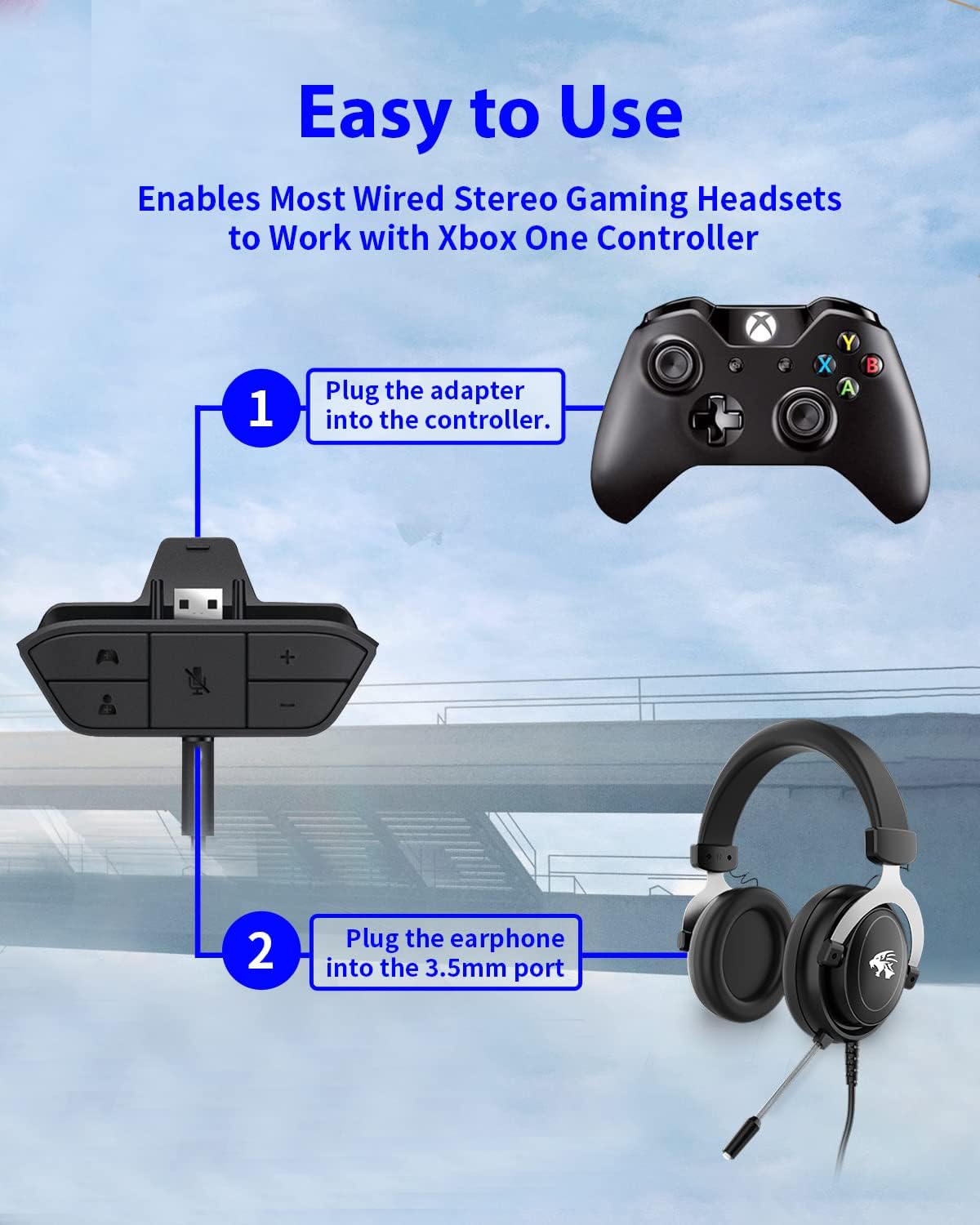
Figure 4: Step-by-step connection guide for the headset adapter.
Video 1: Demonstration of connecting the headset adapter to an Xbox controller.
Nota Cudromach: For optimal performance and to resolve potential audio issues, it is recommended to update your Xbox controller's firmware after connecting the adapter. This can typically be done through your Xbox console's settings (Settings > Devices & connections > Accessories > Select your controller > ... > Controller settings > Update firmware).
Stiùireadh Obrachaidh
Once connected, use the buttons on the adapter to control your audio:
- Meud suas / sìos (+/-): Press the '+' button to increase the overall volume of both game and chat audio. Press the '-' button to decrease it.
- Microphone Mute (Microphone Icon): Press this button to mute or unmute your microphone. An indicator light (if present) or on-screen notification may confirm the mute status.
- Game/Chat Balance (Controller Icon / Person Icon):
- Brùth an Ìomhaigh rianadair button to increase game audio volume and decrease chat audio volume.
- Brùth an An ìomhaigh neach button to increase chat audio volume and decrease game audio volume.
Figear 5: Mionaideach view of the adapter's control buttons.
Cumail suas
To ensure the longevity and optimal performance of your headset adapter, follow these simple maintenance guidelines:
- Cùm an inneal-atharrachaidh glan agus saor bho dhuslach is sprùilleach. Cleachd clò bog, tioram airson a ghlanadh.
- Seachain an inneal-atharrachaidh a nochdadh do theodhachd anabarrach, taiseachd no solas dìreach na grèine.
- Na feuch ri an inneal-atharrachaidh a thoirt às a chèile no a chàradh thu fhèin, oir cuiridh seo am barantas às aonais.
- Stòraich an inneal-atharrachaidh ann an àite sàbhailte nuair nach eilear ga chleachdadh gus casg a chur air milleadh corporra.
Fuasgladh thrioblaidean
If you encounter issues with your AOLION Stereo Headset Adapter, please refer to the following common solutions:
| Trioblaid | Adhbhar / Fuasgladh a dh’fhaodadh a bhith ann |
|---|---|
| No audio or poor audio quality (buzzing, peaking) |
|
| Microphone nach eil ag obair |
|
| Game/Chat balance not working |
|
Ma mhaireas an duilgheadas às dèidh dhut na ceumannan seo fheuchainn, cuir fios gu taic luchd-cleachdaidh.
Sònrachaidhean
| Feart | Mion-fhiosrachadh |
|---|---|
| Modail Àireamh | WGXB004005 |
| Brand | AOLION |
| Meudan toraidh (L x W x H) | 3.15 x 1.57 x 0.79 òirleach (8 x 4 x 2 cm) |
| Dath | Dubh |
| Seòrsa ceangail | Auxiliary (3.5mm CTIA standard) |
| Innealan co-fhreagarrach | Xbox One, One S, One X, Elite 1, Elite 2, Series S, Series X Controllers; 3.5mm CTIA Stereo Headsets |
Barantas agus Taic
AOLION stands behind the quality of its products. This Stereo Headset Adapter comes with:
- Gealladh Airgead-air-ais 60-latha: If you are not entirely satisfied with your purchase within 60 days, you may be eligible for a full refund.
- Barantas 24-mìosan: We provide a 24-month warranty against manufacturing defects from the date of purchase.
For any questions, concerns, or warranty claims, please contact us through Amazon. We are committed to responding to your inquiries within 12 hours to ensure your complete satisfaction.
Ask a question about this manual
Ask about setup, troubleshooting, compatibility, parts, safety, or missing instructions. Manuals+ will review the question and use this page’s manual context to help answer it.