
1. Ro-ràdh
This manual provides instructions for the PUSOKEI 1600DPI 2.4G Ergonomic Wireless Optical Mouse. This device is designed for comfortable use with computers and laptops, featuring a 2.4Ghz wireless connection and adjustable optical resolution.
Am measg nam prìomh fheartan tha:
- Dealbhadh ergonomic airson làimhseachadh comhfhurtail.
- 2.4Ghz wireless connectivity for a stable connection up to 10 meters.
- Adjustable optical resolution: 800, 1200, and 1600 DPI.
- Four buttons for versatile control.
- Intelligent circuit management for power efficiency.

Figure 1: PUSOKEI 2.4G Ergonomic Wireless Optical Mouse on a desk setup.

Figear 2: Taobh view den luchag, taisbeanadhasina dhealbhadh ergonomic.
2. Pasgan-susbaint
Thoir sùil air a’ phacaid airson nan nithean a leanas:
- 1 x PUSOKEI Wireless Mouse
- 1 x Glacadair USB
Nota: Feumar 2 x bataraidh AAA agus chan eil iad air an toirt a-steach don phacaid.
3. Stiùirich rèiteachaidh
3.1 A ’stàladh bataraidhean
- Lorg còmhdach roinn a’ bhataraidh air taobh shìos na luchaige.
- Sleamhnaich no tog an còmhdach gu socair gus an roinn fhosgladh.
- Cuir a-steach dà (2) bataraidh AAA, a’ dèanamh cinnteach gu bheil am polarachd cheart (+/-) mar a tha air a chomharrachadh taobh a-staigh a’ bhataraidh.
- Cuir còmhdach roinn a’ bhataraidh air ais gus an cliog e gu tèarainte na àite.

Figear 3: Roinn a’ bhataraidh leis a’ chòmhdach air a thoirt air falbh.
3.2 A’ ceangal an glacadair USB
- Locate the USB receiver, typically stored within the mouse's battery compartment or packaged separately.
- Plug an inneal-glacaidh USB a-steach do phort USB a tha ri fhaighinn air do choimpiutair no air laptop.
- Bu chòir don t-siostam obrachaidh agad na draibhearan riatanach a lorg agus a stàladh gu fèin-ghluasadach. Dh’ fhaodadh seo beagan mhionaidean a thoirt.
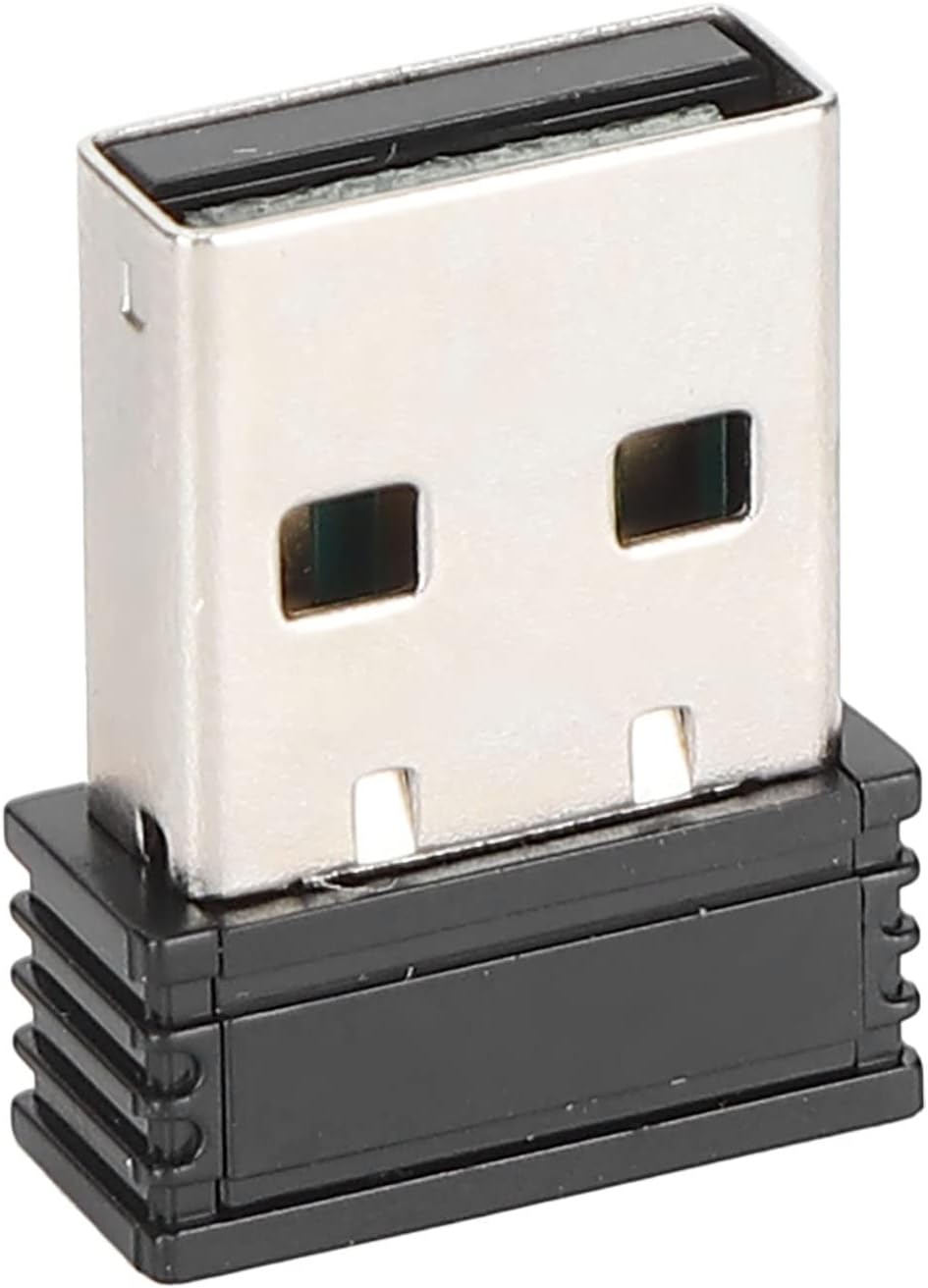
Figure 4: The compact USB receiver.
3.3 A’ cur an luchag air
After installing the batteries and connecting the USB receiver:
- Lorg an suidse ON/OFF air taobh ìosal na luchaige.
- Sleamhnaich an suidse chun an t-suidheachaidh "ON".
- The mouse should now be ready for use. Move the mouse to test its functionality.

Figure 5: Underside of the mouse with the ON/OFF switch.
4. Stiùireadh Obrachaidh
4.1 Gnìomhan Bunaiteach
- Cliog air chlì: Taghadh bun-sgoile agus gnìomhachadh.
- Cliog deas: A’ faighinn cothrom air clàran-taice co-theacsa.
- Cuibhle Scroll: A’ sgroladh tro sgrìobhainnean agus web pages. Can also be clicked for middle-click functionality.
4.2 Atharrachadh DPI (Cugallachd)
The mouse features an adjustable DPI setting, allowing you to change the cursor sensitivity to suit your preference or task. The available DPI settings are 800, 1200, and 1600 DPI.
- Locate the DPI button, usually positioned below the scroll wheel on the top of the mouse.
- Press the DPI button to cycle through the available sensitivity settings. Each press will switch to the next DPI level.
- Observe the cursor movement on your screen to determine the desired sensitivity.

Figure 6: DPI button for sensitivity adjustment.
4.3 Raon gun uèir
The mouse operates wirelessly up to a distance of approximately 10 meters (393.7 inches) from the USB receiver. Performance may vary depending on environmental factors and obstacles.
Bhidio 1: Tharview of the PUSOKEI 1600DPI 2.4G Ergonomic USB Mouse. This short video demonstrates the mouse's design and highlights its wireless functionality.
5. Cumail suas
5.1 Ath-nuadhachadh bataraidh
When the mouse performance degrades or it stops responding, it is likely time to replace the batteries. Follow the steps in Section 3.1 to replace the two (2) AAA batteries.
5.2 Glanadh na luchaige
Gus an coileanadh agus an slàinteachas as fheàrr a chumail suas:
- Use a soft, dry cloth to wipe the exterior of the mouse.
- Airson salachar stòlda, beagan dampnigh an clò le uisge no le fuasgladh glanaidh tlàth, agus an uairsin sguab tioram sa bhad.
- Seachain ceimigean cruaidh, innealan-glanaidh sgrìobach, no bogadh na luchaige ann an leaghan.
- Periodically clean the optical sensor area on the underside of the mouse with a cotton swab to ensure accurate tracking.
6. A ’dèanamh trioblaid
If you encounter issues with your PUSOKEI Wireless Mouse, please refer to the following common solutions:
| Trioblaid | Adhbhar a dh’fhaodadh a bhith ann | Fuasgladh |
|---|---|---|
| Mouse not responding or intermittent connection | Low batteries, mouse is off, USB receiver disconnected, interference. | 1. Replace AAA batteries. 2. Ensure the ON/OFF switch is in the 'ON' position. 3. Re-insert the USB receiver into a different USB port. 4. Move the mouse closer to the receiver or away from other wireless devices. |
| Tha gluasad a’ chursair neo-riaghailteach no neo-mhearachdach | Sensor optigeach salach, uachdar mì-fhreagarrach, suidheachadh DPI ìosal. | 1. Clean the optical sensor on the underside of the mouse. 2. Use the mouse on a clean, non-reflective surface or a mouse pad. 3. Press the DPI button to increase sensitivity. |
| USB receiver not recognized by computer | Driver issue, faulty USB port. | 1. Try plugging the USB receiver into a different USB port. 2. Restart your computer. 3. Ensure your operating system is up to date. |
7. Sònrachaidhean
| Feart | Mion-fhiosrachadh |
|---|---|
| Brand | PUSOKEI |
| Modail Àireamh | PUSOKEIgmh839iocb1355-11 |
| Teicneòlas ceangail | USB, Wireless (2.4Ghz) |
| Teicneòlas lorg gluasad | Optical |
| Fuasgladh Optical | 800-1200-1600 dPI |
| Àireamh de phutanan | 4 |
| Astar gun uèir | Approx. 10m / 393.7in |
| Stòr cumhachd | Cumhachdaichte le bataraidh (2 x AAA, gun a bhith air an toirt a-steach) |
| Innealan co-fhreagarrach | Laptop, coimpiutair pearsanta |
| Siostam-obrachaidh | Windows (Minimum Windows 7) |
| Stuth | ABS |
| Stiùireadh làimhe | Ambidextrous |
8. Barantas agus Taic
Specific warranty information for this product is not provided in the available documentation. For warranty claims, technical support, or further assistance, please contact the retailer or manufacturer directly through their official support channels.