
Ro-ràdh
This manual provides detailed instructions for the installation, operation, and maintenance of your IEI DM-F12A/R-R30 12-inch XGA LCD Monitor. This industrial-grade monitor features a 600 cd/m² brightness, an aluminum front panel, and a USB R-touch screen, designed for robust performance in various environments. It supports a wide 9~36VDC input range.
Susbaint pacaid
Please verify that all items are present and in good condition upon unpacking. If any items are missing or damaged, contact your vendor immediately.
- IEI DM-F12A/R-R30 LCD Monitor
- Power Adapter (if included with specific model variant)
- USB Cable for Touch Function
- VGA/HDMI Cable (depending on model configuration)
- Bathar-cruaidh stàlaidh (mas e iomchaidh)
- Documentation (Quick Start Guide, Driver CD if applicable)
Suidhich
1. A’ cur suas an sgrìn
The DM-F12A/R-R30 monitor is designed for various mounting options, including panel mount or VESA mount. Refer to the specific mounting instructions provided with your mounting kit.
2. Ceangal Càbaill
- Input Video: Connect a VGA or HDMI cable (depending on your system and monitor's available ports) from your computer's video output to the corresponding input port on the monitor.
- USB Touch: Connect the supplied USB cable from your computer's USB port to the USB port on the monitor. This enables the R-touch screen functionality.
- Cumhachd: Connect the 9~36VDC power input to the monitor. Ensure the power source matches the specified voltage raon.
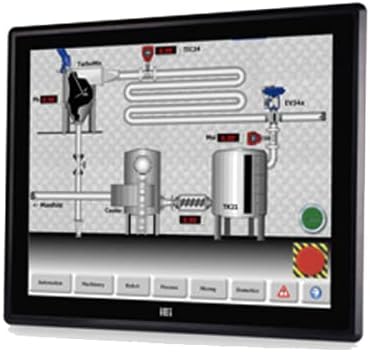
Figure 1: The IEI DM-F12A/R-R30 monitor, showcasing its display and industrial design. This image illustrates the monitor's appearance and typical use in a control system interface.
3. Cumhachdachadh Air adhart
After all cables are securely connected, power on your computer and then the monitor. The monitor should automatically detect the input signal.
Ag obrachadh
Basic Display Functions
The monitor will display the video output from your connected computer. Adjust display settings such as resolution and refresh rate through your computer's operating system display settings for optimal performance.
Using the R-Touch Screen
The R-touch screen functions as a standard mouse input. Once the USB cable is connected and recognized by your operating system, you can interact with the display by touching the screen directly. Calibration may be required for precise touch input, typically accessible through your operating system's tablet PC or touch screen settings.
- Tap singilte: Equivalent to a left-click.
- Tap is Cùm: Equivalent to a right-click (may vary by OS settings).
- Slaod: Touch and move your finger across the screen to move items or scroll.
Cumail suas
A ’glanadh an monitor
- Cuir dheth an cumhachd agus dì-phlugaich am pluga an-còmhnaidh mus glan thu an monitor.
- Cleachd clò bog, gun lint beagan dampened with water or a non-abrasive LCD screen cleaner.
- Do not use alcohol, ammonia-based cleaners, or abrasive materials, as these can damage the screen surface or casing.
- Sguab an sgrion gu socair agus casing. Avoid spraying liquid directly onto the screen.
Beachdachaidhean Àrainneachdail
Ensure the monitor is operated within its specified temperature and humidity ranges. Avoid exposing the monitor to direct sunlight, excessive dust, or extreme temperatures.
Fuasgladh thrioblaidean
| Trioblaid | Adhbhar a dh’fhaodadh a bhith ann | Fuasgladh |
|---|---|---|
| Gun taisbeanadh air an sgrion |
|
|
| Sgrion suathaidh nach eil a’ freagairt |
|
|
| Tha an ìomhaigh doilleir no air a shaobhadh |
|
|
Sònrachaidhean
| Feart | Mion-fhiosrachadh |
|---|---|
| Modail | DM-F12A/R-R30 |
| Brand | IEI |
| Meud sgrion | 12 òirlich |
| Fuasgladh | XGA |
| Gile | 600 cd / m² |
| Stuth pannal aghaidh | Aluminium |
| Seòrsa scrion suathaidh | USB R-Touch |
| Input Voltage | 9 ~ 36VDC |
| Uachdar na Sgrion | Snasail |
| Feart sònraichte | Sgrion-touch |
| Dèanadair | IEI Technology |
Barantas agus Taic
For warranty information and technical support, please refer to the documentation included with your product or visit the official IEI Technology weblàrach. Mar as trice, gheibhear fiosrachadh conaltraidh airson seirbheis luchd-cleachdaidh air duilleag taic an neach-dèanamh.
Dèanadair Weblàrach: www.ieiworld.com