
Intel NUC11BTMi9
Intel NUC 11 Extreme Kit NUC11BTMi9 Gaming Barebone System User Manual
Modail: NUC11BTMi9 | Brand: Intel
Bathar seachadview
The Intel NUC 11 Extreme Kit (NUC11BTMi9) is a high-performance barebone mini PC designed for gaming and demanding applications. It offers uncompromised performance within a compact form factor, allowing users to customize it with their preferred RAM, storage, and operating system.

Figear 1: Aghaidh ceàrnach view of the Intel NUC 11 Extreme Kit, showcasina dhealbhadh teann agus suaicheantas a’ chlaigeann shoillsichte.
Susbaint pacaid
Verify that all items are present in the package before proceeding with setup:
- Intel NUC 11 Extreme Kit (NUC11BTMi9) Barebone System
- Corda cumhachd na SA
- Sgrìobhainnean (Stiùireadh Tòiseachaidh Luath, Fiosrachadh Sàbhailteachd)
Note: Additional components such as RAM, storage drives, and operating system are sold separately and are required for full system functionality.
Stiùireadh rèiteachaidh
This section outlines the steps required to set up your Intel NUC 11 Extreme Kit. As a barebone system, it requires the installation of memory (RAM) and storage (SSD) before initial use.
1. A’ stàladh Cuimhne (RAM)
- Unscrew and remove the top cover of the NUC chassis.
- Locate the DDR4 SO-DIMM slots on the motherboard.
- Align the notch on the SO-DIMM module with the notch in the slot.
- Cuir am modúl a-steach aig ceàrn 45-ceum agus brùth sìos gu daingeann gus am bi na criomagan gleidhidh a’ snapadh nan àite.
- Dèan a-rithist airson modalan cuimhne a bharrachd ma tha sin iomchaidh.
2. Installing Storage (SSD)
The NUC 11 Extreme Kit supports M.2 NVMe SSDs.
- Lorg na sliotan M.2 air a’ bhòrd-màthar.
- Cuir an SSD M.2 a-steach don t-slot aig ceàrn.
- Brùth an SSD sìos gu socair agus daingnich e leis an sgriubha a tha air a thoirt seachad.
- The system also supports Serial ATA/600 interface for additional storage options.
3. Ceangal Peripherals
Connect your monitor, keyboard, mouse, and other peripherals to the appropriate ports. The system features 12 USB ports for extensive connectivity.
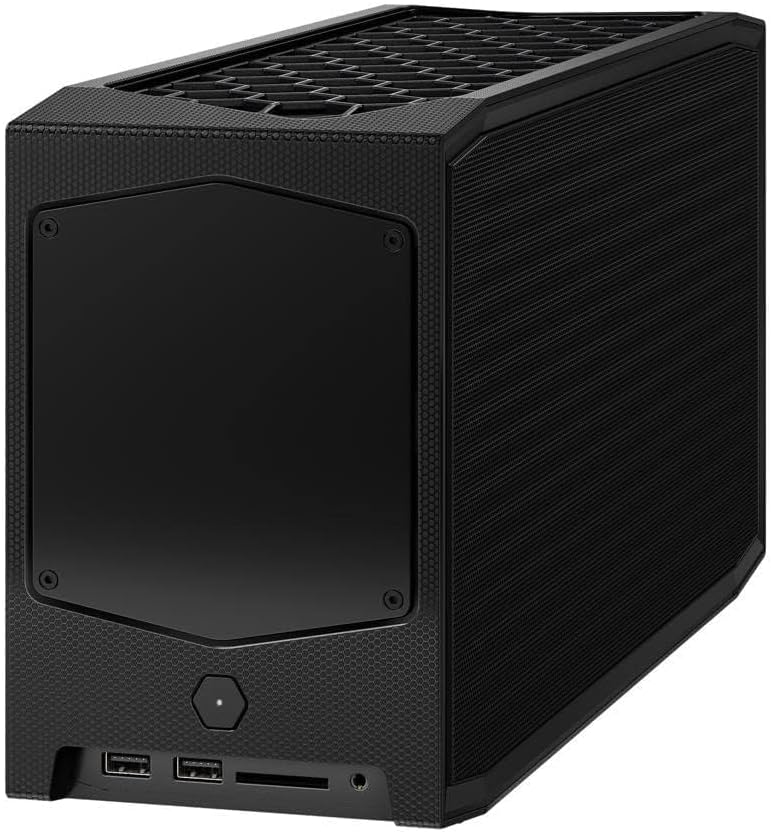
Figear 2: Cùl view of the Intel NUC 11 Extreme Kit, highlighting the array of input/output ports for connecting external devices.
- Taisbeanadh: Connect your monitor using HDMI or DisplayPort.
- Innealan USB: Use the available USB ports for keyboard, mouse, external drives, etc.
- Lìonra: Connect an Ethernet cable for wired network access, or use the integrated Wi-Fi.
- Fuaim: Ceangail luchd-labhairt no fònaichean-cluaise ris na socaidean claisneachd.
4. Ceangal Cumhachd
Connect the provided power cord to the NUC and then to a power outlet.
5. Stàladh Siostam-obrachaidh
Once RAM and storage are installed, you will need to install an operating system (e.g., Windows 10, Linux) from a bootable USB drive or disc.
Stiùireadh Obrachaidh
This section provides basic instructions for operating your Intel NUC 11 Extreme Kit.
Cumhachd air / dheth
- Cumhachd air: Press the power button located on the front of the unit. The power indicator light will illuminate.
- Cumhachd dheth:
- Dùnadh sìos àbhaisteach: Use the operating system's shutdown function.
- Sguabadh às èiginn: Press and hold the power button for 5-10 seconds until the unit powers off. Use this only as a last resort.
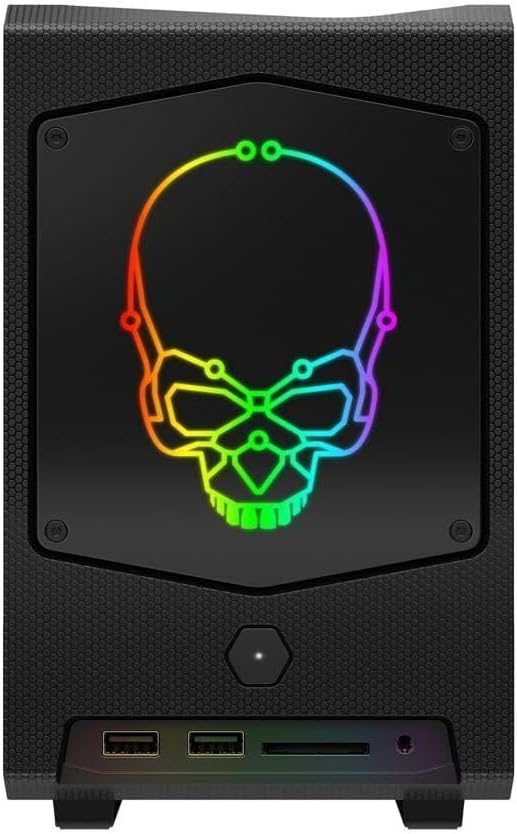
Figear 3: Aghaidh view of the Intel NUC 11 Extreme Kit, showing the power button and front panel connectivity options.
A 'ceangal innealan USB
The NUC 11 Extreme Kit offers numerous USB ports (up to 12) for connecting various peripherals. Devices can be connected or disconnected without needing to shut down the system.
Ruigsinneachd BIOS/UEFI
To access the BIOS/UEFI settings, power on the system and repeatedly press the F2 key during startup. This allows configuration of boot order, system settings, and hardware diagnostics.
Cumail suas
Proper maintenance ensures the longevity and optimal performance of your Intel NUC 11 Extreme Kit.
- Glanadh: Regularly clean the exterior with a soft, dry cloth. Use compressed air to clear dust from vents and fan areas to ensure proper airflow and prevent overheating. Ensure the system is powered off and unplugged before cleaning.
- Ùrachaidhean bathar-bog: Keep your operating system, drivers, and BIOS/UEFI firmware updated to the latest versions. Visit the official Intel support website for driver downloads specific to the NUC11BTMi9 model.
- Fionnarachadh: Ensure the NUC is placed in a well-ventilated area, away from direct sunlight or heat sources. Do not block the ventilation openings.
- Cùl-taic dàta: Dèan cùl-taic cunbhalach de dhàta cudromach gu draibh taobh a-muigh no stòradh sgòthan gus casg a chuir air call dàta.
Fuasgladh thrioblaidean
This section provides solutions to common issues you might encounter with your Intel NUC 11 Extreme Kit.
Gun chumhachd / Chan eil an siostam a’ tionndadh air
- Dèan cinnteach gu bheil an càball cumhachd ceangailte gu tèarainte ris an NUC agus ri socaid cumhachd a tha ag obair.
- Dearbhaich gu bheil an socaid cumhachd ag obair le bhith a’ cur inneal eile a-steach.
- If using a power strip or surge protector, ensure it is switched on.
Gun toradh taisbeanaidh
- Dèan cinnteach gu bheil am monitor air a chumhachdachadh agus gu bheil an càball bhidio (HDMI/DisplayPort) ceangailte gu tèarainte ris an NUC agus ris a’ monitor.
- Feuch càball bhidio no monitor eadar-dhealaichte ma tha sin ri fhaighinn.
- Ensure RAM modules are properly seated in their slots. Reseat them if necessary.
System Freezes or Crashes
- Ensure the system has adequate ventilation and is not overheating.
- Update your operating system and device drivers to the latest versions.
- Ruith inneal breithneachaidh cuimhne gus sgrùdadh a dhèanamh airson cùisean RAM.
- Check the health of your storage drive.
Innealan-iomaill gun lorg
- Feuch ri an inneal-iomaill a cheangal ri port USB eadar-dhealaichte.
- Dèan cinnteach gu bheil draibhearan an inneal-iomaill air an stàladh agus ùraichte.
- Ath-thòisich an siostam.
Sònrachaidhean Teicnigeach
Below are the key technical specifications for the Intel NUC 11 Extreme Kit (NUC11BTMi9).

Figear 4: Taobh view of the Intel NUC 11 Extreme Kit, illustrating its physical dimensions.
| Feart | Sònrachadh |
|---|---|
| Modail Àireamh | NUC11BTMi9 |
| Pròiseasar | Intel Core i9-11900KB Octa-core (8 Core) @ 3.3 GHz |
| Memory (RAM) Type | DDR4 SDRAM (Barebone - user installable) |
| Eadar-aghaidh stòraidh | M.2 (SSD), Serial ATA/600 |
| Grafaigeachd coprocessor | Grafaigean Intel UHD |
| Meud RAM Cairt Grafaigean | 8 GB (Integrated) |
| Ceangal gun uèir | Bluetooth, WiFi |
| Puirt USB | 12 |
| Operating System (Pre-installed) | None (Supports Windows 10) |
| Cuideam nì | 5 not |
| Meud pacaid | 21.1 x 15 x 13.6 òirleach |
| Dath | Dubh |
| A’ chiad cheann-latha ri fhaighinn | 13 an Dàmhair, 2021 |
Barantas agus Taic
Intel provides a limited warranty for its NUC products. For detailed warranty information, technical support, driver downloads, and troubleshooting resources, please visit the official Intel support weblàrach.
You can typically find support by searching for "Intel NUC support" or by visiting Intel's Official Support Page.
When contacting support, please have your product model number (NUC11BTMi9) and serial number ready.
Ask a question about this manual
Ask about setup, troubleshooting, compatibility, parts, safety, or missing instructions. Manuals+ will review the question and use this page’s manual context to help answer it.