
Ro-ràdh
This manual provides detailed instructions for the BINIZE Portable Carplay Screen Navigation system. It covers setup, operation, and maintenance to ensure optimal performance and user experience.
Fiosrachadh Sàbhailteachd
- Dèan cinnteach gu bheil an inneal air a chuir suas gu tèarainte agus nach eil e a’ cur bacadh air do view no bacadh a chur air smachdan carbaid.
- Connect the power cord only to a 12V cigarette lighter port.
- Na feuch ris an inneal a thoirt às a chèile no atharrachadh.
- Thoir prìomhachas do dhràibheadh sàbhailte an-còmhnaidh. Na cleachd an inneal ann an dòigh a tharraingeas aire far an rathaid.
Susbaint pacaid
Dèan cinnteach gu bheil a h-uile nì anns a’ phacaid:
- BINIZE Portable Carplay Screen Navigation Unit
- Càball cumhachd nas aotroime toitean
- Ceangail leudachaidh USB
- Càball Toraidh Fuaim (RCA)
- Mounting Bracket with 3M Adhesive
- Smachd Iomallach
- Leabhar-làimhe cleachdaiche (an sgrìobhainn seo)
Suidhich
1. Stàladh an inneal
Tagh àite freagarrach air a’ bhòrd-stiùiridh agad nach cuir bacadh air do view no smachdan charbadan.

The base of the mounting bracket comes with 3M adhesive. Clean the dashboard surface thoroughly before attaching the base. Securely attach the unit to the bracket.

Atharraich ceàrn an sgrion airson an ìre as fheàrr viewing.
2. Ceangal Cumhachd
Connect the cigarette lighter power cable to the device and insert it into your vehicle's 12V cigarette lighter port. The device will power on automatically.

Ensure the vehicle's voltagTha e eadar 12V agus 14V.
This video demonstrates the initial power-up sequence of the BINIZE Portable Carplay Screen Navigation unit by connecting it to a cigarette lighter port. It shows the "welcome" screen appearing upon successful power-on.
Stiùireadh Obrachaidh
1. Initial Setup and Language Selection
Upon first power-on, the device will display the home screen. Navigate to the "Settings" menu to select your preferred language.

2. Roghainnean Toraidh Fuaim
The monitor itself does not have internal speakers. Sound is routed through your original car audio system.
Inneal-sgaoilidh FM
To use the FM transmitter, set the device's FM frequency to match an unused FM channel on your car's stereo.

Ensure both the device and your car stereo are tuned to the same FM frequency for audio output.
Toradh claisneachd RCA
For additional audio requirements, such as connecting to a subwoofer or amplifier, use the two RCA ports (White: Audio Out Left, Red: Audio Out Right).
3. Apple CarPlay Connection
To use Apple CarPlay, connect your iPhone to the device using an original Apple data cable via the USB port on the right side of the player.
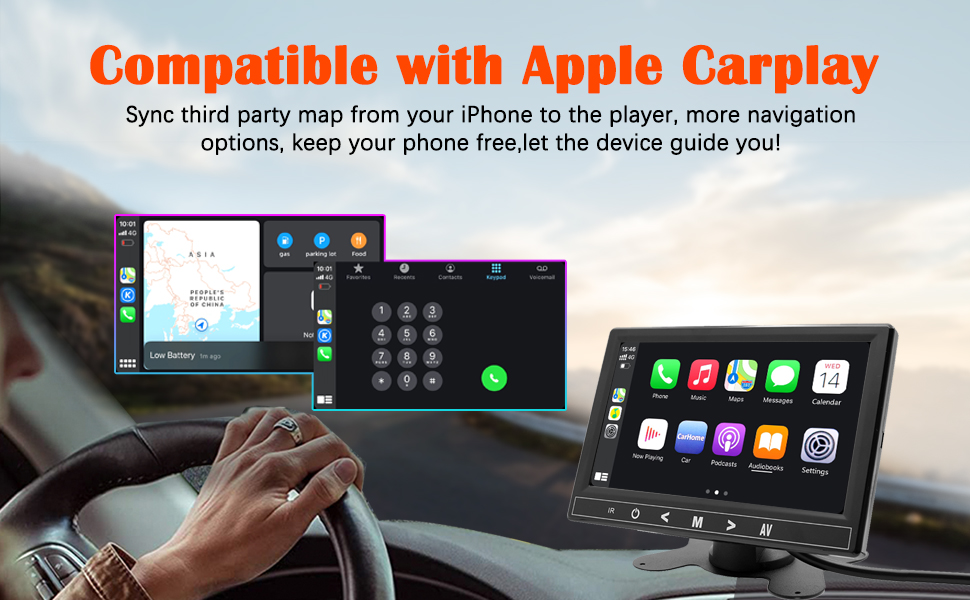
Select "i-Play" in the device settings. Grant any necessary permissions on your iPhone.
This video demonstrates how to connect an iPhone to the BINIZE Portable Carplay Screen Navigation for Apple CarPlay functionality. It shows the steps to select "i-Play" in settings and connect the original data cable.
4. Android Auto Connection
To use Android Auto, connect your Android phone to the device using an original data cable via the USB port on the right side of the player.

Select "A-Auto" in the device settings. Grant any necessary permissions on your Android phone.
This video illustrates the process of connecting an Android phone to the BINIZE Portable Carplay Screen Navigation for Android Auto. It guides the user to select "A-Auto" in settings and connect the data cable.
5. MirrorLink (iPhone)
To mirror your iPhone screen, connect your iPhone to the device using an original Apple data cable via the USB port on the right side of the player.
Select "i-Mirror" in the device settings. Grant permissions on your iPhone. The iPhone screen will be projected onto the player's screen.
This video demonstrates the MirrorLink function for iPhone, showing how to connect the device and mirror the phone's display.
6. MirrorLink (Android Phone)
To mirror your Android phone screen, connect your Android phone to the device using an original data cable via the USB port on the right side of the player.
Select "A-Link" in the device settings. Grant permissions on your Android phone. The Android phone screen will be projected onto the player's screen.
This video demonstrates the MirrorLink function for Android phones, showing how to connect the device and mirror the phone's display.
7. USB Flash Drive Reading
Insert a USB flash drive into the USB extension cable to play music or videos. The device supports various media formats.
8. Cosgais Fòn
The USB extension cable can also be used to charge your mobile phone.
Cumail suas
- Cùm an sgrion glan le clò bog, tioram. Seachain innealan-glanaidh sgrìobach.
- Dèan cinnteach gu bheil a h-uile ceangal càball tèarainte.
- Seachain an inneal a nochdadh gu fìor theodhachd no solas dìreach airson amannan fada.
Fuasgladh thrioblaidean
| Trioblaid | Adhbhar a dh’fhaodadh a bhith ann | Fuasgladh |
|---|---|---|
| Chan eil cumhachd aig an inneal. | No power from cigarette lighter. | Check vehicle's 12V port. Ensure power cable is securely connected. |
| Gun toradh fuaim. | FM frequency not synchronized or incorrect RCA connection. | Match FM frequency on device and car stereo. Verify RCA cable connections. |
| Chan eil CarPlay/Android Auto a’ ceangal. | Non-original data cable, incorrect settings, or phone permissions. | Use original data cable. Check "i-Play" or "A-Auto" settings. Grant all necessary phone permissions. |
| MirrorLink not working. | Incorrect settings or phone permissions. | Check "i-Mirror" or "A-Link" settings. Grant all necessary phone permissions. |
| Bidh an scrion a’ reothadh no chan eil i a’ freagairt. | Mearachd bathar-bog sealach. | Ath-thòisich an inneal le bhith a’ dì-phlugadh a’ chàball cumhachd agus ga ath-phlugadh. |
For further assistance, please contact BINIZE customer support.
Sònrachaidhean
| Feart | Mion-fhiosrachadh |
|---|---|
| Brand | BINIZE |
| Modail Àireamh | B09DSMJ59X |
| Teicneòlas ceangail | Bluetooth, RCA, USB |
| Seòrsa Rianadair | Android, Google Assistant |
| Feart sònraichte | Sgrion-touch |
| Innealan co-fhreagarrach | Fòn-smart |
| Modh Toraidh Fuaim | Stereo |
| Àireamh nan Sianalan | 4 |
| Còdachadh bhidio | H.264, H.265/HEVC |
| Modh smachd | Suathadh |
| Teicneòlas gun uèir | Bluetooth |
| Cuir a-steach cumhachd | 12V (via cigarette lighter) |
Nota: Faodaidh mion-chomharrachadh atharrachadh gun rabhadh ro-làimh.
Barantas agus Taic
BINIZE products come with a standard manufacturer's warranty. Please refer to the warranty card included in your package for specific terms and conditions.
For technical support, warranty claims, or any other inquiries, please visit the official BINIZE weblàrach-lìn no cuir fios chun sgioba seirbheis teachdaiche aca.