
1. Toradh thallview

Aghaidh-mhullaich view of the SUNMI 80mm Kitchen Cloud Receipt Printer, showcasing its compact black design with orange accents and control panel.
The SUNMI 80mm Kitchen Cloud Receipt Printer (Model C04000069) is a compact and efficient thermal printer designed for various environments, particularly suited for kitchen and point-of-sale applications. It offers reliable, high-speed printing for receipts and orders.
Prìomh fheartan:
- Compact 130mm square design for space-saving installation.
- High-performance Seiko thermal print head.
- Fast printing speed of 165mm/s for 80mm receipts.
- Easy internet connectivity via LAN cable.
- Supports 80mm paper format.
2. Pasgan-susbaint
Thoir sùil air a’ bhogsa airson nan nithean a leanas:
- SUNMI 80mm Kitchen Cloud Receipt Printer (Model C04000069)
- Adapter cumhachd
- Thermal Paper Roll (for initial setup)
- Leabhar-làimhe cleachdaiche (an sgrìobhainn seo)
3. Stiùirich rèiteachaidh
3.1 Ceangal cumhachd
- Ensure the printer is placed on a stable, flat surface.
- Connect the power adapter to the printer's power input port.
- Plug an inneal-atharrachaidh cumhachd a-steach gu ionad dealain iomchaidh.
- Press the power button to turn on the printer. The power indicator light will illuminate.
3.2 Stàladh Rolla Pàipear

Fosgailte view of the SUNMI printer's interior, revealing the paper roll compartment and the high-performance Seiko thermal print head, capable of 165mm/s printing speed.
- Open the printer's top cover by pressing the release latch.
- Insert the 80mm thermal paper roll into the compartment, ensuring the paper feeds from the bottom and the leading edge is straight.
- Tarraing beagan pàipeir a-mach seachad air an gearradair.
- Dùin am mullach còmhdach gu daingeann gus an cliog e na àite.

Two sequential images: one showing a hand inserting a receipt into the printer's output slot, and another showing a hand replacing the thermal paper roll inside the printer's open compartment.
3.3 Ceangal lìonra
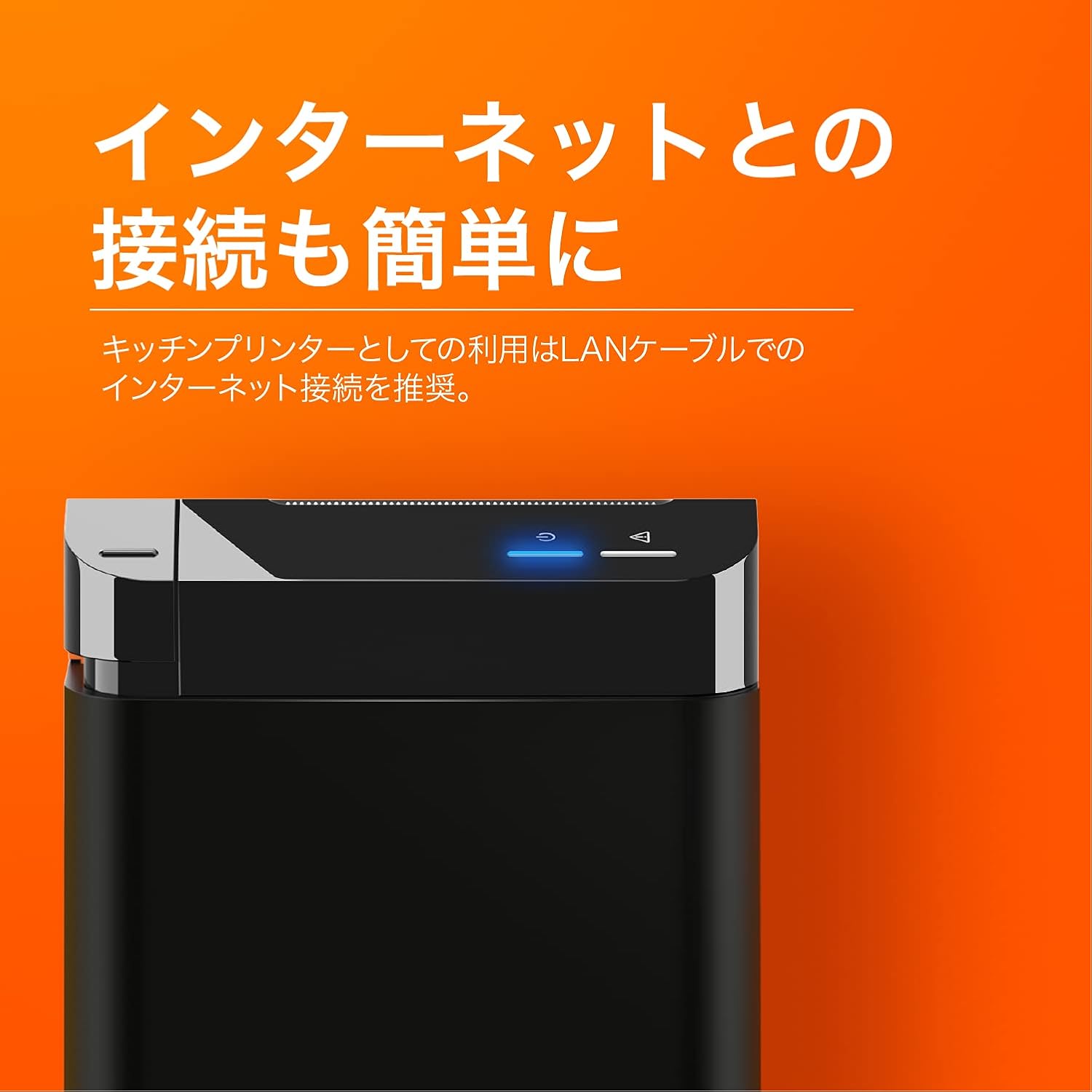
The SUNMI printer with a blue illuminated status light, highlighting its easy internet connectivity via LAN cable, recommended for kitchen printer use.
For optimal performance, especially in kitchen environments, a wired LAN connection is recommended.
- Connect one end of an Ethernet (LAN) cable to the printer's LAN port.
- Ceangail ceann eile a’ chàball Ethernet ris an router lìonra agad no suidse.
- The network indicator light on the printer will show connection status (e.g., solid blue for connected).
4. Stiùireadh Obrachaidh
4.1 Clò-bhualadh Bunasach
Once the printer is powered on and connected to your network, it is ready to receive print commands from compatible software or systems (e.g., POS software, kitchen display systems).
- Ensure your printing application is configured to use the SUNMI 80mm Kitchen Cloud Printer.
- Initiate a print job from your application.
- The printer will automatically feed and cut the receipt after printing.

A view of two SUNMI 80mm Kitchen Cloud Printers side-by-side, with one actively printing a receipt, demonstrating its operational use.
4.2 Comharran Inbhe
The printer features indicator lights on its control panel to provide status information:
- Comharra cumhachd: Solid light indicates the printer is on.
- Comharra mearachd: Flashing or solid light indicates an error (e.g., paper out, cover open). Refer to the Troubleshooting section.
- Comharra lìonra: Indicates network connectivity status.
5. Cumail suas
5.1 Glanadh a’ chlò-bhualadair
Bidh glanadh cunbhalach a’ cuideachadh le bhith a’ cumail suas càileachd clò-bhualaidh agus a’ leudachadh fad-beatha a’ chlò-bhualadair.
- Cuir dheth am clò-bhualadair agus dì-phlugaich am pluga mus glan thu e.
- Cleachd clò bog, gun lint beagan dampened with water or isopropyl alcohol to wipe the exterior.
- Gently clean the thermal print head with a cotton swab dipped in isopropyl alcohol. Allow it to dry completely before use.
- Remove any paper dust or debris from the paper path.
5.2 Replacing Paper Roll
When the paper roll is nearing its end, the printer may indicate a paper-low error or print faint lines. Follow the steps in Section 3.2 to replace the paper roll.
6. A ’dèanamh trioblaid
If you encounter issues with your SUNMI printer, refer to the table below for common problems and solutions.
| Trioblaid | Adhbhar a dh’fhaodadh a bhith ann | Fuasgladh |
|---|---|---|
| Chan eil an clò-bhualadair a’ dol air | No power, faulty adapter | Check power cable connection; ensure outlet is working; try a different adapter if available. |
| No printing / Error light on | Paper out, cover open, paper jammed | Replace paper roll; ensure cover is closed properly; clear any paper jams. |
| Faint or blank prints | Incorrect paper type, dirty print head, paper loaded incorrectly | Ensure thermal paper is used; clean the print head (Section 5.1); check paper orientation. |
| Chan urrainn dhuinn ceangal ris an lìonra | Loose LAN cable, network configuration issue | Check LAN cable connection; verify network settings on your router/system. |
7. Sònrachaidhean Teicnigeach

The SUNMI 80mm Kitchen Cloud Printer, demonstrating its compact 130mm square footprint, ideal for space-saving installations.
| Feart | Sònrachadh |
|---|---|
| Modail Àireamh | C04000069 |
| Brand | SUNMI |
| Seòrsa clò-bhualadair | Clò-bhualadair Cuidhteas Teirmeach |
| Luas clò-bhualaidh | 165 mm / s |
| Leud Pàipear | 80 mm |
| Teicneòlas ceangail | USB, LAN (Ethernet) |
| Dath | Multicolor (primarily black with orange accents) |
| Meudan toraidh | 13 x 13 x 13 cm (mu 5.1 x 5.1 x 5.1 òirleach) |
| Cuideam nì | 1.32 cileagram (mu 2.91 lbs) |
| Maximum Sheet Input Capacity | 100 sheets (referring to paper roll length equivalent) |
| Clò-bhualadh Duplex | No (single-sided receipt printing) |
| Meadhanan le taic | Thermal Labels/Receipt Paper |
8. Barantas agus Taic
This product is covered by the standard manufacturer's warranty. For specific warranty terms and conditions, please refer to the documentation provided at the time of purchase or contact your retailer.
For technical support, troubleshooting assistance beyond this manual, or service inquiries, please contact SUNMI customer support or your authorized dealer. Keep your purchase receipt and product model number (C04000069) ready when contacting support.


