
1. Toradh thallview
The Elitech RCW-3200-TH is a wireless data collector designed for temperature and humidity monitoring. It operates as part of the RCW-3000 split network monitoring system, utilizing various communication technologies such as LoRa, 4G, Wi-Fi, and Ethernet. This system comprises wireless data collectors (like the RCW-3200-TH), gateways (RCW-3000), a cloud platform, and a mobile application.
The RCW-3200-TH sensor can be flexibly deployed in various monitoring locations. The RCW-3000 gateway facilitates data upload to the cloud platform via 4G, Wi-Fi, or Ethernet. This integrated system enables remote data viewing, historical data querying, and remote alarm notifications through the cloud platform and mobile application.
The RCW-3000 network monitoring system is suitable for applications in large-scale cold storage facilities, shaded storage areas, hospitals, and fresh produce supermarkets.

Figure 1: Elitech RCW-3200 sensors deployed in a warehouse, communicating with an RCW-3000 gateway. The system supports up to 100 sensors with a 1-minute upload interval.
2. Prìomh fheartan
- Ceangal gun uèir: Eliminates the need for extensive wiring, simplifying installation. Supports wireless data transmission up to 1000 meters in visible distance.
- Beatha bataraidh leudaichte: Equipped with a 3200mAh rechargeable lithium battery, providing over 12 months of operation with a 10-minute or 3-minute upload interval.
- Ioma roghainnean conaltraidh: Offers flexible 4G and Wi-Fi connectivity, allowing adaptation to various environmental communication requirements.
- Brathan rabhaidh: Supports email, SMS, and mobile application alarm notifications. The Elitech App (available for iOS and Android) enables remote parameter settings and device management.
- Cloud Data Service: The standard plan provides email alerts, remote settings, and 30 days of data review and storage. Advanced and professional plans offer extended data storage (3-5 years), data export, and user management.
3. Cruth inneal
Familiarize yourself with the components of the RCW-3200-TH sensor:

Figear 2: Aghaidh view of the RCW-3200-TH device components.
- Comharra cosgais: A’ nochdadh suidheachadh cosgais.
- Comharra Inbhe: Displays device operational status.
- Sgrion LCD: Shows real-time temperature, humidity, time, and logging status.
- Putan Cumhachd: Used to power the device on or off.
- bracaid: Airson an inneal a stàladh.
- Sensor togte: Integrated temperature and humidity sensor.
- Putan Switch Unit: Toggles between Celsius (°C) and Fahrenheit (°F).
- Eadar-aghaidh USB: Micro USB port for charging and data export.
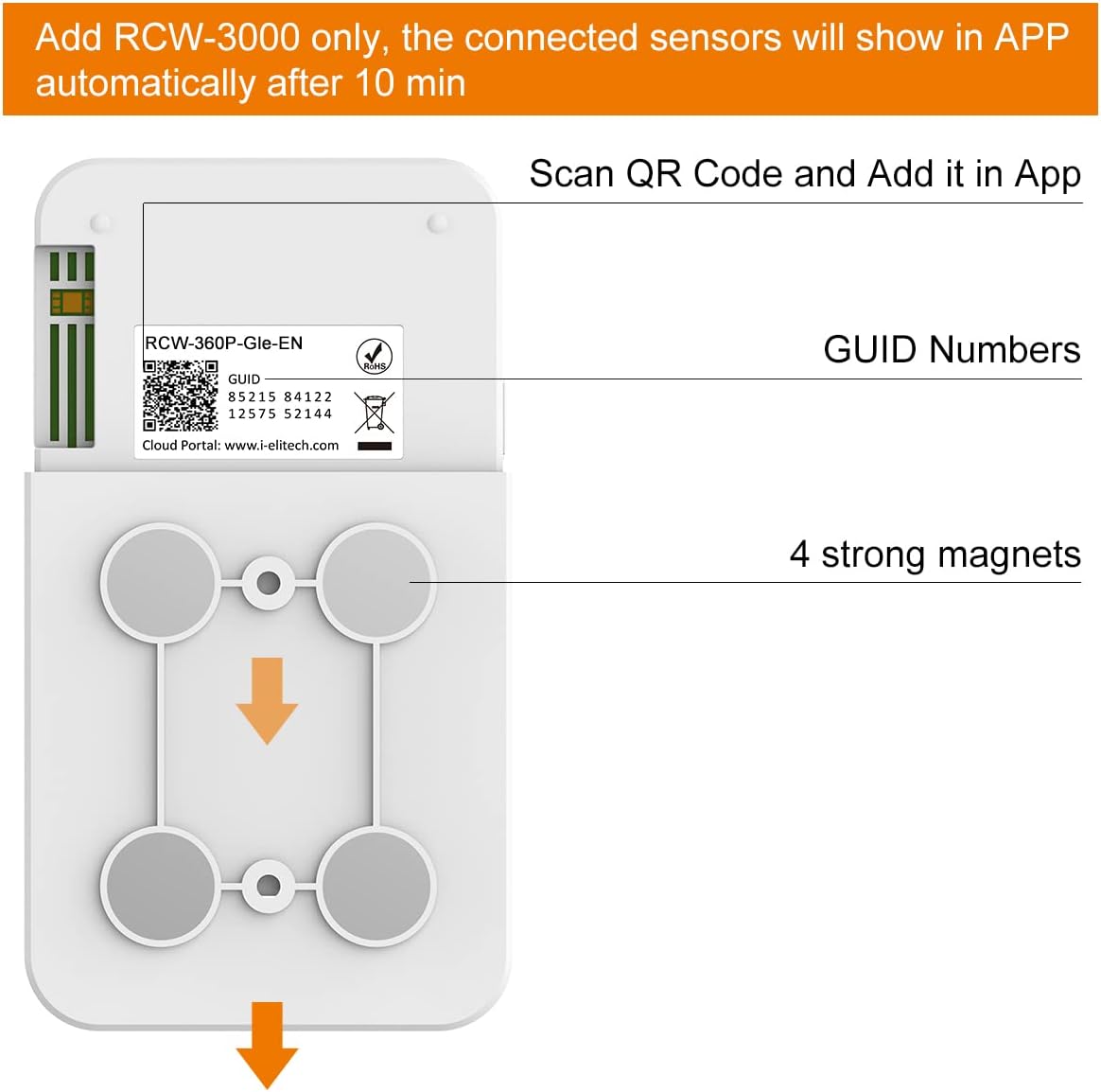
Figear 3: Air ais view of the RCW-3200-TH device, showing the QR code for app integration and magnetic mounts.
- Còd QR: Used for scanning and adding the device to the mobile application.
- GUID Numbers: Unique identification numbers for the device.
- Magnets làidir: Four integrated magnets for secure mounting on metallic surfaces.
4. Stiùireadh Stèidheachaidh
4.1 A’ cur an inneil air
- Locate the Power Button on the side of the RCW-3200-TH device.
- Press and hold the Power Button until the LCD screen illuminates.
- Once powered on, the RCW-3200-TH will automatically attempt to connect to the RCW-3000 gateway. Ensure your RCW-3000 gateway is powered on and configured.

Figure 4: Location of the Power Button on the RCW-3200-TH.
4.2 Amalachadh Aplacaidean
To integrate the sensor with the Elitech iCold cloud platform and mobile app:
- Ensure the RCW-3000 gateway is set up and connected to the internet.
- Download the Elitech iCold mobile application from your device's app store (iOS or Android).
- Fosgail an aplacaid agus cruthaich cunntas no log a-steach.
- Navigate to the device management section within the app.
- Select the option to add a new device. The app will prompt you to scan a QR code.
- Scan the QR code located on the back of your RCW-3200-TH device (refer to Figure 3).
- After scanning, the connected sensors should appear in the app automatically within approximately 10 minutes, provided the gateway is active and the sensor is powered on and within range.
4.3 A’ stàladh an inneal
The RCW-3200-TH features four strong magnets on its back for easy mounting. Simply place the device on any suitable metallic surface. Ensure the device is positioned to allow for optimal signal transmission to the RCW-3000 gateway.
5. Stiùireadh Obrachaidh
5.1 Reading Data on the LCD Screen
The LCD screen displays real-time temperature and humidity readings, along with other status indicators such as battery level and signal strength.
5.2 Aonadan Teòthachd Atharrachaidh
Press the Unit Switch Button (labeled °C/°F) on the front of the device to toggle between Celsius and Fahrenheit temperature displays.
5.3 Data Logging and Upload Intervals
The device logs data at a default interval of 5 minutes, which is adjustable from 1 to 1440 minutes. Alarm log intervals are adjustable from 1 to 1440 minutes, with a default of 2 minutes. These settings can typically be configured remotely via the Elitech iCold cloud platform or mobile application.
5.4 Remote Monitoring via App/Cloud
Once the device is connected to the RCW-3000 gateway and integrated with the Elitech iCold platform, you can:
- View real-time data from multiple sensors.
- Access historical data and generate reports.
- Set up alarm thresholds and receive notifications via email, SMS, or app push.
- Adjust device parameters remotely.
6. Cumail suas
6.1 A’ cur cosgais air a’ bhataraidh
The RCW-3200-TH is equipped with a 3200mAh rechargeable lithium battery. When the battery level is low, connect the device to a 5V/1A power source using a Micro USB cable. The charging indicator will show the charging status.
6.2 Glanadh
Wipe the device exterior with a soft, dry cloth. Do not use abrasive cleaners or solvents, as these may damage the device. Ensure no liquids enter the USB port or sensor openings.
7. A ’dèanamh trioblaid
- An uidheam nach eil a' cur cumhachd air: Ensure the battery is charged. Connect to a power source via Micro USB.
- No data in app/cloud: Verify the RCW-3200-TH is powered on and within range of the RCW-3000 gateway. Check the gateway's internet connection (4G/Wi-Fi/Ethernet). Ensure the device has been correctly added to the app by scanning the QR code.
- Leughaidhean mì-chruinn: Ensure the sensor is not obstructed and is placed in an area with proper air circulation. Avoid placing it near heat sources or direct sunlight.
- Poor signal strength: Reposition the RCW-3200-TH or the RCW-3000 gateway to improve signal reception. Avoid physical obstructions between the sensor and gateway.
8. Sònrachaidhean Teicnigeach
| Sònrachadh | Luach |
|---|---|
| Modail Àireamh | RCW-3200-TH |
| Raon tomhais teothachd | -20 ~ 50 ℃ |
| Raon Tomhais Taiseachd | 0 ~ 99% RH |
| Eadar-àm Log | 1~1440 min (adjustable, 5 min by default) |
| Alarm Log Interval | 1~1440 min (adjustable, 2 min by default) |
| Comas stòraidh | 32,000 puingean dàta |
| Charging/Data Export | Micro USB |
| Tricead Obrach | 470~510 MHz ISM Frequency Band |
| Comas Bataraidh | Bataraidh lithium ath-thagraidh 3200mAh |
| Cuir a-steach cumhachd | 5V/1A |
| Ìre dìon | IP65 |
| Meudan | 110 x 70 x 18 mm (4.33 x 2.76 x 0.71 òirleach) |
| Cuideam | 226.8 g |
| Bataraidhean air an toirt a-steach | Tha (1 bataraidh lithium-ion) |
9. Taic
For technical assistance or support, Elitech offers 24/7 US Technician Support via email and phone. Please refer to the Elitech official weblàrach airson fiosrachadh conaltraidh.