
POLY 2200-87140-025
Plantronics Poly Studio P5 Webcamara le Leabhar-làimhe Cleachdaiche Pasgan Headset Voyager 4220 UC
Modail: 2200-87140-025
Ro-ràdh
This manual provides comprehensive instructions for the setup, operation, and maintenance of your Plantronics Poly Studio P5 Webcam and Voyager 4220 UC Headset Kit. Please read this manual thoroughly before using the product to ensure optimal performance and longevity.
The kit includes a high-definition webcam designed for professional video conferencing and a stereo Bluetooth wireless headset for clear audio communication.
Susbaint pacaid
- Stiùidio Poly P5 Webcam
- Cluas-cinn gun uèir Poly Voyager 4220 UC
- USB-A Adapter (for headset)
- USB Cable (for webcam)
- Stiùireadh tòiseachaidh luath
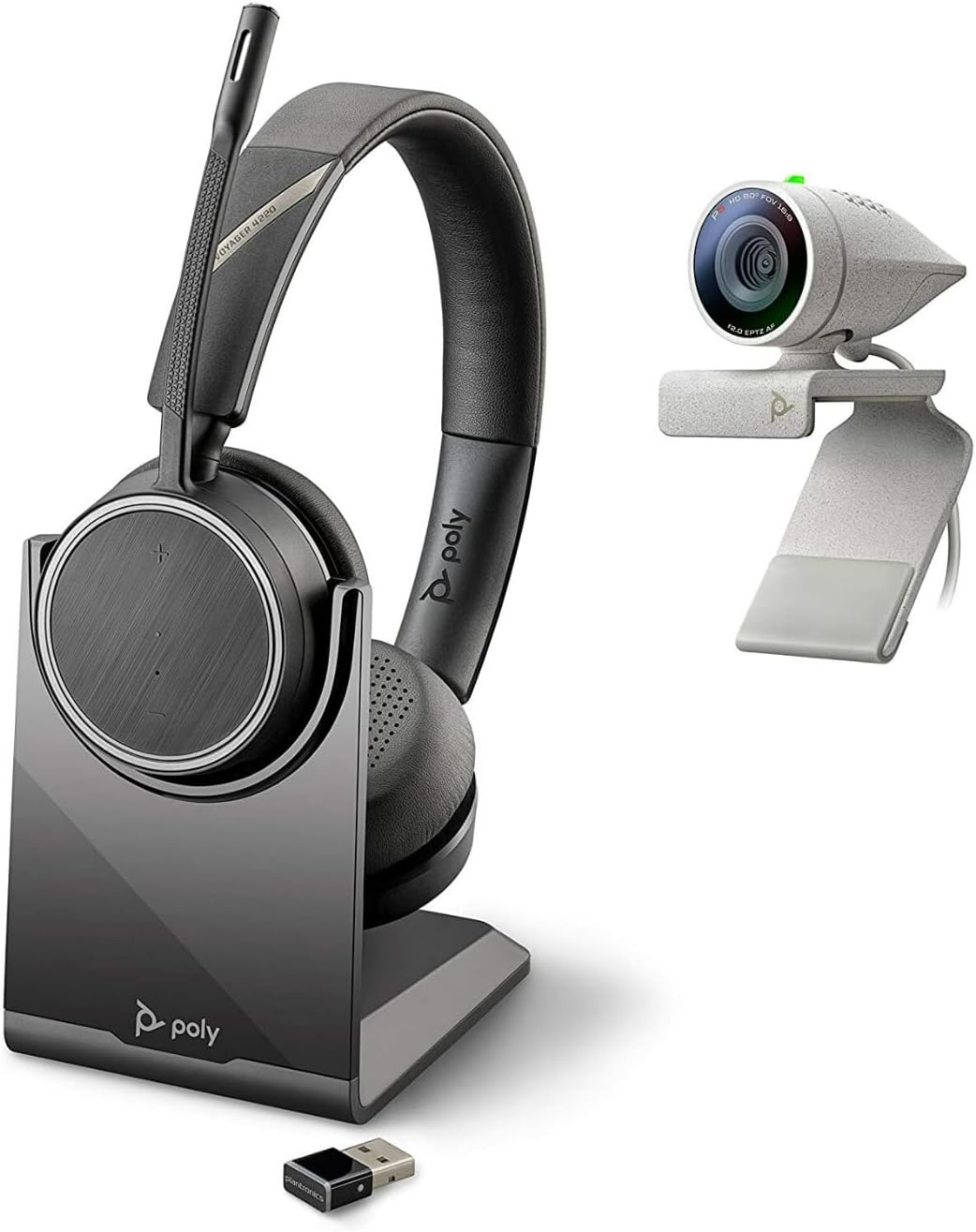
Image: Poly Studio P5 Webcam and Voyager 4220 UC Headset Kit, showing the webcam, headset, charging stand, and USB adapter.
Stiùiridhean rèiteachaidh
1. Poly Studio P5 Websuidheachadh camara
- A' cur suas an Webcam:
Cuir an webcam on top of your monitor or laptop screen. Adjust the clip to secure it firmly. The webcam can also be mounted on a tripod using the integrated tripod-ready design.

Image: Poly Studio P5 Webcam positioned on top of a laptop screen, showing its compact design and mounting clip.
- Connecting to your Computer:
Ceangail an càball USB togte bhon webcam to an available USB port on your PC or Mac. The device is plug-and-play; drivers will install automatically.
- Còmhdach prìobhaideachd:
Tha an webcam features an integrated privacy shutter. Slide the shutter to cover the lens when not in use to enhance security and privacy.

Ìomhaigh: Aghaidh view of the Poly Studio P5 Webcam, highlighting the lens and the integrated privacy shutter mechanism.
2. Voyager 4220 UC Headset Setup
- A ’cur cosgais air an headset:
Before first use, fully charge the headset. Connect the charging cable to the headset and a USB power source. A full charge provides approximately 12 hours of talk time or 15 hours of listening time.
- Connecting the USB-A Adapter:
Insert the USB-A adapter into an available USB port on your PC or Mac. The adapter will automatically pair with the Voyager 4220 UC headset.
- A 'caitheamh an headset:
Adjust the headband for a comfortable fit. Position the microphone boom approximately two finger-widths from the corner of your mouth for optimal voice pickup.
Stiùireadh Obrachaidh
1. Using the Poly Studio P5 Webcam
- Co-labhairt bhidio: Tha an webcam is compatible with Zoom, Microsoft Teams, and other video conferencing services. Select "Poly Studio P5" as your camera and microphone input within your chosen application's settings.
- Automatic Low-Light Compensation: Tha an webcam automatically adjusts to maintain proper light exposure, ensuring clear visibility even in darker environments.
- Zoom didseatach: The camera supports up to 4x digital zoom. This feature can typically be controlled through your video conferencing software or the Poly Lens Desktop app.

Image: A person wearing the Voyager 4220 UC Headset and using the Poly Studio P5 Webcam with a laptop, demonstrating a typical video conferencing setup.
2. Using the Voyager 4220 UC Headset
- Cumhachd air / dheth: Slide the power switch to turn the headset on or off.
- Smachd tomhas-lìonaidh: Use the volume up (+) and volume down (-) buttons on the earcup to adjust audio levels.
- Mute/Dì-mhilleadh: Press the mute button on the microphone boom or earcup to mute or unmute your microphone.
- Smachd Call: Press the call button to answer or end calls in supported applications.
- Noise-Cancelling Microphones: The headset features dual noise-cancelling microphones to reduce background noise for clear voice transmission.
3. Poly Lens Desktop App
The Poly Lens Desktop app allows you to customize settings, receive firmware updates, and access practical tips for your devices. Download the app from the official Poly weblàrach.
- Atharraich webcam settings (e.g., brightness, contrast, zoom).
- Configure headset audio preferences.
- Receive health and wellness reminders.
Cumail suas
- Glanadh:
Sguab an webcam lens and headset surfaces with a soft, dry, lint-free cloth. Do not use liquid cleaners or abrasive materials.
- Stòradh:
Stòraich na h-innealan ann an àite fionnar, tioram air falbh bho sholas dìreach na grèine agus teòthachd anabarrach nuair nach eilear gan cleachdadh.
- Ùrachaidhean firmware:
Regularly check for firmware updates via the Poly Lens Desktop app to ensure optimal performance and access to new features.
Fuasgladh thrioblaidean
| Trioblaid | Adhbhar a dh’fhaodadh a bhith ann | Fuasgladh |
|---|---|---|
| Webcha deach camara a lorg | Loose USB connection, incorrect software settings, driver issue. |
|
| Chan eil fuaim bho headset | Headset not powered on, not paired, volume too low, incorrect audio output selected. |
|
| Microphone nach eil ag obair | Microphone muted, incorrect audio input selected, boom not positioned correctly. |
|
| Deagh chàileachd bhidio | Low light conditions, dirty lens, internet bandwidth issues. |
|
Sònrachaidhean
Stiùidio Poly P5 Webcam
- Fuasgladh sgrion as àirde: FHD (1080p)
- Fuasgladh glacadh bhidio: 1080p
- Teicneòlas sensor dhealbhan: CMOS
- Cùl WebFuasgladh camara: 5 BP
- Fad fòcas as àirde: 4
- Crò as motha: f/2.0
- Teicneòlas ceangail: USB
- Àrd-ùrlar Bathar-cruaidh: PC, Mac
- Feartan sònraichte: Integrated privacy shutter, automatic low-light compensation, tripod-ready design.
- Meudan toraidh: 14.1 x 8.3 x 4.5 inches (Kit dimensions)
- Cuideam nì: 2.09 pounds (Kit weight)
Poly Voyager 4220 UC Headset
- Seòrsa gun uèir: Bluetooth
- Ùine còmhraidh: Suas ri 12 uairean a thìde
- Ùine èisteachd: Suas ri 15 uairean a thìde
- Micreofon: Dual noise-cancelling
- Ceangal: Adapter USB-A
- Cruth claisneachd le taic: AAC, MP3
- Bataraidhean: 1 bataraidh lithium polymer (air a ghabhail a-steach)
Fiosrachadh Barantais
Airson fiosrachadh mionaideach mun bharantas, thoir sùil air a’ chairt barantais a tha air a ghabhail a-steach leis an toradh agad no tadhail air làrach-lìn oifigeil Poly. weblàrach. Mar as trice bidh teirmichean barantais àbhaisteach a’ còmhdach lochdan saothrachaidh airson ùine shònraichte bho cheann-latha a’ cheannaich.
Taic agus Conaltradh
For technical support, product registration, or to download the latest software and drivers, please visit the official Poly support weblàrach:
Weblàrach: www.poly.com/support
Gheibh thu Ceistean Cumanta agus fòraman coimhearsnachd air an duilleag taic cuideachd.