
Logitech C505/C505e
Logitech C505/C505e HD Wired Business WebCam Leabhar-làimhe cleachdaiche
Model: C505/C505e
1. Os a chionnview
The Logitech C505/C505e HD Wired Business Webcam is designed to enhance your video communication experience. It provides crisp, smooth, and colorful widescreen HD 720p video with a 60° diagonal field of view. Tha an webcam features fixed focus and automatic light correction, adapting to various lighting conditions. Its single, omnidirectional microphone incorporates noise-reduction technology, supporting clear conversations up to 3 meters away, even in noisy environments. The extra-long USB-A cable and universal clip offer flexible placement options on your computer or up to 7 feet away.
2. Stiùireadh Stèidheachaidh
Setting up your Logitech C505/C505e webcam is a straightforward plug-and-play process. No additional software installation or charging is required.
- Ceangail an Webcam: Cuir a-steach càball USB-A bhon webcamara a-steach do phort USB a tha ri fhaighinn air a’ choimpiutair deasg no laptop agad.
- Suidhich an Webcam: Use the universal clip to securely mount the webcam on your monitor, laptop screen, or place it on a flat surface. The extra-long cable allows for flexible positioning.
- Tagh an Webcam: Bu chòir don choimpiutair agad am faidhle a lorg gu fèin-ghluasadach webcam. If you have multiple cameras or microphones, you may need to select the "Logitech C505/C505e" in your application's settings (e.g., video conferencing software, recording applications) or your operating system's device settings.

Image: The Logitech C505/C505e webcam easily clips onto a monitor for convenient placement.
3. Ag obrachadh an Webcam
Once connected, the Logitech C505/C505e is ready for use with most video conferencing and recording applications.
- Càileachd bhidio: Tha an webcam delivers HD 720p video at 30 frames per second, providing clear visuals for your calls and recordings.
- Raon de View: Raon trastain 60 ° de view ensures you are framed appropriately without capturing excessive background.
- Fòcas Stèidhichte: The fixed focus lens maintains sharpness for subjects within its optimal range, simplifying operation.
- Ceartachadh solais fèin-ghluasadach: Tha an webcam automatically adjusts to the lighting conditions of your environment, helping to ensure you appear well-lit even in varying light. Optimal lighting conditions will yield the best video quality.
- Micreofon: The integrated omnidirectional microphone with noise-reduction technology is designed to capture your voice clearly from up to 3 meters away, minimizing background distractions.

Image: The Logitech C505/C505e provides HD 720p widescreen video for clear communication.
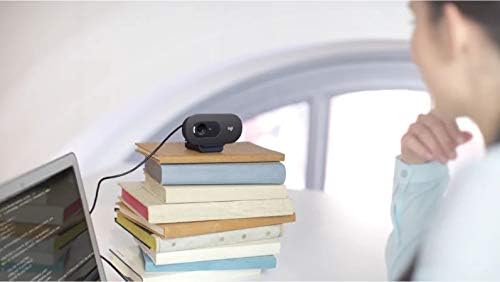
Image: Flexible placement options allow the webcam to be positioned on various surfaces.
4. Cumail suas
To ensure optimal performance and longevity of your Logitech C505/C505e webcam, lean na stiùiridhean cumail suas sìmplidh seo:
- A 'glanadh an lens: Sguab gu socair an webcam lens with a soft, lint-free cloth. Avoid using harsh chemicals or abrasive materials that could scratch the lens.
- Stòradh: Nuair nach eilear gan cleachdadh, stòraich an webcamara ann an àite glan, tioram air falbh bho theodhachd anabarrach agus solas dìreach na grèine.
- Cùram càball: Avoid sharply bending or crimping the USB cable to prevent internal damage.
5. A ’dèanamh trioblaid
If you encounter issues with your Logitech C505/C505e webcam, try the following troubleshooting steps:
- Gun Bhidio/Fuaim:
- Dèan cinnteach gu bheil an càball USB ceangailte gu tèarainte ris an dà chuid webcamara agus a’ choimpiutair agad.
- Feuch ri plugging an webcam a-steach do phort USB eadar-dhealaichte.
- Check your application's settings (e.g., Zoom, Microsoft Teams) to confirm the Logitech C505/C505e is selected as the active camera and microphone.
- Verify your operating system's privacy settings allow applications to access the camera and microphone.
- Càileachd bhidio truagh:
- Dèan cinnteach gu bheil solas iomchaidh san àrainneachd agad. webcam performs best with good illumination.
- Glan an weblionsa a’ chamara le clò bog.
- Check for any obstructions in front of the lens.
- Càileachd claisneachd truagh:
- Dèan cinnteach gu bheil an webcam's microphone is selected in your application and system audio settings.
- Lùghdaich fuaim cùl-fhiosrachaidh san àrainneachd agad.
- Ensure you are within the 3-meter optimal range of the microphone.
- WebCamara gun aithneachadh:
- Ath-thòisich an coimpiutair agad.
- Thoir sùil air Manaidsear Innealan (Windows) no Fiosrachadh Siostaim (macOS) a’ choimpiutair agad gus faicinn a bheil an webcam is listed. You may need to update or reinstall drivers, though typically the webcam is plug-and-play.
6. Sònrachaidhean
| Brand | Logitech |
| Modail Àireamh | Logitech C505/C505e |
| Fuasgladh glacadh bhidio | 720p |
| Fuasgladh bhidio | 720p |
| Teicneòlas ceangail | Uèirleichte (USB-A) |
| Seòrsa Fòcas | Fòcas Stèidhichte |
| Viewann an Ceàrn | 60 ceum |
| Micreofon | Omnidirectional with Noise-Reduction |
| Siostam-obrachaidh | Multiple (Windows 8 or later, macOS 10.10 or later, ChromeOS) |
| Meadhanan togte | USB Cable, Universal Clip |
| Feartan | Automatic Light Correction, Low Light Performance |
7. Barantas agus Taic
Airson fiosrachadh mionaideach mu bharantas agus taic theicnigeach, tadhail air taic oifigeil Logitech weblàrach. Gheibh thu draibhearan, ceistean cumanta, agus fiosrachadh conaltraidh airson seirbheis luchd-cleachdaidh an sin.