
1. Ro-ràdh
Thank you for choosing the iClever GK08 Wireless Keyboard and Mouse Combo. This full-size keyboard with a numeric keypad and a silent mouse offers a stable 2.4 GHz connection, USB-C recharging, and dual-layout compatibility for Mac and Windows systems. This manual provides detailed instructions to help you set up, operate, and maintain your new device.
2. Fiosrachadh Sàbhailteachd
- Cùm an inneal air falbh bho uisge, teine, agus teòthachd àrd.
- Na feuch ris an inneal a thoirt às a chèile no atharrachadh.
- Cleachd an càball USB-C a tha air a thoirt seachad a-mhàin airson cosgais.
- Seachain a bhith a’ leigeil às no fo smachd an inneal gu buaidhean làidir.
- Cuir às do bhataraidhean agus co-phàirtean dealain gu ciallach a rèir riaghailtean ionadail.
3. Stiùirich rèiteachaidh
3.1 Susbaint a’ phacaid
- iClever GK08 Wireless Keyboard
- iClever Wireless Mouse
- USB-A Nano Receiver (stored inside the mouse)
- Càball cosgais USB-C
- Washable Dust Cover
- Leabhar-làimhe cleachdaiche
3.2 Cìs tòiseachaidh
Before first use, ensure both the keyboard and mouse are fully charged.
- Connect the provided USB-C charging cable to the keyboard's USB-C port (located on the top edge).
- Ceangail ceann eile a’ chàball ri stòr cumhachd USB (m.e., port USB coimpiutair, inneal-atharrachaidh balla USB).
- Lasaidh an solas comharra cosgais air a’ mheur-chlàr fhad ’s a bhios e a’ cur cosgais agus tionndaidhidh e dheth nuair a bhios e làn-chosgais.
- For the mouse, connect the USB-C cable to its charging port. The mouse also has an indicator light.
- A full charge takes approximately 2 hours and provides up to 45 days of use for the keyboard.
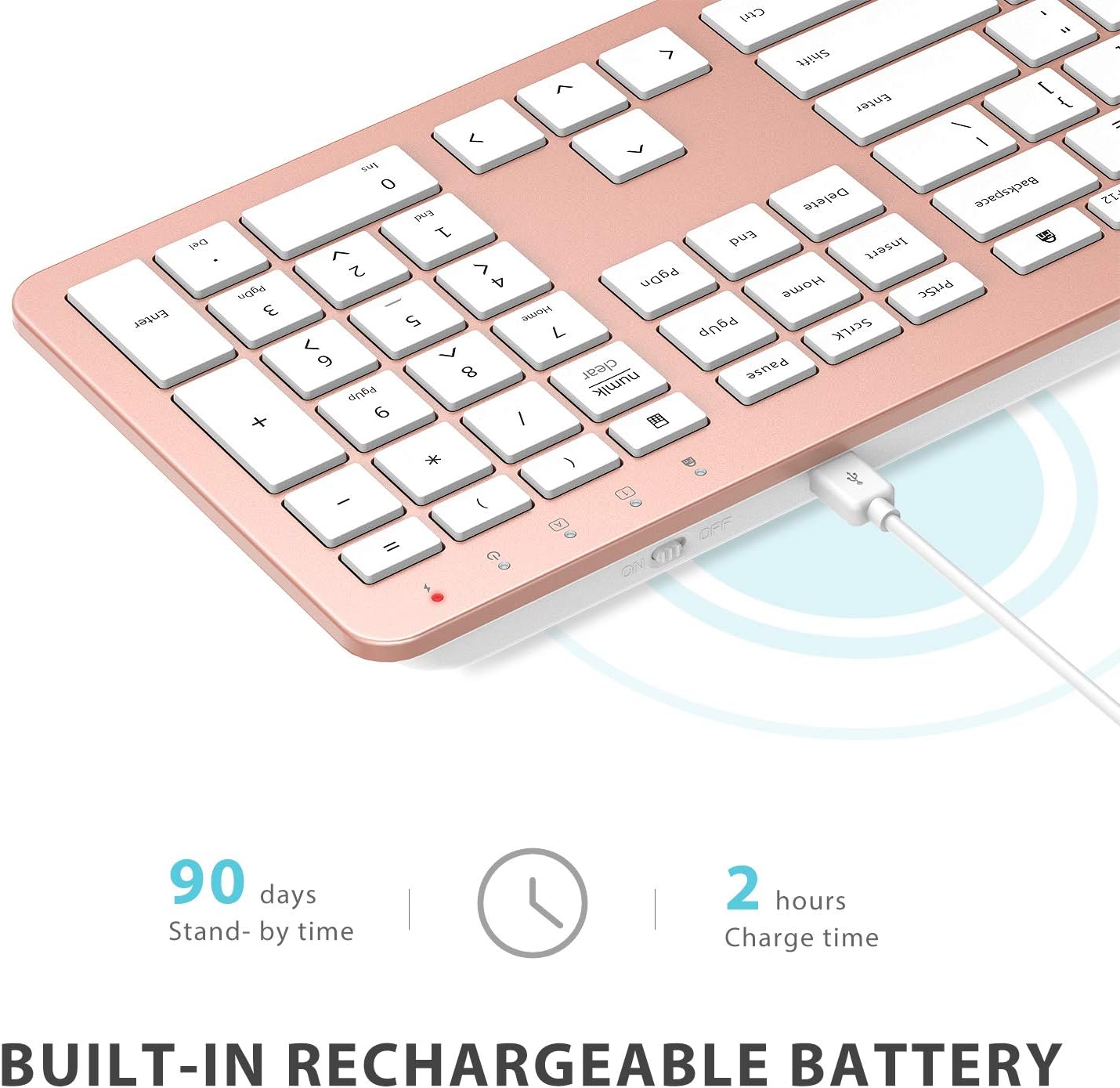
Image: The iClever GK08 keyboard connected to a USB-C charging cable, illustrating the charging process and battery life indicators.
3.3 Connecting to Your Computer (2.4 GHz Wireless)
The keyboard and mouse connect via a single 2.4 GHz USB-A nano receiver.
- Locate the USB-A nano receiver. It is typically stored in a compartment on the underside of the mouse.
- Plug the nano receiver into an available USB-A port on your computer.
- Turn on the keyboard using the ON/OFF switch (usually on the top edge).
- Turn on the mouse using the ON/OFF switch (located on the underside).
- Your computer should automatically detect and install the necessary drivers. The devices are ready for use once recognized.
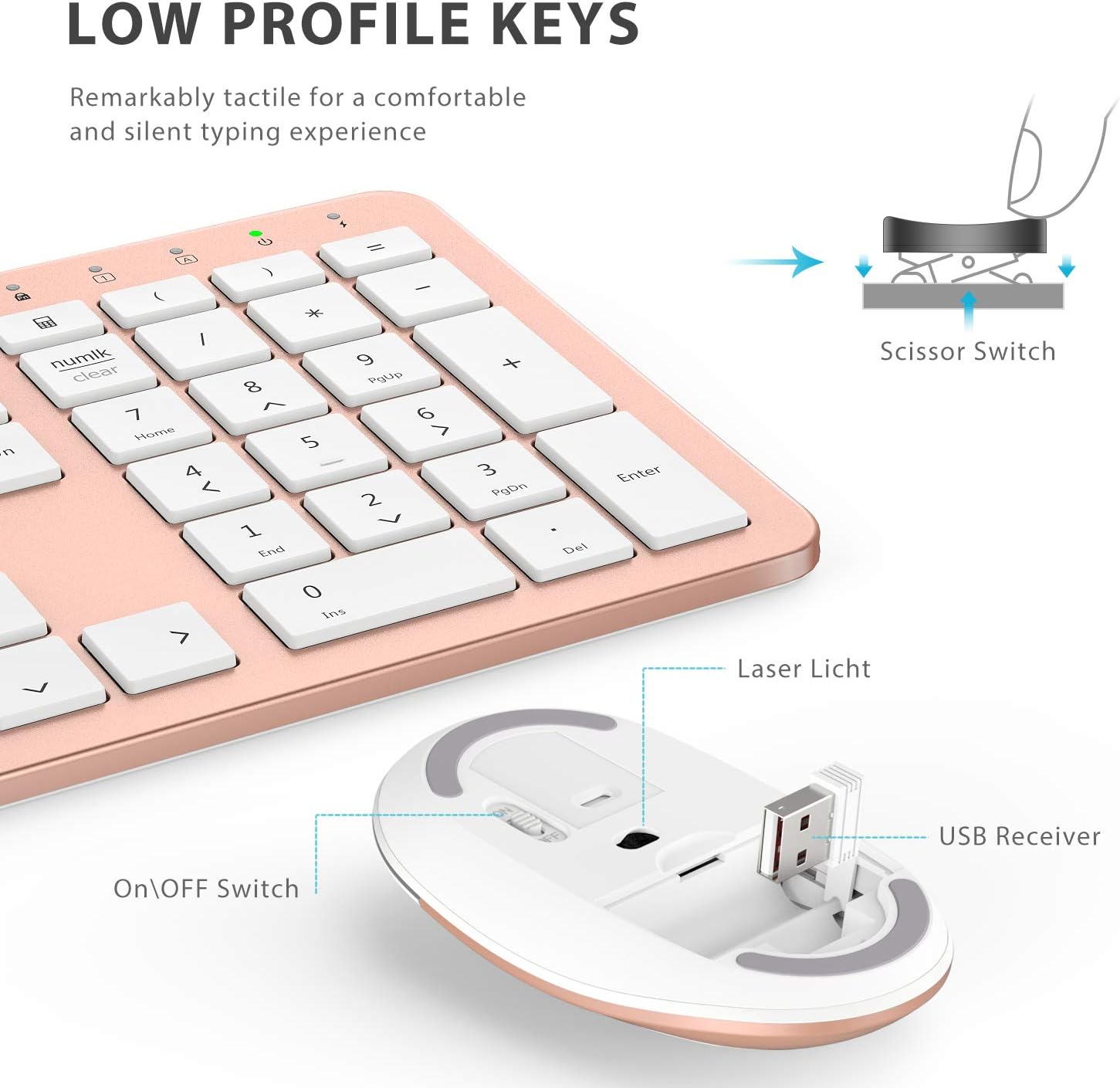
Ìomhaigh: Sealladh dlùth view of the iClever mouse, highlighting the compartment where the USB nano receiver is stored for convenience.
3.4 Sgrùdadh Co-chòrdalachd
This combo requires an available USB-A port for the nano receiver. For newer Macs with only USB-C ports, a USB-C to USB-A adapter (not included) is required. It is compatible with:
- Windows 10/11 PC & laptop
- macOS desktops / notebooks with USB-A port (e.g., iMac Retina 4K/5K, MacBook Air/Pro ≤ 2017)
- Chrome OS

Image: A visual representation emphasizing the requirement of a USB-A port for the 2.4G wireless receiver, with a note about USB-C adapters for newer devices.
4. Stiùireadh Obrachaidh
4.1 Gnìomhan meur-chlàr
- Cruth làn-mheud: The keyboard features a 110-key layout with a dedicated numeric keypad for efficient data entry.
- Quiet Scissor-Switch Keys: Enjoy a comfortable and quiet typing experience with low-profile keys that produce less than 50 dB of sound.
- Media Shortcuts: Access common media functions directly from the keyboard.
- Dual-Layout Compatibility: The keyboard has clearly printed Mac and PC legends.
Switching Between Mac and Windows Layouts:
- Airson Windows: Brùth Fn + W. to activate Win, Alt, NumLK functions.
- Airson Mac OS: Brùth Fn + Q. to activate Alt (Option), Cmd, Clear functions.

Image: The iClever GK08 keyboard displaying the dual Mac and Windows key legends, with instructions for switching between operating system layouts using the Fn key combinations.
4.2 Gnìomhan na Luchaige
- Cliog sàmhach: The mouse is designed for quiet operation, minimizing distractions.
- DPI a ghabhas atharrachadh: The mouse features 3 adjustable DPI levels (800/1200/1600) to customize cursor sensitivity. Press the DPI button (usually located near the scroll wheel) to cycle through the settings.

Image: A visual demonstrating the quiet operation of the iClever mouse and the three adjustable DPI settings (800, 1200, 1600) for varied precision needs.
4.3 Feart Cadail Fèin-ghluasadach
To conserve battery life, both the keyboard and mouse will enter an auto-sleep mode after 10 minutes of inactivity. To wake them up, simply press any key on the keyboard or move the mouse.
Video: A seller-provided video demonstrating the plug-and-play functionality and long battery life of the iClever Wireless Keyboard and Mouse. This video highlights the ease of setup and extended usage between charges.
5. Cumail suas
- Glanadh: Cleachd bog, damp cloth to clean the surfaces of the keyboard and mouse. Avoid harsh chemicals.
- Còmhdach dust: Utilize the included washable dust cover to protect the keyboard from dust and spills when not in use.
- Stòradh: When not in use for extended periods, turn off both devices to conserve battery. Store the USB receiver inside the mouse.
6. A ’dèanamh trioblaid
- Gun cheangal:
- Ensure both keyboard and mouse are turned ON.
- Verify the USB nano receiver is securely plugged into a working USB-A port on your computer.
- Try plugging the receiver into a different USB-A port.
- Check if the devices are charged.
- Ceangal lag no eadar-amail:
- Ensure the devices are within the 33 ft / 10 m operating range of the receiver.
- Seachain a bhith a’ cur an glacadair faisg air stòran bacadh làidir (me, innealan gun uèir eile, nithean mòra meatailt).
- Re-pair the devices by unplugging and re-plugging the receiver.
- Keyboard Not Typing Correctly (Mac/Windows):
- Ensure you have selected the correct operating system layout using Fn + W. airson Windows no Fn + Q. airson Mac.
- Leumaidh Cursair na Luchaige no tha e mì-chruinn:
- Atharraich an suidheachadh DPI le bhith a’ cleachdadh a’ phutan DPI air a’ luchag.
- Dèan cinnteach gu bheil mothachair na luchaige glan agus saor bho bhacaidhean.
- Cleachd an luchag air uachdar freagarrach (gun a bhith ro-fhaileasach no follaiseach).
7. Sònrachaidhean
| Feart | Mion-fhiosrachadh |
|---|---|
| Brand | iClever |
| Modail Àireamh | GK08 |
| Dath | Òr Ròs |
| Teicneòlas ceangail | 2.4 GHz wireless (USB-A nano receiver) |
| Raon gun uèir | Suas gu 33 troigh / 10 m |
| Cruth meur-chlàr | QWERTY, Full-size 110-key with Numpad |
| Seòrsa iuchair | Scissor Switch (Quiet typing < 50 dB) |
| Stòr cumhachd | Rechargeable Lithium Ion Battery (Keyboard) |
| Port luchdadh a-nuas | USB-C |
| Ùine cosgais | Mu thuairmeas. 2 uairean |
| Beatha Bataraidh (Meur-chlàr) | Suas ri 45 latha (cleachdadh àbhaisteach) |
| Roghainnean DPI na luchaige | 800/1200/1600 dPI |
| Siostaman-obrachaidh co-fhreagarrach | Windows 8/10/11, macOS, Chrome OS |
| Feartan sònraichte | Dual Mac/Windows layout, 10-min auto-sleep, Washable dust cover |
8. Barantas agus Taic
iClever products typically come with a standard manufacturer's warranty. Please refer to the warranty card included in your product packaging or visit the official iClever weblàrach-lìn airson teirmichean is cumhaichean barantais mionaideach.
For technical support, troubleshooting assistance, or any product-related inquiries, please contact iClever customer service through their official weblàrach-lìn no am fiosrachadh conaltraidh a tha air a thoirt seachad ann an sgrìobhainnean an toraidh agad.
Taic air-loidhne: www.iclever.com/support