1. Ro-ràdh
The UNIWA E1801 is a user-friendly mobile phone designed with large buttons and a clear display, making it ideal for seniors. It features essential functions such as calling, messaging, FM radio, MP3/MP4 playback, and a built-in flashlight. This manual provides comprehensive instructions for setting up, operating, and maintaining your device.
2. Fiosrachadh Sàbhailteachd
- Na dì-stàlaich no atharraich an inneal.
- Use only original or approved batteries and chargers.
- Seachain am fòn a nochdadh do theodhachd anabarrach, solas dìreach na grèine no taiseachd.
- Keep the phone away from medical devices to prevent interference.
- Dispose of the phone and battery responsibly according to local regulations.
3. Pasgan-susbaint
Thoir sùil air susbaint a’ phacaid nuair a dh’fhosglas tu am bogsa. Ma tha rud sam bith a dhìth no millte, cuir fios chun neach-reic agad.
- UNIWA E1801 Mobile Phone
- BL-5C 800mAh Battery
- Charger
- Leabhar-làimhe cleachdaiche (an sgrìobhainn seo)
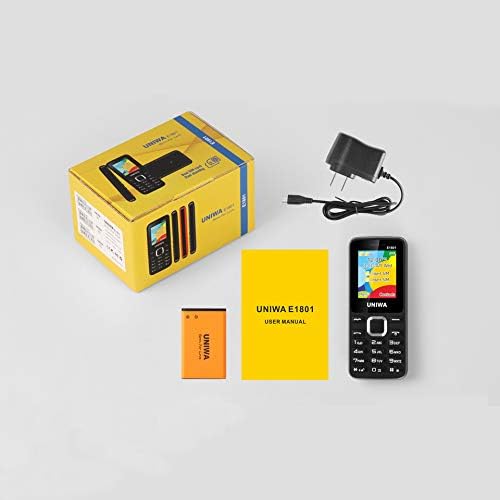
Image: Contents of the UNIWA E1801 package, showing the phone, battery, charger, and user manual neatly arranged next to the product box.
4. Toradh thallview
Familiarize yourself with the physical components of your UNIWA E1801 phone.

Image: The UNIWA E1801 mobile phone held in a hand, showcasing its compact size, large keypad, and clear color display with the UNIWA logo.
- Taisbeanadh: 1.77-inch QQVGA screen (160 x 128 pixels) for clear visibility.
- Meur-chlàr: Large, ergonomic buttons with clear numbering for easy dialing and navigation.
- Iuchraichean seòlaidh: Plated navigation keys for intuitive menu control.
- Camara cùil: 0.08 MP camera for basic photo capture.
- Neach-labhairt: Integrated 2030 box speaker for loud and clear audio.
- Flashlight: Solas-làimhe LED togte a-steach airson goireasachd.
- Non-slip Frame: Textured frame design for a secure grip.

Ìomhaigh: Sealladh dlùth view of the UNIWA E1801's keypad, highlighting the ergonomic design and the metallic finish of the central navigation keys.

Image: The UNIWA E1801 phone with an inset showing the detailed texture of its non-slip frame, designed for a secure grip.

Image: The rear of the UNIWA E1801 phone, with an overlay illustrating the powerful 2030 box speaker and its sound projection.
5. Suidhich
5.1. Installing SIM Cards
The UNIWA E1801 supports dual SIM cards, allowing you to use two different numbers simultaneously.
- Thoir air falbh còmhdach cùil a’ fòn.
- Locate the SIM card slots.
- Carefully insert your SIM cards into the designated slots with the gold contacts facing down.
- Ensure the SIM cards are securely seated.

Image: The back of the UNIWA E1801 phone with the cover removed, clearly showing the two SIM card slots and an illustration of two SIM cards.
5.2. Stàladh a 'Bhataraidh
- After inserting the SIM cards, place the BL-5C 800mAh battery into the battery compartment, aligning the gold contacts.
- Gently press down until the battery is securely in place.
- Cuir an còmhdach cùil air ais, a’ dèanamh cinnteach gu bheil e a’ briogadh na àite.
5.3. A 'cur cosgais air a' fòn
Mus cleachd thu e an toiseach, cuir làn-chosgais air bataraidh a’ fòn.
- Connect the charger to the charging port on the phone.
- Plug an charger a-steach don ionad cumhachd.
- Seallaidh comharra a’ bhataraidh air an sgrion inbhe na cosgais.
- Aon uair ‘s gu bheil e làn chosgais, dì-cheangail an charger.
6. Stiùireadh Obrachaidh
6.1. Cumhachd air / dheth
- Gus cumhachd a thoirt air: Brùth is cum sìos am putan Cumhachd/Crìochnaich Gairm gus an las an scrion suas.
- Gus cumhachd a thoirt dheth: Press and hold the Power/End Call button until the power off options appear, then select "Power off".
6.2. Dèanamh Gairmean
- Bhon sgrion neo-ghnìomhach, cuir a-steach an àireamh fòn a’ cleachdadh a’ mheur-chlàir.
- Brùth air a’ phutan Uaine airson gairm gus a’ ghairm a thòiseachadh.
- Gus gairm a chrìochnachadh, brùth air a’ phutan Dearg Crìochnaich Gairm.
6.3. Teachdaireachdan a chur
- Go to "Menu" > "Messages" > "Write message".
- Cuir a-steach do theachdaireachd a’ cleachdadh a’ mheur-chlàir.
- Cuir a-steach àireamh fòn an neach a gheibh e no tagh bho na caraidean.
- Brùth “Cuir”.
6.4. Using the FM Radio
The phone features a wireless FM radio.
- Go to "Menu" > "FM Radio".
- Select "Auto search" to find available stations.
- Use the navigation keys to switch between stations.

Image: The UNIWA E1801 phone displaying its FM radio interface, showing a frequency of 142.2 MHz, with musical notes and a classic radio in the background, indicating its wireless FM capability.
6.5. A 'cleachdadh an Flashlight
The built-in flashlight can be easily activated.
- Typically, a dedicated button or a long press on a specific key (refer to your phone's quick guide) activates the flashlight.
- Alternatively, access it via "Menu" > "Tools" > "Flashlight".

Image: The UNIWA E1801 phone with a bright beam of light emanating from its top, illustrating the built-in flashlight function.
6.6. Feartan Eile
- MP3/MP4 Playback: Supports multimedia playback. Transfer files to a TF card (up to 16GB, not included) and access them via the "Multimedia" menu.
- Leabhar fòn: Store up to 300 contacts.
- Innealan: Includes games, calendar, alarm clock, calculator, world clock, and recorder.
7. Cumail suas
- Glanadh: Cleachd clò bog, tioram gus uachdar a’ fòn a ghlanadh. Na cleachd innealan-glanaidh leaghaidh no aerosols.
- Stòradh: Stòraich am fòn ann an àite fionnar, tioram air falbh bho sholas dìreach na grèine agus teòthachd anabarrach.
- Cùram Bataraidh: Avoid fully discharging the battery frequently. Charge it regularly to prolong its lifespan.
8. A ’dèanamh trioblaid
| Trioblaid | Adhbhar a dh’fhaodadh a bhith ann | Fuasgladh |
|---|---|---|
| Chan eil am fòn a’ dol air. | Tha am bataraidh ìosal no chan eil e air a stàladh gu ceart. | Cuir cosgais air a’ bhataraidh. Dèan cinnteach gu bheil am bataraidh air a chur a-steach gu ceart. |
| Chan urrainnear gairmean a dhèanamh no fhaighinn. | Gun chairt SIM, cairt SIM gun a bhith air a cur a-steach gu ceart, no gun chomharra lìonra. | Ensure SIM card is inserted. Check network signal strength. Contact your service provider. |
| Tha càileachd claisneachd dona. | Low volume, poor network signal, or speaker/microphone obstruction. | Adjust volume. Move to an area with better signal. Clean speaker/microphone openings. |
| Bidh bataraidh a’ drèanadh gu sgiobalta. | Frequent use, background applications, or old battery. | Lùghdaich soilleireachd na sgrìn. Dùin aplacaidean nach eilear a’ cleachdadh. Smaoinich air bataraidh ùr a chur na àite ma tha i sean. |
9. Sònrachaidhean
| Feart | Mion-fhiosrachadh |
|---|---|
| Modail Àireamh | E1801 |
| Meudan | 108 x 45 x 14 mm |
| Cuideam | 68 g |
| CPU | SC6531E |
| Sgaoileadh | 2G: GSM850/900/1800/1900 MHz, GPRS |
| Cairt SIM | SIM dùbailte, Fuireach dùbailte |
| Comas leabhar fòn | 300 a-steach |
| Taisbeanadh | 1.77 inch QQVGA, 160 x 128 pixels |
| Camara | 0.08 MP Rear Camera, 640 x 480 pixels |
| Ioma-mheadhan | MP3, MP4 |
| Cuimhne | Supports TF card up to 16 GB (max) |
| Bluetooth | v2.1 |
| Bataraidh | BL-5C 800mAh |
| Ùine Còmhraidh | Suas gu 240 mionaid |
| Am Fuireach | Suas ri 200 uairean a thìde |
| Cànanan | English, Russian, Hebrew, Arabic, French, Spanish, Polish, German, Italian, Portuguese, Chinese |
| Feartan | Games, Calendar, Alarm Clock, Calculator, World Clock, Flashlight, E-book, WAP, Recorder |
10. Barantas agus Taic
Your UNIWA E1801 mobile phone comes with a standard manufacturer's warranty. Please refer to the warranty card included in your package for specific terms and conditions.
For technical support, troubleshooting assistance, or warranty claims, please contact your point of purchase or the official UNIWA customer service. Keep your purchase receipt as proof of purchase.
For more information, visit the official UNIWA weblàrach no cuir fios chun na seanalan taic aca.