
1. Ro-ràdh
This manual provides instructions for the setup, operation, maintenance, and troubleshooting of your JUQITECH Backlit Keyboard Case. Please read this manual thoroughly before using the product to ensure proper function and longevity.

Image 1.1: JUQITECH Backlit Keyboard Case with a tablet in an upright position, showcasing the backlit keyboard.
2. Pasgan-susbaint
Dèan cinnteach gu bheil a h-uile rud anns a’ phacaid agad:
- 1 x Smart Case for Galaxy Tab S8/S7 11"
- 1 x Wireless Backlit Keyboard
- Càball USB (airson cosgais)
- 1 x Leabhar-làimhe Cleachdaiche
3. Co-fhreagarrachd
This keyboard case is designed for the following Samsung Galaxy Tab models:
- Samsung Galaxy Tab S8 11-inch (2022 models: SM-X700, SM-X706)
- Samsung Galaxy Tab S7 11-inch (2020 models: SM-T870, SM-T875, SM-T876)
Please verify your tablet's model number in the tablet's 'Settings' before use. This product is not compatible with other tablet models, including Samsung Galaxy Tab S7+, S7 FE, S8+, or 12.4-inch models.

Image 3.1: Visual guide to compatible Samsung Galaxy Tab models and their model numbers.
4. Suidhich
4.1 Installing the Tablet
- Align your Samsung Galaxy Tab with the case's inner shell.
- Gently press the tablet into the flexible TPU inner shell until it is securely seated. Ensure all edges are protected and cutouts align with ports and buttons.
4.2 A’ cur cosgais air a’ mheur-chlàr
Before initial use, fully charge the wireless keyboard.
- Connect the provided USB cable to the keyboard's charging port.
- Ceangail ceann eile a’ chàball USB ri inneal-atharrachaidh cumhachd USB (nach eil air a ghabhail a-steach) no ri port USB coimpiutair.
- Lasaidh an solas comharra cosgais. Aon uair ‘s gu bheil e làn-chosgais, atharraichidh no cuiridh an solas dheth e.

Image 4.1: Keyboard charging port with USB cable connection.
4.3 Pairing Bluetooth
To connect the wireless keyboard to your tablet:
- Ensure the keyboard is charged and powered on using the ON/OFF switch.
- Press the 'Connect' button on the keyboard. The Bluetooth indicator light will flash, indicating it is in pairing mode.
- On your Samsung Galaxy Tab, go to 'Settings' > 'Connected devices' > 'Bluetooth'.
- Cuir Bluetooth air agus rannsaich airson innealan a tha rim faighinn.
- Select 'Bluetooth Keyboard' (or similar name) from the list of devices.
- Follow any on-screen prompts to complete the pairing process. The Bluetooth indicator light on the keyboard will stop flashing once connected.
4.4 Siostaman Obrachaidh Atharrachaidh
The keyboard supports iOS, Android, and Windows operating systems. To switch between systems:
- Brùth an Fn key simultaneously with the corresponding system key:
- Fn + Q. airson Android
- Fn + W. airson Windows
- Fn + E airson iOS

Image 4.2: Keyboard layout showing system switching keys (Fn + Q/W/E).
5. Operating the Keyboard Case
5.1 smachd backlight
The keyboard features 7-color backlighting with stable and breathing modes.
- Brùth an bulb key to cycle through stable backlight mode, breathing backlight mode, or turn the backlight off.
- Brùth an RGB key to change the backlight color in stable mode (Blue, Green, Red, Light Blue, Purple, Yellow, White).
5.2 iuchraichean ath-ghoirid
The keyboard includes a row of dedicated shortcut keys for enhanced productivity:
- Esc: Teicheadh
- Rannsachadh: Access search function
- Tagh Uile
- Dèan lethbhreac
- Paste
- Gearr
- Roimhe (media control)
- Cluich / Stad (media control)
- Air adhart (media control)
- Leabhar -
- Meud +
- Screen Lightness -
- Screen Lightness +
- Sgrion Lock

Dealbh 5.1: Thairisview of dedicated shortcut keys.
5.3 Ag atharrachadh Viewing Angles
Tha a’ chùis a’ ceadachadh iomadh viewing angles. The keyboard is magnetically attached and can be detached to adjust the tablet's position for optimal viewing, reading, working, or gaming.
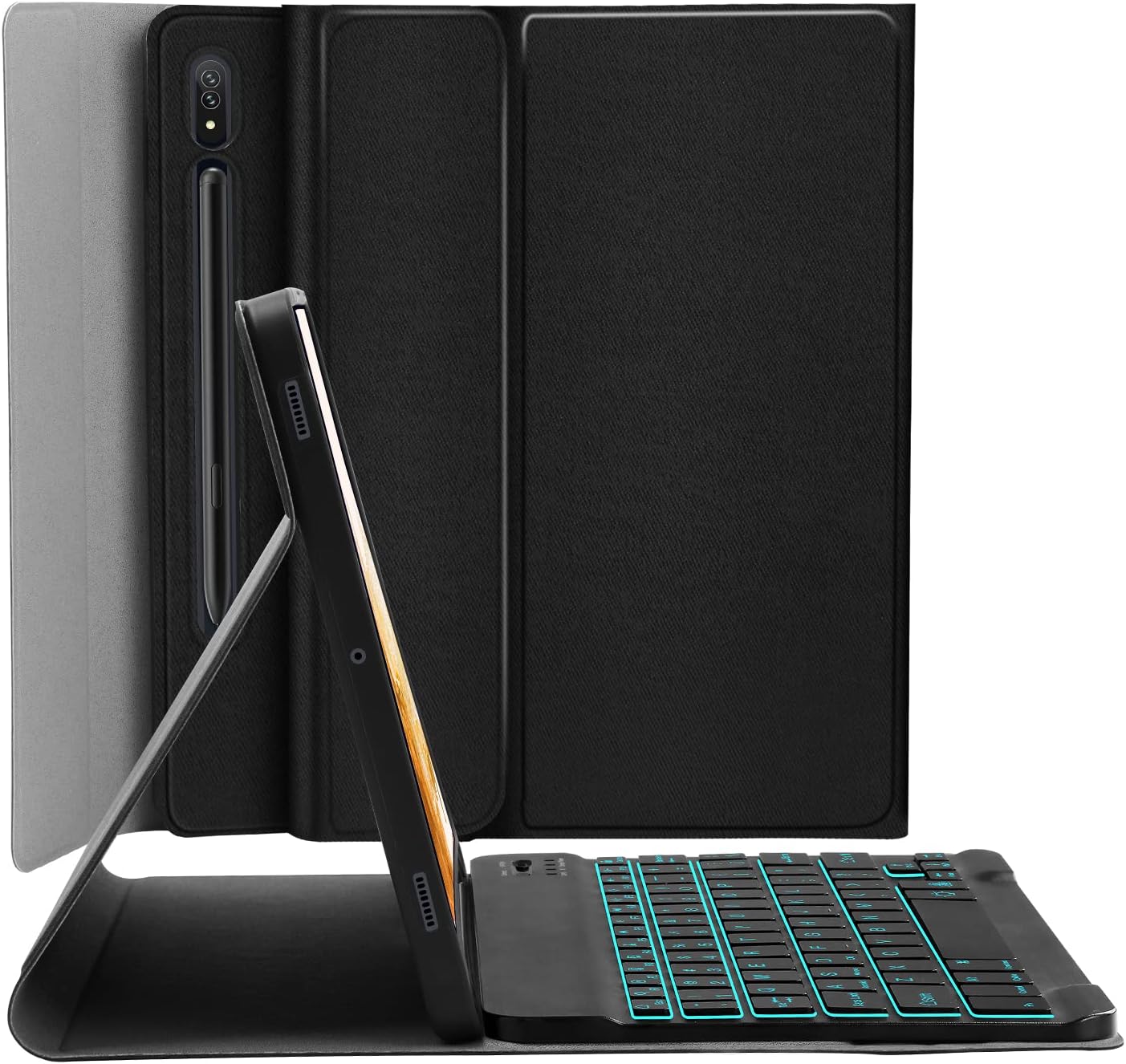
Image 5.2: Tablet case in a propped-up position with the keyboard, illustrating a common viewceàrn ing.

Image 5.3: Illustration of various adjustable viewing ceàrnan.
5.4 S Pen Integration
The case includes a built-in slot for the S Pen, ensuring it is stored securely and is readily available. The design also supports magnetic attachment and wireless charging of the S Pen on the tablet's side without removing the case.

Image 5.4: S Pen holder and magnetic charging area.

Ìomhaigh 5.5: Mion-fhiosrachadh view of the S Pen slot and magnetic attachment.
5.5 Gnìomh Cadail/Dùisg Fèin-ghluasadach
The magnetic auto sleep/wake feature helps conserve battery life. The tablet will automatically wake up when the lid is opened and go to sleep when the lid is closed.

Image 5.6: Features including auto sleep/wake, soft TPU, and precise cutouts.
6. Cumail suas
6.1 Glanadh
- Wipe the case exterior with a soft, damp aodach. Seachain ceimigean cruaidh.
- For the keyboard, use a dry, soft cloth. Do not immerse the keyboard in water.
6.2 Cùram Bataraidh
- Cuir cosgais air a’ mheur-chlàr gu cunbhalach gus slàinte a’ bhataraidh a chumail suas.
- Seachain teòthachd anabarrach, a dh’ fhaodadh buaidh a thoirt air coileanadh bataraidh.
7. A ’dèanamh trioblaid
7.1 Meur-chlàr gun cheangal
- Dèan cinnteach gu bheil am meur-chlàr air agus gu bheil e làn-luchdaichte.
- Dearbhaich gu bheil Bluetooth air a chomasachadh air an tablet agad.
- Brùth air a’ phutan ‘Ceangail’ air a’ mheur-chlàr gus modh càraideachaidh a thòiseachadh.
- Dìochuimhnich an inneal ann an roghainnean Bluetooth an tablet agad agus feuch ri ath-chàraideachadh.
7.2 Iuchraichean gun fhreagairt
- Thoir sùil a bheil am meur-chlàr ceangailte tro Bluetooth.
- Ensure the correct operating system mode is selected (Fn + Q/W/E).
- Ath-luchdaich bataraidh a’ mheur-chlàir.
7.3 Solas-cùil gun a bhith ag obair
- Press the bulb key to cycle through backlight modes.
- Dèan cinnteach gu bheil bataraidh a’ mheur-chlàir làn-chumhachd.
8. Sònrachaidhean
| Modail Àireamh | JU2011BTB |
| Meudan toraidh | 10.2 x 7.37 x 0.78 òirleach |
| Cuideam nì | 1.28 not |
| Teicneòlas ceangail | Bluetooth |
| Seòrsa meur-chlàr | Wireless, Detachable, 7 Colors Backlit |
| Dathan backlight | RGB (Blue, Green, Red, Light Blue, Purple, Yellow, White) |
| Bataraidh | 1 bataraidh lithium-ion (air a ghabhail a-steach) |
| Feartan sònraichte | Backlit, Built-in S Pen Holder, Multi-Angle Adjustable, Rechargeable, Auto Sleep/Wake |
9. Barantas agus Taic
JUQITECH offers a 24-hour after-sales service guarantee for any issues with your purchase. Please contact JUQITECH customer support for assistance.