
OHLUX SPQB3010-A
OHLUX Smart WiFi LED Light Bulbs User Manual
Model: SPQB3010-A
1. Ro-ràdh
Thank you for choosing OHLUX Smart WiFi LED Light Bulbs. These bulbs are designed to provide a versatile and convenient lighting experience for your home, offering smart control through voice commands, mobile applications, and customizable schedules. This manual will guide you through the setup, operation, maintenance, and troubleshooting of your new smart bulbs.
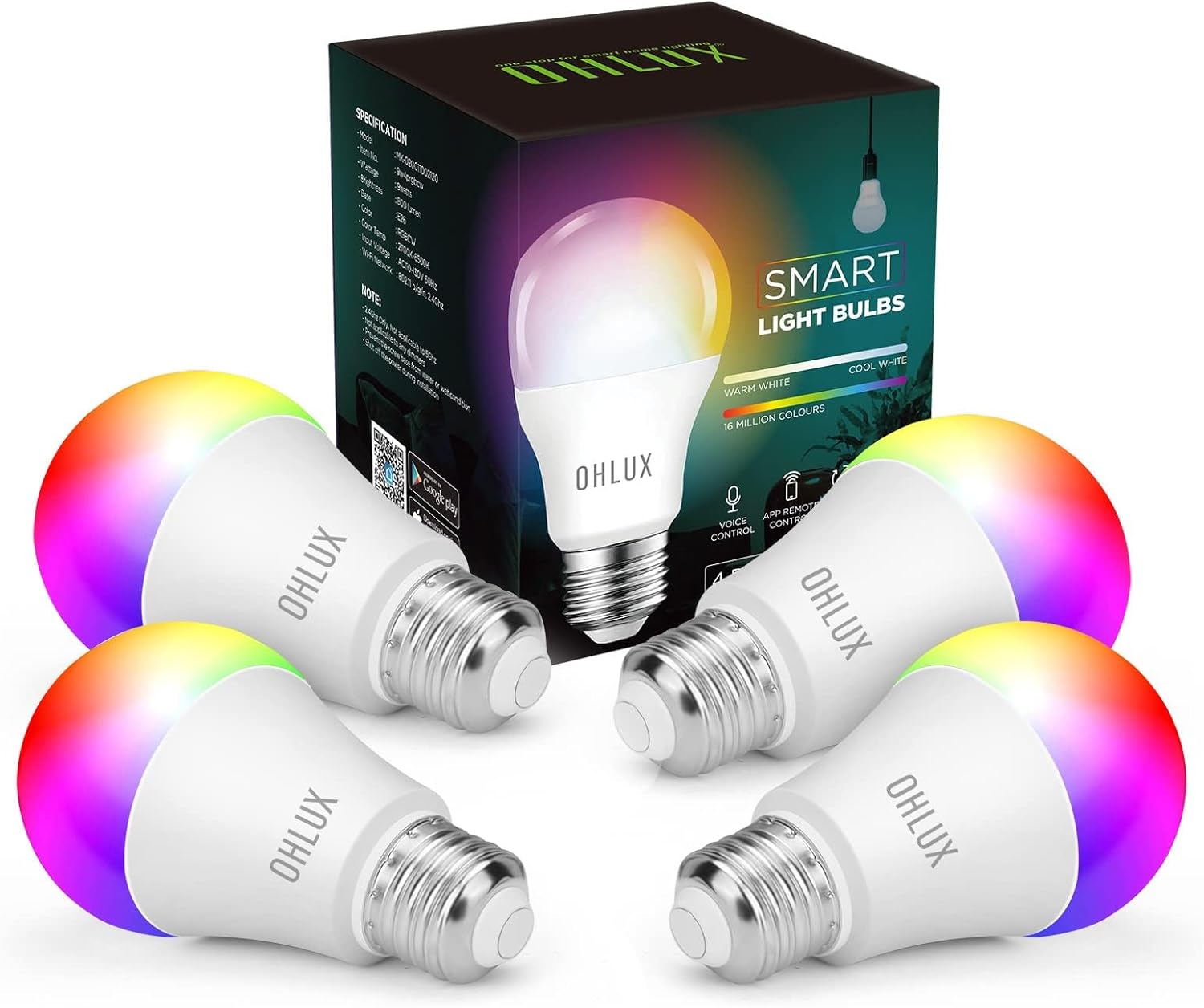
Figure 1: OHLUX Smart WiFi LED Light Bulbs (4-pack) with packaging.
2. Stiùirich rèiteachaidh
2.1 Unboxing and Installation
- Carefully remove the smart bulbs from their packaging.
- Screw the OHLUX Smart WiFi LED Light Bulb into a standard E26/E27 light socket. Ensure the power is off before installation.
- Turn on the power to the light fixture. The bulb should begin to flash, indicating it is in pairing mode. If it does not flash, turn the light switch off and on 3-5 times until it starts flashing.
2.2 Luchdaich sìos is Paidhreachadh an Aplacaid
- Luchdaich a-nuas an aplacaid ‘Smart Life’ bhon App Store (iOS) no Google Play Store (Android).
- Clàraich no log a-steach don chunntas Smart Life agad.
- In the app, tap the '+' icon in the top right corner to add a device.
- Select 'Lighting' > 'Light Source (Wi-Fi)'.
- Confirm that the bulb is rapidly flashing. If not, reset it by cycling the power switch off and on 3-5 times.
- Enter your 2.4GHz Wi-Fi network password. (Note: The bulbs only support 2.4GHz Wi-Fi networks).
- The app will begin connecting to the bulb. Once connected, you can rename the bulb for easier control (e.g., 'Living Room Light', 'Bedroom Lamp').

Figure 2: Smart Life App interface for adding devices.
2.3 Voice Assistant Integration (Alexa/Google Home)
- Fosgail an aplacaid Amazon Alexa no Google Home agad.
- Seòl chun roinn ‘Sgilean is Geamannan’ (Alexa) no ‘Ag obair le Google’ (Google Home).
- Lorg airson 'Beatha Ghlic' agus an sgile/seirbheis a chomasachadh.
- Link your Smart Life account using your credentials.
- Discover devices. Your OHLUX smart bulbs should now appear and be controllable via voice commands.

Figure 3: Voice control in action with smart bulbs.
3. Stiùireadh Obrachaidh
3.1 Basic Control (App & Voice)
- Tionndaidh air / dheth: Use the app toggle or voice commands like "Alexa, turn on the living room light."
- Atharrachadh soilleireachd: Adjust the slider in the app or say "Hey Google, set bedroom light to 50%."
- Color & Color Temperature: Select from 16 million colors or adjust white light from 2700K (warm white) to 6500K (cool white) using the app's color wheel or voice commands like "Alexa, change kitchen light to blue" or "Hey Google, set dining light to warm white."

Figure 4: App interface for color and tunable white selection.
3.2 Timing and Schedules
The 'Smart Life' app allows you to create custom schedules for your bulbs. This feature is ideal for automating your lighting, such as turning lights on at sunset or off at bedtime.
- In the app, select the bulb(s) you wish to schedule.
- Tap on 'Schedule' or 'Timer'.
- Set desired times for turning lights on/off, adjusting brightness, or changing colors.
- You can also set 'Sunset' and 'Sunrise' automations.

Figear 5: Examples of timer and customized schedule applications.
3.3 Smachd Buidhne
Control multiple bulbs simultaneously by creating groups in the Smart Life app. This is useful for managing lights in a single room or an entire area.
- In the app, go to the main device list.
- Tap the '+' icon and select 'Create Group'.
- Choose the bulbs you want to include in the group and confirm.
- You can now control the entire group with a single command or tap.

Figure 6: Group control of smart bulbs across different areas of a home.
4. Cumail suas
OHLUX Smart WiFi LED Light Bulbs are designed for long-term use with minimal maintenance. Follow these guidelines to ensure optimal performance:
- Glanadh: Ensure the bulb is off and cool before cleaning. Use a soft, dry cloth to wipe the surface. Do not use liquid cleaners or abrasive materials.
- Àrainneachd: These bulbs are designed for indoor use only. Avoid exposure to water, high humidity, or extreme temperatures.
- Solar cumhachd: Ensure a stable power supply. Do not use with dimmer switches, as this can interfere with the bulb's smart functionality and potentially cause damage.
5. A ’dèanamh trioblaid
If you encounter issues with your OHLUX Smart WiFi LED Light Bulbs, please refer to the following common problems and solutions:
| Trioblaid | Adhbhar a dh’fhaodadh a bhith ann | Fuasgladh |
|---|---|---|
| Bulb not pairing/connecting to Wi-Fi | Incorrect Wi-Fi band (not 2.4GHz), incorrect password, bulb not in pairing mode, weak Wi-Fi signal. | Ensure your Wi-Fi is 2.4GHz. Verify password. Cycle power switch 3-5 times to enter pairing mode (rapid flashing). Move router closer or use a Wi-Fi extender. |
| Bulb frequently disconnects | Unstable Wi-Fi connection, interference from other devices, outdated firmware. | Check Wi-Fi stability. Reduce interference by moving other wireless devices. Update bulb firmware via the Smart Life app. |
| Solais sèididh no neo-chunbhalach | Incompatible dimmer switch, electrical noise on circuit, faulty bulb. | Do not use with external dimmer switches. Ensure the circuit is stable. If problem persists, contact support. |
| Chan eil smachd guth ag obair | Voice assistant not linked to Smart Life, incorrect commands, network issues. | Re-link Smart Life skill/service in Alexa/Google Home app. Use precise commands. Check internet connection. |
If these solutions do not resolve your issue, please contact OHLUX customer support for further assistance.
6. Sònrachaidhean
| Feart | Mion-fhiosrachadh |
|---|---|
| Brand | OHLUX |
| Modail Àireamh | SPQB3010-A |
| Seòrsa Solais | LED |
| Dètage | 9 Watts (100W co-ionann) |
| Gile | 900 Lumen |
| Meud cumadh bulb | A19 |
| Bunait nam bulbaichean | E26 |
| Dath aotrom | RGBCW Multi-Color (16 Million Colors) |
| Teòthachd dath | 2700K-6500K (Dimmable) |
| Voltage | 120 bholt (AC) |
| Teicneòlas ceangail | Wi-Fi (2.4GHz a-mhàin) |
| Seòrsa Rianadair | Neach-cuideachaidh Google, Amazon Alexa, Smachd Aplacaidean |
| Cleachdadh a-staigh / a-muigh | A-staigh |
| Beatha cuibheasach | Mu 50,000 uair a thìde |
| Stuth | Plastaig |
7. Barantas agus Taic
OHLUX is committed to providing high-quality products and excellent customer service.
- Poileasaidh Tilleadh: Enjoy a 90-day free return period from the date of purchase.
- Taic Teicnigeach: We offer 1000 days of technical support for your OHLUX Smart WiFi LED Light Bulbs.
- Cuir fios thugainn: If you encounter any problems or require technical assistance, please do not hesitate to contact OHLUX customer support directly through the Amazon platform or via the contact information provided in the Smart Life app. We aim to respond within 24 hours.
Ask a question about this manual
Ask about setup, troubleshooting, compatibility, parts, safety, or missing instructions. Manuals+ will review the question and use this page’s manual context to help answer it.