
1. Ro-ràdh
This manual provides comprehensive instructions for the installation, operation, and maintenance of the JEYI SK4 NVMe PCI-E Adapter with Warship iStorm Cooler. This product is designed to allow M.2 NVMe SSDs (PCIe protocol) to be used in a standard PCI Express X4, X8, or X16 slot, enhancing system performance with its PCIe 3.0 GEN3 full-speed design and integrated high-speed signal amplification technology. It is equipped with a cooling solution to maintain optimal SSD temperatures.
2. Fiosrachadh Sàbhailteachd
- Dì-cheangail an cumhachd bhon choimpiutair agad an-còmhnaidh mus cuir thu a-steach no mus toir thu air falbh co-phàirtean a-staigh sam bith.
- Cuir ort strap dùirn an-aghaidh statach no bean gu tric ri nì meatailt le talamh gus casg a chur air milleadh sgaoilidh electrostatach (ESD) air co-phàirtean.
- Handle the adapter and SSD by their edges to avoid touching sensitive components.
- Dèan cinnteach gu bheil fionnarachadh ceart ann an cùis a’ choimpiutair agad gus casg a chur air cus teasachadh.
- Do not attempt to modify the product. Unauthorized modifications may void the warranty and pose safety risks.
- Cùm a-mach à ruigsinn chloinne.
3. Pasgan-susbaint
Dèan cinnteach gu bheil a h-uile nì anns a’ phacaid:
- 1x JEYI PCIE 3.0 X4 NVMe Adapter Card
- 1x JEYI Warship iStorm Cooler with Fan
- Mounting screws and accessories (e.g., thermal pads, screwdriver if included)
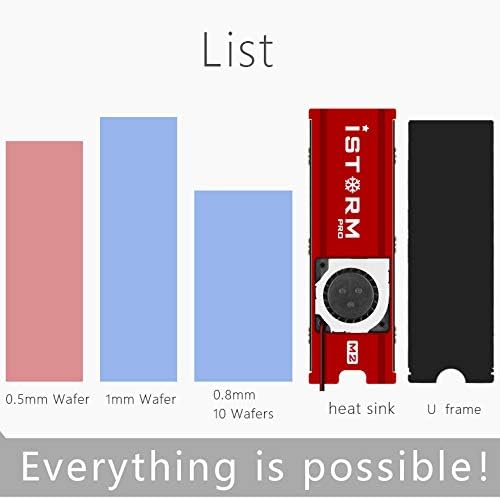
Figear 3.1: Included components. This image illustrates the heat sink, U frame, and different thicknesses of thermal pads (0.5mm, 1mm, 0.8mm) that are part of the package.
4. Sònrachaidhean
| Feart | Tuairisgeul |
|---|---|
| Brand | JEYI |
| Modail | SK4+Warship iStorm |
| Iomradh Dèanadair | N27361-G |
| Eadar-aghaidh bathar-cruaidh | PCI Express 3.0 X4 |
| Compatible PCIe Slots | PCIe X4, X8, X16 |
| SSDs le taic | NVMe M.2 SSDs (PCIe protocol) |
| Unsupported SSDs | M.2 NGFF disks (SATA protocol) |
| Fuarachadh | Integrated Warship iStorm Cooler with Fan |
| Solar cumhachd | SATA 15-Pin 5V (for cooler fan) |
| Feartan | JEYI high-speed signal enhancement technology, PCIe 3.0 GEN3 full-speed design, large capacity tantalum capacitor for stable voltage sìoladh. |
| UPC | 761882095002 |
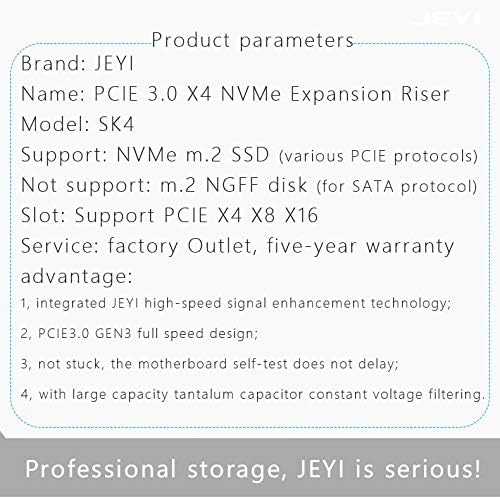
Figear 4.1: Detailed product parameters. This image provides a summary of the product's key specifications, including its name, model, supported SSD types, and PCIe slot compatibility.
5. Suidhich
5.1. A’ stàladh an SSD M.2 NVMe
- Carefully align your M.2 NVMe SSD with the M.2 slot on the JEYI SK4 adapter. The adapter supports various M.2 SSD lengths (2230, 2242, 2260, 2280).
- Insert the SSD into the slot at an angle and gently push it down until it is parallel with the adapter board.
- Secure the SSD with the provided screw or movable copper stud at the appropriate length. The adapter includes movable copper studs to accommodate different M.2 SSD lengths.

Figear 5.1: M.2 SSD length compatibility. This image illustrates how the adapter supports various M.2 SSD lengths (2230, 2242, 2260, 2280) using movable copper studs.
5.2. Installing the Warship iStorm Cooler
- Apply the thermal pads to the M.2 NVMe SSD. Ensure good contact between the SSD chips and the thermal pads.
- Place the Warship iStorm cooler assembly over the SSD and adapter, aligning the mounting holes.
- Secure the cooler to the adapter using the provided screws. Do not overtighten.
5.3. Installing the Adapter into a PCIe Slot
- Cuir dheth a’ choimpiutair agad agus dì-cheangail an càball cumhachd.
- Fosgail cùis a’ choimpiutair agad.
- Locate an available PCI Express X4, X8, or X16 slot on your motherboard.
- Remove the corresponding expansion slot cover from your computer case.
- Carefully insert the JEYI SK4 adapter into the chosen PCIe slot, ensuring it is fully seated.
- Secure the adapter to the computer case with a screw.
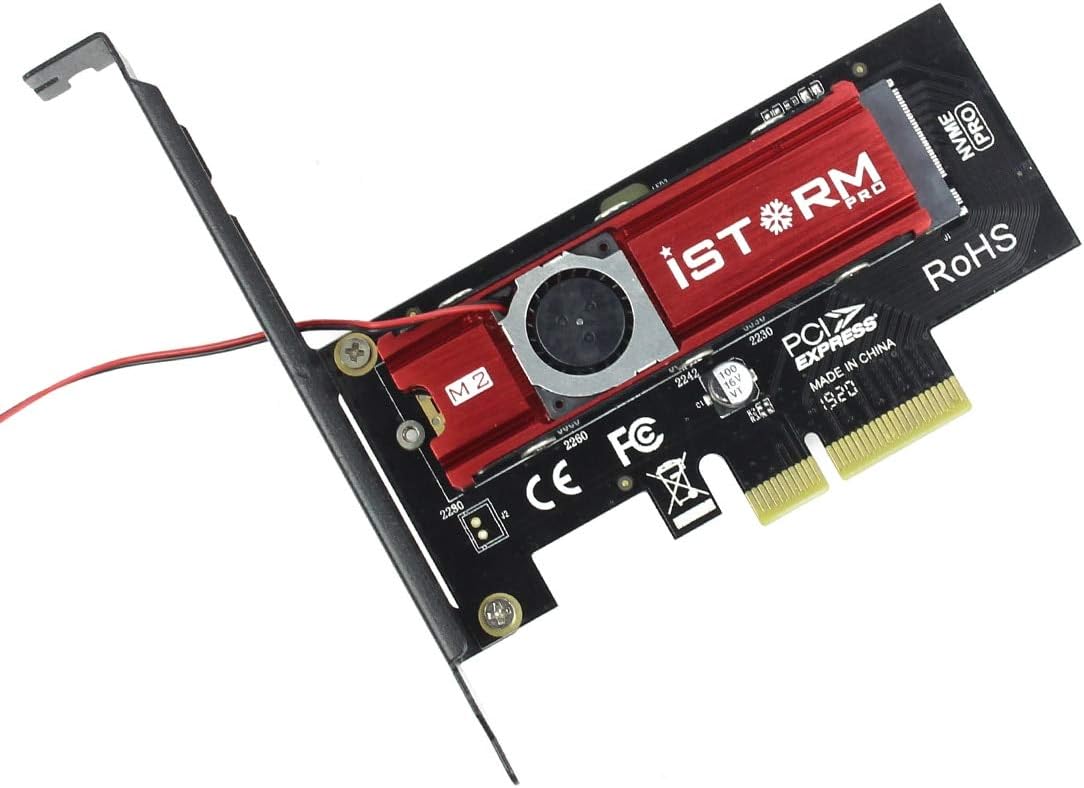
Figear 5.2: Assembled adapter card. This image shows the JEYI SK4 adapter with the Warship iStorm cooler and an M.2 NVMe SSD installed, ready to be inserted into a PCIe slot.
5.4. A’ ceangal a’ chàball cumhachd
- Locate the small power cable extending from the Warship iStorm cooler.
- Connect the SATA 15-Pin 5V connector of this cable to an available SATA power connector from your power supply unit (PSU). This connection is essential for the cooling fan to operate.
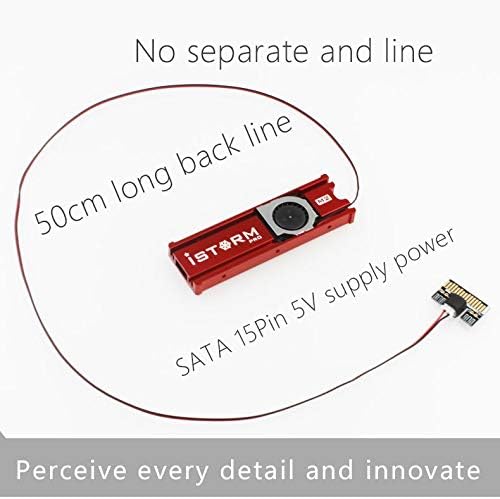
Figear 5.3: Cooler power connection. This image highlights the 50cm long SATA 15-Pin 5V power cable that connects the cooler fan to the power supply unit.
6. Obrachadh
After successful installation, close your computer case, reconnect the power cable, and power on your computer.
- Stàladh an dràibhear: Most modern operating systems (Windows 10/11, Linux kernels 4.0+, macOS) have native support for NVMe SSDs and typically do not require additional drivers. If the SSD is not detected, check your motherboard's BIOS/UEFI settings to ensure PCIe slots are configured correctly and NVMe support is enabled.
- SSD Initialization: For a new SSD, you may need to initialize it and create partitions using your operating system's disk management tools before it can be used.
- Coileanadh fuarachaidh: The integrated Warship iStorm cooler with its fan will automatically operate to dissipate heat from the NVMe SSD, helping to maintain optimal performance and prevent thermal throttling.

Figear 6.1: Cooling performance indication. This image suggests that the iStorm Pro cooler can reduce SSD temperatures by 10-40°C, contributing to stable operation.
7. Cumail suas
- Glanadh: Periodically inspect the cooler fan and heatsink for dust accumulation. Use compressed air or a soft brush to gently remove dust. Ensure the computer is powered off and unplugged before cleaning.
- Sgrùdadh ceangail: Occasionally verify that the adapter is securely seated in the PCIe slot and that the SATA power cable for the cooler is firmly connected.
- Padaichean teirmeach: If you need to remove and re-install the SSD or cooler, inspect the thermal pads. Replace them if they appear damaged or have lost their adhesive properties to ensure effective heat transfer.

Figear 7.1: Cooling design. This image shows the double-sided copper holes on the adapter, which are designed to enhance heat dissipation and improve overall cooling efficiency.
8. A ’dèanamh trioblaid
| Trioblaid | Adhbhar a dh’fhaodadh a bhith ann | Fuasgladh |
|---|---|---|
| Cha deach an SSD a lorg leis an t-siostam. |
|
|
| Cooling fan not spinning. |
|
|
| SSD overheating or thermal throttling. |
|
|
9. Barantas agus Taic
9.1. Fiosrachadh Barantais
The JEYI SK4 NVMe PCI-E Adapter with Warship iStorm Cooler comes with a barantas còig bliadhna from the date of purchase. This warranty covers defects in materials and workmanship under normal use. It does not cover damage caused by misuse, accident, unauthorized modification, or improper installation. Please retain your proof of purchase for warranty claims.
9.2. Taic Teicnigeach
For technical assistance, troubleshooting, or warranty inquiries, please contact JEYI customer support through their official weblàrach-lìn no an neach-reic bhon do cheannaich thu an toradh.