
1. Toradh thallview
The HyperX Cloud Orbit S is a premium gaming headset designed for an unparalleled audio experience. It features advanced Audeze planar magnetic drivers and Waves Nx head tracking and 3D audio technology, delivering breathtaking clarity and precision. This headset is compatible with PC, Xbox, PS4, Mac, Mobile, and Switch.

Figure 1: HyperX Cloud Orbit S Gaming Headset.
2. Stiùirich rèiteachaidh
2.1 Susbaint a’ phacaid
- HyperX Cloud Orbit S Headset
- Micreofon cuir às do fhuaim a ghabhas toirt air falbh
- Càball USB-C gu USB-C
- Càball USB-C gu USB-A
- Càball claisneachd 3.5mm

Figure 2: All items included in the HyperX Cloud Orbit S package.
2.2 A’ ceangal do chluas-cinn
The HyperX Cloud Orbit S offers versatile connectivity options to suit your gaming setup.
- USB-C gu USB-C: For direct digital audio connection to compatible devices.
- USB-C gu USB-A: For digital audio connection to devices with standard USB-A ports.
- Càball claisneachd 3.5mm: For analog audio connection to devices with a 3.5mm jack.

Figure 3: Headset connected with its detachable microphone and USB-C cable.

Figure 4: The three different detachable cable options for the headset.
For a visual guide on setting up your HyperX Cloud Orbit S, watch the official product video:
Video 1: HyperX Cloud Orbit and Orbit S - Product Video. This video provides an overview of the headset's features and connectivity.
2.3 Stàladh Bathar-bog (Roghainneil)
For advanced audio customization, including sound profiles and HRTF personalization, download and install the HyperX Orbit software from the official HyperX website. This software allows you to fine-tune your audio experience to your preferences.

Figure 5: HyperX Orbit software interface for advanced audio customization.
3. A’ cleachdadh do chluas-cinn
3.1 Onboard Controls
The headset features intuitive onboard controls for easy access to essential functions:
- Cuibhle Tomhais: Atharraichidh seo meud an fhuaim san fharsaingeachd.
- Mic Volume Wheel: Atharraichidh seo meud cuir a-steach a’ mhaicreafòin.
- 3D Audio Button: Toggles Waves Nx 3D audio on/off.
- Putan Mic Mute: A’ cuir dheth no a’ cuir dheth am micreofon.
- Putan Cumhachd: Tionndaidhidh seo na fònaichean-cluaise air/dheth.

Figear 6: Taobh view of the headset highlighting the control layout.

Figear 7: Mionaideach view of the headset's ports and controls.
3.2 Cleachdadh a’ Mhaicreafòin
Attach the detachable noise-cancelling microphone to the designated port on the left earcup. Position the microphone close to your mouth for optimal voice clarity. The integrated pop filter helps reduce plosive sounds.
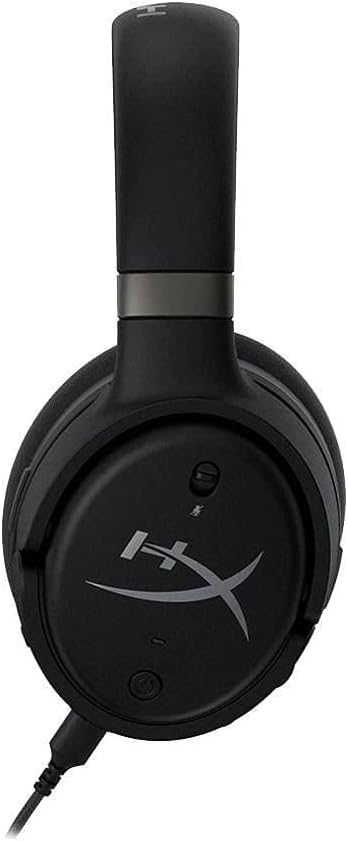
Figure 8: Headset with the detachable microphone in use.
3.3 Waves Nx 3D Audio and Head Tracking
The Waves Nx technology creates a fully immersive 3D audio environment. Head tracking tracks your head's position to stabilize the soundscape, making you feel like you're in the center of the action. This feature enhances realism in games and media.

Figure 9: User experiencing immersive audio with the headset.

Figure 10: Head tracking technology provides a stable soundscape as the user moves their head.
Discover the immersive capabilities of the HyperX Cloud Orbit S in this commercial:
Video 2: HyperX Cloud Orbit - Commercial. Showcases the headset's immersive audio and head tracking features.
4. Cùram agus Cumail suas
- Glan na cupannan-cluaise agus an còmhdach-cinn gu cunbhalach le clò bog, tioram.
- Seachain a bhith a’ nochdadh an headset gu fìor theodhachd no taiseachd.
- Store the headset in a safe place to prevent physical damage, especially to the headband and earcup joints.
- Handle detachable cables with care to prevent fraying or damage to connectors.
5. Fuasgladh cheistean cumanta
| Trioblaid | Adhbhar a dh’fhaodadh a bhith ann | Fuasgladh |
|---|---|---|
| Gun toradh claisneachd | Incorrect cable connection, low volume, muted audio. | Ensure cables are securely connected. Check headset and device volume levels. Confirm audio is not muted on the headset or device. |
| Microphone nach eil ag obair | Microphone detached, muted, or incorrect input settings. | Ensure microphone is fully inserted. Check mic mute button. Verify microphone input is selected in your device's sound settings. |
| Static or white noise | Interference, low signal quality, or inherent amplifier noise. | Try connecting to a different USB port or device. Ensure no strong electromagnetic interference sources are nearby. A slight noise floor may be present with active ampsoillseachadh. |
| Headset discomfort | Neo-iomchaidh no cleachdadh fad-ùine. | Adjust the headband for a comfortable fit. Take breaks during extended use. The memory foam earcups are designed for comfort. |
6. Sònrachaidhean Teicnigeach
| Feart | Sònrachadh |
|---|---|
| Ainm Modail | Cloud Orbit S |
| Teicneòlas ceangail | Wired (USB-C, USB-A, 3.5mm) |
| Seòrsa fuaim driver | Planar Magnetic Driver (Audeze) |
| Raon tricead | 20 Hz - 20,000 Hz |
| Cuideam nì | 368 gram (13 unnsa) |
| Co-phàirtean air an toirt a-steach | Headset, removable microphone |
| Innealan co-fhreagarrach | PC, Xbox, PS4, Mac, Mobile, Switch |
7. Barantas agus Taic
For warranty information and technical support, please refer to the documentation included with your product or visit the official HyperX support channels. Keep your proof of purchase for warranty claims.