
1. Ro-ràdh
The Transcend DrivePro 550 is a dual-lens dash camera designed to provide comprehensive recording of both the road ahead and the vehicle's interior. Equipped with a front lens featuring a Sony image sensor and a rear lens with infrared LEDs, it ensures clear video capture in various lighting conditions. This manual provides detailed instructions for setting up, operating, and maintaining your DrivePro 550 dash camera.
2. Pasgan-susbaint
Dèan cinnteach gu bheil na nithean gu lèir a tha air an liostadh gu h-ìosal air an toirt a-steach don phacaid agad:
- Transcend DrivePro 550 Dash Camera Unit
- microSD Memory Card (64GB)
- Car Mount (Suction Mount)
- Car Lighter Power Adapter
- Hardwire Power Cable

Image: Retail box of the Transcend DrivePro 550 Dash Camera, showing included accessories.
3. Toradh thallview
Familiarize yourself with the components of your DrivePro 550 dash camera.
Aghaidh 3.1 View

Ìomhaigh: Aghaidh view of the DrivePro 550, showing the main screen displaying live dual-channel recording.
- Lionsa Aghaidh: Records the road ahead. Features a Sony image sensor for high-quality video.
- Lionsa cùil: Records the vehicle's interior. Equipped with four infrared LEDs for enhanced night vision.
- Sgrion LCD 2.4-òirleach: Taisbeanaidhean beò view, recorded footage, and menu options.
- Putanan smachd: For navigation and selection within the menu.
3.2 Taobh View agus puirt

Ìomhaigh: Taobh view of the DrivePro 550, highlighting the power input and microSD card slot.
- DC ANN AN Port: Airson an adapter cumhachd a cheangal.
- Slot cairt microSD: Airson a’ chairt-chuimhne a chur a-steach.
3.3 Meudan
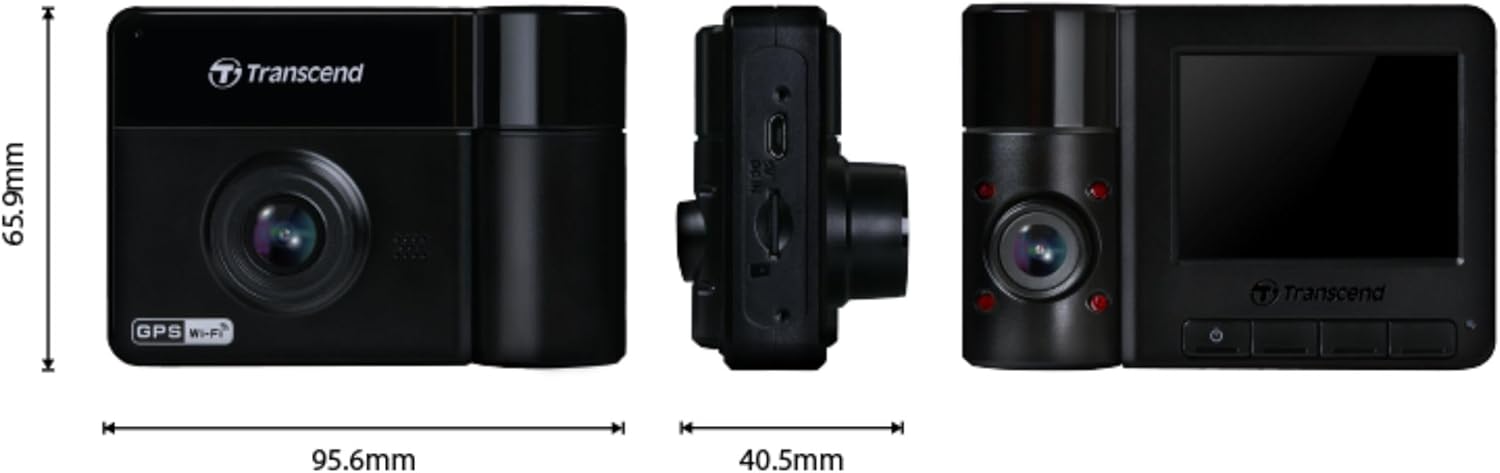
Image: Technical drawing showing the dimensions of the DrivePro 550 unit.
4. Stàladh
Follow these steps to properly install your DrivePro 550 in your vehicle.
4.1 A’ cur suas a’ chamara deas-bhòrd
- Tagh àite air do ghaoth-sgrion nach eil a’ cur bacadh air do view of the road. The area behind the rearview mirror is often ideal.
- Clean the chosen area on the windshield thoroughly to ensure a strong suction.
- Attach the suction cup mount to the windshield and secure it by flipping the lever.
- Slide the DrivePro 550 onto the mount until it clicks into place. Adjust the camera angle to ensure both front and interior lenses have a clear view.

Image: The DrivePro 550 dash camera securely mounted on a car windshield.
4.2 A’ cur a-steach a’ chairt microSD
- Dèan cinnteach gu bheil camara an deas-bhòrd dheth.
- Lorg an t-sliotan cairt microSD air taobh an inneil.
- Insert the provided 64GB microSD card into the slot with the gold contacts facing the back of the camera until it clicks into place.
4.3 Cumhachd ceangail
- Connect the car lighter power adapter or the hardwire power cable to the DC IN port on the dash camera.
- Plug the other end of the power adapter into your vehicle's 12V power outlet (cigarette lighter socket). If using the hardwire cable, follow professional installation guidelines.
- Route the power cable neatly along the windshield and dashboard to avoid obstructing your view or interfering with driving controls.
5. Obrachadh Bunaiteach
5.1 A’ cur cumhachd air/dheth
- The DrivePro 550 will automatically power on and begin recording when your vehicle's engine starts and power is supplied.
- Gus an cumhachd a chuir air/dheth le làimh, brùth is cum sìos am putan cumhachd.
5.2 Modhan Clàraidh
- Clàradh leantainneach: The camera records continuously in a loop. When the memory card is full, the oldest files air an sgrìobhadh thairis.
- Clàradh èiginn: Activated automatically by the built-in G-sensor upon detecting an impact or sudden movement. These files are protected from being overwritten. You can also manually trigger emergency recording by pressing the designated button.

Image: Split-screen view showing simultaneous recording from the front and interior lenses.
5.3 Taking Snapshots
During recording, press the snapshot button to capture a still image of the current view. This can be useful for documenting incidents or scenic views.
6. Feartan adhartach
6.1 Wi-Fi Connectivity and DrivePro App
The DrivePro 550 features built-in Wi-Fi, allowing you to connect it to your smartphone or tablet via the Transcend DrivePro App. The app enables:
- Fìor-ùine beò view den dà bhiadhadh camara.
- Playback of recorded videos.
- Downloading video files gu dìreach chun inneal gluasadach agad.
- A’ rèiteachadh roghainnean a’ chamara.
Download the DrivePro App from the App Store (iOS) or Google Play Store (Android).

Image: Smartphone screen showing the Transcend DrivePro App interface, connected to the dash camera.
6.2 Sealladh Oidhche Leasaichte
The DrivePro 550 is designed for superior low-light performance:
- The front lens utilizes a Sony image sensor to capture high-resolution images with rich color, even in low light. It supports 1440P 2K QHD recording at 30fps for smooth and crisp footage.
- The rear lens is equipped with four infrared LEDs, significantly improving recording quality in dark interior environments.

Image: Visual comparison of video quality captured by the DrivePro 550 during daytime and nighttime conditions.
6.3 Modh Pàirceadh
When enabled, Parking Mode activates recording when motion is detected, even when your vehicle is parked and the engine is off. This feature requires a continuous power supply to the dash camera (e.g., via the hardwire power cable).
6.4 Clàradh Ùine-Lapse
Time-lapse recording allows you to condense hours of footage into a shorter video, providing continuous surveillance without consuming excessive storage space.
6.5 Driver Assistance Systems (ADAS)
The DrivePro 550 includes several ADAS features to enhance driving safety:
- Head-up Display: Shows current speed and driver safety alerts.
- Siostam Rabhaidh Falbh Làn (LDWS): Alerts you if your vehicle drifts out of its lane.
- Siostam Rabhaidh Tubaist Air Adhart (FCWS): Warns you if you are getting too close to the vehicle ahead.
- Inneal-rabhaidh luath: Notifies you if your vehicle's speed exceeds a preset limit.
- Headlight Reminder: Automatically activates when the DrivePro detects poor lighting conditions.
- Rabhadh sgìths dràibhear: Reminds the driver to rest after driving for a set period.
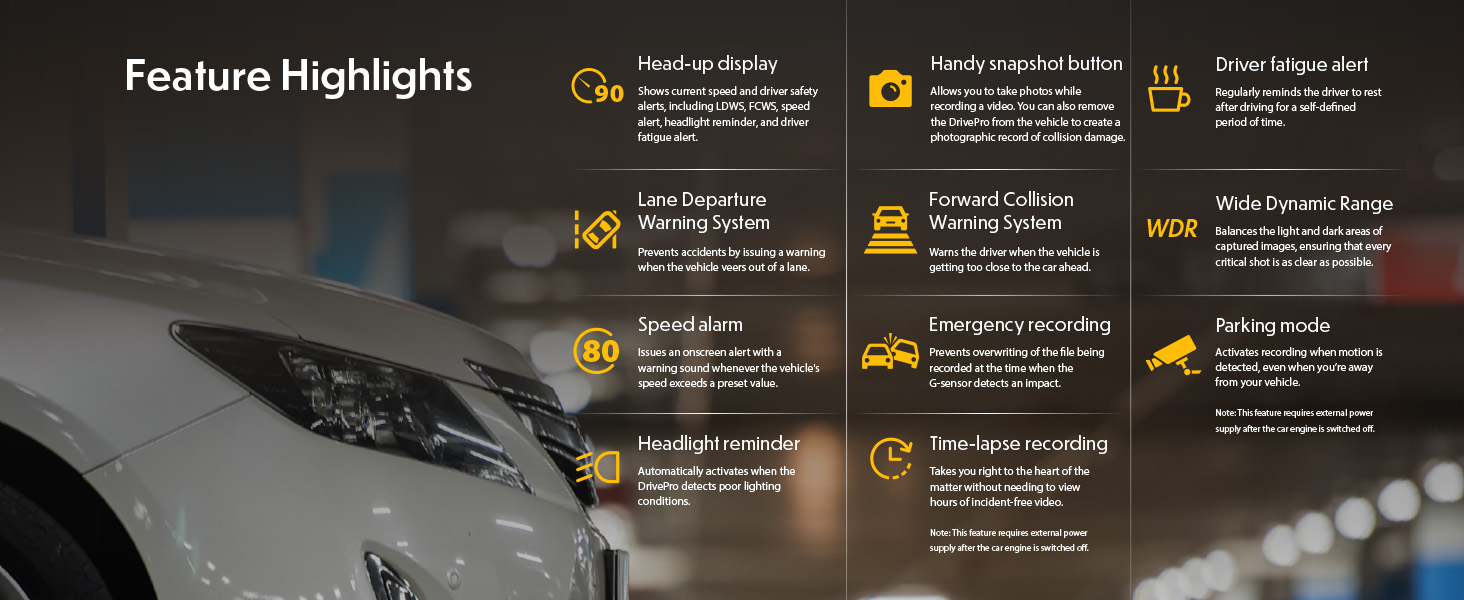
Image: Graphic illustrating the various feature highlights and ADAS functions of the DrivePro 550.
7. Cumail suas
7.1 Formatting the microSD Card
Regularly format the microSD card to ensure optimal performance and prevent data corruption. This can typically be done through the camera's menu settings. Formatting will erase all data on the card, so back up any important files an toiseach.
7.2 Glanadh a’ Chamara
Use a soft, dry cloth to clean the camera body and screen. For lenses, use a specialized lens cleaning cloth and solution to avoid scratches. Do not use harsh chemicals or abrasive materials.
8. A ’dèanamh trioblaid
If you encounter issues with your DrivePro 550, refer to the following common problems and solutions:
- Chan eil an camara a’ dol air:
- Ensure the power cable is securely connected to both the camera and the vehicle's power outlet.
- Thoir sùil a bheil socaid cumhachd 12V a’ charbaid ag obair.
- Camera is not recording:
- Verify that a microSD card is inserted correctly.
- Check if the microSD card is full; format it if necessary (after backing up important files).
- Ensure the recording function is enabled in the camera settings.
- Càileachd bhidio truagh:
- Glan lionsan a’ chamara.
- Dèan cinnteach gu bheil an raon gaoithe-gaoithe air beulaibh a’ chamara glan.
- Check video resolution settings; ensure it's set to the desired quality (e.g., 1440P 2K QHD for front lens).
- Cùisean ceangail Wi-Fi:
- Ensure Wi-Fi is enabled on the camera and your mobile device.
- Ath-thòisich an camara agus an inneal gluasadach agad.
- Ensure you are within range of the camera's Wi-Fi signal.
9. Sònrachaidhean
| Feart | Tuairisgeul |
|---|---|
| Brand | Gabh thairis |
| Ainm Modail | DrivePro 550 |
| Modail Àireamh | TS-DP550A-64G |
| Seòrsa Seirbheis Carbaid | Càr |
| Teicneòlas ceangail | Infrared, Wi-Fi |
| Fuasgladh glacadh bhidio | Front: 1440P 2K QHD (30fps), Rear: 1080p (30fps) |
| Co-phàirtean air an toirt a-steach | Dash Camera, 64GB microSD Card, Car Mount, Car Lighter Adapter, Hardwire Power Cable |
| Seòrsa stàladh | Surface Mount (Suction Cup) |
| Dath | Dubh |
| Raon Of View | Aghaidh: 150 Ceum, Cùl: 140 Ceum |
| Meud sgrion | 2.4 òirlich |
| Teicneòlas mothachaidh optigeach | Sony (Front Lens) |
| Seòrsa Cuimhne Flash | microSD |
| Cuideam nì | 107 gram |
| Meudan nì (D x W x H) | 7.1" x 5.5" x 2.6" |
10. Barantas & Taic
10.1 Fiosrachadh Barantais
The Transcend DrivePro 550 Dash Camera comes with a Barantas 2-bliadhna Earranta. Please retain your proof of purchase for warranty claims. For detailed terms and conditions, refer to the warranty card included in your package or visit the official Transcend weblàrach.
10.2 Taic teachdaiche
For further assistance, technical support, or to download the latest firmware updates and user manuals, please visit the official Transcend website or contact their customer service department. Contact information can typically be found on the Transcend weblàrach no ann am pasgan an toraidh agad.