
Microsoft Surface Pro 2017
Leabhar-làimhe Cleachdaiche Microsoft Surface Pro 2017
Model: Surface Pro 2017 (7Y30)
Ro-ràdh
This manual provides essential instructions for setting up, operating, maintaining, and troubleshooting your Microsoft Surface Pro 2017. The Surface Pro 2017 is a versatile 2-in-1 device designed to function as both a powerful laptop and a portable tablet, offering a seamless computing experience.
Leugh an leabhar-làimhe seo gu faiceallach gus dèanamh cinnteach gun tèid a chleachdadh gu ceart agus gus fad-beatha an inneil agad a mheudachadh. Cùm an leabhar-làimhe seo airson fiosrachadh san àm ri teachd.
Dè th' anns a' Bhocsa
Upon unboxing your Microsoft Surface Pro 2017, verify that all components are present:
- Inneal Microsoft Surface Pro 2017
- Adaptor Cumhachd AC
Note: Additional accessories such as the Surface Pen, Type Cover, or Surface Dial are sold separately and may not be included with your device.
Suidhich
1. A’ chiad chumhachd air agus a’ cur cosgais air
- Ceangail an adapter cumhachd: Plug the AC power adapter into a wall outlet and then connect the magnetic charging connector to the charging port on your Surface Pro. The LED indicator on the connector will illuminate when charging.
- Cumhachd air: Press and hold the power button located on the top edge of the device for a few seconds until the Microsoft logo appears on the screen.
2. Suidheachadh Windows
Follow the on-screen prompts to complete the initial Windows setup. This process typically includes:
- A ’taghadh do sgìre agus do chànan.
- A 'ceangal ri lìonra Wi-Fi.
- A’ gabhail ris an aonta ceadachais.
- A’ cruthachadh no a’ clàradh a-steach le cunntas Microsoft.
- Setting up security features like Windows Hello (facial recognition) or a PIN.
3. A 'ceangal ri Wi-Fi
- During Windows setup, you will be prompted to connect to a network. Select your desired Wi-Fi network from the list and enter the password if required.
- If you need to connect later, go to Tòisich > Suidhichidhean > Lìonra & eadar-lìon > Wi-Fi. Turn Wi-Fi on, select your network, and click Ceangail.
Stiùireadh Obrachaidh
Basic Device Orientation and Controls
The Surface Pro 2017 features a 12.3-inch PixelSense display with multi-touch support. Key physical controls include:
- Putan Cumhachd: Located on the top edge, used to turn the device on/off, sleep, or wake.
- Putanan tomhas-lìonaidh: Suidhichte air an taobh, air a chleachdadh gus meud a’ chluasaig atharrachadh.
- Kickstand: Integrated on the back, allows for multiple viewing ceàrnan.
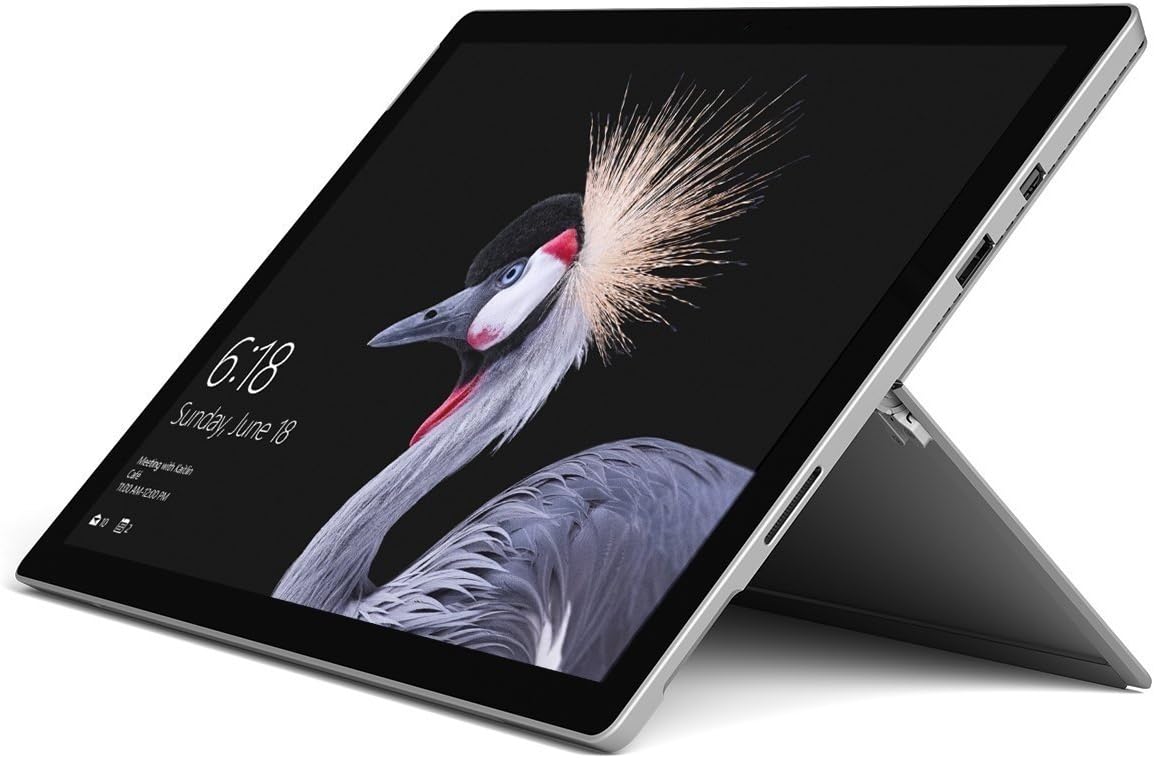
Image: Microsoft Surface Pro 2017 in laptop mode with its kickstand extended, showcasing the device's display.
A’ cleachdadh an Kickstand
The integrated kickstand allows you to position your Surface Pro at various angles for comfortable viewing, typing, or drawing. Gently pull the kickstand out from the back of the device until it reaches your desired angle.
Stiùireadh cumhachd
- Modh cadail: Briefly press the power button to put the Surface Pro into sleep mode. Press it again to wake the device.
- Dùin sìos: Rach gu Tòisich > Cumhachd > Dùin sìos.
- Ath-thòiseachadh: Rach gu Tòisich > Cumhachd > Ath-thòisich.
Ceangal Peripherals
The Surface Pro 2017 includes various ports for connecting external devices:
- Port USB 3.0: For connecting USB drives, keyboards, mice, and other compatible accessories.
- Mini DisplayPort: Airson ceangal ri sgrùdairean no proiseactaran taobh a-muigh.
- Leughadair cairt microSD: Airson stòradh a leudachadh no gluasad files bho chairtean cuimhne.
- Port Connect Surface: For power and connecting to Surface Dock accessories.
- Jack Headphone 3.5mm: Airson toradh claisneachd.
Bluetooth: To connect Bluetooth devices (e.g., headphones, mice), go to Tòisich > Suidhichidhean > Innealan > Bluetooth agus innealan eile. Ensure Bluetooth is turned on, then select "Add Bluetooth or other device" and follow the pairing instructions.

Ìomhaigh: Pro taobhfile of the Microsoft Surface Pro 2017, highlighting the various ports available for connectivity.
Cumail suas
Cleaning Your Surface Pro
- Sgrion: Cleachd clò bog, gun lint beagan dampened with water or an approved screen cleaner. Avoid harsh chemicals or abrasive materials.
- Corp: Wipe the exterior with a soft, dry cloth. Do not allow liquids to enter openings.
- Puirt: Keep ports free of dust and debris. Use compressed air carefully if needed, holding the can upright.
Cùram Bataraidh
- Seachain teòthachd anabarrach, oir faodaidh iad beatha bataraidh a mhilleadh.
- Airson slàinte bataraidh aig an ìre as fheàrr, seachain a bhith a’ leigeil às a’ bhataraidh gu tur an-còmhnaidh no ga chumail aig 100% cosgais airson ùine mhòr.
- Use only the official Microsoft AC power adapter or a compatible charger.
Ùrachaidhean bathar-bog
Regularly update your Windows operating system and device drivers to ensure optimal performance, security, and compatibility. Go to Tòisich > Suidhichidhean > Ùrachadh & tèarainteachd > Ùrachadh Windows gus sùil a thoirt airson ùrachaidhean agus an stàladh.
Fuasgladh thrioblaidean
Tha an earrann seo a’ dèiligeadh ri cùisean cumanta a dh’ fhaodadh tu a thighinn tarsainn leis an Surface Pro 2017 agad.
Device Will Not Turn On
- Dèan cinnteach gu bheil an inneal air a luchdadh. Ceangail an inneal-atharrachaidh cumhachd agus feith beagan mhionaidean mus feuch thu ri a chumhachdachadh air.
- Perform a two-button shutdown: Press and hold the volume-up button and the power button simultaneously for at least 15 seconds, then release both. Wait 10 seconds, then press the power button again to turn on the Surface.
Screen Not Responding to Touch
- Ath-thòisich an inneal.
- Dèan cinnteach gu bheil an sgrion glan agus saor bho sprùilleach.
- Check for available Windows updates, as driver updates can resolve touch issues.
Cùisean Ceangail Wi-Fi
- Dèan cinnteach gu bheil Wi-Fi air a chomasachadh ann an Suidhichidhean > Lìonra & eadar-lìon > Wi-Fi.
- Restart your Surface Pro and your Wi-Fi router.
- Forget the network and reconnect: Go to Suidhichidhean > Lìonra & eadar-lìon > Wi-Fi, click on your network, then Na dìochuimhnich. Reconnect and enter the password.
Sònrachaidhean
| Feart | Sònrachadh |
|---|---|
| Ainm Modail | Surface Pro 2017 |
| Àireamh Modail Nì | 7Y30 |
| Meud sgrion | 12.3 òirlich |
| Fuasgladh sgrion | 2736x1824 piogsail |
| Pròiseasar | Intel Core m3-7Y30 (1 GHz Intel_Mobile_CPU) |
| RAM | 4 GB DDR4 SDRAM |
| Stòradh | SSD 128 GB |
| Cairt grafaigeachd | Integrated (Intel) |
| Siostam-obrachaidh | Windows |
| Seòrsa gun uèir | 802.11abg |
| Cuideam nì | 1.89 not |
| Meudan toraidh | 11.5 x 7.9 x 0.3 òirleach |
| Dath | Airgiod |
Barantas agus Taic
For detailed warranty information, please refer to the warranty card included with your purchase or visit the official Microsoft support weblàrach. Faodaidh teirmichean is cumhaichean barantais atharrachadh a rèir na sgìre agus an neach-reic.
For technical support, driver downloads, and additional resources, please visit the official Microsoft Support weblàrach: support.microsoft.com/surface