
1. Ro-ràdh
Thank you for choosing the Gembird MUS-6B-01 Optical USB Mouse. This manual provides essential information for setting up, operating, maintaining, and troubleshooting your new mouse. Please read these instructions carefully to ensure optimal performance and longevity of your device.

Image: The official Gembird brand logo, featuring the company name in a stylized font with a geometric design.
2. Toradh thallview
The Gembird MUS-6B-01 is a reliable 6-button optical USB mouse designed for comfortable and precise navigation. Its ambidextrous design makes it suitable for both left and right-handed users.
Prìomh fheartan:
- Tracadh Optaigeach: Provides smooth and accurate cursor control.
- 6 Putanan: Includes standard left/right click, scroll wheel, DPI adjustment, and two side buttons for enhanced functionality.
- Ceangal USB: Simple plug-and-play connection to your computer.
- Dealbhadh Ambidextrous: Comfortable for both left and right-handed users.
Co-phàirtean:
- Putan Cliog Clì
- Putan Cliog deas
- Scroll Wheel (also functions as a middle click button)
- Putan Atharrachaidh DPI
- Putan Air Adhart (Taobh)
- Putan Air Ais (Taobh)
- Optical Sensor (underside)
- USB Connector (at the end of the cable)
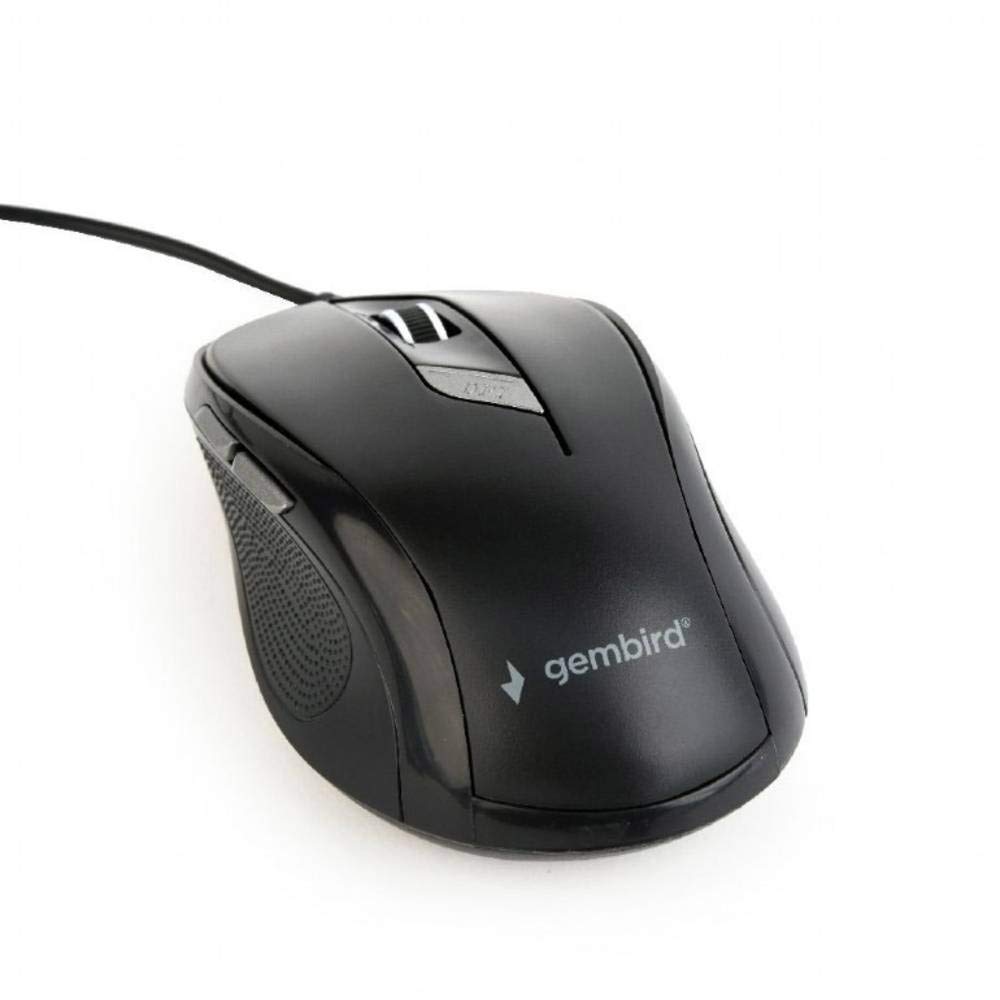
Ìomhaigh: Ìomhaigh bho mhullach gu bonn view of the Gembird MUS-6B-01 optical USB mouse. The mouse is black with a matte finish, featuring a scroll wheel, left and right click buttons, a DPI button, and two side buttons. A black USB cable extends from the front of the mouse.
3. Suidhich
Setting up your Gembird MUS-6B-01 mouse is a simple plug-and-play process.
Ceumannan stàlaidh:
- Lorg port USB a tha ri fhaighinn air do choimpiutair.
- Plug the USB connector of the Gembird MUS-6B-01 mouse firmly into the USB port.
- Your operating system (Windows, Linux) will automatically detect and install the necessary drivers. This process may take a few moments.
- Cho luath ‘s a bhios na draibhearan air an stàladh, bidh an luchag deiseil airson a chleachdadh.
Mar as trice chan eil feum air stàladh bathar-bog a bharrachd airson prìomh ghnìomhachd.
4. Stiùireadh Obrachaidh
Familiarize yourself with the functions of each button on your Gembird MUS-6B-01 mouse.
Feartan bunaiteach:
- Cliog air chlì: Primary action, selecting items, opening files.
- Cliog deas: Opens context menus, provides additional options.
- Cuibhle Scroll: Scrollaich suas no sìos tro sgrìobhainnean agus web duilleagan.
- Middle Click (Scroll Wheel Press): Often used to open links in new tabs or for specific application functions.
Feartan adhartach:
- Putan Atharrachaidh DPI: Located behind the scroll wheel, this button allows you to cycle through different sensitivity (DPI) settings. Press it to change the cursor speed to suit your preference.
- Putan Air Adhart (Taobh): Typically navigates forward in web brobhsairean no file luchd-rannsachaidh.
- Putan Air Ais (Taobh): Typically navigates backward in web brobhsairean no file luchd-rannsachaidh.
The functionality of the side buttons may vary depending on the application or operating system settings. Some operating systems allow customization of these buttons.
5. Cumail suas
Proper care will help extend the life of your Gembird MUS-6B-01 mouse.
Glanadh:
- Dì-cheangail an luchag bhon choimpiutair agad mus glan thu i.
- Cleachd bog, beagan damp, lint-free cloth to wipe the surface of the mouse.
- For stubborn dirt, a small amount of mild soap solution can be applied to the cloth (not directly to the mouse).
- Use a cotton swab or compressed air to clean around the scroll wheel and between buttons.
- Ensure the optical sensor on the underside is clean and free of dust or debris.
- Do not use harsh chemicals, abrasive cleaners, or immerse the mouse in water.
Stòradh:
When not in use for extended periods, store the mouse in a clean, dry environment away from extreme temperatures and direct sunlight.
6. A ’dèanamh trioblaid
If you encounter issues with your Gembird MUS-6B-01 mouse, try the following troubleshooting steps:
| Trioblaid | Fuasgladh comasach |
|---|---|
| Chan eil an luchag a’ freagairt |
|
| Erratic or jumpy cursor movement |
|
| Putanan gun a bhith ag obair |
|
7. Sònrachaidhean
Detailed technical specifications for the Gembird MUS-6B-01 Optical USB Mouse:
| Feart | Sònrachadh |
|---|---|
| Brand | Gembird |
| Ainm Modail | MUS-6B-01 |
| Teicneòlas ceangail | Uèir (USB) |
| Teicneòlas lorg gluasad | Optical |
| Meud a' Phutain | 6 |
| Stiùireadh làimhe | Ambidextrous |
| Siostaman-obrachaidh co-fhreagarrach | Linux, Windows 7, Windows XP (agus dreachan nas ùire) |
| Àrd-ùrlar bathar-cruaidh | Coimpiutair pearsanta |
| Fad Càball | 5.0 meatairean |
| Cuideam nì | 74 gram |
| Stuth | Plastaig |
| Dath | Dubh |
| Bataraidhean a dhìth | Chan eil |
8. Fiosrachadh Sàbhailteachd
Feuch an cùm thu ris an stiùireadh sàbhailteachd a leanas:
- Na cuir an luchag fo uisge no cus taiseachd.
- Seachain a bhith a’ leigeil às no fo smachd na luchaige gu buaidhean làidir.
- Do not attempt to disassemble or repair the mouse yourself. Refer to qualified service personnel.
- Cùm an inneal air falbh bho fhìor theodhachd agus solas dìreach.
- Cuir às do sgudal dealain gu ciallach a rèir riaghailtean ionadail.
9. Barantas agus Taic
Gembird products are designed for reliability and performance. For specific warranty terms and conditions, please refer to the warranty card included with your product or visit the official Gembird website. For technical support or further assistance, please contact your retailer or the Gembird customer service department.