
1. Ro-ràdh
The Modecom Oberon Pro Midi Tower is a computer case designed for users seeking a functional and spacious interior with a modern aesthetic. This manual provides essential information for the proper installation, operation, and maintenance of your computer case, ensuring optimal performance and longevity of your components.
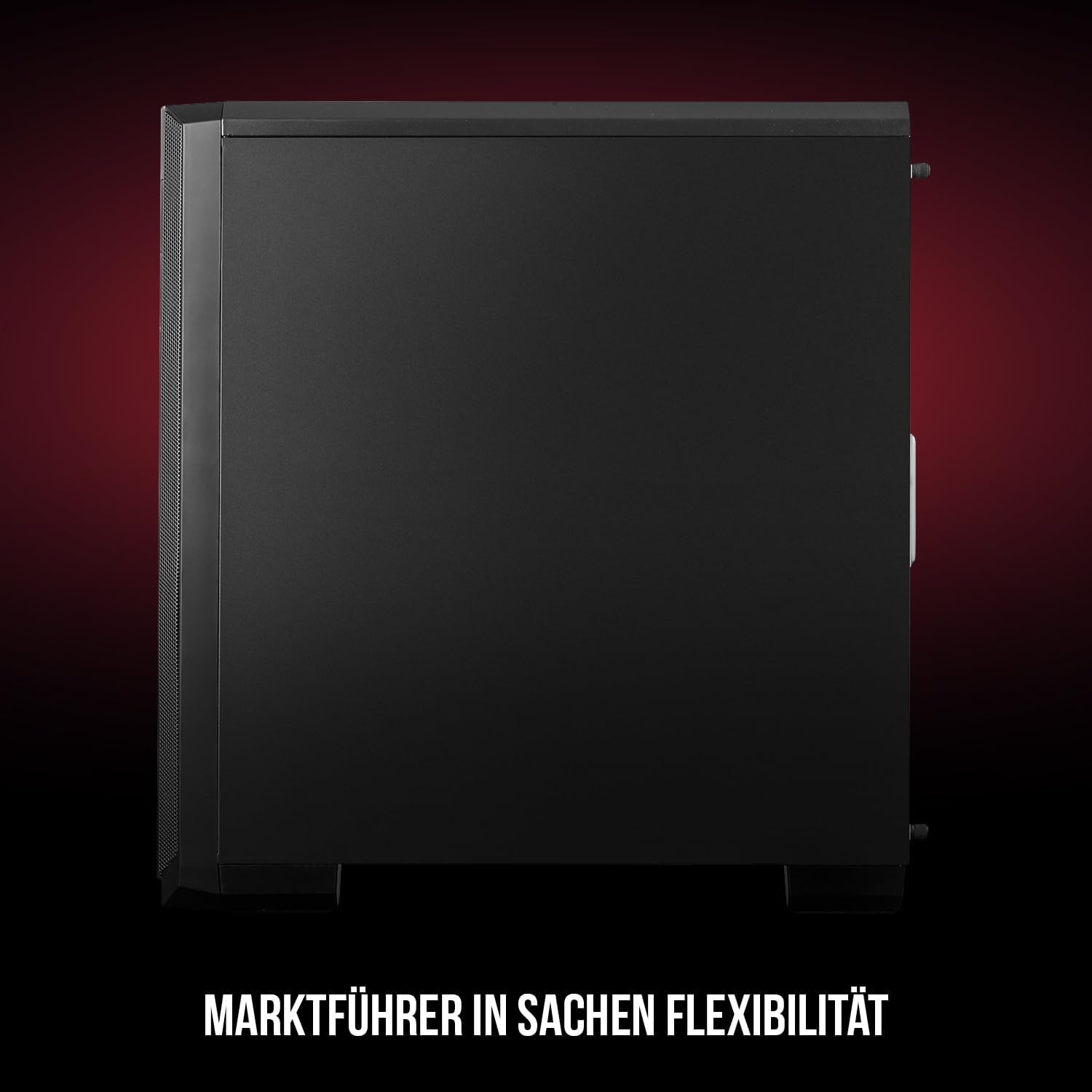
Figear 1: Aghaidh is taobh view of the Modecom Oberon Pro Midi Tower computer case.
2. Fiosrachadh Sàbhailteachd
- Dì-cheangail an solar cumhachd bhon t-socaid balla an-còmhnaidh mus cuir thu a-steach no mus toir thu air falbh co-phàirtean sam bith.
- Handle components with care to avoid electrostatic discharge. Consider using an anti-static wrist strap.
- Cùm pàirtean beaga agus innealan air falbh bho chloinn.
- Dèan cinnteach gu bheil deagh fhionnarachadh timcheall a’ chùis gus casg a chur air cus teasachadh.
- Do not attempt to modify the case structure, as this may void your warranty and pose safety risks.
3. Pasgan-susbaint
Dèan cinnteach gu bheil na nithean a leanas uile an làthair sa phacaid agad:
- Modecom Oberon Pro Midi Tower Computer Case
- Accessory box (screws, standoffs, cable ties)
- Leabhar-làimhe cleachdaiche (an sgrìobhainn seo)
4. Prìomh fheartan
- Taobh a-staigh farsaing: Designed to accommodate high-end components and facilitate good airflow.
- Fuarachadh èifeachdach: Includes two pre-mounted 120mm fans (front and rear) to prevent component overheating.
- Stàladh gun inneal: Supports tool-free mounting for SSD/HDD drives and expansion cards.
- Sìoladh Duslach: Features easily dismountable magnetic filters on the top, front, and bottom (under the power supply unit) to keep the interior clean.
- Riaghladh Càball Leasaichte: Provides a system for convenient wiring organization.
- Long PSU Tunnel: Offers a 240mm space for power supplies, simplifying installation and cable arrangement.
5. Setup agus Stàladh
5.1. A’ cur a’ chùis air dòigh
Before installation, remove the side panels of the case. The Oberon Pro features sound-dampening mats on the side panels to reduce noise.

Figear 2: Taobh a-staigh view showing sound-dampening mats on the side panel.
5.2. Stàladh motherboard
Install the necessary standoffs for your motherboard form factor (ATX, Micro ATX, ITX). Carefully place your motherboard into the case, aligning it with the standoffs, and secure it with screws.

Figure 3: Interior layout with pre-installed rear fan and motherboard tray.
5.3. Drive Installation (SSD/HDD)
The Oberon Pro supports tool-free installation for three 2.5" SSDs and two 3.5" HDDs. The 3.5" HDD bays are located in the power supply tunnel at the bottom of the case. 2.5" SSDs can be mounted on both sides of the motherboard tray.

Figure 4: Dedicated bays for HDD and SSD storage devices.
5.4. Stàladh Solarachadh Cumhachd
The case features a long PSU tunnel (240mm) at the bottom. Install your power supply unit into this tunnel and secure it. This design aids in cable management and airflow.
5.5. Expansion Card Installation (PCI/PCIe)
Install your graphics card or other expansion cards into the PCI/PCIe slots. The case supports tool-free mounting for these cards, allowing for easy installation and removal.
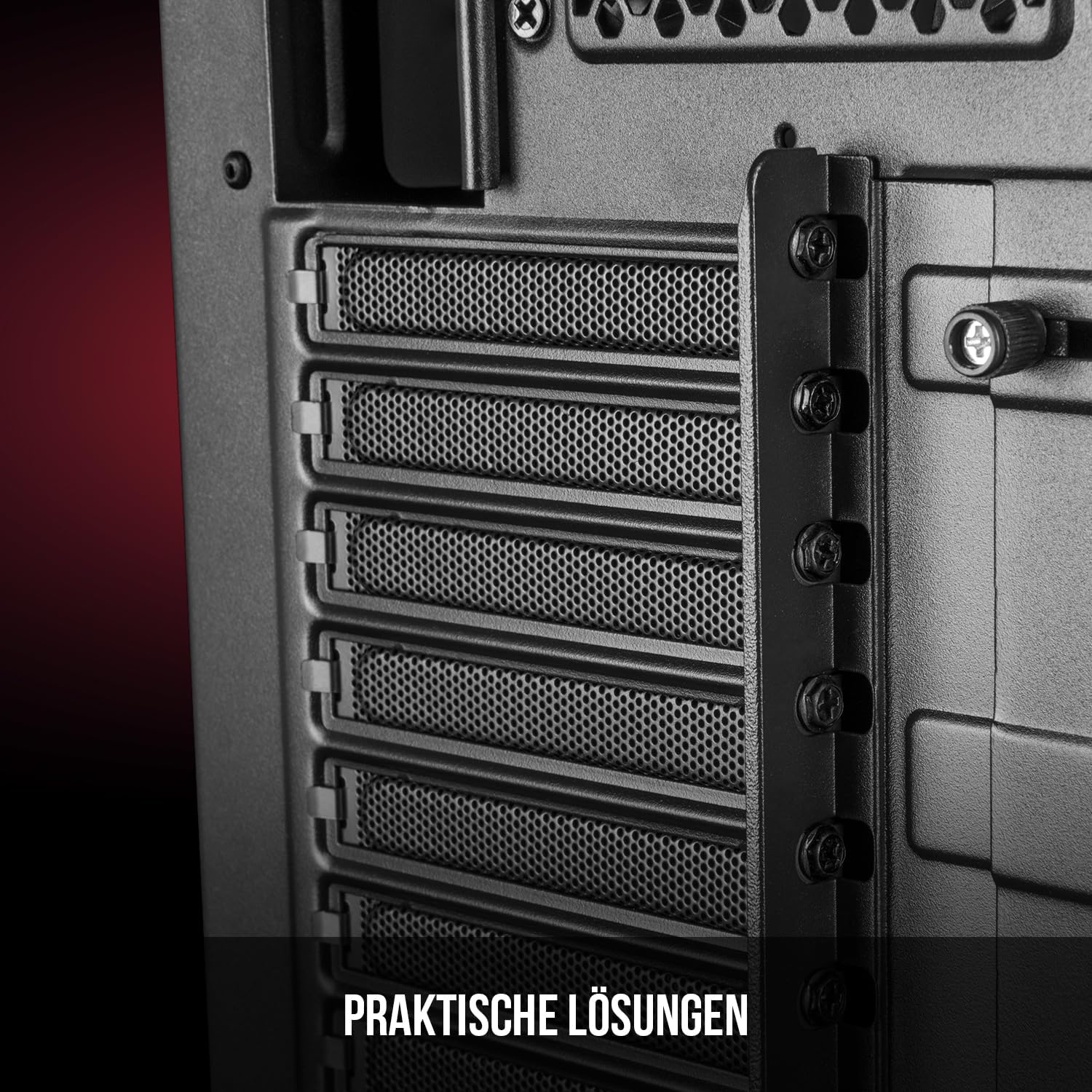
Figear 5: Taobh a-staigh cùil view highlighting the expansion card slots.
5.6. Riaghladh càball
Utilize the provided cable routing options and tie-down points behind the motherboard tray to organize cables. This improves airflow and maintains a tidy interior.
6. Siostam fuarachaidh
The Oberon Pro comes with two pre-installed 120mm fans, one at the front and one at the rear, to ensure adequate airflow. The maximum height for a CPU cooler is 163mm, and the maximum length for a video card is 395mm, allowing for compatibility with a wide range of components.
7. Cumail suas
To maintain optimal performance and prevent dust buildup, regularly clean the dust filters. The magnetic filters on the top, front, and bottom of the case are easily dismountable for cleaning. Use compressed air or a soft brush to remove accumulated dust.
8. A ’dèanamh trioblaid
- Gun chumhachd: Ensure all power cables are securely connected to the motherboard, power supply, and wall outlet. Check the power button connection to the motherboard.
- Overheating: Verify that all fans are spinning correctly and that dust filters are clean. Ensure proper cable management to avoid obstructing airflow.
- Puirt a’ Phannal Aghaidh nach eil ag Obrachadh: Check that the front panel connectors (USB, audio) are correctly plugged into the motherboard headers.
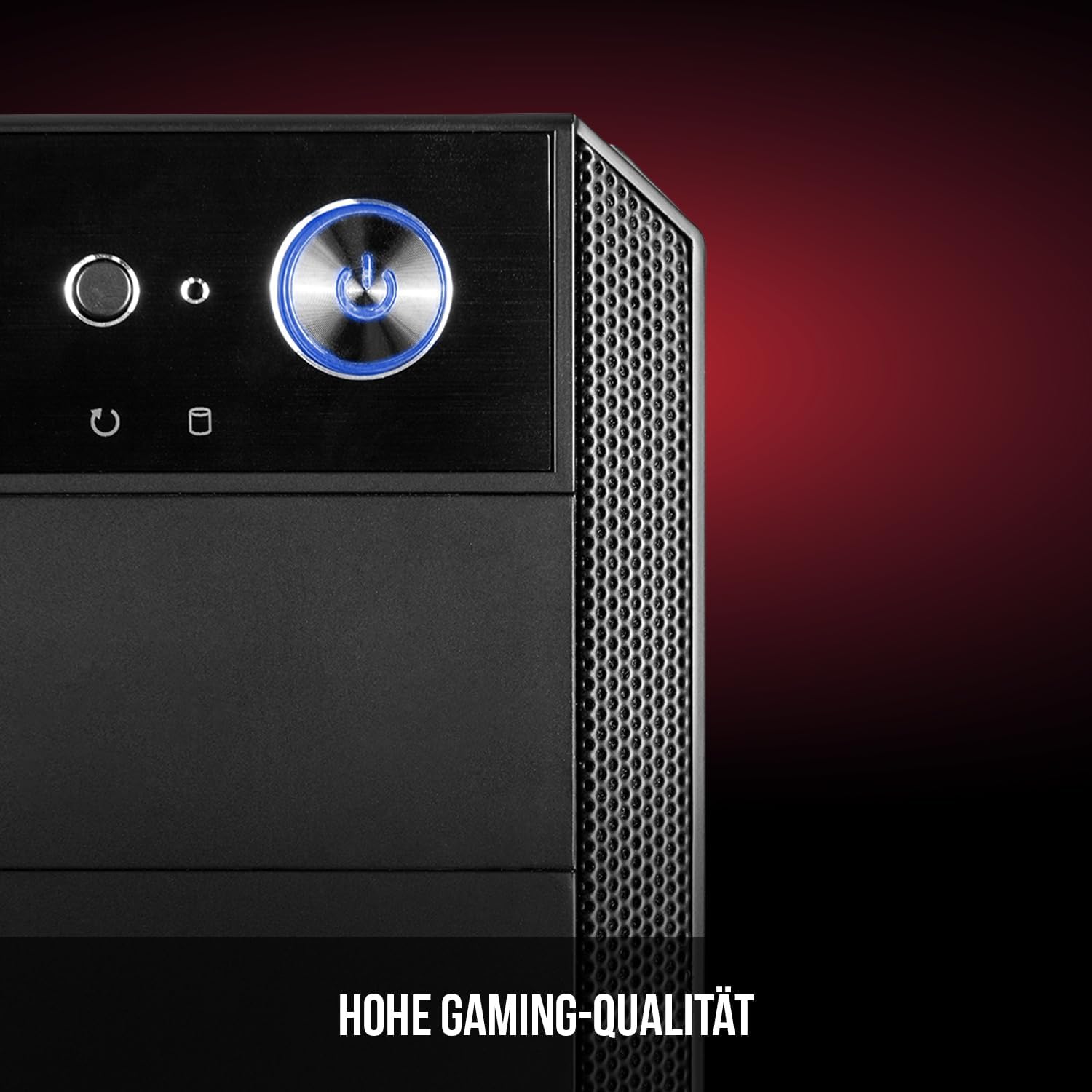
Figure 6: Front panel I/O ports for connectivity.
9. Sònrachaidhean
| Feart | Sònrachadh |
|---|---|
| Brand | Modecom |
| Ainm Modail | Oberon Pro |
| Modail Àireamh | AT-OBERON-PS-10-000000-0002 |
| Dath | Dubh |
| Seòrsa cùise | Tùr Midi |
| Co-fhreagarrachd motherboard | ATX, Micro ATX, ITX |
| Stuth | Alloy Steel |
| Modh fuarachaidh | Air |
| Fans ro-stàlaichte | 2 x 120mm (Front, Rear) |
| Àirde nas fhuaire CPU | 163 mm |
| Fad GPU Max | 395 mm |
| Bàigh Drive | 3 x SSD 2.5", 2 x HDD 3.5" |
| Gu h-iomlan puirt USB | 4 |
| Feartan sònraichte | Reset Button, Dust Filter, LED Indicators, Side Window |
| Cuideam nì | 5270 gram |

Figure 7: Rear exterior view of the computer case.
10. Barantas agus Taic
For warranty information and technical support, please refer to the official Modecom weblàrach no cuir fios chun neach-reic agad. Cùm dearbhadh do cheannach airson tagraidhean barantais sam bith.