
1. Ro-ràdh
Thank you for choosing the Macally USB Type C Wired Mouse. This manual provides detailed instructions for setting up, operating, and maintaining your new mouse. Designed for simplicity and reliability, this plug-and-play mouse offers comfortable use with adjustable DPI settings for various computing needs.
2. Pasgan-susbaint
- Macally USB Type C Wired Mouse
- Leabhar-làimhe stiùiridh
3. Suidhich
The Macally USB Type C Wired Mouse is designed for easy plug-and-play functionality, requiring no additional drivers for most operating systems.
- Ceangail an luchag: Locate an available USB-C port on your computer (MacBook Pro, iMac, PC, Laptop, Tablet, etc.). Insert the USB-C connector of the mouse cable firmly into the USB-C port.
- Aithneachadh fèin-ghluasadach: Your operating system should automatically detect and configure the mouse. No software installation is typically required.
- Tòisich a’ cleachdadh: Cho luath ‘s a thèid aithneachadh, bidh an luchag deiseil airson a cleachdadh sa bhad.

Image: The Macally USB-C mouse connected to a laptop via its USB-C cable, demonstrating the plug-and-play setup.
Video: A demonstration of connecting the wired USB-C mouse to a laptop, highlighting its plug-and-play functionality for Type-C computers.
4. Stiùireadh Obrachaidh
4.1 Cleachdadh Bunaiteach
The mouse features a standard 3-button layout for intuitive control:
- Putan Cliog Clì: Air a chleachdadh airson nithean a thaghadh, fhosgladh files, agus a’ cur òrdughan an gnìomh.
- Putan Cliog Deas: Used for accessing contextual menus and additional options.
- Cuibhle Scroll: Air a chleachdadh airson sgroladh tro sgrìobhainnean agus web pages. The scroll wheel can also be pressed as a middle click button for specific functions in some applications.

Ìomhaigh: Ìomhaigh bho mhullach gu bonn view of the Macally USB-C mouse, clearly showing the left-click, right-click, and scroll wheel buttons.
4.2 Atharrachadh DPI
The mouse features a dedicated DPI (Dots Per Inch) switch to adjust cursor sensitivity. This allows you to change the speed and responsiveness of the cursor to suit your preference or task.
- Brùth an Putan DPI (located below the scroll wheel) to cycle through the available sensitivity settings: 800, 1200, 1600, and 2400 DPI.
- Select the DPI setting that provides the most comfortable and efficient cursor movement for your current activity.
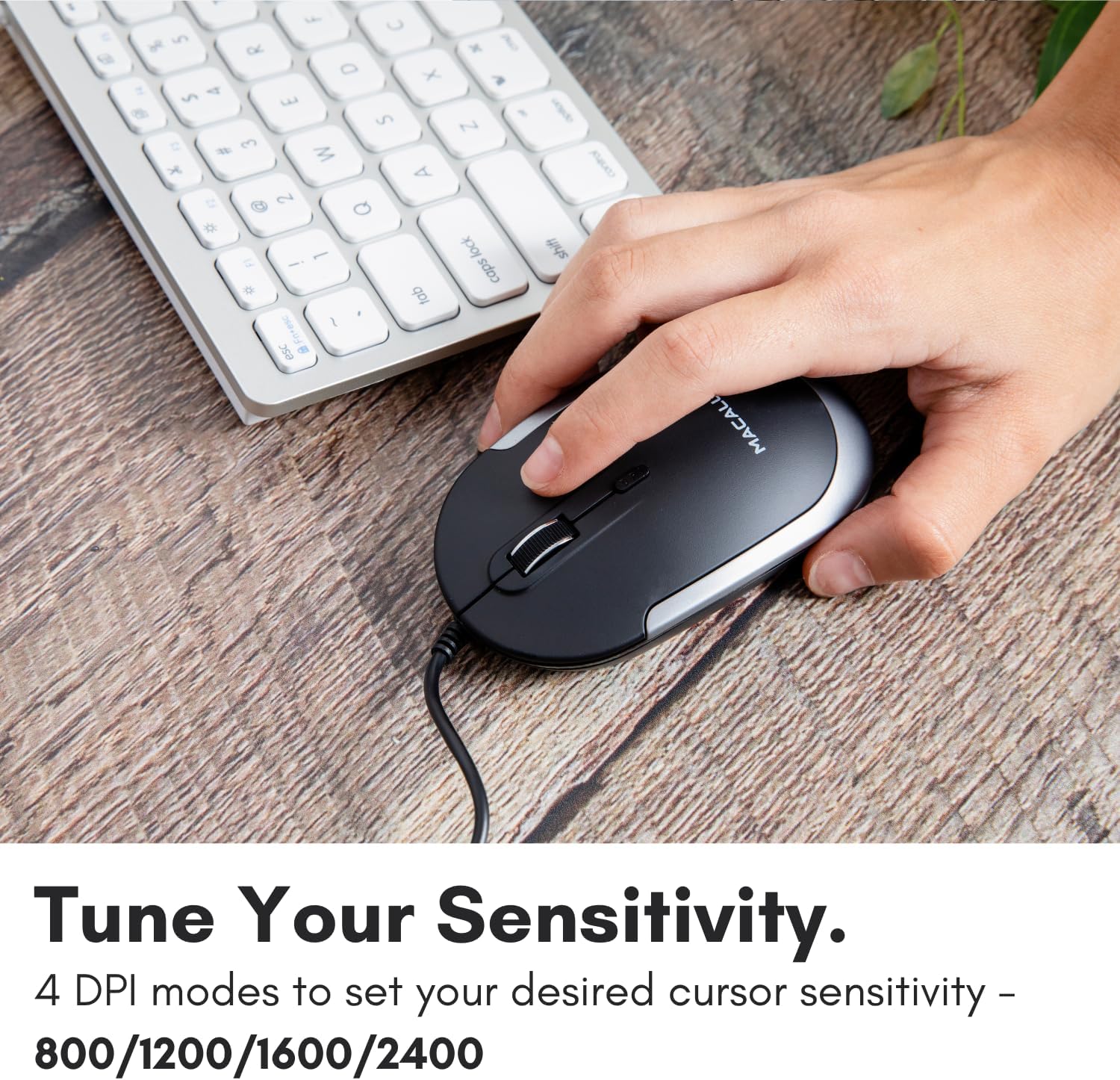
Image: A hand demonstrating how to press the DPI button on the Macally USB-C mouse to adjust sensitivity.
4.3 Co-fhreagarrachd
The Macally USB Type C Wired Mouse is universally compatible with a wide range of devices and operating systems:
- Mac (macOS)
- PC (Windows)
- iPadOS
- Android devices with USB-C ports

Image: The Macally USB-C mouse displayed with compatibility logos for Mac, PC, iPadOS, and Android operating systems.
5. Prìomh fheartan
- Ceangal USB-C: Specifically designed for modern laptops and computers with USB-C ports, ensuring a reliable wired connection.
- Dealbhadh caol is teann: With a height of only 1 inch, the mouse is slim, comfortable, and portable, fitting snugly in your hand.
- Quiet Click Buttons: Reduces clicking noise by 90% compared to traditional mice, providing a quieter work environment.
- DPI a ghabhas atharrachadh: Easily switch between 800, 1200, 1600, and 2400 DPI settings for precise cursor control.
- Càball 5-troigh: A 'toirt seachad ample length for flexible setup and comfortable use, even with desktop computers.
- Dealbhadh Ambidextrous: Freagarrach airson an dà chuid luchd-cleachdaidh air an làimh dheis agus chlì.

Image: The Macally USB-C mouse highlighting its elegant and slim design with dimensions.
Video: A detailed look at the Macally USB-C Optical Mouse, emphasizing its quiet click buttons and compatibility with Mac and PC.
6. Cumail suas
To ensure the longevity and optimal performance of your Macally USB Type C Wired Mouse, follow these simple maintenance guidelines:
- Glanadh: Cleachd clò bog, tioram, gun lint airson uachdar na luchaige a sguabadh. Airson salachar stòlda, beagan dampnigh an clò le uisge no le fuasgladh glanaidh tlàth. Seachain ceimigean cruaidh no stuthan sgrìobach a chleachdadh.
- Sensor Optical: Cùm an sensor optigeach air bonn na luchaige glan agus saor bho dhuslach no sprùilleach. Cleachd swab cotain no èadhar teannaichte ma tha sin riatanach.
- Cùram càball: Avoid sharp bends or excessive pulling on the USB-C cable to prevent damage. Store the cable neatly when not in use.
- Stòradh: Nuair nach eilear ga cleachdadh, stòraich an luchag ann an àrainneachd ghlan, thioram air falbh bho theodhachd anabarrach.
7. A ’dèanamh trioblaid
If you encounter any issues with your Macally USB Type C Wired Mouse, please refer to the following common solutions:
| Trioblaid | Fuasgladh |
|---|---|
| Chan eil an luchag a’ freagairt. |
|
| Tha gluasad a’ chursair neo-riaghailteach no leumach. |
|
| Buttons or scroll wheel are not working. |
|
8. Sònrachaidhean
| Brand | Macally |
| Modail Àireamh | UCDYNAMOUSESG |
| Teicneòlas ceangail | USB-C le uèir |
| Teicneòlas lorg gluasad | Optical |
| Roghainnean DPI | 800, 1200, 1600 |
| Fad Càball | 5 troigh (mu 1.5 meatairean) |
| Putanan | 3 (Left, Right, Scroll Wheel/Middle Click) + DPI Switch |
| Cuideam nì | 2.56 unnsa (mu 72.5 gram) |
| Meudan toraidh (LxWxH) | 2.8 x 4.21 x 1 òirleach (timcheall air 7.1 x 10.7 x 2.5 cm) |
| Co-fhreagarrachd | Mac (macOS), PC (Windows), iPadOS, Android (with USB-C) |
9. Barantas agus Taic
Macally provides a Barantas 1-bliadhna for this product. For technical support, troubleshooting assistance, or warranty claims, please contact Macally customer service. You can find contact information and additional resources on the official Macally weblàrach:
Weblàrach: www.macally.com
Macally also offers easy returns and lifetime support with your purchase.