
1. Ro-ràdh
This manual provides instructions for the proper setup, operation, and maintenance of your Acer B247Y 23.8-inch LED LCD Monitor. Please read this manual thoroughly before using your monitor to ensure optimal performance and to prevent damage.
The Acer B247Y is a 23.8-inch Full HD (1920 x 1080) monitor featuring an IPS panel for wide viewing angles, an anti-glare display, and a frameless design on three sides. It includes multiple connectivity options and an ergonomic stand for comfortable viewing.
2. Pasgan-susbaint
Dearbhaich gu bheil a h-uile rud anns a’ phacaid agad. Ma tha rud sam bith a dhìth no millte, cuir fios chun neach-reic agad.
- Acer B247Y 23.8-inch LED LCD Monitor
- Seasamh Monitor (Bonn agus Amhaich)
- Power Adapter (Internal) and Power Cable
- Càball VGA
- TaisbeanadhPort 1.2 Càball
- Càball HDMI
- Audio-in Cable (if included)
- Audio-out Cable (if included)
- Leabhar-làimhe cleachdaiche (an sgrìobhainn seo)
3. Suidhich
3.1 A’ cur an Seasamh Sgrùdaidh ri chèile
The monitor comes with a detachable foot stand. Follow these steps to assemble:
- Thoir air falbh pàirtean an monitor agus an t-seasamh gu faiceallach bhon phacaid.
- Ceangail amhach an t-seasamh ris a’ phannal sgrùdaidh. Dèan cinnteach gu bheil e a’ briogadh gu tèarainte na àite.
- Ceangail bonn an t-seasamh ri amhach an t-seasamh. Teannaich sgriothan sam bith ma tha iad ann, mar as trice suidhichte air bonn a’ bhunait.
- Cuir am monitor cruinnichte air uachdar seasmhach, còmhnard.
Thoir an aire: The monitor also supports VESA mount (100 x 100 mm) for wall or arm mounting. Refer to your VESA mount kit instructions for installation.
3.2 A’ ceangal an monitor
Ceangail an monitor ris a 'choimpiutair agad no innealan eile a' cleachdadh na càbaill iomchaidh.
- Ceangal bhidio:
- Connect one end of the DisplayPort cable to the DisplayPort output on your computer and the other end to the DisplayPort input on the monitor.
- Alternatively, connect an HDMI cable from your computer's HDMI output to the monitor's HDMI input.
- For older systems, connect a VGA cable from your computer's VGA output to the monitor's VGA input.
- Ceangal claisneachd:
- If using VGA or DisplayPort without audio, connect an audio cable from your computer's audio output to the monitor's audio-in port for integrated speakers.
- To connect external speakers or headphones, use the monitor's audio-out port.
- Ceangal cumhachd:
- Ceangail an càball cumhachd ri cuir-a-steach cumhachd an sgrìn, agus an uairsin cuir a’ cheann eile a-steach do phuing dealain le talamh.

Figure 3.2.1: Acer B247Y Monitor with Stand. This image illustrates the overall appearance of the monitor when fully assembled on its stand.
4. Stiùireadh Obrachaidh
4.1 A’ cur cumhachd air/dheth
Press the power button, usually located on the bottom right or rear of the monitor, to turn the monitor on or off. The power indicator light will illuminate when the monitor is on.
4.2 Adjusting Monitor Settings (OSD)
The monitor features an On-Screen Display (OSD) menu for adjusting various settings. Use the control buttons (typically located near the power button) to navigate and select options within the OSD menu.
Seo cuid de na roghainnean OSD cumanta:
- Dealbh: Brightness, Contrast, Color Temperature, Gamma, Acer eColor Management modes (e.g., Dark Room, Eco).
- Fuaim: Volume control for integrated speakers or audio-out.
- Teachd a-steach: Select the active video input source (VGA, DisplayPort, HDMI).
- OSD: OSD timeout, language.
- Riaghladh: Ath-shuidheachadh gu fàilligeadh factaraidh.
4.3 Atharrachaidhean Eirgonomiach
The Acer B247Y monitor stand offers several ergonomic adjustments to optimize your vieweòlas:
- Teilt: Adjust the screen angle from -5 degrees to 25 degrees (forward/backward).
- Sluasaid: Rotate the monitor horizontally up to +/- 45 degrees.
- Atharrachadh àirde: Adjust the screen height by up to 120mm.
- Pivot: Cuairtich an sgrion 90 ceum airson dealbh-chruth viewing.
5. Cumail suas
Nì cumail suas ceart cinnteach gum mair an monitor agad fad-beatha agus gum bi e ag obair gu math.
- Glanadh an sgrion: Sguab an sgrion gu socair le clò bog, gun lint. Airson comharran stòlda, dampen the cloth with a small amount of water or a non-abrasive screen cleaner. Do not spray liquid directly onto the screen.
- A’ glanadh an Casing: Cleachd clò bog, tioram gus an monitor a ghlanadhasing. Seachain innealan-glanaidh làidir no innealan-glanaidh sgrìobach a chleachdadh.
- Fionnarachadh: Dèan cinnteach nach eil na fosglaidhean fionnarachaidh air an monitor dùinte gus casg a chur air cus teasachadh.
- Cumhachd dheth: Cuir dheth an monitor an-còmhnaidh agus tarraing a-mach am pluga bhon t-socaid cumhachd mus glan thu e no nuair nach eilear ga chleachdadh airson ùine mhòr.
6. A ’dèanamh trioblaid
Ma thachras tu ri duilgheadasan leis an sgrìn agad, thoir sùil air na ceumannan cumanta fuasgladh-cheistean a leanas:
- No Power / Monitor Does Not Turn On:
- Dèan cinnteach gu bheil an càball cumhachd ceangailte gu tèarainte ris an sgrìn agus ri socaid dealain a tha ag obair.
- Dearbhaich gu bheil an socaid cumhachd ag obair le bhith a’ cur inneal eile a-steach.
- Brùth am putan cumhachd gu daingeann.
- No Image / "No Signal" Message:
- Check that the video cable (DisplayPort, HDMI, or VGA) is securely connected to both the monitor and your computer.
- Dèan cinnteach gu bheil an coimpiutair agad air agus nach eil e ann am modh cadail.
- Use the OSD menu to manually select the correct input source.
- Feuch càball bhidio no port eadar-dhealaichte ma tha fear ri fhaighinn.
- Tha an ìomhaigh air a shaobhadh no mì-shoilleir:
- Dèan cinnteach gu bheil rùn an taisbeanaidh air a’ choimpiutair agad air a shuidheachadh gu rùn dùthchasach an sgrìn (1920 x 1080).
- Adjust brightness, contrast, and other picture settings via the OSD menu.
- Check for any physical damage to the screen or cables.
- Gun fhuaim bho luchd-labhairt:
- Increase the volume using the OSD menu or your computer's sound settings.
- Ensure the audio cable (if used) is properly connected.
- Dearbhaich gu bheil an inneal toraidh claisneachd ceart air a thaghadh ann an roghainnean fuaim a’ choimpiutair agad.
7. Sònrachaidhean
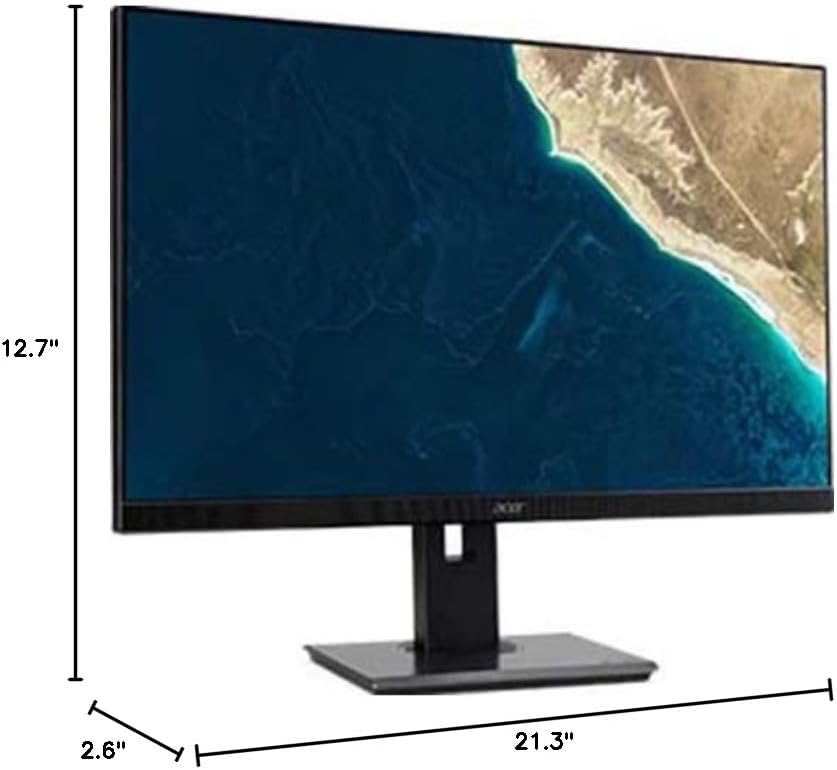
Figure 7.1.1: Acer B247Y Monitor Dimensions. This image shows the approximate height (12.7"), width (21.3"), and depth (2.6") of the monitor without the stand.
| Feart | Sònrachadh |
|---|---|
| Modail Àireamh | B247Y |
| Meud sgrion | 23.8 òirleach (60.5 cm) |
| Seòrsa Taisbeanaidh | LED LCD, IPS Panel, Anti-glare (AG) |
| Fuasgladh as àirde | 1920 x 1080 (làn HD) |
| Co-mheas taobh | 16:9 |
| Ìre Ath-nuadhachaidh | 75 Hz |
| Àm Freagairt | 4ms (gray-to-gray) |
| Gile (àbhaisteach) | 250 cd / m² |
| Co-mheas Contrarrachd Dùthchasach | 1,000:1 |
| Co-mheas dinamic eadar-dhealaichte | 100,000,000:1 |
| Viewing Angles (H / V) | 178° / 178° |
| Ceangalachd | VGA, DisplayPort 1.2, HDMI, Audio-in, Audio-out |
| Luchd-labhairt aonaichte | 2 x 2.0W |
| Atharrachaidhean ergonomic | Tilt (-5° to 25°), Swivel (+/- 45°), Height Adjustment (120mm), Pivot (90°) |
| VESA Mount Support | 100 x 100 mm |
| Meudan le seasamh (W x H x D) | 21.3" x 14.9"~19.6" x 7.6" (54.0cm x 37.9cm~49.9cm x 19.3cm) |
| Cuideam le seasamh | 12.3 lb. (5.6 kg) |
| Adapter cumhachd | Taobh a-staigh |
| Dath | Dubh |
8. Barantas agus Taic
Your Acer B247Y monitor comes with a Limited Three-Year Warranty. Please retain your proof of purchase for warranty claims.
For technical support, service, or warranty inquiries, please refer to the official Acer support website or contact their customer service department. Contact information can typically be found on the Acer weblàrach-lìn no anns a’ chairt barantais a tha air a ghabhail a-steach leis an toradh agad.
Lock Kensington: The monitor supports a Kensington lock for security. Attach a compatible Kensington lock (sold separately) to the security slot on the monitor to deter theft.