
IP-COM G3224P
IP-COM G3224P 24-Port Managed PoE Switch
Leabhar-làimhe cleachdaiche
Model: G3224P | Brand: IP-COM
1. Ro-ràdh
This user manual provides comprehensive instructions for the installation, operation, maintenance, and troubleshooting of the IP-COM G3224P 24-Port Managed PoE Switch. Please read this manual thoroughly before using the device to ensure proper and safe operation.
The IP-COM G3224P is a high-performance managed Power over Ethernet (PoE) switch designed for small to medium-sized businesses and enterprise networks. It offers 24 Gigabit Ethernet ports with PoE+ capabilities and additional SFP ports for fiber uplinks, providing flexible and scalable network solutions.
2. Toradh thallview
2.1 Susbaint a’ phacaid
- IP-COM G3224P 24-Port Managed PoE Switch
- Corda cumhachd
- Pasgan Rackmount (camaidean agus sgriothan)
- Rubber Feet (for desktop placement)
- Stiùireadh stàlaidh luath
2.2 Tuairisgeul Pannal aghaidh
The front panel of the IP-COM G3224P switch features various ports and LED indicators for status monitoring.
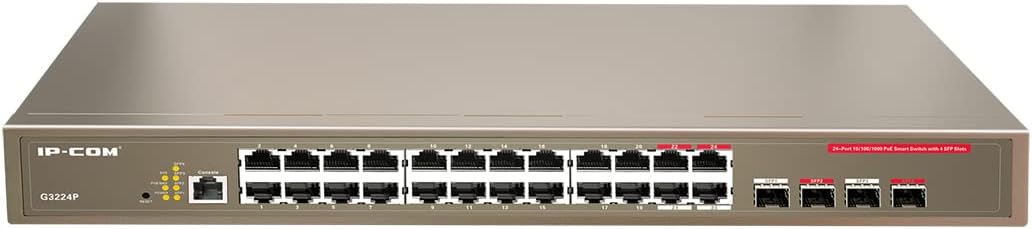
Figure 2.1: IP-COM G3224P Front Panel Layout
This image displays the front panel of the IP-COM G3224P switch. On the left, the IP-COM logo and model number G3224P are visible. To the right, there are LED indicators for SYS, PoE MAX, and individual port status. A console port is also present. The main section features 24 Gigabit Ethernet RJ45 ports, arranged in two rows, with port numbers 1 through 24. On the far right, there are four SFP ports labeled SFP1, SFP2, SFP3, and SFP4, which are used for fiber optic uplinks.
2.3 Comharran LED
| Comharra LED | Inbhe | Tuairisgeul |
|---|---|---|
| SYS | Uaine (Solid) | Tha an siostam ag obair gu h-àbhaisteach. |
| SYS | Uaine (Blinking) | System is booting up or firmware is being upgraded. |
| PoE MAX | Dearg (Solid) | PoE power budget is nearing or exceeding its limit. |
| Ceangal/Gnìomh (Gach Port) | Uaine (Solid) | Tha port ceangailte. |
| Ceangal/Gnìomh (Gach Port) | Uaine (Blinking) | Port is transmitting or receiving data. |
| PoE (Per Port) | Buidhe (Soladach) | Tha cumhachd PoE ga thoirt don inneal ceangailte. |
3. Setup agus Stàladh
3.1 Ceumannan Sàbhailteachd
- Dèan cinnteach gu bheil an solar cumhachd voltage matches the switch's requirements (240V as per specifications).
- Na cuir bacadh air fosglaidhean fionnarachaidh.
- Cùm an inneal air falbh bho uisge, teine, agus teòthachd àrd.
- Na feuch ris an inneal fhosgladh no a chàradh thu fhèin.
3.2 Stàladh Rackmount
- Ceangail na camagan raca a tha air an toirt seachad ri taobhan an suidse a’ cleachdadh nan sgriothan a tha air an toirt a-steach.
- Daingnich an suidse ann an raca uidheamachd àbhaisteach 19-òirleach le bhith a’ cleachdadh sgriothan raca iomchaidh (nach eil air an toirt a-steach).
- Dèan cinnteach gu bheil sruth-adhair iomchaidh timcheall an t-suidse airson fuarachadh ceart.
3.3 Stàladh deasg
- Ceangail na casan rubair a chaidh a sholarachadh gu bonn an suidse.
- Place the switch on a flat, stable surface with sufficient ventilation.
3.4 A’ ceangal an suidse
- Ceangal cumhachd: Connect the power cord to the power inlet on the rear panel of the switch and then to a grounded power outlet.
- Innealan Lìonra: Connect network devices (e.g., computers, servers, IP cameras, VoIP phones) to the RJ45 ports (1-24) on the front panel using standard Ethernet cables.
- Innealan PoE: For PoE-powered devices, simply connect them to any of the RJ45 ports. The switch will automatically detect and provide power if the device is PoE compliant.
- Ceanglaichean Uplink: Use the SFP ports (SFP1-SFP4) for fiber optic uplinks to other network devices or the core network. Insert compatible SFP transceivers into the SFP slots before connecting fiber optic cables.
- Ceangal Consail (Roghainneil): For initial configuration or advanced management, connect a console cable from your computer to the console port on the switch.
4. Stiùireadh Obrachaidh
4.1 Cumhachd Tòiseachaidh Air adhart
After connecting the power cord, the switch will automatically power on. Observe the SYS LED indicator. It will blink during boot-up and turn solid green once the system is ready.
4.2 Ceangal Lìonra Bunasach
Once powered on, the switch will automatically detect connected devices. The Link/Act LED for each connected port will illuminate solid green, indicating a successful link. It will blink when data is being transmitted or received.
4.3 PoE Operation
When a PoE-compatible device is connected to a port, the switch will negotiate power delivery. The PoE LED for that port will turn yellow, indicating that power is being supplied. Monitor the PoE MAX LED; if it turns red, the total PoE power budget is being approached or exceeded, and you may need to reduce the number of PoE devices or use a higher-capacity power source.
4.4 Ruigsinneachd Stiùiridh
The IP-COM G3224P is a managed switch, offering various configuration options via a web-based GUI, CLI (Command Line Interface) via the console port, or SNMP. Refer to the detailed management guide (usually available on the manufacturer's website) for advanced configuration, including VLANs, QoS, port mirroring, and security settings.
- Web GUI: Faigh cothrom air an suidse web interface by typing its default IP address (check the Quick Installation Guide or manufacturer's documentation) into a web bhrabhsair.
- CLI: Connect via the console port using a terminal emulator (e.g., PuTTY) with appropriate serial port settings.
5. Cumail suas
5.1 Glanadh
- Regularly clean the exterior of the switch with a soft, dry cloth.
- Na cleachd innealan-glanaidh lionn no aerosol.
- Dèan cinnteach gu bheil fosglaidhean fionnarachaidh saor bho dhuslach agus bhacaidhean.
5.2 Ùrachaidhean Firmware
Periodically check the IP-COM official weblàrach airson ùrachaidhean firmware. Le bhith a’ cumail am firmware ùraichte, bidh an coileanadh, an tèarainteachd agus an ruigsinneachd as fheàrr gu feartan ùra cinnteach. Lean an stiùireadh a tha air a thoirt seachad leis a’ phacaid ùrachaidh firmware gu faiceallach.
5.3 Beachdachaidhean Àrainneachdail
Ensure the switch operates within its specified environmental conditions (temperature, humidity) to prevent damage and ensure longevity.
6. A ’dèanamh trioblaid
| Trioblaid | Adhbhar a dh’fhaodadh a bhith ann | Fuasgladh |
|---|---|---|
| No power / SYS LED off | Power cord not connected or power outlet faulty. | Thoir sùil air ceangal a’ chàball cumhachd. Feuch socaid cumhachd eile. |
| No link on a port (Link/Act LED off) | Cable issue, device off, or incorrect port. | Check Ethernet cable. Ensure connected device is powered on. Try a different port or cable. |
| PoE device not powering on (PoE LED off) | Device not PoE compliant, cable issue, or power budget exceeded. | Verify device is PoE compliant. Check cable. Check PoE MAX LED; if red, reduce PoE load. |
| Network performance issues | Cable quality, network congestion, or incorrect configuration. | Use high-quality Ethernet cables. Check for network loops. Review switch configuration (VLANs, QoS). |
| Chan urrainn faighinn a-steach web eadar-aghaidh riaghlaidh | Incorrect IP address, network settings, or firewall. | Verify the switch's IP address. Ensure your computer is on the same subnet. Disable temporary firewalls. |
If problems persist, consult the full product documentation or contact IP-COM technical support.
7. Sònrachaidhean
| Feart | Mion-fhiosrachadh |
|---|---|
| Modail | G3224P |
| Puirt | 24 x 10/100/1000Base-T (RJ45) with PoE+, 4 x 1000Base-X (SFP) |
| Comas atharrachadh | 56 Gbps |
| Ìre air adhart | 41.66 Mpps |
| Ìre PoE | IEEE 802.3af / aig |
| Input Voltage | 240 Volt |
| Meudan (L x W x H) | 29 x 44 x 44 cm |
| Cuideam | 15 cileagram |
| Mullach raca | Tha |
| Riaghladh | Air a riaghladh (Web GUI, CLI, SNMP) |
Nota: Faodaidh mion-chomharrachadh atharrachadh gun rabhadh ro-làimh.
8. Barantas agus Taic Teicnigeach
8.1 Fiosrachadh Barantais
IP-COM products typically come with a limited warranty. Please refer to the warranty card included with your product or visit the official IP-COM weblàrach-lìn airson teirmichean is cumhaichean barantais mionaideach a tha sònraichte don roinn agad agus ceann-latha ceannach.
8.2 Taic Teicnigeach
For technical assistance, product inquiries, or troubleshooting beyond the scope of this manual, please contact IP-COM technical support. Support contact information can usually be found on the official IP-COM website or in the product's packaging.
IP-COM Official Weblàrach: www.ip-com.com.cn
Ask a question about this manual
Ask about setup, troubleshooting, compatibility, parts, safety, or missing instructions. Manuals+ will review the question and use this page’s manual context to help answer it.