
1. Ro-ràdh
This manual provides instructions for the proper setup, operation, and maintenance of your ELECOM HUGE Wireless Trackball Mouse (Model: M-HT1DRBK). Please read this manual thoroughly before using the product to ensure optimal performance and longevity.
2. Dè tha sa bhogsa
- ELECOM HUGE Wireless Trackball Mouse
- Glacadair USB
- Bataraidh AA (x2)
- Leabhar-làimhe cleachdaiche (an sgrìobhainn seo)
3. Suidhich
3.1. Stàladh bataraidh
- Locate the battery compartment on the underside of the trackball mouse.
- Fosgail an còmhdach roinn bataraidh.
- Cuir a-steach an dà bataraidh AA, a’ dèanamh cinnteach gu bheil am polarachd cheart (+/-).
- Dùin an còmhdach roinn bataraidh gu tèarainte.
3.2. Ceangal Glacadair USB
The USB receiver is stored within the trackball mouse for convenience during transport.
- Remove the USB receiver from its storage slot on the underside of the trackball mouse.
- Plug the USB receiver into an available USB port on your computer (PC or Mac).
- Turn on the trackball mouse using the power switch located on the underside. The mouse should be automatically recognized by your operating system.

Figear 1: Inserting the USB receiver into the storage slot on the underside of the trackball mouse.
3.3. Software Installation (Mouse Assistant)
For full customization of the 8 programmable buttons and advanced features, it is recommended to install the ELECOM Mouse Assistant software.
- Tadhail air làrach-lìn oifigeil ELECOM weblàrach.
- Navigate to the 'Support' or 'Downloads' section and locate 'Mouse Assistant'.
- Download the appropriate version for your operating system (Windows or macOS).
- Lean an stiùireadh air-sgrion gus an stàladh a chrìochnachadh.

Figear 2: Example of the ELECOM Mouse Assistant software interface for button customization.
4. Stiùireadh Obrachaidh
4.1. Basic Cursor Control
The ELECOM HUGE trackball is designed for index finger control, providing precise cursor movement. Use your index finger to roll the 52mm trackball to move the cursor on the screen.
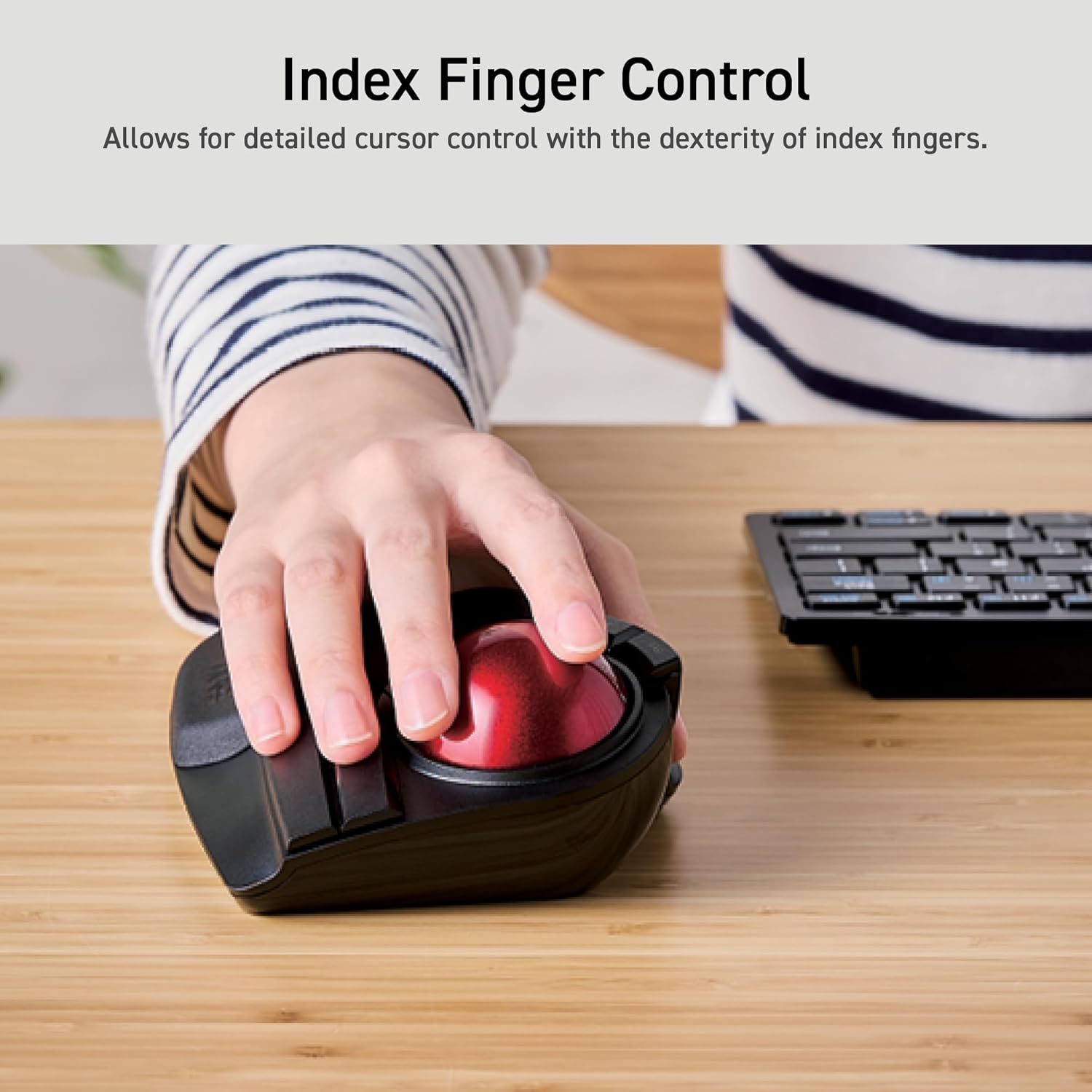
Figear 3: Demonstrating index finger control for precise cursor movement.
4.2. Atharrachadh DPI
The trackball features a DPI button to adjust cursor speed. You can switch between three DPI settings: 500 (LOW), 1000 (MID), and 1500 (HIGH) DPI. Press the DPI button to cycle through these settings and find your preferred cursor speed.
4.3. Putanan Prògramaichte
The trackball is equipped with 8 physical buttons, including the scroll wheel with tilt functionality. These buttons can be customized using the ELECOM Mouse Assistant software to perform various functions, such as application shortcuts, media controls, or custom macros.

Figear 4: Thairisview of the 8 programmable buttons and their locations.
4.4. Ergonomic Design and Palm Rest
The trackball features an ergonomic angled design and a large, soft palm rest to support your hand and wrist in a natural position, promoting comfort during extended use.
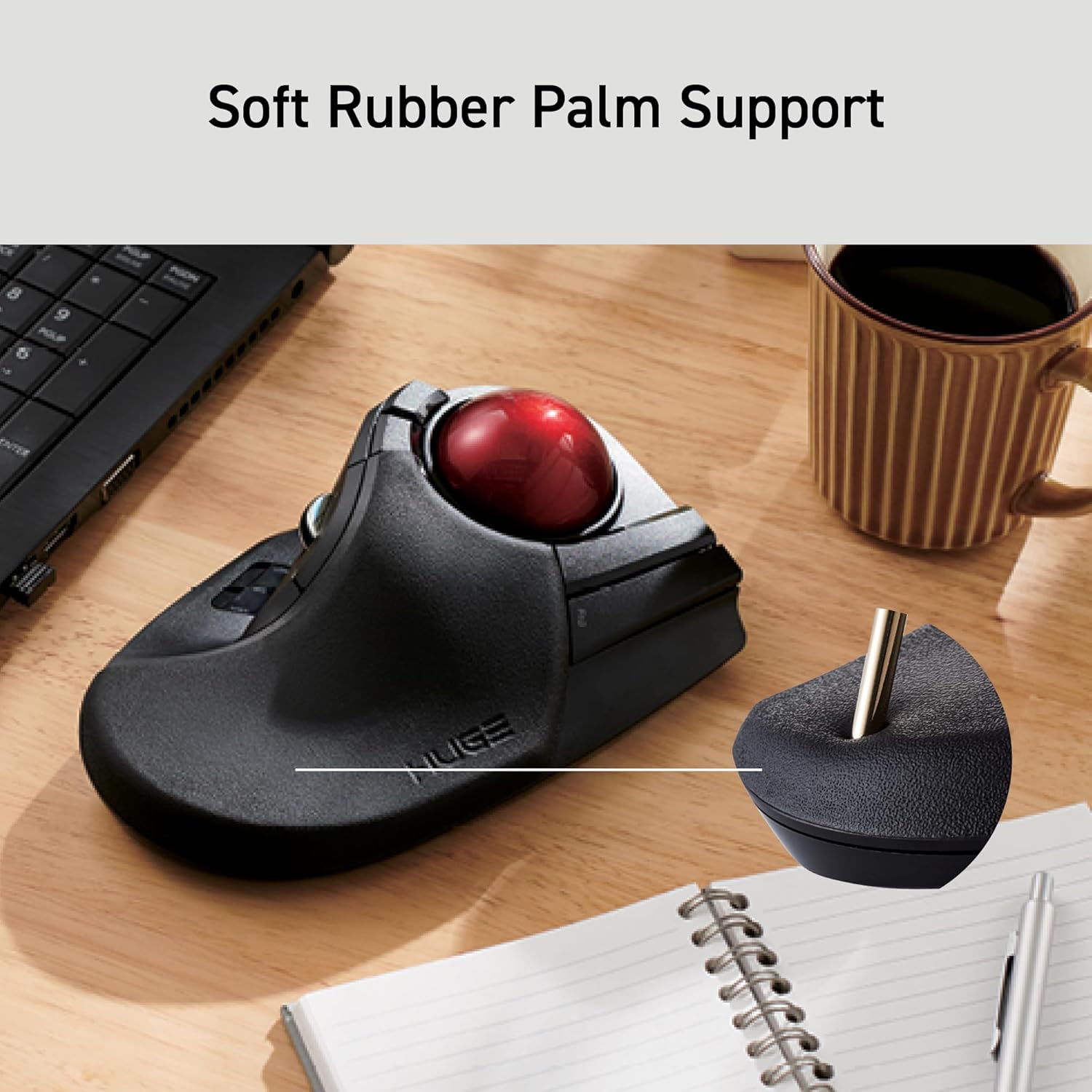
Figear 5: The soft rubber palm support integrated into the trackball design.
5. Cumail suas
5.1. Trackball Cleaning
To maintain smooth operation, periodically clean the 52mm trackball and its ruby bearings. Dust and debris can accumulate and affect performance.
- Cuir dheth luchag a’ trackball.
- Locate the ball removal hole on the underside of the device.
- Brùth am ball-traca a-mach gu socair tron toll seo.
- Wipe the trackball with a soft, lint-free cloth.
- Clean the three ruby ball bearings and the inside of the trackball housing with a cotton swab or a soft brush to remove any dust or debris.
- Reinsert the trackball into the housing until it clicks into place.
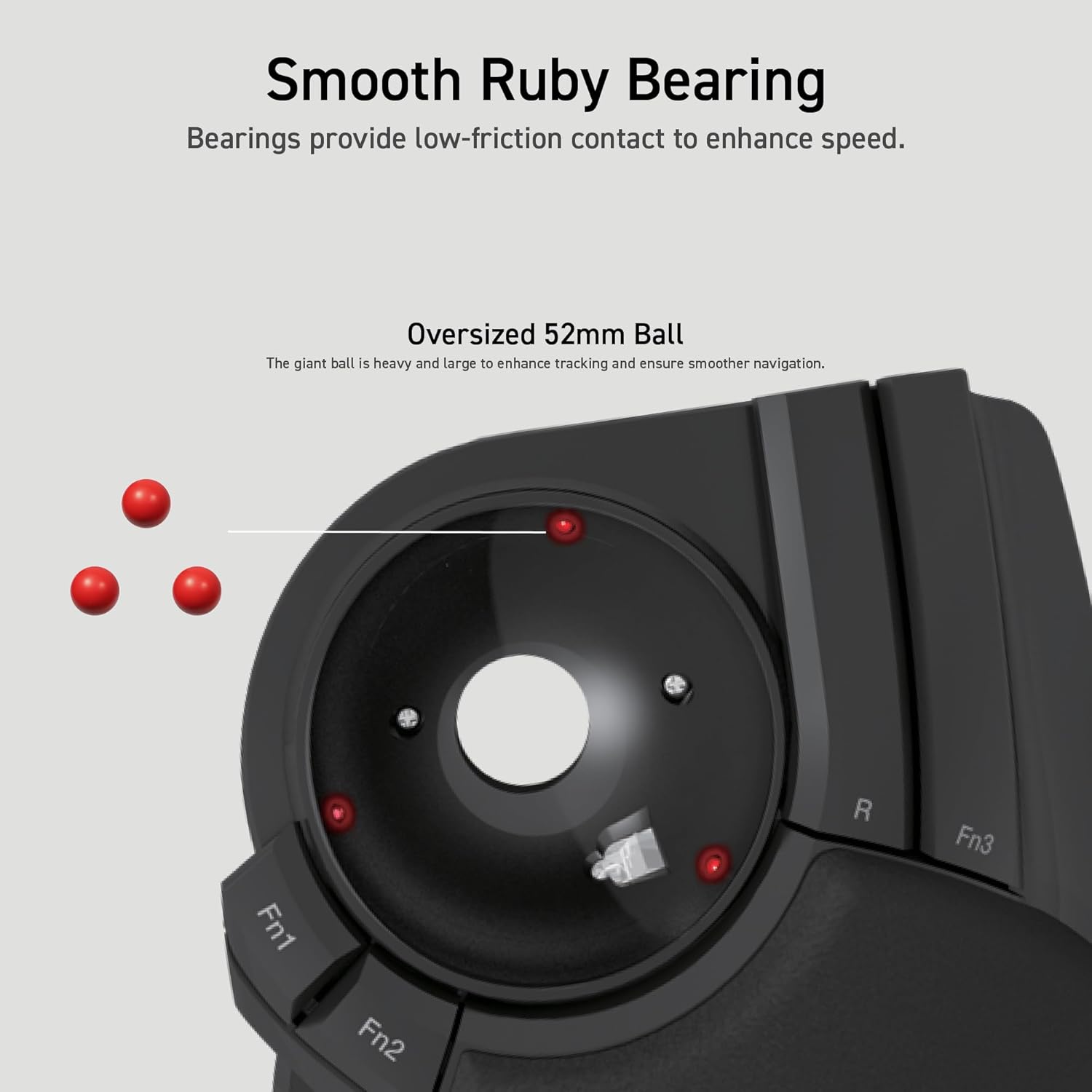
Figear 6: Illustration of the smooth ruby bearings and the trackball removal process.
6. A ’dèanamh trioblaid
6.1. Cursair gun ghluasad no neo-riaghailteach
- Thoir sùil air bataraidhean: Ensure batteries are correctly installed and have sufficient charge. Replace if necessary. The trackball has a battery remaining light lamp.
- Thoir sùil air Glacadair USB: Dèan cinnteach gu bheil an glacadair USB ceangailte gu tèarainte ri port USB a tha ag obair. Feuch port USB eile.
- Ball-rianachd glan: Refer to Section 5.1 for instructions on cleaning the trackball and bearings.
- Eadar-theachd: Move the trackball closer to the USB receiver or away from other wireless devices that might cause interference.
6.2. Putanan gun fhreagairt
- Sgrùdadh Bathar-bog: If using custom button assignments, ensure the ELECOM Mouse Assistant software is running and configured correctly.
- Ath-phaidhir an inneal: In rare cases, re-pairing the device with the USB receiver might resolve the issue. Consult the ELECOM support weblàrach-lìn airson stiùireadh sònraichte.
7. Sònrachaidhean
| Modail Àireamh | M-HT1DRBK |
| Ceangalachd | 2.4GHz Wireless USB |
| Roghainnean DPI | 500 / 1000 / 1500 DPI (so-atharrachail) |
| Putanan | 8 (Programmable) + Scroll Wheel with Tilt |
| Meud a’ Bhàil-rian | 52mm |
| Stòr cumhachd | 2 x Bataraidhean AA (air an toirt a-steach) |
| Co-fhreagarrachd siostam-obrachaidh | Windows 7, 8, 10 or later; macOS 10.13 or later |
| Meudan (LxWxH) | 7.16 x 4.52 x 2.25 òirleach (181.9 x 114.7 x 57.2 mm) |
| Cuideam (gun bataraidh) | 9.2 oz (260 g) |
8. Barantas agus Taic
ELECOM products are designed for reliability and performance. For warranty information, technical support, or to download the latest software and drivers, please visit the official ELECOM website or contact ELECOM customer service.
ELECOM Oifigeil Weblàrach: https://www.elecom.co.jp/global/