
Ro-ràdh
This manual provides instructions for the proper setup, operation, and maintenance of your Targus W600 Wireless Optical Mouse. Please read this manual thoroughly before using the device to ensure optimal performance and longevity.
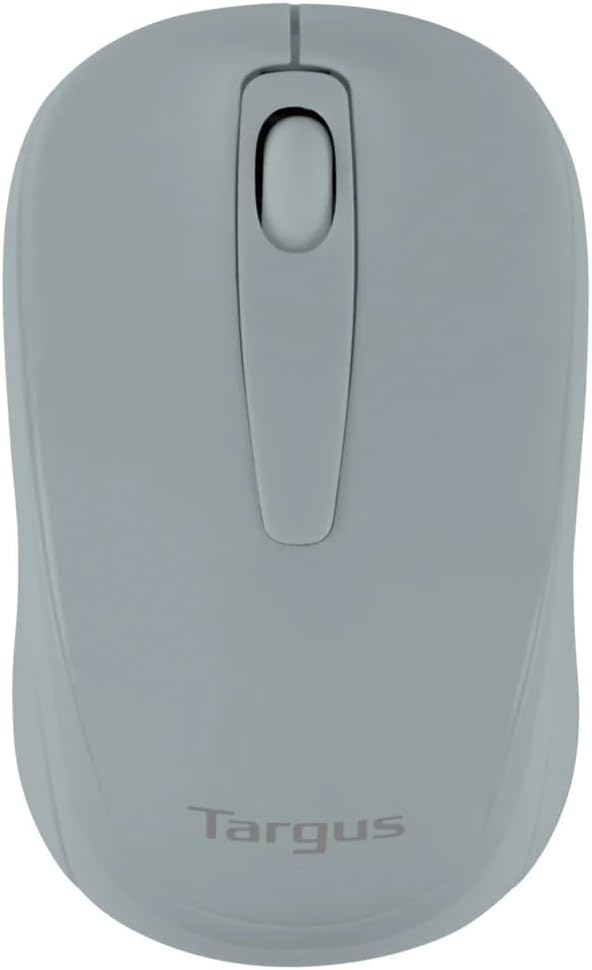
Figure 1: Targus W600 Wireless Optical Mouse (Quarry Gray)
Susbaint pacaid
Dèan cinnteach gu bheil a h-uile nì anns a’ phacaid:
- Targus W600 Wireless Optical Mouse
- Glacadair USB
- Leabhar-làimhe cleachdaiche (an sgrìobhainn seo)
Note: 1 AA battery is required and sold separately.
Feartan toraidh
- 2.4 GHz Wireless Technology for reliable connection
- 1600 DPI Optical Sensor for precise tracking
- Dealbhadh ergonomic airson cleachdadh comhfhurtail
- Co-chòrdail ri siostaman-obrachaidh Windows agus Mac
- Integrated USB receiver storage compartment
Suidhich
1. Stàladh a 'Bhataraidh
- Turn the mouse over to locate the battery compartment cover.
- Gently slide the cover off.
- Insert one (1) AA battery, ensuring correct polarity (+/-).
- Cuir an àite còmhdach roinn bataraidh.
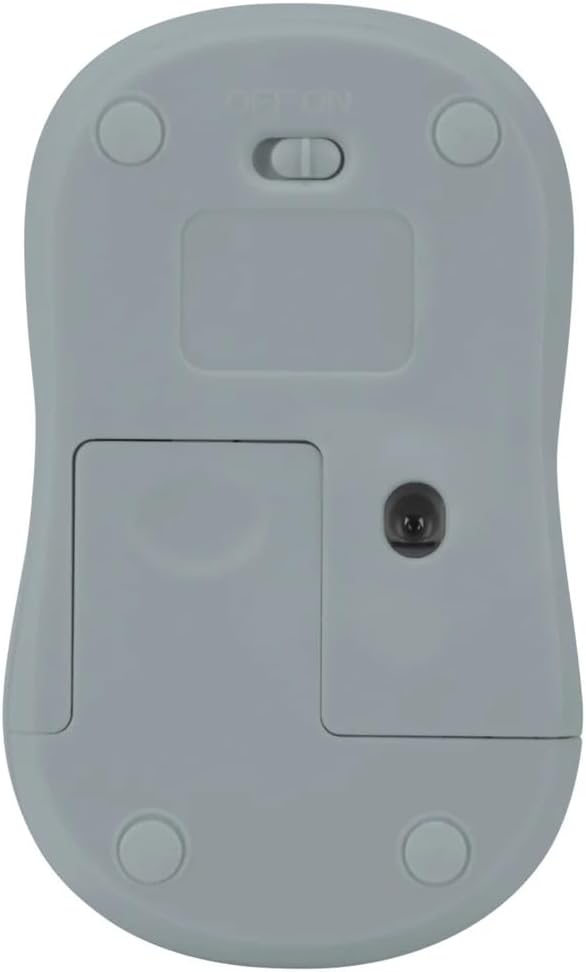
Figear 2: Bun view of the mouse with battery compartment and power switch.
2. A’ ceangal an glacadair USB
- Locate the USB receiver, typically stored inside the mouse's battery compartment or a dedicated slot.
- Plug an cuidhteas USB a-steach do phort USB a tha ri fhaighinn air do choimpiutair.
- Bu chòir don choimpiutair agad na draibhearan riatanach a lorg agus a stàladh gu fèin-ghluasadach. Dh’ fhaodadh seo beagan mhionaidean a thoirt.
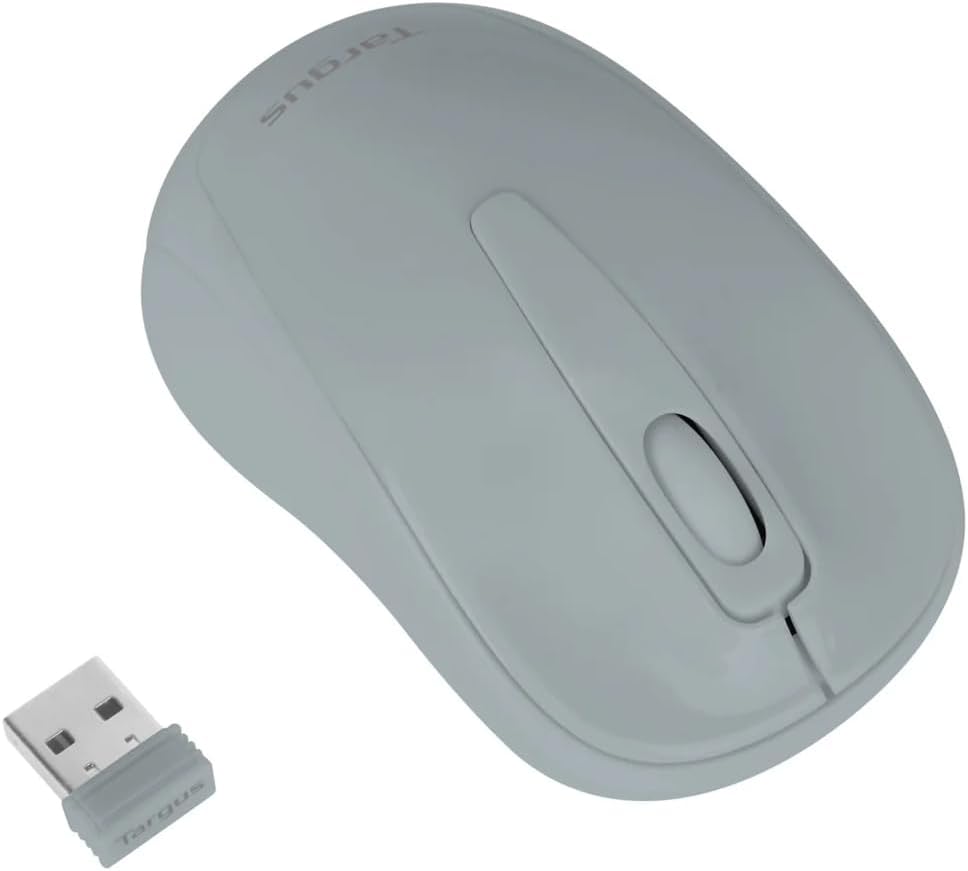
Figure 3: Targus W600 mouse and its USB receiver.

Figure 4: USB receiver plugged into a laptop, with the mouse nearby.
3. A’ cur an luchag air
On the bottom of the mouse, slide the ON/OFF switch to the "ON" position. The mouse is now ready for use.
Ag Obrachadh na Luchag
The Targus W600 Wireless Optical Mouse functions like a standard 3-button mouse. It features a left button, a right button, and a scroll wheel that also acts as a middle button.
- Cliog air chlì: Prìomh ghnìomh, taghadh, fosgladh nithean.
- Cliog deas: A’ fosgladh chlàran-taice co-theacsa.
- Cuibhle Scroll: A’ sgroladh sgrìobhainnean agus web pages vertically. Pressing the scroll wheel acts as a middle click, often used for opening links in new tabs or specific application functions.
The 1600 DPI optical sensor provides smooth and accurate cursor control on most surfaces. For best performance, use on a mouse pad or a non-reflective, uniform surface.
Cumail suas
Glanadh
Gus do luchag a ghlanadh, sguab an uachdar gu socair le clò bog,amp cloth. Avoid using harsh chemicals or abrasive cleaners, as these can damage the finish or internal components. Ensure no liquid enters the mouse.
Ath-nuadhachadh bataraidh
When the mouse performance degrades or stops responding, it may be time to replace the battery. Follow the steps outlined in the "Installing the Battery" section to replace the AA battery. Dispose of used batteries responsibly according to local regulations.
Fuasgladh thrioblaidean
| Trioblaid | Fuasgladh |
|---|---|
| Chan eil an luchag a’ freagairt |
|
| Gluasad cùrsair mearachdach |
|
| Raon goirid gun uèir |
|
Sònrachaidhean
| Modail Àireamh | AMW60006AP-55 |
| Ceangalachd | Gun Uèir 2.4 GHz (Glacadair USB) |
| Teicneòlas mothachaidh | Optical |
| DPI | 1600 pso |
| Àireamh de phutanan | 3 (Clì, Deas, Cuibhle Scrollaidh/Cliog Meadhanach) |
| Stòr cumhachd | 1 x Bataraidh AA (gun a thoirt a-steach) |
| Siostaman-obrachaidh co-fhreagarrach | Windows, Mac |
Nota: Faodaidh mion-chomharrachaidhean atharrachadh gun rabhadh.
Barantas agus Taic
Airson fiosrachadh barantais agus taic theicnigeach, thoir sùil air làrach-lìn oifigeil Targus. weblàrach-lìn no cuir fios chun t-seirbheis teachdaiche aca. Cùm do chuidhteas ceannach mar dhearbhadh ceannach airson tagraidhean barantais.
Oifigeil Targus Weblàrach: www.targus.com