
1. Toradh thallview
The Müller SC 18.24 Easy is a digital timer designed for precise control of electrical circuits. It features an astronomical switching program, which automatically adjusts on and off times based on sunrise and sunset, recalculated daily. An offset function allows for programmable adjustments (up to ± 90 minutes) to these astronomical times.
Am measg nam prìomh fheartan tha:
- Full daily switching program display.
- Replaceable CR 2032 battery with a 10-year power reserve for settings.
- Optimized self-consumption: only 0.2 W in standby mode.
- Large, clear, and illuminated display with one text line.
- Eadar-aghaidh furasta a chleachdadh.

2. Setup agus Stàladh
2.1 stiùireadh sàbhailteachd
- Installation must be performed by a qualified electrician in accordance with national wiring regulations.
- Dèan cinnteach gu bheil an solar cumhachd air a dhì-cheangal mus tèid a stàladh no a chumail suas.
- Tha an inneal air a dhealbhadh airson cleachdadh a-staigh a-mhàin.
2.2 Stàladh
The SC 18.24 Easy is designed for DIN rail mounting. Securely attach the device to a standard DIN rail within an electrical enclosure.
2.3 Uèir
Connect the power supply (230V AC, 50-60Hz) to the designated terminals (L and N). Connect the load to the switching contacts (1, 2, 3) as per your application requirements. Refer to the wiring diagram on the device or in the detailed technical documentation for specific connections.
2.4 Initial Power-Up and Basic Settings
- After wiring, restore power to the device. The display should illuminate.
- If the display is blank, check the power supply and ensure the internal CR 2032 battery is correctly installed (see Maintenance section for battery replacement).
- Follow the on-screen prompts to set the current date and time. Use the navigation buttons (M, −, +, OK) to adjust values and confirm.
- For advanced programming, including the Astro function and offset, refer to the Operating section.
3. Stiùireadh Obrachaidh
3.1 Smachd làimhe
The device can be manually switched ON or OFF using the designated button (often labeled with a hand symbol or similar, or through the 'M' menu for manual override). This temporarily overrides any programmed switching times.
3.2 Programming the Astro Function
The Astro program automatically calculates sunrise and sunset times based on your geographical location. To set up the Astro function:
- Access the programming menu (typically by pressing 'M' for an extended period or navigating through the main menu).
- Select the 'Astro Program' option.
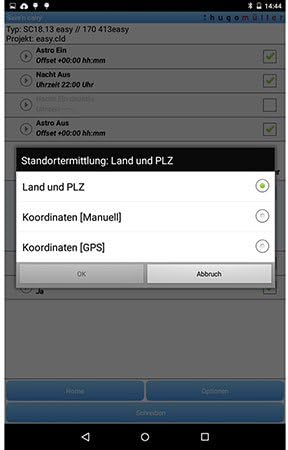
- Enter your geographical coordinates or select a predefined region/city. This allows the timer to accurately calculate local sunrise and sunset times.
- Confirm the settings. The timer will now switch loads based on these calculated times.
3.3 Using the Offset Function
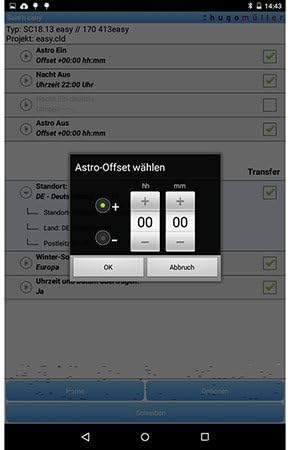
The offset function allows you to adjust the Astro switching times by a specific duration (up to ± 90 minutes). This is useful for fine-tuning the switching events relative to actual sunrise/sunset.
- Within the Astro program settings, locate the 'Offset' option.
- Select whether to apply a positive (+) or negative (−) offset.
- Enter the desired time difference in minutes (e.g., +15 minutes to switch on 15 minutes after sunset).
- Confirm the offset.

3.4 App-Based Programming (Save'n Carry)
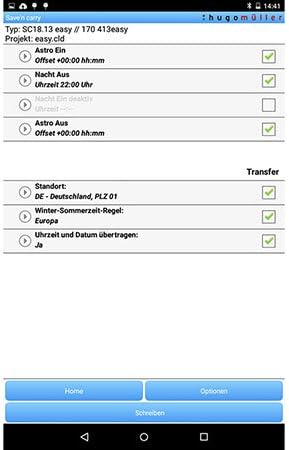
The Müller SC 18.24 Easy can be programmed using the 'Save'n Carry' mobile application, likely via NFC or Bluetooth. This offers a convenient way to configure complex switching programs.
- Download and install the 'Save'n Carry' app from your device's app store.
- Open the app and select 'New' to create a new program or 'Open' to load an existing one.
- Use the app interface to configure Astro times, offsets, and other switching schedules.
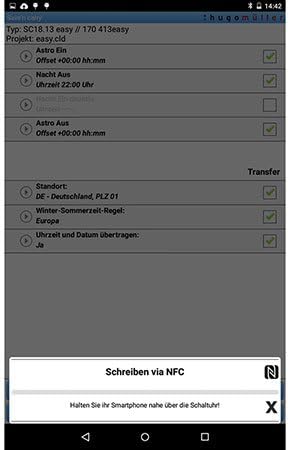
- To transfer the program to the timer, select 'Write via NFC' or 'Write via Bluetooth Adapter' within the app.
- For NFC transfer, hold your smartphone close to the timer's NFC interface as instructed by the app.
4. Cumail suas
4.1 Battery Replacement (CR 2032)
The SC 18.24 Easy uses a replaceable CR 2032 battery to maintain settings and timekeeping during power outages. The battery has a 10-year power reserve.
- Disconnect power to the device before replacing the battery.
- Locate the battery compartment, typically on the front or side of the device.
- Carefully remove the old CR 2032 battery.
- Insert a new CR 2032 battery, ensuring correct polarity.
- Close the battery compartment and restore power.
4.2 Glanadh
Clean the device with a soft, dry cloth. Do not use abrasive cleaners, solvents, or allow moisture to enter the device.
5. A ’dèanamh trioblaid
- Tha an taisbeanadh bàn: Check the main power supply to the device. Ensure the internal CR 2032 battery is correctly installed and not depleted.
- Program not executing: Verify that the current date and time are set correctly. Check if the Astro function's location settings are accurate. Ensure the manual override is not active.
- Incorrect switching times: Review the Astro program settings, including the geographical location and any applied offset. Ensure the daylight saving time rule is correctly configured if applicable.
- Inneal gun fhreagairt: Disconnect power for a few minutes, then reconnect. If the issue persists, a factory reset might be necessary (refer to the detailed product manual for specific reset procedures, as this may erase all programmed settings).
6. Sònrachaidhean
| Feart | Sònrachadh |
|---|---|
| Modail Àireamh | SC 18.24 furasta |
| Brand | Müller |
| Input Voltage | 230 V AC |
| Tricead | 50-60 Hz |
| Max. Comas atharrachadh | 4000 W |
| Meudan toraidh (L x W x H) | 6.3 x 3.58 x 9 cm |
| Cuideam nì | 140 cileagram |
| Stuth | Plastaig, meatailt |
| Dath | Dubh |
| Battery Type (for reserve) | CR 2032 (riatanach na àite) |
| Fuasgladh Mapa (Fosgail) | 10 years (with CR 2032 battery) |
| Caitheamh cùl-taic | 0.2 W |
| Àireamh de shuidheachaidhean | 2 |
| Pàirtean air an toirt a-steach | 1 pìos |

7. Barantas agus Taic
7.1 Fiosrachadh Barantais
Spare parts for the Müller SC 18.24 Easy Digital Timer are available for a period of 1 year from the date of purchase. For detailed warranty terms and conditions, please refer to the documentation provided with your purchase or contact the manufacturer directly.
7.2 Taic teachdaiche
For technical assistance, troubleshooting beyond this manual, or warranty claims, please contact Müller customer support. Contact information can typically be found on the manufacturer's weblàrach no air pacaigeadh an toraidh.