
1. Ro-ràdh
The DNP DS620A is a professional dye-sublimation photo printer designed for high-quality, rapid photo production. It is capable of producing up to 400 prints per hour, with a print speed of approximately 8.3 seconds for a 4x6 inch print. This printer supports various print formats, including 2x6 inch photobooth strips, 4x6 inch, 5x7 inch, and 6x8 inch enlargements. It also features a unique watermark option for the back of photos and produces prints with high gloss and vivid colors. The DS620A incorporates energy-saving features, including a standby mode, and is compatible with Hot Folder Print (HFP) Utility version 2.1 and mini photobook software. Mac users can utilize a specific driver for square photo prints (6x6 inch and 5x5 inch).
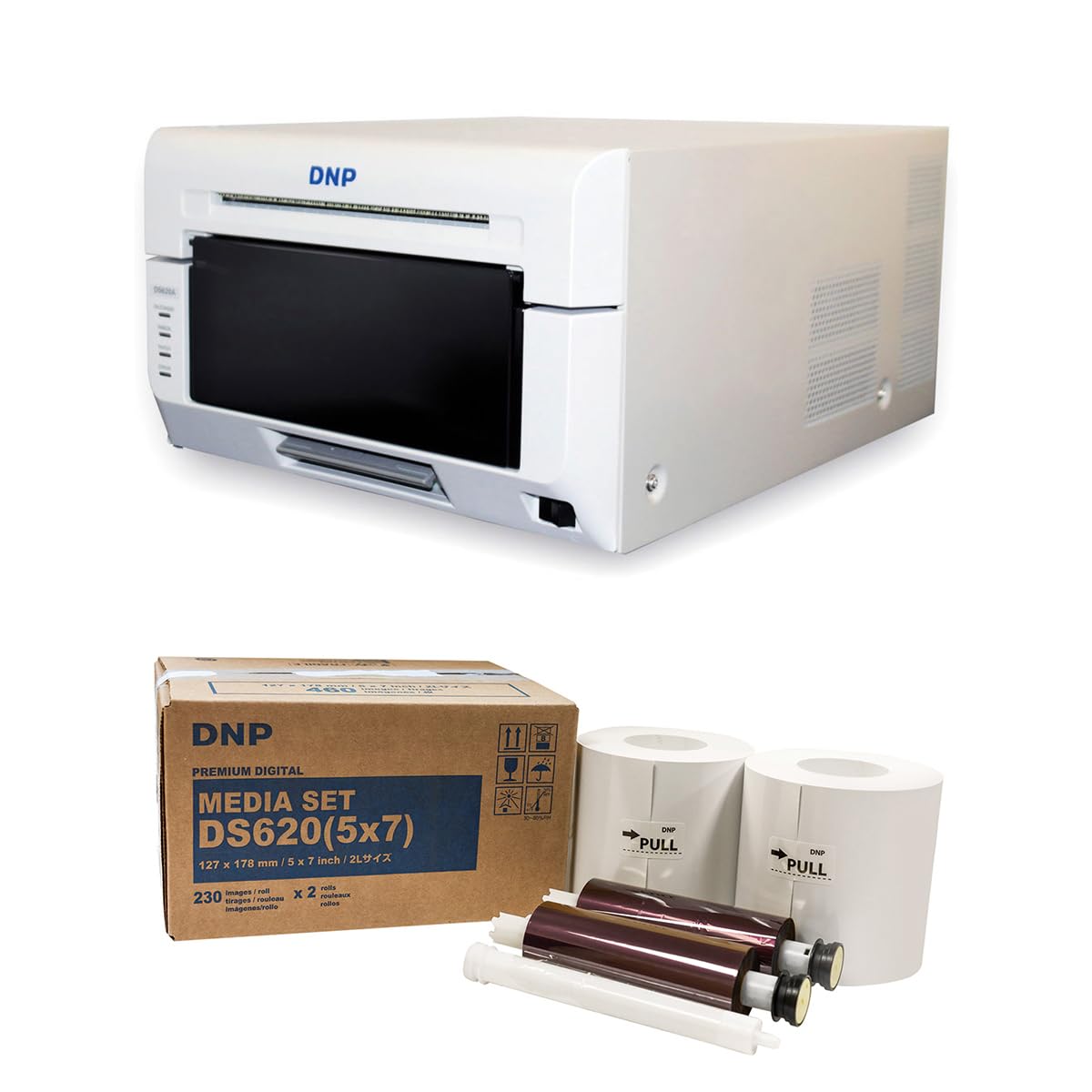
Dealbh 1.1: Aghaidh view of the DNP DS620A Professional Photo Printer. The printer is white with a black front panel where prints exit.
2. Pasgan-susbaint
Dèan cinnteach gu bheil na nithean gu lèir a tha air an liostadh gu h-ìosal air an toirt a-steach don phacaid agad:
- DNP DS620A Printer Unit
- 4x6 inch Print Catcher
- 5x7 inch Spacer
- Càball USB
- Corda cumhachd
- CD draibhear
- DNP 5x7 inch Dye Sub Media (for initial use)

Image 2.1: DNP 5x7 inch Dye Sub Media Set, including paper rolls and ribbon cartridges, packaged in a brown box.
3. Suidhich
3.1 Dì-phapadh agus suidheachadh
- Thoir an clò-bhualadair agus na goireasan uile a-mach às a’ phacaid gu faiceallach.
- Place the printer on a stable, level surface with adequate ventilation. Ensure sufficient space around the printer for media loading and print output.
3.2 Cumhachd ceangail
- Connect the power cord to the printer's power input and then to a grounded electrical outlet.
- Do not power on the printer until all other connections are made.
3.3 A ’ceangal ri coimpiutair
- Connect the provided USB cable from the printer to an available USB port on your computer.
3.4 stàlaich draibhear
- Insert the Driver CD into your computer's optical drive and follow the on-screen instructions to install the printer drivers.
- Alternatively, download the latest drivers from the official DNP weblàrach-lìn airson an t-siostam obrachaidh agad.
- For Mac users, ensure you install the specific Mac driver to enable features like square photo prints.
3.5 A’ luchdadh nam meadhanan
- Open the printer's front cover.
- Carefully load the DNP dye-sublimation paper roll and ribbon cartridge according to the instructions provided inside the printer or in the quick start guide.
- Ensure the media is correctly seated to prevent jams or print errors.
4. Stiùireadh Obrachaidh
4.1 A’ cur cumhachd air is dheth
- To power on, press the power button located on the printer. The indicator light will illuminate.
- Gus an cumhachd a chuir dheth, brùth is cum sìos am putan cumhachd gus an dùin an clò-bhualadair.
4.2 Clò-bhualadh dhealbhan
- Dèan cinnteach gu bheil am clò-bhualadair air agus ceangailte ris a’ choimpiutair agad.
- Open the image you wish to print using your preferred photo editing or printing software.
- Select the DNP DS620A as your printer.
- In the printer settings, choose your desired print size (e.g., 4x6 inch, 5x7 inch, 6x8 inch, 2x6 inch strips).
- For square prints (6x6 inch or 5x5 inch), ensure you are using the appropriate media pack (6x8 inch for 6x6 inch, 5x7 inch for 5x5 inch) and that the Mac driver is correctly configured.
- Initiate the print command. The printer will process and output the photo.

Image 4.1: The DNP DS620A printer in operation, with a photo emerging from the output slot.
4.3 Feartan adhartach
- Watermark Feature: The printer can apply a unique watermark to the back of your photos. Refer to the driver settings for configuration.
- Hot Folder Print (HFP) Utility: Utilize HFP Utility version 2.1 for multi-cut support for 4x6 inch and additional sizes.
- Mini Photobook Software: The printer supports the mini photobook software application for creative projects.
- Modh Fuireachais: The printer features a standby mode to reduce energy consumption when not actively printing.
5. Cumail suas
5.1 Glanadh a’ chlò-bhualadair
- Glan taobh a-muigh a’ chlò-bhualadair gu cunbhalach le clò bog, tioram.
- Seachain a bhith a’ cleachdadh glanaidh sgudail no solventan.
- Refer to the detailed cleaning instructions in the full manual for internal components.
5.2 Media Handling and Storage
- Store dye-sublimation media in a cool, dry place away from direct sunlight.
- Handle media by the edges to avoid fingerprints or damage to the printing surface.
- Replace media rolls and ribbon cartridges as instructed by the printer or when print quality degrades.
6. A ’dèanamh trioblaid
This section provides general guidance for common issues. For detailed troubleshooting, consult the comprehensive DNP DS620A service manual or contact customer support.
6.1 Clò-bhualadair gun fhreagairt
- Dèan cinnteach gu bheil am clò-bhualadair air agus gu bheil an càball cumhachd ceangailte gu tèarainte.
- Verify the USB cable is firmly connected to both the printer and the computer.
- Check the printer's status lights for any error indicators.
- Ath-thòisich an clò-bhualadair agus an coimpiutair.
6.2 Cùisean Càileachd Clò-bhualaidh
- Ensure the correct media type is loaded and that it is not damaged or expired.
- Check for any dust or debris inside the printer that might affect print quality.
- Verify that the printer drivers are up to date.
- Perform a test print to diagnose specific quality issues.
6.3 Media Jams
- Cuir dheth a’ chlò-bhualadair sa bhad.
- Carefully open the printer cover and remove any jammed media following the instructions in the full manual. Avoid tearing the paper.
- Ensure media is loaded correctly and not overfilled.
7. Sònrachaidhean
| Feart | Sònrachadh |
|---|---|
| Brand | DNP |
| Ainm Modail | DS620A |
| Teicneòlas clò-bhualaidh | Sublimation dath |
| Teicneòlas ceangail | USB |
| Toradh Clò-bhualadair | Dath |
| Astar clò-bhualaidh as àirde (dath) | 1 ppm (approx. 8.3 seconds for 4x6") |
| Fuasgladh | 300x300 dpi |
| Dath an inc | CMYK |
| Meadhanan Clò-bhualaidh | Pàipear dhealbhan gleansach |
| Meudan pàipeir le taic | 3.5x5, 4x6, 5x7, 6x8, 8x10 inches (and multi-cut options like 2x6, 5x5, 6x6) |
| Comas as motha air an duilleag | 400 (4x6 inch prints per roll) |
| Cuideam nì | 37.65 Punnd |
| Feart sònraichte | Wireless (via optional accessory), Standby Mode |
| Seòrsa Rianadair | iOS (via App) |
8. Barantas agus Taic
8.1 Fiosrachadh Barantais
The DNP DS620A Professional Photo Printer typically includes a Barantas 3-bliadhna Earranta. This warranty covers defects in materials and workmanship under normal use. Please refer to the warranty card included with your product or visit the official DNP weblàrach airson teirmichean is cumhaichean slàn.

Image 8.1: The DNP DS620A printer alongside a badge indicating a 3-Year Advance Exchange Extended Warranty.
8.2 Taic teachdaiche
For technical assistance, troubleshooting beyond this manual, or warranty claims, please contact DNP customer support. Contact information can typically be found on the DNP official website or in the documentation included with your printer.