
Intel SSDSC2BA800G4
Leabhar-làimhe Cleachdaiche Draibh Stàite Chruaidh Inneachail Intel DC S3710 800 GB 2.5"
Ro-ràdh
This manual provides comprehensive instructions for the installation, operation, maintenance, and troubleshooting of your Intel DC S3710 800 GB 2.5" Internal Solid State Drive. Please read this manual thoroughly before using the product to ensure optimal performance and longevity.
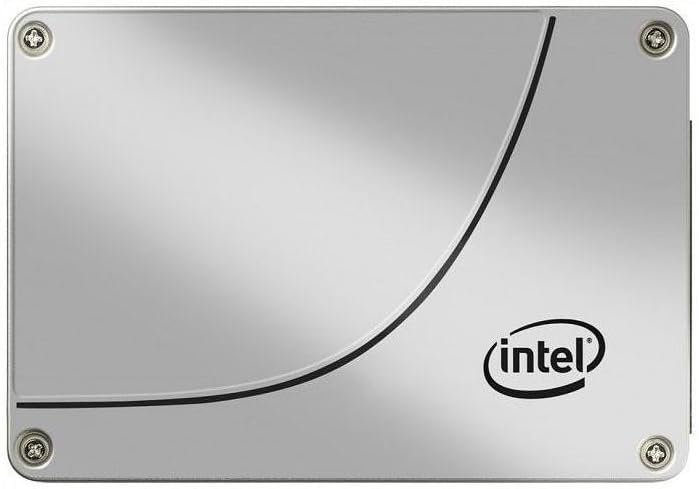
Figear 1: Aghaidh view of the Intel DC S3710 800 GB 2.5" Internal Solid State Drive, showcasing its metallic silver casing with the Intel logo and a distinctive curved line design.
Stàladh agus stàladh
The Intel DC S3710 SSD is designed for internal installation in desktop computers. Ensure your system is powered off and disconnected from the power source before proceeding.
Riatanasan:
- Desktop computer with an available 2.5-inch drive bay.
- SATA data cable.
- SATA power cable from your power supply unit (PSU).
- Sgriubhaidhriche (ceann Phillips air a mholadh).
Ceumannan stàlaidh:
- Ullaich do choimpiutair: Power down your desktop computer and unplug all cables. Open the computer case.
- Locate a drive bay: Identify an available 2.5-inch drive bay. Some cases may require a 3.5-inch to 2.5-inch adapter bracket (not included).
- Cuir an SSD air: Secure the SSD into the drive bay using screws. Ensure it is firmly seated to prevent movement.
- Ceangail càball dàta: Connect one end of the SATA data cable to the SSD's SATA data port and the other end to an available SATA port on your motherboard.
- Ceangail càball cumhachd: Connect a SATA power cable from your PSU to the SSD's SATA power port.
- Dùin a’ chùis: Once all connections are secure, close your computer case and reconnect all cables.
- Cumhachd air: Power on your computer. The system should detect the new SSD.
Stiùireadh Obrachaidh
After physical installation, the SSD needs to be initialized and formatted before use. If you plan to install an operating system, refer to your operating system's installation guide.
Initializing and Formatting (Windows 10 Example):
- Fosgail Riaghladh Diosc: Right-click the Start button and select "Disk Management".
- Tòisich an diosg: A pop-up window may appear prompting you to initialize the new disk. Select MBR (Master Boot Record) or GPT (GUID Partition Table) based on your system's requirements (GPT is recommended for modern systems and drives larger than 2TB, though this drive is 800GB). Click OK.
- Cruthaich Leabhar-làimhe Sìmplidh Ùr: Locate the unallocated space on your new SSD. Right-click it and select "New Simple Volume...".
- Lean an Draoidh: Follow the New Simple Volume Wizard to specify the volume size, assign a drive letter, and format the partition (NTFS file system is standard for Windows).
- Coileanta: Once the wizard completes, your SSD will be ready for use.
Gluasad dàta:
Faodaidh tu gluasad files to and from the SSD like any other storage drive. For optimal performance, ensure your motherboard's SATA ports are configured for AHCI mode in the BIOS/UEFI settings.
Cumail suas
Solid State Drives generally require less maintenance than traditional Hard Disk Drives. However, following these practices can help maintain performance and extend lifespan:
- Cuir TRIM an gnìomh: Ensure TRIM is enabled in your operating system. TRIM helps the SSD manage data more efficiently, preventing performance degradation over time. Most modern operating systems (Windows 7+, macOS, Linux) enable TRIM by default.
- Seachain dì-mhilleadh: Na dèan dì-bhriseadh air SSD. Tha dì-bhriseadh air a dhealbhadh airson diosgan cruaidh-chruaidh agus faodaidh e fad-beatha SSD a lùghdachadh le bhith ag adhbhrachadh chuairtean sgrìobhaidh neo-riatanach.
- Cùm Àite Saor: Try to keep at least 10-15% of the SSD's capacity free. This allows the SSD's wear-leveling algorithms to function optimally.
- Ùrachaidhean firmware: Periodically check Intel's official website for firmware updates for your SSD model. Firmware updates can improve performance, stability, and address known issues.
- Proper Shutdowns: Always shut down your computer properly. Abrupt power loss can potentially lead to data corruption or drive issues.
Fuasgladh thrioblaidean
If you encounter issues with your Intel DC S3710 SSD, refer to the following common problems and solutions:
| Trioblaid | Adhbhar a dh’fhaodadh a bhith ann | Fuasgladh |
|---|---|---|
| SSD not detected by BIOS/OS. | Loose cables, incorrect BIOS settings, faulty port. |
|
| Coileanadh slaodach. | TRIM not enabled, nearly full drive, outdated firmware. |
|
| Operating system not booting from SSD. | Òrdugh tòiseachaidh ceàrr, stàladh OS coirbte. |
|
Sònrachaidhean
| Feart | Mion-fhiosrachadh |
|---|---|
| Brand | Intel |
| Sreath Modail | SSDSC2BA800G4 |
| Comas stòraidh | 800 GB |
| Factor foirm | 2.5 òirlich |
| Eadar-aghaidh | SATA 6Gb/s |
| Seòrsa stàlaidh | Dràibhear cruaidh a-staigh |
| Innealan co-fhreagarrach | Deasg |
| Cuideam nì | 2.53 unnsa |
| Meudan toraidh (LxWxH) | 4.1 x 2.7 x 0.3 òirleach |
| Dèanadair | Intel Corporation |
| A’ chiad cheann-latha ri fhaighinn | 16 Gearran, 2015 |
Barantas agus Taic
For warranty information and technical support, please refer to Intel's official weblàrach-lìn no cuir fios chun t-seirbheis teachdaiche aca. Cùm do chuidhteas ceannach mar dhearbhadh ceannach airson tagraidhean barantais.
Intel may offer various support resources including:
- Stòr-dàta eòlais air-loidhne agus Ceistean Cumanta.
- Luchdaich sìos draibhearan agus firmware.
- Community forums.
- Direct customer support via phone or email.
Smaoinich air ceannachasing additional data recovery plans for enhanced protection of your valuable data. Options such as 2-Year or 3-Year Data Recovery Plans may be available from various retailers.
Ask a question about this manual
Ask about setup, troubleshooting, compatibility, parts, safety, or missing instructions. Manuals+ will review the question and use this page’s manual context to help answer it.