
1. Ro-ràdh
This manual provides essential instructions for the setup, operation, maintenance, and troubleshooting of your IBM Lenovo Preferred Pro USB Wired Keyboard and Mouse Set. Please read this manual thoroughly before using the product to ensure proper functionality and longevity.
2. Toradh thallview
The IBM Lenovo Preferred Pro USB Wired Keyboard and Mouse Set offers a reliable input solution for your computer. The keyboard features a standard layout with a numeric keypad, while the mouse is a 2-button optical mouse with a scroll wheel. Both devices connect via a standard USB interface, providing plug-and-play compatibility with most operating systems.

Figear 2.1: Mullach view of the IBM Lenovo Preferred Pro USB Wired Keyboard.
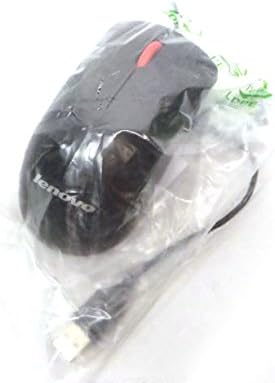
Figear 2.2: Mullach view of the Lenovo USB 2-Button Optical Mouse.
Prìomh fheartan:
- USB Wired Connectivity: Ensures a stable and reliable connection.
- Plug-and-Play: No additional drivers typically required for basic functionality.
- Standard Keyboard Layout: Full-size keyboard with numeric keypad.
- Optical Mouse: Precise tracking with a scroll wheel for easy navigation.
3. Suidhich
Follow these steps to connect your keyboard and mouse to your computer.
- Fosgail na h-innealan: Thoir am meur-chlàr agus an luchag a-mach às a’ phacaid aca gu faiceallach.
- Identify USB Connectors: Locate the USB connectors at the end of the keyboard and mouse cables.
- Ceangail ris a’ choimpiutair: Insert the USB connector of the keyboard into an available USB port on your computer. Repeat this step for the mouse.
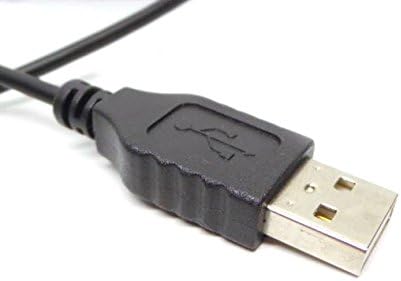
Figure 3.1: Close-up of a standard USB Type-A connector, used for connecting the keyboard and mouse.
Your computer should automatically detect and install the necessary drivers for the keyboard and mouse. No additional software installation is typically required for basic functionality.
4. Stiùireadh Obrachaidh
4.1 Cleachdadh a’ Mheur-chlàir
- A' sgrìobhadh: Cleachd na h-iuchraichean alfanumeric airson cuir a-steach teacsa.
- Iuchraichean Gnìomh (F1-F12): These keys perform various functions depending on the application or operating system.
- Meur-chlàr àireamhach: Use the dedicated numeric keypad for efficient data entry. Ensure the "Num Lock" indicator light is on.
- Iuchraichean Sònraichte: Utilize keys like "Print Screen", "Scroll Lock", "Pause/Break", "Insert", "Home", "Page Up", "Delete", "End", and "Page Down" for their respective functions.
4.2 Cleachdadh na Luchaige
- Gluasad: Move the mouse across a flat surface to control the cursor on the screen.
- Cliog air chlì: Brùth air a’ phutan clì gus nithean a thaghadh, ceanglaichean fhosgladh, no gnìomhan a ghnìomhachadh.
- Cliog deas: Press the right button to open context menus.
- Cuibhle Scroll: Roll the scroll wheel up or down to navigate through documents or web pages. The scroll wheel may also function as a middle click button.
5. Cumail suas
Proper care and maintenance will extend the life of your keyboard and mouse.
- Glanadh:
- Disconnect devices from the computer before cleaning.
- Cleachd bog, damp cloth with a mild cleaning solution (e.g., water or isopropyl alcohol) to wipe surfaces.
- Avoid excessive moisture, especially near keycaps and optical sensors.
- Use compressed air to remove dust and debris from between keyboard keys.
- Stòradh: Stòraich na h-innealan ann an àrainneachd ghlan, thioram air falbh bho theodhachd anabarrach agus solas dìreach na grèine.
- Seachain dòrtadh: Keep liquids away from the keyboard and mouse to prevent damage.
6. A ’dèanamh trioblaid
If you encounter issues with your keyboard or mouse, refer to the following common problems and solutions:
| Trioblaid | Adhbhar a dh’fhaodadh a bhith ann | Fuasgladh |
|---|---|---|
| Chan eil am meur-chlàr/luchag a’ freagairt | Ceangal USB sgaoilte, port USB lochtach, duilgheadas leis an draibhear. |
|
| Na h-iuchraichean nach eil ag obair no a’ taipeadh gu ceàrr | Debris under keys, software conflict, keyboard settings. |
|
| Cursair na luchaige neo-riaghailteach no gun ghluasad | Dirty optical sensor, unsuitable surface, software issue. |
|
If the problem persists after trying these solutions, contact customer support or your reseller for further assistance.
7. Sònrachaidhean
| Feart | Mion-fhiosrachadh |
|---|---|
| Keyboard Model Numbers | 54Y9400, 41A5289, SK-8825, KB1021 |
| Mouse Model Numbers | 45J4888, 25011476, 45J4889, M-U0025-O |
| Brand | IBM / Lenovo |
| Dath | Dubh |
| Teicneòlas ceangail | Uèir USB |
| Seòrsa meur-chlàr | Preferred Pro USB Wired Keyboard |
| Seòrsa lucha | 2-Button Black Red Scroll Wheel Optical Mouse |
| Meud pacaid | 22 x 10.2 x 4.7 òirleach (tuairmse) |
| Cuideam nì | 1 not (tuairmseach) |
| Dèanadair | Lenovo |
8. Barantas agus Taic
For warranty information, please refer to the documentation provided at the time of purchase or contact your reseller. IBM and Lenovo products typically come with a standard manufacturer's warranty.
For technical support or further inquiries, please contact the product's manufacturer or the authorized reseller from whom you purchased the item. Keep your purchase receipt and product model numbers handy for faster service.