
1. Toradh thallview
The TP-Link TL-WA750RE is a 150Mbps Universal Wireless Range Extender designed to expand the coverage of an existing wireless network. It eliminates Wi-Fi dead zones by boosting the wireless signal to previously unreachable or hard-to-wire areas. Its compact, wall-mounted design allows for flexible deployment and easy relocation within your home or office.
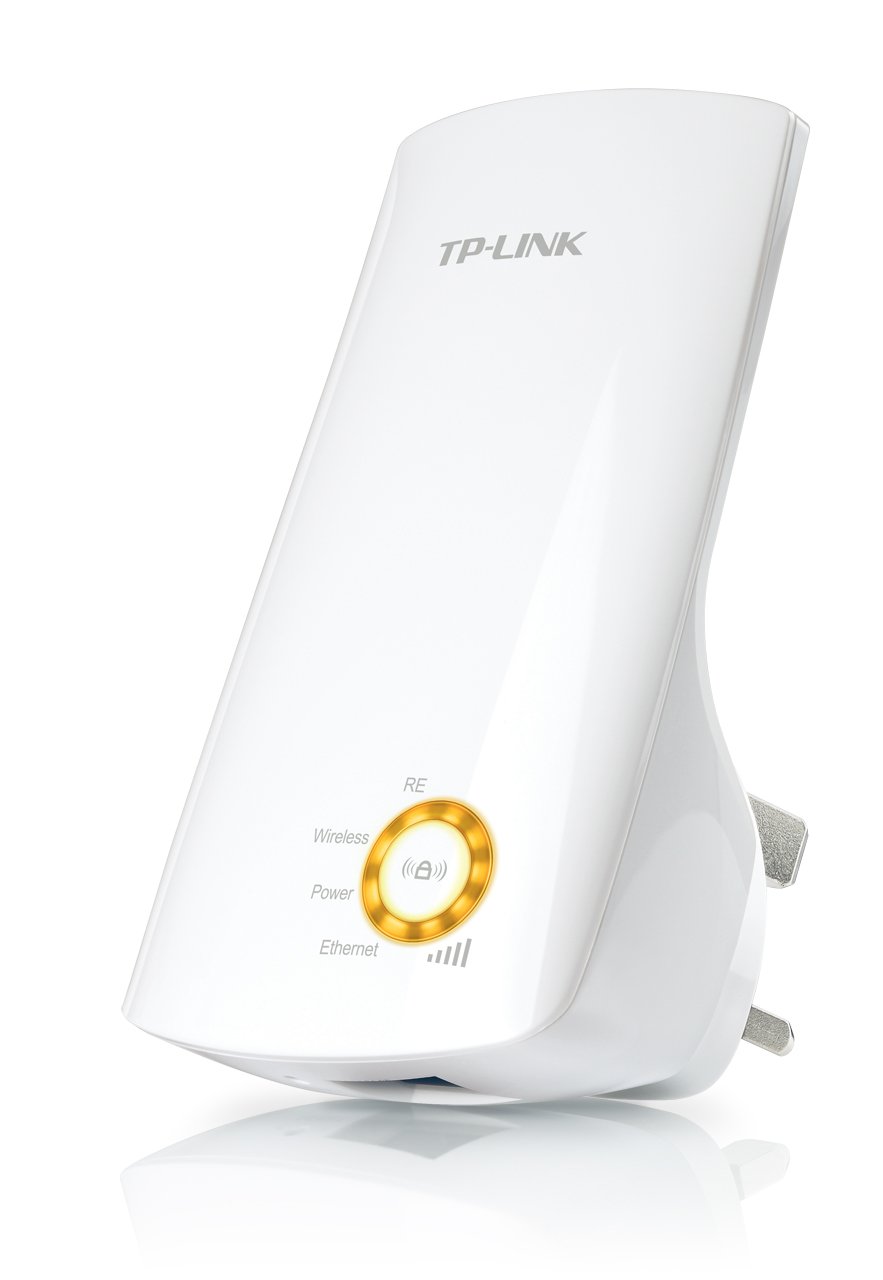
Figear 1: TP-Link TL-WA750RE Universal Wireless Range Extender. This image shows the device in its retail packaging, highlighting its compact design and wall-plug form factor.
2. Prìomh fheartan
- Modh Extender Raon: Boosts wireless signal to eliminate Wi-Fi dead zones and extend network coverage.
- Dealbhadh Compact: Small size and wall-mounted design for easy deployment and flexible movement.
- Putan WPS: Allows for instant setup and secure connection with compatible routers.
- Comharra Comharran Glic: Helps users find the optimal location for placing the range extender for best performance.
- Co-fhreagarrachd Uile-choitcheann: Works seamlessly with all 802.11n/g/b wireless devices.
3. Pasgan-susbaint
Mar as trice bidh na nithean a leanas anns a’ phacaid toraidh:
- TP-Link TL-WA750RE 150Mbps Universal Wireless Range Extender
- Leabhar-làimhe stiùiridh
4. Stiùirich rèiteachaidh
4.1. Suidheachadh Luath a’ cleachdadh Putan WPS
- Dèan ceangal: Plug the TL-WA750RE into an electrical outlet near your wireless router.
- Cuir WPS an gnìomh air an router: Press the WPS button on your main wireless router. Refer to your router's manual for the exact location and procedure.
- Cuir WPS an gnìomh air an Leudaichear: Within two minutes, press the WPS button on the TL-WA750RE. The Signal LED on the extender should begin to flash.
- Fuirich airson Ceangal: The Signal LED will turn solid blue or green when a successful connection is established.
- Ath-ghluasad Extender: Unplug the extender and move it to a location between your router and the Wi-Fi dead zone. Ensure the Signal LED indicates a strong connection (e.g., solid blue or green) in the new location.
4.2. Suidheachadh làimhe tro Web Brabhsair
- Dèan ceangal: Plug the TL-WA750RE into an electrical outlet near your computer.
- Ceangail ris an Leudaichear: Connect your computer to the extender's Wi-Fi network (e.g., "TP-LINK_Extender_XXXXXX"). No password is required initially.
- Ruigsinneachd Web Eadar-aghaidh: Fosgail a web brabhsair agus seòrsa http://tplinkrepeater.net or the extender's default IP address (usually 192.168.0.254) into the address bar.
- Log a-steach: Enter "admin" for both the username and password when prompted.
- Lean an stiùireadh air an sgrion: Use the Quick Setup wizard to select your main Wi-Fi network and enter its password.
- Ath-ghluasad Extender: Once configured, unplug the extender and move it to an optimal location between your router and the desired coverage area.
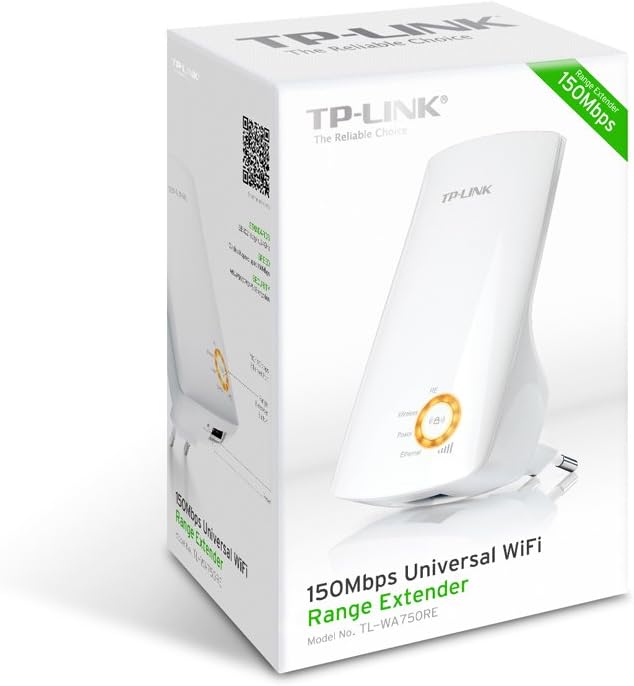
Figear 2: Taobh view of the TL-WA750RE. This image illustrates the physical layout of the device, including the WPS button and Ethernet port, which are crucial for setup and operation.
5. A’ cleachdadh an Leudaichear Raoin
Once the TL-WA750RE is successfully set up, it will automatically extend your existing Wi-Fi network. Devices within the extended range can connect to the network name created by the extender (e.g., "YourNetworkName_EXT").
5.1. Smart Signal Indicator
The Smart Signal Indicator LEDs on the front of the device provide real-time feedback on the signal strength received from your main router. This helps you determine the best placement for the extender:
- Soladach Gorm / Uaine: Excellent signal strength.
- Dearg cruaidh: Weak signal strength. Consider relocating the extender closer to your router.
- dheth: No connection to the main router.
5.2. Ethernet Port Usage
The TL-WA750RE includes an Ethernet port. This port can be used to connect a wired device, such as a desktop computer, gaming console, or smart TV, to your wireless network, providing a stable wired connection in the extended Wi-Fi area.
6. Cumail suas
- Glanadh: Cleachd clò bog, tioram airson an inneal a ghlanadh. Na cleachd innealan-glanaidh leaghaidh no aerosol.
- Suidheachadh: Avoid placing the extender in direct sunlight, near heat sources, or in areas with high humidity.
- Ùrachaidhean firmware: Thoir sùil bho àm gu àm air an làrach-lìn oifigeil aig TP-Link weblàrach airson ùrachaidhean firmware gus dèanamh cinnteach à coileanadh agus tèarainteachd as fheàrr.
- Cearcall cumhachd: If the device experiences issues, try unplugging it from the power outlet for 10 seconds and then plugging it back in.
7. A ’dèanamh trioblaid
- Q1: What should I do if I cannot access the extender's web duilleag stiùiridh?
- A1: Ensure your computer is connected to the extender's network. Verify that http://tplinkrepeater.net is correctly typed in the browser. If issues persist, try using the extender's IP address (e.g., 192.168.0.254) or reset the extender to factory defaults.
- Q2: My extended network has poor signal or frequent disconnections.
- A2: Check the Smart Signal Indicator on the extender. If it's red or off, the extender is too far from your main router. Relocate the extender to a position where the indicator shows a strong signal (solid blue/green). Ensure there are no major obstructions between the router and the extender.
- Q3: How do I reset the extender to factory default settings?
- A3: With the extender powered on, use a pin to press and hold the Reset button (usually a small hole) for approximately 5-10 seconds until all LEDs flash briefly. The extender will then restart with factory default settings.
8. Sònrachaidhean
| Brand | TP-Ceangal |
| Modail Àireamh | TL-WA750RE |
| Inbhe gun uèir | 802.11b/g/n |
| Ìre gluasad dàta | 150 Mbps |
| Tricead | 2.4 GHz |
| Feartan sònraichte | Smart Signal Indicator, WPS Button |
| Seòrsa ceangail | RJ45 (Port Ethernet) |
| Cuideam nì | 0.4 Punnd |
| Dath | Geal |
9. Barantas agus Taic
9.1. Fiosrachadh Barantais
This TP-Link TL-WA750RE device comes with a Barantas 2-bliadhna bho cheann-latha a’ cheannaich. Cùm dearbhadh do cheannach airson tagraidhean barantais. Tha am barantas a’ còmhdach lochdan ann an stuthan agus obair-ciùird fo chleachdadh àbhaisteach.
9.2. Taic Teicnigeach
Airson taic theicnigeach, fuasgladh dhuilgheadasan, no ceistean sam bith eile, tadhail air taic oifigeil TP-Link. website or contact their customer service. You can find detailed support resources, FAQs, and contact information at www.tp-link.com/support.