
Ro-ràdh
The ADATA S102PRO is a high-performance USB 3.0 flash drive designed for fast and reliable data storage and transfer. Its durable design and high-speed interface make it ideal for everyday use, allowing you to carry important files, documents, photos, and videos with ease.
Suidhich
Follow these steps to begin using your ADATA S102PRO USB Flash Drive:
- Comharraich port USB: Locate an available USB port on your computer. For optimal performance, use a USB 3.0 port (often colored blue internally). The ADATA S102PRO is backward compatible with USB 2.0 ports, but data transfer speeds will be limited to USB 2.0 rates.
- Thoir air falbh an Cap: Carefully remove the protective cap from the USB flash drive to expose the USB connector.
- Cuir a-steach an Drive: Insert the USB connector firmly into the USB port on your computer. Ensure it is inserted correctly; do not force it.
- Aithneachadh Siostaim: Your operating system (Windows, macOS, Linux) should automatically detect and install the necessary drivers. A notification may appear indicating that the device is ready for use. The drive will typically appear as a removable disk or volume in your file rannsachair.
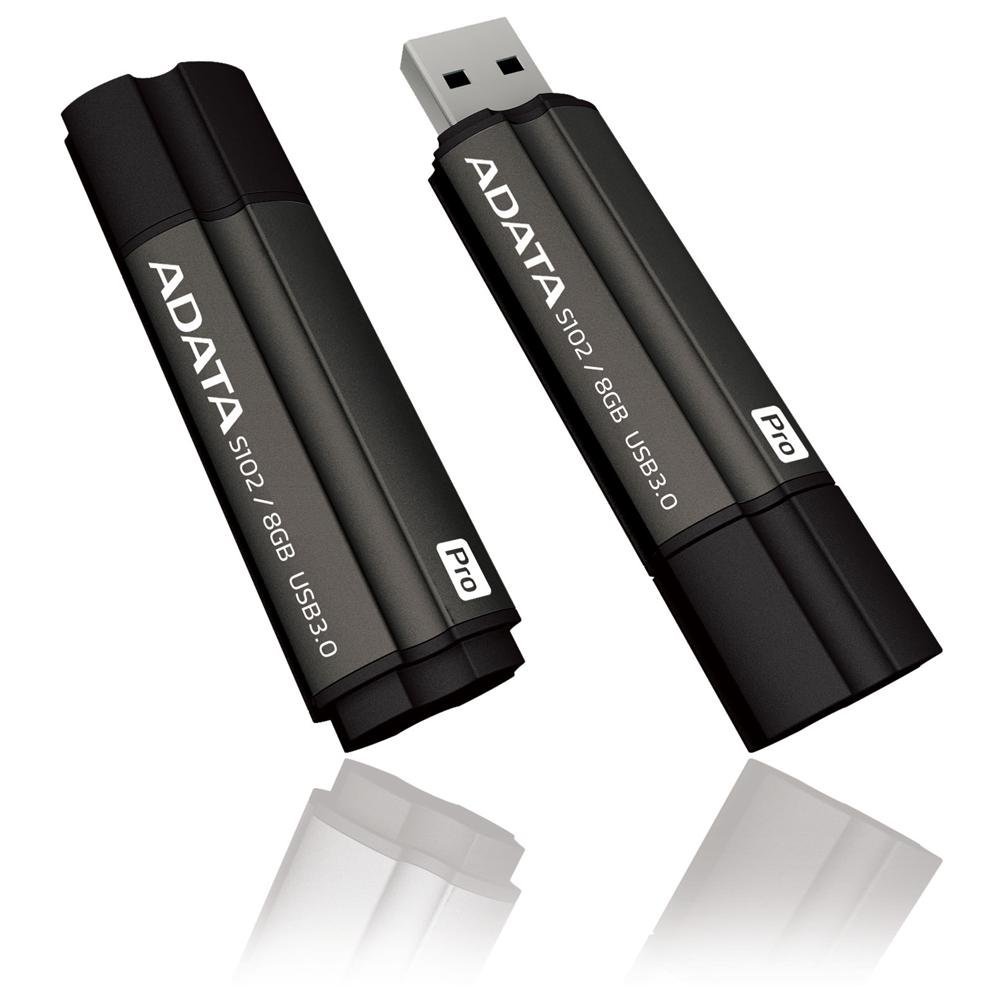
Image: The ADATA S102PRO USB Flash Drive shown with its protective cap on and with the cap removed, revealing the USB 3.0 connector. This illustrates the physical appearance and how to prepare the drive for insertion.
Ag obrachadh
Once the ADATA S102PRO is recognized by your computer, you can begin transferring files:
- A’ faighinn cothrom air an Draibh:
- Windows: Open "This PC" or "My Computer" and locate the drive listed under "Devices and drives" (e.g., "Removable Disk" or a drive letter like E:).
- macOS: Nochdaidh ìomhaigh an draibh air an deasg agad no ann am bàr-taoibh Finder fo “Àiteachan”.
- A' gluasad Files:
- Gus lethbhreac a dhèanamh files gu the flash drive, drag and drop them from your computer's folders into the flash drive's window.
- Gus lethbhreac a dhèanamh files bho the flash drive, drag and drop them from the flash drive's window to a folder on your computer.
- You can also use the standard copy (Ctrl+C / Command+C) and paste (Ctrl+V / Command+V) functions.
- Thoir air falbh an draibhear gu sàbhailte: Tha e deatamach an draibh flash a thoirt a-mach gu sàbhailte mus tèid a thoirt air falbh gu corporra gus casg a chuir air truailleadh dàta.
- Windows: Click the "Safely Remove Hardware and Eject Media" icon in the system tray (bottom-right corner), then select your flash drive and click "Eject." Wait for the "Safe to Remove Hardware" message.
- macOS: Drag the drive icon from the desktop to the Trash, or click the Eject button next to the drive name in the Finder sidebar. Wait for the icon to disappear before removing the drive.
Cumail suas
Proper care will help ensure the longevity and reliability of your ADATA S102PRO USB Flash Drive:
- Dìon an Ceanglaiche: Cùm a’ chaip dìon air a’ cheanglaiche USB an-còmhnaidh nuair nach eilear a’ cleachdadh an draibh gus casg a chur air duslach, salachar agus milleadh corporra.
- Seachain suidheachaidhean fìor: Do not expose the drive to extreme temperatures, direct sunlight, high humidity, or strong magnetic fields.
- Làimhseachadh le cùram: Avoid dropping the drive or subjecting it to strong impacts.
- Do Not Remove During Transfer: Never unplug the drive while data is being read from or written to it. Always follow the safe removal procedure.
- Cùl-taic cunbhalach: While flash drives are reliable, it is always recommended to back up critical data to another storage device or cloud service.
Fuasgladh thrioblaidean
If you encounter issues with your ADATA S102PRO, try the following solutions:
- Draibh gun aithneachadh:
- Dèan cinnteach gu bheil an draibh air a chur a-steach gu tur don phort USB.
- Feuch port USB eile air a’ choimpiutair agad.
- Dèan deuchainn air an draibh air coimpiutair eile gus faighinn a-mach nach eil duilgheadas sònraichte don choimpiutair ann.
- Check your computer's Device Manager (Windows) or System Information (macOS) to see if the drive is listed, even if it doesn't appear in File Rannsachair/Lorgadair.
- Astaran Gluasaid Slaodach:
- Ensure you are connected to a USB 3.0 port for optimal performance. USB 2.0 ports will limit speeds.
- A’ gluasad mòran rudan beaga filefaodaidh e a bhith nas slaodaiche na bhith a’ gluasad beagan mhòran files.
- Dùin aplacaidean eile a dh’ fhaodadh a bhith a’ cleachdadh ghoireasan an t-siostaim no a’ dèanamh obrachaidhean diosc.
- Chan urrainn dhomh sgrìobhadh Files gu Dràibheadh:
- Thoir sùil a bheil an draibh làn. Sguab às rudan neo-riatanach. fileno an gluasad gu àite eile.
- Dèan cinnteach gu bheil an file system (e.g., FAT32, NTFS, exFAT) is compatible with your operating system and allows writing. If formatted as NTFS on macOS, you may only have read access without third-party software.
- Check for any software-based write protection or permissions issues on your computer.
Sònrachaidhean
| Brand | ADATA |
| Ainm Modail | S102PRO |
| Modail Àireamh | AT806-4G-CPK |
| Comas stòraidh cuimhne | 4 GB |
| Eadar-aghaidh bathar-cruaidh | USB 3.0 (Co-chòrdail air ais le USB 2.0) |
| Dèanadair | A-DATA TECHNOLOGY (USA) CO. L |
| UPC | 842243005080 |
| ASIN | B004AVOGW8 |
Barantas agus Taic
For detailed warranty information, product registration, and technical support, please visit the official ADATA weblàrach. Mar as trice gheibh thu goireasan taic, Ceistean Cumanta, agus fiosrachadh conaltraidh airson seirbheis luchd-cleachdaidh an sin.
Oifigear ADATA Weblàrach: www.adata.com