
1. Ro-ràdh
The NETGEAR DGN3500 N300 Wireless Gigabit ADSL2+ Modem Router integrates an ADSL2+ modem and a Wireless-N router into a single device. This unit is designed to deliver high-speed internet access and establish a robust wireless network for both home and small office environments. This manual provides essential instructions for the setup, operation, and maintenance of your NETGEAR DGN3500 device.
2. Pasgan-susbaint
Mus lean thu air adhart leis an stàladh, dèan cinnteach gu bheil na nithean a leanas anns a’ phacaid agad:
- NETGEAR DGN3500 N300 Wireless Gigabit ADSL2+ Modem Router
- Càball Ethernet
- Phone Cable (DSL Cable)
- Adapter cumhachd
- Resource CD (may contain software and documentation)
- Stiùireadh stàlaidh luath
3. Thar-chor corporraview
Dèan eòlas air comharran agus puirt an inneil.
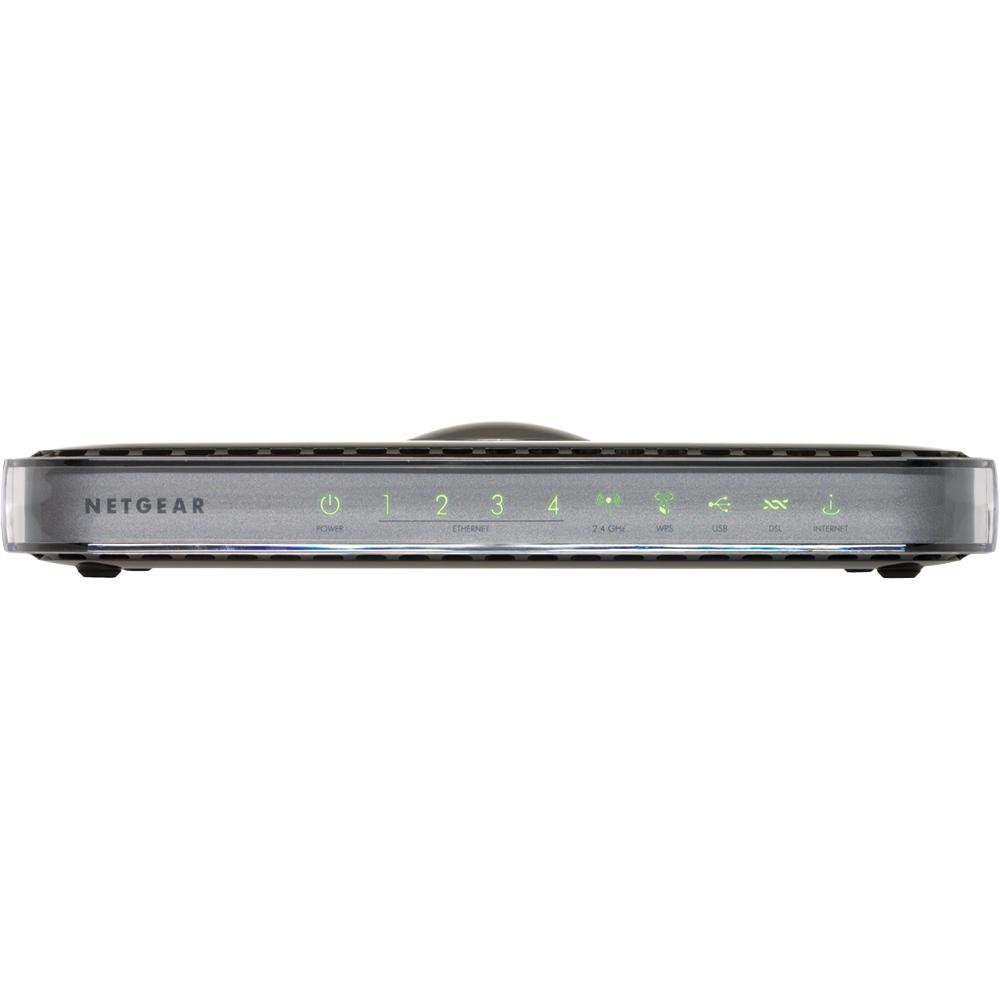
Ìomhaigh: Aghaidh view of the NETGEAR DGN3500 N300 Wireless Gigabit ADSL2+ Modem Router, showing its indicator lights and sleek design.
Pannalan aghaidh LED
- Cumhachd LED: A 'sealltainn inbhe cumhachd an inneal.
- LED eadar-lìn: Illuminates when an active ADSL connection is established and flashes to indicate internet activity.
- LED gun uèir: Indicates the status and activity of the wireless network.
- LEDan LAN (1-4): Each LED corresponds to a wired Ethernet port, indicating connection and activity.
- USB LED: Indicates activity on the USB port, typically when a storage device is connected and accessed.
Puirt is Putanan a’ Phannal Chùil
- Port DSL: Connects the modem router to your ADSL telephone line.
- Puirt Ethernet (1-4): Four 10/100 Fast Ethernet ports for connecting wired devices such as computers, gaming consoles, or network printers.
- Port USB: Supports ReadySHARE functionality for connecting a USB storage device to share files thairis air an lìonra agad.
- Putan Cumhachd Air / Off: A’ cumail smachd air solar cumhachd an inneil.
- Port Adaptair Cumhachd: Connects the provided power adapter to the device.
- Putan Ath-shuidheachadh: A recessed button used to restore the device to its factory default settings. Use a paperclip or similar pointed object to press and hold for approximately 10 seconds.
4. Stiùirich rèiteachaidh
4.1. Ceangal bathar-cruaidh
- Ceangail an loidhne DSL: Connect one end of the phone cable to the DSL port on the modem router and the other end to your telephone wall jack. If you have a phone splitter, ensure the modem router is connected to the modem port of the splitter.
- Ceangal cumhachd: Plug the power adapter into the power adapter port on the modem router and then into an electrical outlet. Press the Power On/Off button if necessary. Wait for the Power LED to turn solid green.
- Connect a Computer (Optional for Initial Setup): For initial configuration, you may connect a computer directly to one of the Ethernet ports (1-4) on the modem router using an Ethernet cable. This ensures a stable connection during setup.
4.2. Software Configuration (Initial Setup)
- Access the Router Interface: Fosgail a web browser on a connected computer. In the address bar, type http://www.routerlogin.net or http://192.168.0.1 agus brùth Enter.
- Log a-steach: When prompted, enter the default username (usually rianaire) agus facal-faire (mar as trice facal-faire). These credentials can be found on a label on the device or in the Quick Installation Guide.
- Ruith an Draoidh Suidheachaidh: The NETGEAR Genie setup wizard should launch automatically. Follow the on-screen instructions to configure your internet connection. You will need your Internet Service Provider (ISP) details, including your DSL username and password.
- Rèitich Lìonra gun Uèir: During the setup, you will be prompted to set up your wireless network (Wi-Fi). Choose a unique network name (SSID) and a strong password (WPA2-PSK recommended). Note these details for connecting your wireless devices.
- Suidheachadh coileanta: Once the wizard is complete, save your settings. The modem router will restart, and your internet connection should become active.
5. Stiùireadh Obrachaidh
5.1. Wireless Network Configuration
- Innealan ceangail: On your wireless devices (laptops, smartphones, tablets), search for available Wi-Fi networks. Select the SSID you configured during setup and enter the wireless password.
- Ag atharrachadh roghainnean Wi-Fi: To modify your Wi-Fi network name (SSID), password, or security type, log back into the router's web eadar-aghaidh (http://www.routerlogin.net). Navigate to the Wireless Settings section.
- Push 'N' Connect (WPS): For WPS-compatible devices, press the WPS button on the modem router and then activate WPS on your device within two minutes to establish a secure connection without entering a password.
5.2. ReadySHARE USB Storage
The ReadySHARE feature allows you to connect a USB storage device (e.g., a USB hard drive or flash drive) to the modem router and share its contents with all devices on your network.
- Ceangail USB Drive: Plug your USB storage device into the USB port on the rear of the modem router.
- Access Shared Content: From a computer on your network, open File Explorer (Windows) or Finder (macOS). The USB drive should appear as a network share. You can also access it via the router's web interface under the ReadySHARE section.
5.3. NETGEAR Genie
NETGEAR Genie is the web-based management interface for your modem router. It provides an intuitive dashboard to manage, monitor, and repair your home network.
- Inbhe lìonra: View real-time information about your internet connection, wireless network, and connected devices.
- Riaghladh inneal: See a list of all devices connected to your network, manage their access, and view their IP addresses.
- Roghainnean adhartach: Access advanced features such as port forwarding, parental controls, and VPN settings.
6. Cumail suas
Regular maintenance helps ensure optimal performance and security for your modem router.
- Ùrachaidhean firmware: Thoir sùil bho àm gu àm air taic NETGEAR website for new firmware versions. Updating firmware can improve performance, add new features, and fix security vulnerabilities. You can usually update firmware through the router's web eadar-aghaidh.
- Ath-thòiseachadh cunbhalach: Rebooting your modem router every few weeks can help clear its memory and resolve minor connectivity issues. Simply unplug the power adapter for 10 seconds and then plug it back in.
- Glanadh Corporra: Keep the device free from dust and obstructions to ensure proper ventilation. Use a soft, dry cloth for cleaning.
- Cleachdaidhean tèarainteachd as fheàrr: Regularly change your router's administrative password and Wi-Fi password. Use strong, unique passwords for both.
7. A ’dèanamh trioblaid
Tha an earrann seo a’ dèiligeadh ri cùisean cumanta a dh’ fhaodadh tu a thighinn tarsainn orra.
- Gun cheangal eadar-lìn:
- Check if the Internet LED is solid green. If not, verify DSL line connection and contact your ISP.
- Ensure your ISP username and password are correctly entered in the router settings.
- Ath-thòisich an router modem agus do choimpiutair.
- Luas gun uèir slaodach:
- Ensure your devices are connected to the 802.11n network if supported.
- Reduce interference by moving the router away from other electronic devices (cordless phones, microwaves).
- Thoir sùil airson ùrachaidhean firmware.
- Chan urrainn dhomh faighinn gu roghainnean an router:
- Dèan cinnteach gu bheil an coimpiutair agad ceangailte ris an router (le uèir no gun uèir).
- Dèan cinnteach gu bheil thu a’ cleachdadh an seòladh IP cheart (192.168.0.1) or URL (routerlogin.net).
- Glan tasgadan is briosgaidean do bhrabhsair, no feuch brabhsair eadar-dhealaichte.
- Ag ath-shuidheachadh gu roghainnean factaraidh: If you encounter persistent issues or forget your password, you can restore the modem router to its factory default settings. With the device powered on, use a paperclip to press and hold the recessed Reset button on the rear panel for approximately 10 seconds. The device will reboot with default settings.
8. Sònrachaidhean
| Feart | Sònrachadh |
|---|---|
| Brand | NETGEAR |
| Ainm Modail | DGN3500 |
| Inbhe gun uèir | 802.11a/b/g/n (N300) |
| Data Transfer Rate (Wireless) | Suas gu 300 Mbps |
| Leud-bann Port LAN | 10/100 Mbps (Ethernet luath) |
| Àireamh de phuirt | 1x ADSL2+ port, 4x 10/100 Fast Ethernet ports, 1x USB port |
| Pròtacal Tèarainteachd | WEP, WPA-PSK, WPA2-PSK, WPS |
| Operating System (Management) | NETGEAR Genie |
| Cuideam nì | 1.1 Punnd |
| Innealan co-fhreagarrach | Coimpiutair pearsanta |
| Teicneòlas ceangail | Uèirleas |
9. Barantas agus Taic
For detailed warranty information, technical support, and additional resources, please refer to the documentation included with your product. You can also visit the official NETGEAR support website for the latest drivers, firmware, and troubleshooting guides.
Taic NETGEAR Weblàrach: https://www.netgear.com/support/