
1. Suidhich
1.1 Fo-phacadh agus Sgrùdadh Tùsail
Carefully remove your ASUS K52F-A2B laptop from its packaging. Inspect the laptop and all accessories for any signs of damage. The package should contain the laptop, AC adapter, power cord, and documentation.
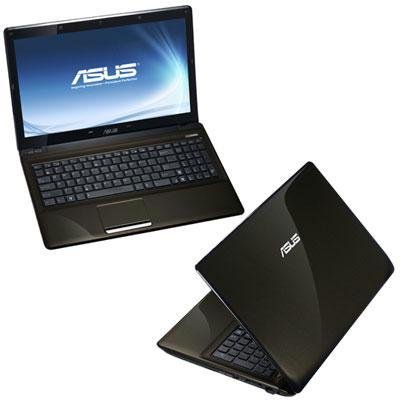
Image 1.1: The ASUS K52F-A2B laptop. This image shows the closed laptop from an angle, highlighting its dark brown finish and sleek design.
1.2 A 'ceangal an AC Adapter
Before initial use, connect the AC adapter to the laptop and a power outlet. This ensures the battery is charged and provides stable power for setup.
- Cuir an inneal-atharrachaidh AC a-steach don cheangal cumhachd air taobh an laptop agad.
- Plug an càball cumhachd a-steach don inneal-atharrachaidh AC.
- Plug ceann eile an t-sreang cumhachd a-steach do ionad dealain stèidhichte.
1.3 Cumhachd Tòiseachaidh Air adhart
Once the AC adapter is connected, open the laptop lid and press the power button. The laptop will begin its initial boot sequence. Follow the on-screen instructions to complete the operating system setup (Windows 7 Professional 64-bit).
2. Operating Your ASUS K52F-A2B Laptop
2.1 Cumhachd Air/Dheth agus Modh Cadail
- Cumhachd air: Press the power button located above the keyboard.
- Cumhachd dheth: Click the Start button, then select 'Shut down'.
- Modh cadail: Close the laptop lid or select 'Sleep' from the Start menu. Press the power button or any key to wake the laptop.
2.2 A’ cleachdadh a’ mheur-chlàir agus am pada-suathaidh
The ASUS K52F-A2B features a full-sized keyboard and a multi-touch touchpad.
- Meur-chlàr: Standard QWERTY layout with function keys (Fn) for brightness, volume, and other system controls.
- Touchpad: Supports multi-touch gestures for scrolling, zooming, and navigation. Refer to the operating system's help for detailed gesture information.
2.3 A’ ceangal innealan taobh a-muigh
Your laptop provides various ports for connecting external devices:
- Puirt USB: For connecting USB devices such as mice, keyboards, and external storage.
- Port HDMI: Connects to external displays or TVs for high-definition video and audio output.
- Port VGA: Connects to older external monitors or projectors.
- Seacaidean Fuaime: Airson fònaichean-cluaise agus microfònan.
- Port Ethernet: Airson ceanglaichean lìonra uèirleas.
2.4 Using the Optical Disk Drive
The laptop includes a Super Multi Optical Disk Drive for reading and writing CDs and DVDs.
- Brùth am putan tilgeil a-mach air an draibh gus an treidhe fhosgladh.
- Cuir CD no DVD air an treidhe leis an taobh leubail suas.
- Gently push the tray back into the laptop until it clicks shut.
3. Cumail suas
3.1 Glanadh do choimpiutair-uchd
Regular cleaning helps maintain the laptop's appearance and functionality.
- Sgrion: Cleachd clò bog gun lint gu h-aotrom dampair a nighe le uisge no le inneal-glanaidh sgrion. Na spraeadh leaghan gu dìreach air an sgrion.
- Meur-chlàr agus Casing: Cleachd clò bog, tioram. Airson salachar stòlda, cleachd clò a tha air a thiormachadh gu socair.ampened with mild soap and water can be used. Ensure the laptop is powered off and unplugged before cleaning.
- Feansaichean: Use compressed air to clear dust from the cooling vents to prevent overheating.
3.2 Cùram Bataraidh
Gus beatha agus coileanadh bataraidh a mheudachadh:
- Seachain a bhith a’ leigeil às a’ bhataraidh gu tur gu tric.
- Stòraich an laptop ann an àite fionnar, tioram nuair nach eilear ga chleachdadh airson ùine mhòr.
- Ma tha thu ga stòradh airson ùine mhòr, cuir cosgais air a’ bhataraidh gu mu 50% mus tèid a stòradh.
3.3 Ùrachaidhean bathar-bog
Regularly update your operating system and drivers to ensure optimal performance and security. Check the ASUS support website for the latest drivers for your K52F-A2B model.
4. A ’dèanamh trioblaid
This section addresses common issues you might encounter with your ASUS K52F-A2B laptop.
4.1 Cùisean Cumhachd
- Chan eil an laptop a’ tionndadh air: Ensure the AC adapter is securely connected to both the laptop and a working power outlet. Check if the power outlet is functional. If the battery is completely drained, allow it to charge for a few minutes before attempting to power on.
- Bidh an laptop a’ dùnadh sìos gun dùil: This could indicate overheating. Ensure cooling vents are clear and the laptop is on a hard, flat surface.
4.2 Taisbeanaidhean Trioblaidean
- Gun taisbeanadh air an sgrion: Connect an external monitor to the VGA or HDMI port to check if the issue is with the laptop's internal display. Press Fn+F8 to toggle display output modes.
- Taisbeanadh dorcha: Adjust screen brightness using the Fn+F5 (dim) and Fn+F6 (bright) function keys.
4.3 Cùisean Ceangail
- Chan eil Wi-Fi a’ ceangal: Ensure Wi-Fi is enabled (often via a function key, e.g., Fn+F2). Check network settings in Windows.
- Inneal USB nach deach aithneachadh: Feuch ri ceangal a dhèanamh eadar an inneal agus port USB eile. Dèan cinnteach gu bheil draibhearan an inneil air an stàladh.
4.4 Operating System Recovery
The ASUS K52F-A2B comes with Windows 7 Professional. For system recovery or reinstallation, it is recommended to use the recovery partition or create recovery media as instructed by ASUS. Note that official support for downgrading to Windows XP Pro may be limited, and recovery media for Windows 7 Pro might need to be created by the user.
5. Sònrachaidhean Teicnigeach
| Feart | Sònrachadh |
|---|---|
| Modail Àireamh | K52F-A2B |
| Pròiseasar | Intel Core i3-350M (2.26 GHz) |
| Siostam-obrachaidh | Windows 7 proifeiseanta 64 bit |
| Taisbeanadh | 15.6-inch HD (1366x768) LED |
| Grafaigean | Intel GMA HD (Integrated) |
| Cuimhne RAM | 3 GB DDR3 1066MHz (Max 8GB) |
| Stòradh | 320 GB Hard Drive (5400 RPM) |
| Drive Optical | DVD SuperMulti |
| Ceangal gun uèir | 802.11bgn |
| Puirt | HDMI, VGA, USB, Audio Jacks |
| Webcam | 0.3 BP |
| Cuideam | 5.8 Punnd |
6. Barantas agus Taic
6.1 Fiosrachadh Barantais
Your ASUS K52F-A2B laptop comes with the following warranty coverage:
- Barantas cruinne 2-bliadhna
- 1-Year Accidental Damage Warranty
- 30-Day Zero Bright Dot Guarantee
- 2-way FREE shipping for repairs
6.2 Taic Teicnigeach
Airson taic theicnigeach, luchdachadh sìos draibhearan, no tuilleadh fiosrachaidh, tadhail air taic oifigeil ASUS website. 24/7 technical support is available as part of your warranty.
For the most up-to-date support contact information, please refer to the documentation included with your product or visit www.asus.com/taic.