
1. Ro-ràdh
This user manual provides comprehensive instructions for the setup, operation, and maintenance of your new Microsoft Wired Keyboard, Modail ANB-00021. Please read this manual thoroughly before using the product to ensure optimal performance and longevity.

Figure 1: Microsoft Wired Keyboard (Model ANB-00021)
This image displays the Microsoft Wired Keyboard from an angled perspective, showcasing its full layout, including the numeric keypad and special function keys. The keyboard is black with a standard QWERTY layout and a wired USB connection.
2. Feartan toraidh
The Microsoft Wired Keyboard is designed for efficiency and durability, offering a comfortable typing experience. Key features include:
- Black, English/International Layout: Standard QWERTY layout suitable for various regions.
- Ceangal USB: Simple and reliable wired connection.
- Ultra-Flat Design: Pro caolfile for a modern aesthetic and comfortable wrist position.
- Short Key Travel: Responsive keys with a short actuation distance for efficient typing.
- Frith-aghaidh: Designed to withstand minor spills, protecting internal components.
- Iuchraichean-teas sònraichte: Includes 5 special keys for quick access to common functions.
- Iuchair an àireamhair: Instant access to the calculator application.
- Gently Inclined Key Block: Ergonomic design for reduced strain during extended use.
- Classic Keyboard Layout: Familiar and intuitive key arrangement.
- Plug and Play: No software installation required; simply connect and use.
3. Suidhich
Setting up your Microsoft Wired Keyboard is a straightforward process due to its Plug and Play functionality.
- Unpack am meur-chlàr: Thoir am meur-chlàr a-mach às a phacaid gu faiceallach.
- Ceangail ri port USB: Locate an available USB port on your computer (desktop PC, laptop, or compatible device). Insert the USB connector of the keyboard firmly into the USB port.
- Aithneachadh Siostaim: Your operating system (Windows, macOS, Linux, etc.) will automatically detect and install the necessary drivers. This process usually takes a few seconds.
- Deiseil airson a chleachdadh: Once the drivers are installed, the keyboard is ready for immediate use. No additional software or configuration is typically required.
For optimal performance, ensure the USB cable is not kinked or strained.
4. Stiùireadh Obrachaidh
The Microsoft Wired Keyboard operates like any standard QWERTY keyboard, with additional convenience features.
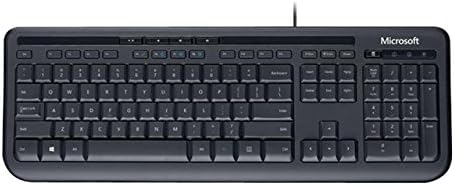
Figear 2: Suas gu h-àrd view of the keyboard layout
Tha an ìomhaigh seo a’ toirt seachad sealladh soilleir bho mhullach gu bonn view of the Microsoft Wired Keyboard, highlighting the full QWERTY key layout, function keys, numeric keypad, and the row of special hotkeys located above the function keys.
Standard Key Functions
- Iuchraichean alfa-àireamhach: Air a chleachdadh airson litrichean, àireamhan agus samhlaidhean a thaipeadh.
- Iuchraichean Gnìomh (F1-F12): Perform various tasks depending on the active application or operating system.
- Meur-chlàr àireamhach: Located on the right, for efficient data entry.
- Iuchraichean seòlaidh: Arrow keys, Home, End, Page Up, Page Down for cursor movement and scrolling.
- Iuchraichean Atharrachaidh: Shift, Ctrl, Alt, Windows key for combination shortcuts.
Special Keys (Hotkeys)
The keyboard features a row of dedicated hotkeys above the function keys for quick access to multimedia and system functions:
- Iuchraichean Smachd nam Meadhanan: Cluich/Stad, Stad, Trac Roimhe, An ath Thrac.
- Iuchraichean Smachd-toirte: Balbh, Lùghdaich an tomhas-lìonaidh, Suas an tomhas-lìonaidh.
- Iuchair an àireamhair: Instantly launches the system's calculator application.
- Other Programmable Keys: Some models may include additional keys that can be customized through operating system settings or Microsoft keyboard software (if available).
Familiarize yourself with these keys to enhance your productivity.
5. Cumail suas
Proper care and maintenance will extend the life of your Microsoft Wired Keyboard.
- Glanadh:
- Dì-cheangail am meur-chlàr bhon choimpiutair agad mus glan thu e.
- Cleachd clò bog gun lint gu h-aotrom dampair a nighe le uisge no le fuasgladh glanaidh tlàth, neo-sgrìobach.
- Wipe the surface of the keys and the keyboard casing.
- Airson duslach is sprùilleach eadar iuchraichean, cleachd èadhar teannaichte.
- Na dean immerse the keyboard in water or use harsh chemicals.
- Seasmhachd frasadh: While the keyboard is splash-resistant, it is not waterproof. Avoid exposing it to excessive liquids. In case of a spill, disconnect immediately, wipe dry, and allow to air dry completely before reconnecting.
- Stòradh: Nuair nach eilear ga chleachdadh airson ùine mhòr, stòraich am meur-chlàr ann an àrainneachd ghlan, thioram air falbh bho theodhachd anabarrach.
- Cùram càball: Seachain lùban no caolaidhean biorach anns a’ chàball USB gus casg a chur air milleadh.
6. A ’dèanamh trioblaid
Ma thachras tu ri duilgheadasan leis a’ mheur-chlàr agad, thoir sùil air na duilgheadasan agus na fuasglaidhean cumanta a leanas:
| Trioblaid | Adhbhar a dh’fhaodadh a bhith ann | Fuasgladh |
|---|---|---|
| Meur-chlàr nach eil a 'freagairt | Loose USB connection, incorrect USB port, driver issue. | Dèan cinnteach gu bheil an càball USB ceangailte gu tèarainte ri port USB a tha ag obair. Feuch port USB eile. Ath-thòisich do choimpiutair. |
| Iuchraichean sònraichte nach eil ag obair | Debris under the key, key mechanism damage. | Use compressed air to clear debris. If the key is physically damaged, contact support. |
| Hotkeys not functioning | Software conflict, operating system settings. | Ensure your operating system is up to date. Check keyboard settings in your OS control panel. |
| Unexpected behavior after liquid exposure | Internal components affected by liquid. | Immediately disconnect the keyboard. Allow it to dry completely for at least 24-48 hours in a well-ventilated area before attempting to reconnect. If issues persist, the keyboard may be damaged. |
If the problem persists after trying these solutions, please refer to the Support section.
7. Sònrachaidhean
Detailed technical specifications for the Microsoft Wired Keyboard (Model ANB-00021):
| Feart | Mion-fhiosrachadh |
|---|---|
| Modail Àireamh | ANB-00021 |
| Brand | Microsoft |
| Teicneòlas ceangail | USB (Wired) |
| Tuairisgeul meur-chlàr | Standard QWERTY, USB |
| Feart sònraichte | Splash-dhìonach |
| Dath | Dubh |
| Àireamh de dh'Iuchraichean | 600 (Note: This number is as per product specifications and may refer to total keypresses lifespan or a specific internal metric, not physical keys.) |
| Backlighting meur-chlàr | None (Single Color support listed, but typically implies no backlighting for this model) |
| Stoidhle | Ùr-nodha |
| Stuth | Plastaig |
| Meudan toraidh (L x W x H) | 8.66 x 3.15 x 1.18 òirleach (timcheall air 22 x 8 x 3 cm) |
| Cuideam nì | 1.31 not (timcheall air 0.59 kg) |
| Innealan co-fhreagarrach | Laptop, PC, Tablet, Smartphone (via appropriate adapters if needed) |
| Dèanadair | Microsoft |
| Ceann-latha Ri fhaighinn an-toiseach | 9/2011/XNUMX |
8. Barantas agus Taic
For warranty information and technical support regarding your Microsoft Wired Keyboard, please refer to the official Microsoft support channels.
- Taic air-loidhne: Tadhail air Taic oifigeil Microsoft website for FAQs, troubleshooting guides, and driver downloads.
- Neach-taice Fios: For direct assistance, contact Microsoft customer service through their provided contact methods (phone, chat, email).
- Dearbhadh air ceannach: Cùm dearbhadh ceannach an-còmhnaidh airson tagraidhean barantais.
Specific warranty terms and conditions may vary by region and purchase date. Please consult the documentation included with your product or the Microsoft website for the most accurate and up-to-date warranty details.